
Configure SMS Template & Content
Create SMS template for Indian Orgs (as per TRAI Regulations)
TRAI has formulated certain guidelines to enhance control, prevent any fraudulent practice and provide greater safety to the end customer. As per the guidelines, the orgs that want to communicate with their customers will now have to register themselves with Telecom Operators for sending SMS. The system is governed using Blockchain technology also known as Distributed Ledger Technology (DLT).
Prerequisites
- An Org should register itself on any of the DLT platforms and share the Entity ID with Capillary.
Notes
- To make an org DLT enabled, raise a ticket and tag the Engage+ Sustenance team requesting to enable the DLT settings.
- For existing Orgs, this will be taken care of as part of the Feature rollout process.
- DLT settings have to be enabled only for Indian clients.
- An org should register Headers/ Sender IDs on the DLT platform. Multiple sender IDs can be registered under an Entity ID depending on the type of message.
NoteOnce the Header is registered it needs to be shared with the Capillary Gateways team ([email protected]). The Gateways team will do the Domain and Gateway mapping. This step is internal to Capillary.
- Org needs to register Content templates in the DLT platform.
Message categories
For DLT-enabled organizations, three SMS message categories are available. The table below lists each category along with its description.
Message categories | Description |
|---|---|
Promotional | Any message sent with an intention to promote or sell a product, goods, or service. Service content mixed with promotional content is also treated as promotional. Sender ID of 3-9 numeric digits needs to be used. Promotional messages sent to non-registered customers after receiving their consent will come under the category of Service Explicit. Note: Promotional messages can only be sent between 10:00 AM and 9:00 PM IST. Any messages triggered outside this window will not be processed. It is recommended to complete all promotional campaigns by 8:00 PM IST to avoid delivery issues. |
Service Explicit | Any service message which doesn’t fall under the category of service message (inferred consent) will be considered a Service explicit message. To send such messages, the Sender ID of 3-9 alphabetic characters needs to be used. Promotional messages sent to registered customers after receiving their consent will come under the category of Service Explicit. |
Service-Inferred/Implicit | Any message, arising out of the customer's actions or their relationship with the sender, that is not promotional, and is not in the interest of the customer to block. A sender ID of 3-9 alphabetic characters needs to be used. Notifications such as order confirmations, payment alerts, purchase updates, website/app login OTP, and other vital updates can be transmitted from Service Implicit route. |
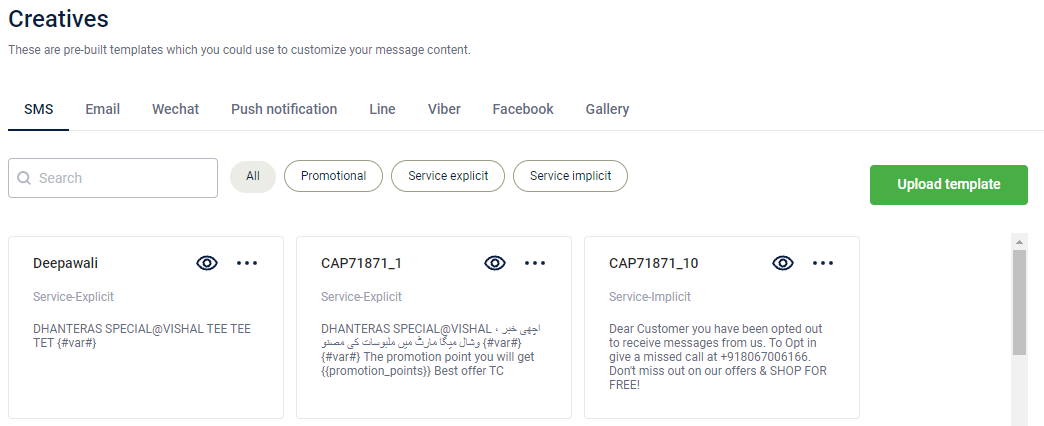
Uploading SMS template
Prerequisites:
- You can use only the templates that are currently active and approved by the DLT Portal.
- Existing templates with the same template ID will be overridden. For example, when you change a message related to a template ID in excel, it overrides the one which is in Engage+.
- Different DLT portals act differently and hence they can provide different CSV files. These may include whitespaces, curly braces({}), quotes(“”) or anything. Engage+ will take care of such things and trim the final file accordingly.
- The CSV file must include specific mandatory fields. The table below provides the details of each field.
Fields | Description |
|---|---|
Template ID | Unique ID of the template. It is a 19 or 20 digit unique numeric identifier which is provided by the DLT portal. Note: To avoid shortening your value(truncation), you should change the type to text. |
Template name | Unique name of the respective template. |
Type | Specify whether the template is promotional, service explicit or service implicit. |
Header | Sender ID used for broadcasting each message. |
Registered DLT | It consists of the registered DLT portal that is used for the template. For example, Vodafone Idea or Jio. |
Approval Status | The current status of the template from the DLT’s end - approved, pending, or rejected. |
Actual Status | It specifies if the template is active or inactive in the DLT portal. |
Template message | It contains the actual template message that the end-user will receive. |
To upload an SMS template, follow the given steps:
- On the dashboard, select Creatives and then select the SMS tab.
- Select Upload template.
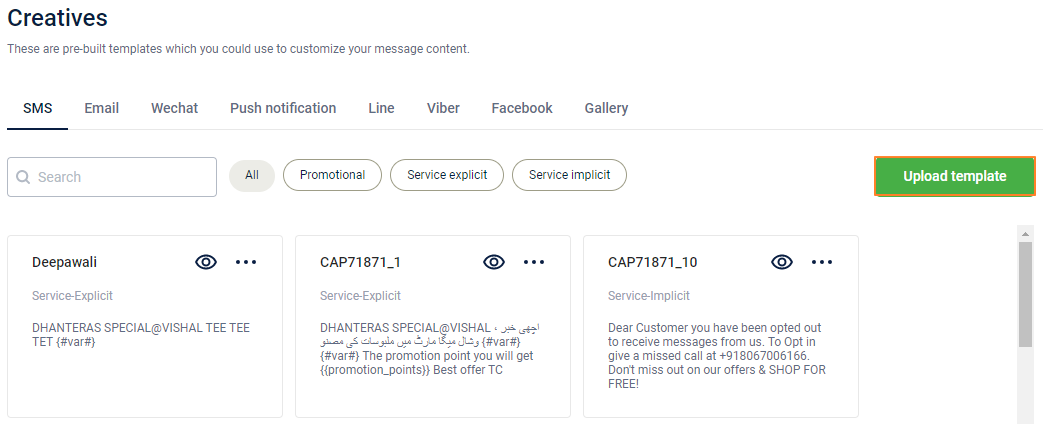
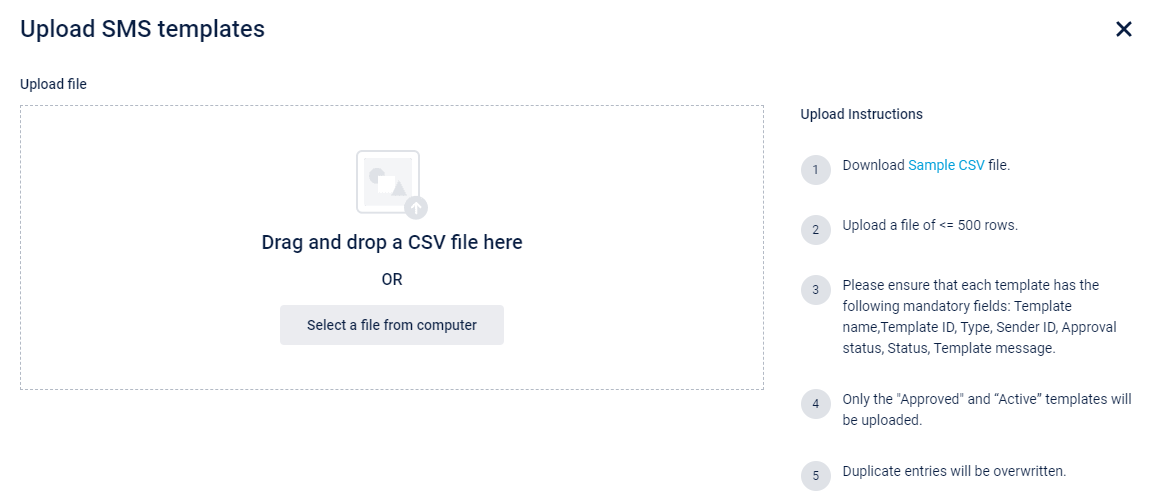
- Upload the CSV file with all the required details. You can upload only DLT-approved content, so ensure that the file contains only DLT-approved content templates.
Notes
- You can upload SMS templates during the campaign creation flow. When creating the message, click +Creative, navigate to the SMS section, and select any of the approved templates. For more information refer to create a message documentation.
- Only the templates with valid Template name, Template ID, Type, Sender ID, Approval status, Status, Template message will be saved in Engage+.
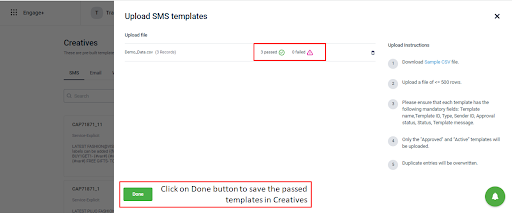
- Click Done.
If there is an error in any row of the uploaded file, the template in that row will not be saved in the Capillary system. However, the file containing error details can be downloaded to check the errors.
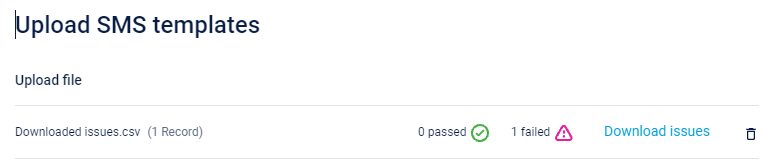
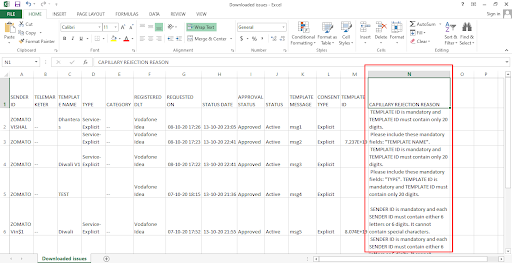
Using approved templates
- Once the file is successfully uploaded all the templates will be shown in Creatives > SMS.
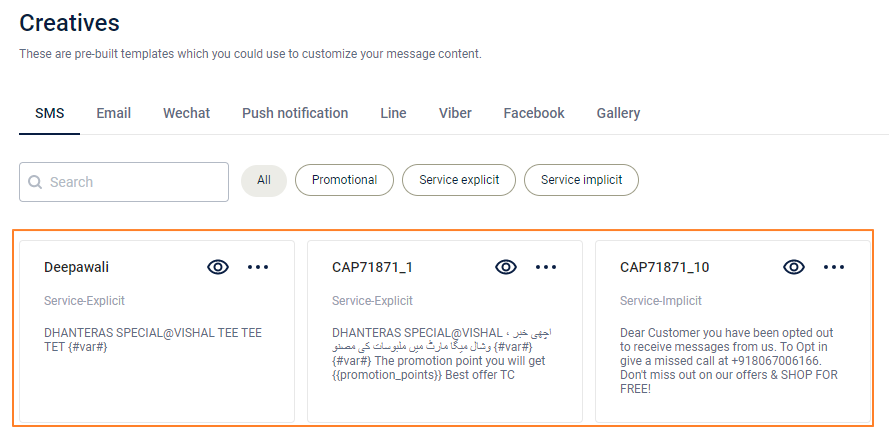
Note
You can use approved SMS templates during the campaign creation flow. When creating the message, click +Creative, navigate to the SMS section, and select any of the approved templates. For more information refer to create a message documentation.
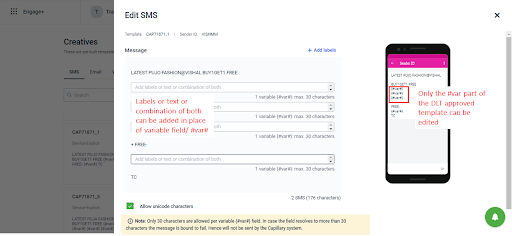
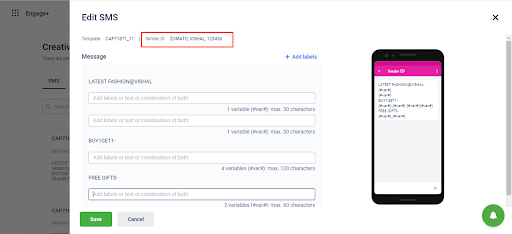
- Selecting the template will open the edit SMS screen. However, in the edit SMS screen, only the variable portion of the template can be edited.
- You can replace the variables with static text or labels, but a maximum of 30 characters are allowed per variable {#var#} field. Hence, while adding text, users will be able to add a maximum of 30 characters. In case labels are used and a variable field resolves to more than 30 characters the message will fail for sure. Hence, the message for that user will be skipped by Engage+.
Note
If length for any dynamic variable is more than 30 characters but less than 60, use {{var}} two times consecutively like {{var}}{{var}}. In that case, Engage+ will not skip the message. If the length is more than 60 characters but less than 90, use {{var}}{{var}}{{var}} and so on.
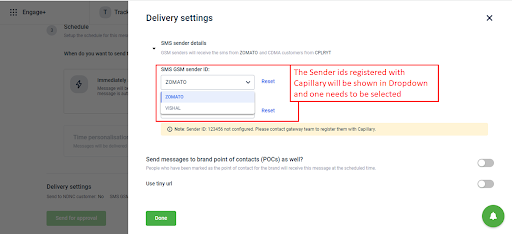
- You can map a content template against multiple sender IDs. The DLT portal allows this. In such a case the user will have to select one of the sender ids that’s tagged to the content from the delivery settings section
- If any of the sender IDs tagged to the content is not shown in the dropdown it means that the sender ID is not registered with Capillary. The gateways team should be contacted to have that sender ID registered with Capillary.
View the details of failed messages (if any)
Details on the percentage of message failures with corresponding reasons will be available both on Engage+ Message Summary Page and Member Care.
Messages might not get delivered due to the following reasons.
- Error related to DLT template
- Error related to Sender ID
- Customers in the NDNC list
Create SMS template for non-Indian organizations
Before creating SMS templates for non-Indian organizations, it’s important to understand that SMS content regulations vary by country. Many regions require brands to validate and authorize their SMS content before sending messages.
For example, some countries mandate a Letter of Authorization (LOA), where brands must declare their approved sender IDs and message content to the SMS vendor. In other regions, there are minimal content restrictions, and brands may only need to register their sender ID.
Ensure that your organization complies with the applicable regional SMS policies. Once that is done you can create a ticket to Capillary Gateway team to configure the Domain and Gateway mapping.
To create an SMS template for other organizations (non-Indian organizations) follow the given steps:
- On the dashboard, click on the Creatives tab and then navigate to the SMS tab.
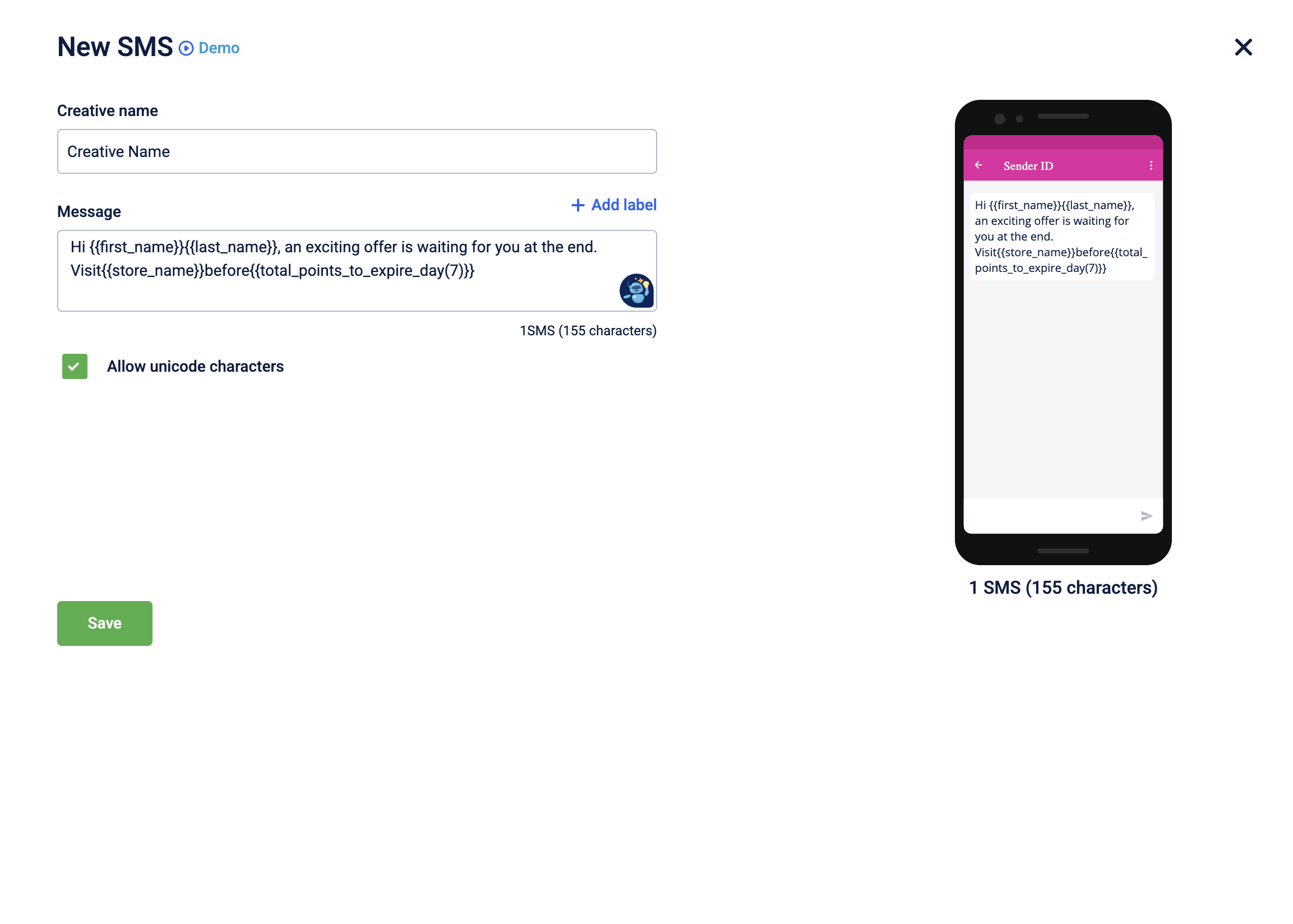
- In the Content section, click Create New.
- Enter the Message. Click +Add Label to use appropriate labels in your message. You can also use Liquid language in the messages. You can see a sample view of your message on the right panel, where a virtual mobile screen displays the text as you type. The character count is also shown as you enter the message.
NoteMake sure that all tags contain data. Inconsistency in the tags will result in a validation error.

- If you want to include special characters in your message content, select the Allow Unicode characters checkbox.
- Select Save.
Notes
- You can create SMS templates during the campaign creation flow. When creating the message, click +Creative, navigate to the SMS section, and selectcreate new. For more information refer to create a message documentation.
- Optout tag is compulsory to include. To know more about each tag, see the Supported Labels across Engage+.
- For information on Generate OTP APIs, refer to the API documentation.
Updated 7 days ago