
Split Audience Group
Audience split lets you divide an existing audience list into smaller, randomly assigned sub-groups, so you can run different campaign variants, test different messages, or control group comparisons, all on the same base audience.
How audience splitting works
When you split an audience, each user is assigned to a group randomly based on the percentages you configure. The system converts your configured percentages into ranges on a 0–99 scale and assigns each user by generating a random number for them.
For example, a 30 / 40 / 30 split works like this:
| Range | Group | Share |
|---|---|---|
| 0 – 29 | Bag A | 30% |
| 30 – 69 | Bag B | 40% |
| 70 – 99 | Bag C | 30% |
Each user is assigned once and remains in that group. Users are not moved, swapped, or rebalanced after they are assigned.
What this means for actual group sizes
Since users are assigned randomly and independently, the actual count in each group will approximate your configured percentage but may not match it exactly.
- Smaller audiences → higher drift
- Larger audiences → more accurate distribution
Example: Drift in a 50/50 split
| Audience Size | Expected | Typical Drift (±) | Range You'd See |
|---|---|---|---|
| 20 users | 50% | ±11% | 39% – 61% |
| 100 users | 50% | ±5% | 45% – 55% |
| 1,000 users | 50% | ±1.6% | 48.4% – 51.6% |
| 10,000 users | 50% | ±0.5% | 49.5% – 50.5% |
| 100,000 users | 50% | ±0.16% | 49.84% – 50.16% |
Example: For a 30/70 split (smaller target drifts more in relative terms):
| Audience Size | Expected | Typical Drift (±) | Range You'd See |
|---|---|---|---|
| 20 users | 30% | ±10% | 20% – 40% |
| 100 users | 30% | ±4.6% | 25.4% – 34.6% |
| 1,000 users | 30% | ±1.4% | 28.6% – 31.4% |
| 10,000 users | 30% | ±0.46% | 29.54% – 30.46% |
| 100,000 users | 30% | ±0.14% | 29.86% – 30.14% |
Use cases
Targeting different channels from the same audience list Suppose you are running a festive campaign for an audience of 10,000 users and want to reach some of them via SMS and the rest via push notification without building two separate lists manually. Split the audience 50/50, assign one group to your SMS campaign and the other to your push notification campaign. Both campaigns go out from the same base list, with no overlap between recipients.
Scoping a limited reward to a subset of your audience Suppose you have a loyalty voucher that you want to distribute to only a portion of your audience, not the entire list. Instead of manually filtering users or creating a new list, split the audience 70/30 and run the voucher campaign only on the 30% group. The 70% group remains unused for this campaign. This gives you a clean, effort-free way to scope a reward without modifying your original audience list.
Split an audience group
Given below are the steps to split an audience list:
-
Click on the audience list you want to split.

-
Click on the horizontal ellipses (three dots).
-
Select the Split Audience option.
-
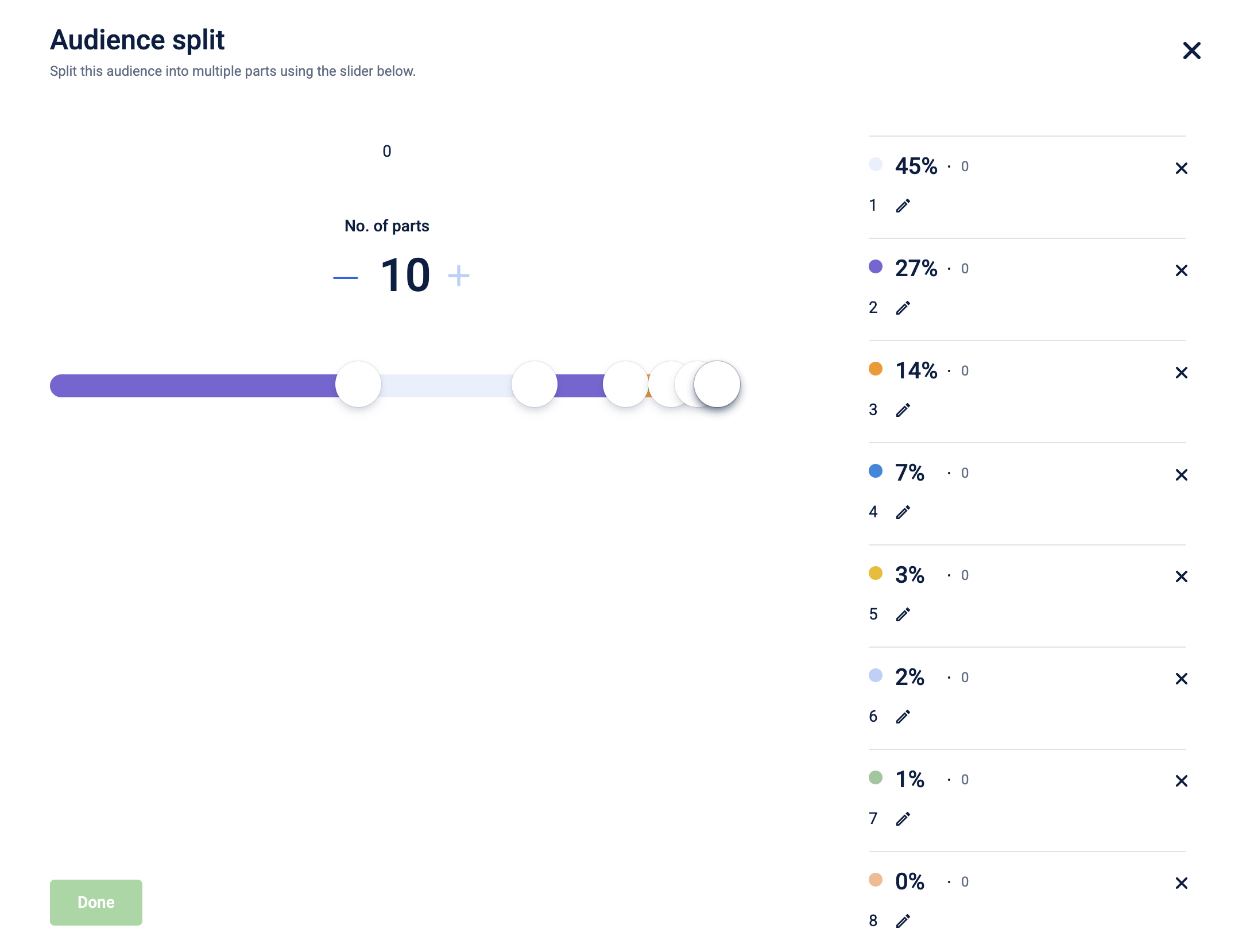
Set the Split Criteria: On the split audience screen, you can:
-
Choose the number of splits (up to 10).
NoteThe maximum audience split count is set to 10. It can be increased based on your requirements. To request this configuration, kindly raise a Jira ticket to the Tech team.
-
ii. the percentage for each split.
 Notes
Notes- The total percentage across all splits must equal 100%.
- There will be no changes to the original list from which you have created split audience.
- The splitted audience group cannot be combined back. You will also not get option to combine these lists when selecting the audience while configuring the campaign.
-
-
Use the pencil icon on the right-hand pane to rename each audience group.

-
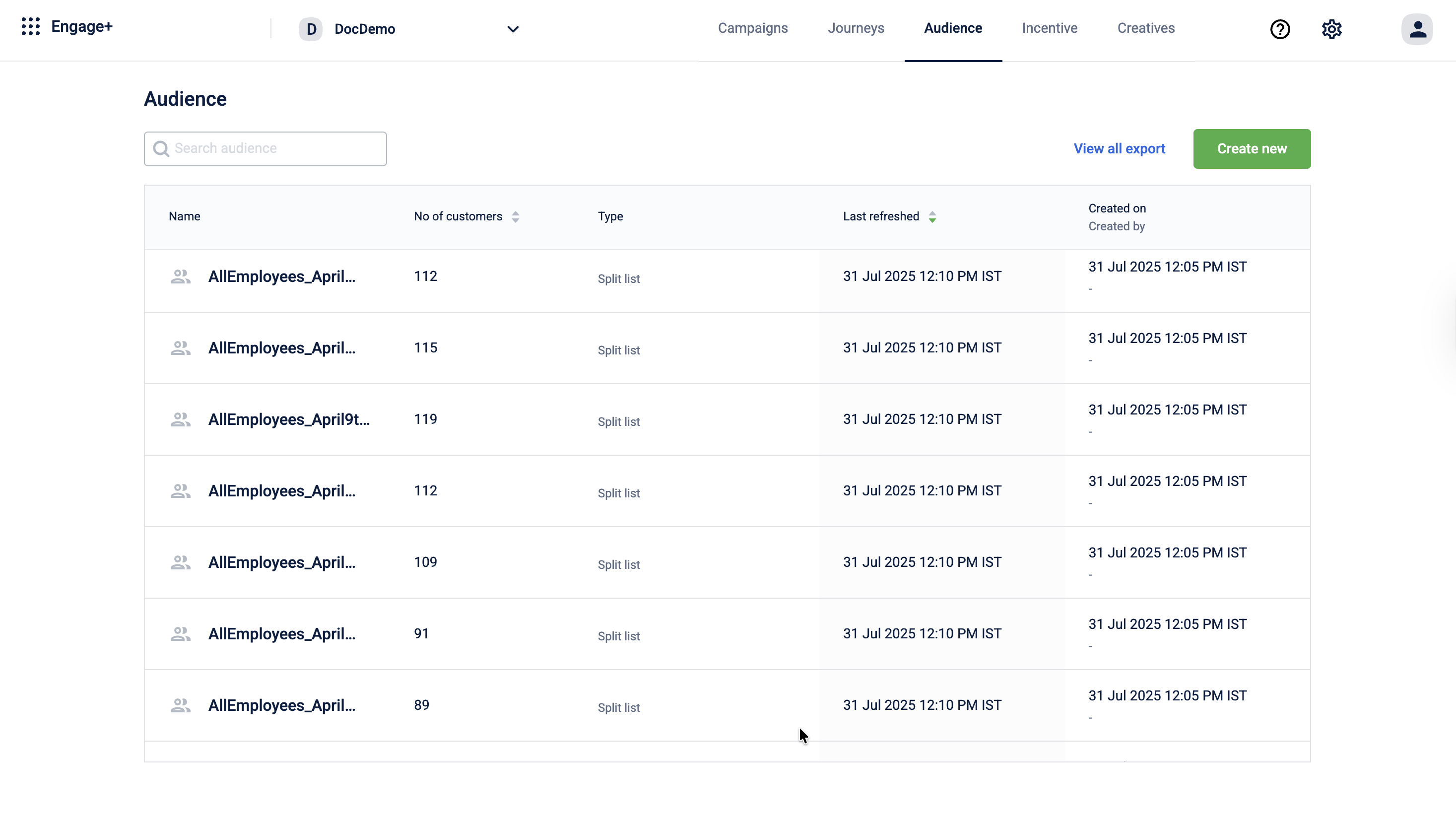
Select Done. The new audience lists are created automatically and appear on the audience listing page. You can identify split audiences by the Type column, which is labeled as Split list.
Updated 3 months ago