
Archive Campaigns
Archive campaigns to remove them from the default campaign list. Archived campaigns are hidden from the default view, but their data remains available in reports and analytics. You can unarchive a campaign at any time.
NoteCampaign archival is not enabled by default. Create a Jira ticket to the Product Support Team to enable it for your organization.
Archiving a campaign
Only campaigns with an Ended status are eligible for archival. You can't archive Live or Upcoming campaigns.
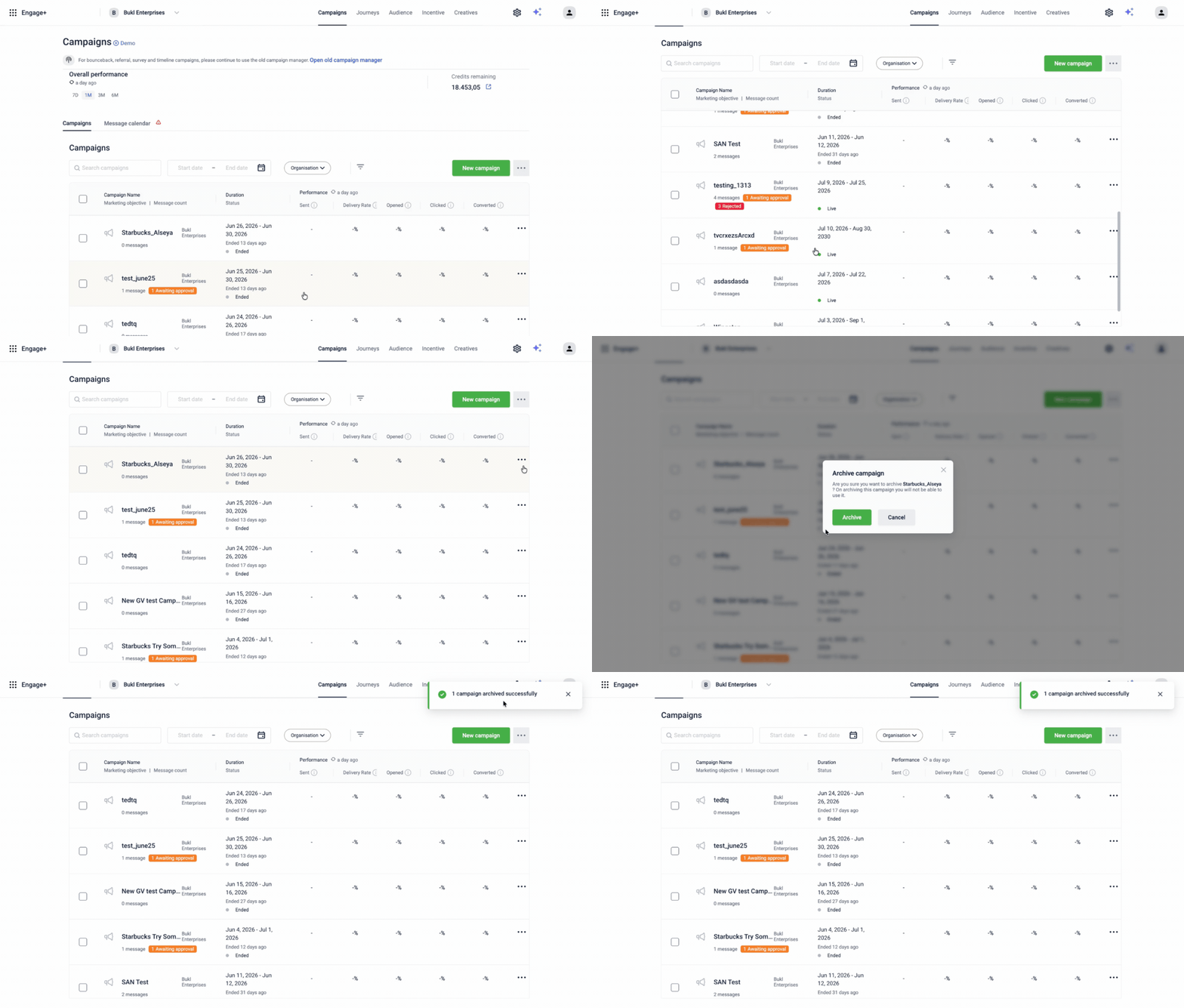
To archive a campaign, follow the given steps below:
- Navigate to Engage+ > Campaigns.
- Find the campaign you want to archive.
- Select the actions menu (⋮) for that campaign.
- Select Archive.
- In the confirmation dialog, select Archive to confirm.
The campaign is removed from the default campaign list and moved to the archived view. A success notification appears: Campaign archived.
Bulk archive campaigns
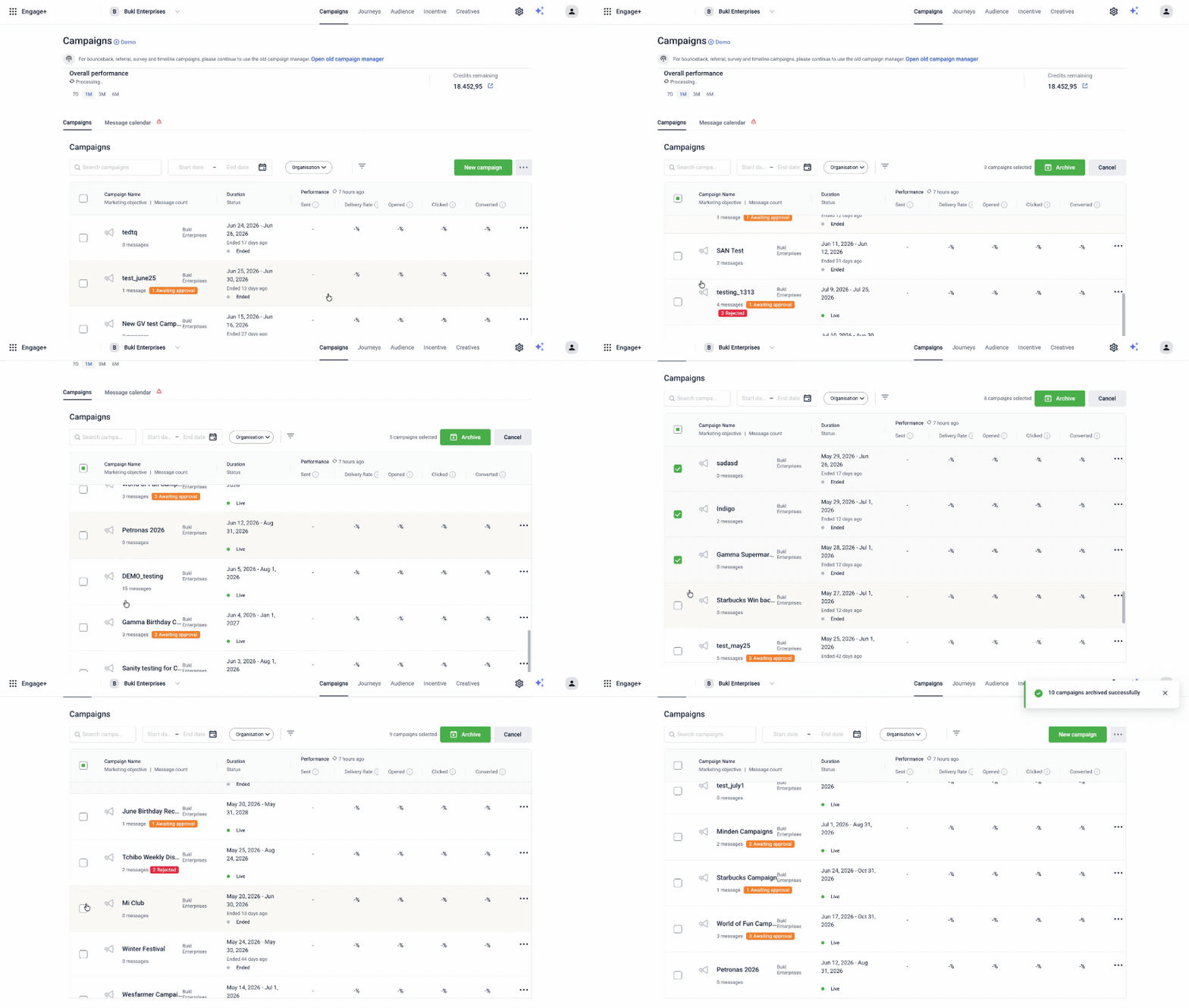
To archive bulk campaigns, follow the given steps below:
- Navigate to Engage+ > Campaigns.
- Select the checkboxes next to the campaigns you want to archive. You can select up to 200 campaigns at a time. If your selection includes Live or Upcoming campaigns, the Archive button remains disabled. Deselect ineligible campaigns before proceeding.
- Select Archive.
- In the confirmation dialog, review the count, then select Archive to confirm.
A success notification shows the number of campaigns archived.
View archived campaigns
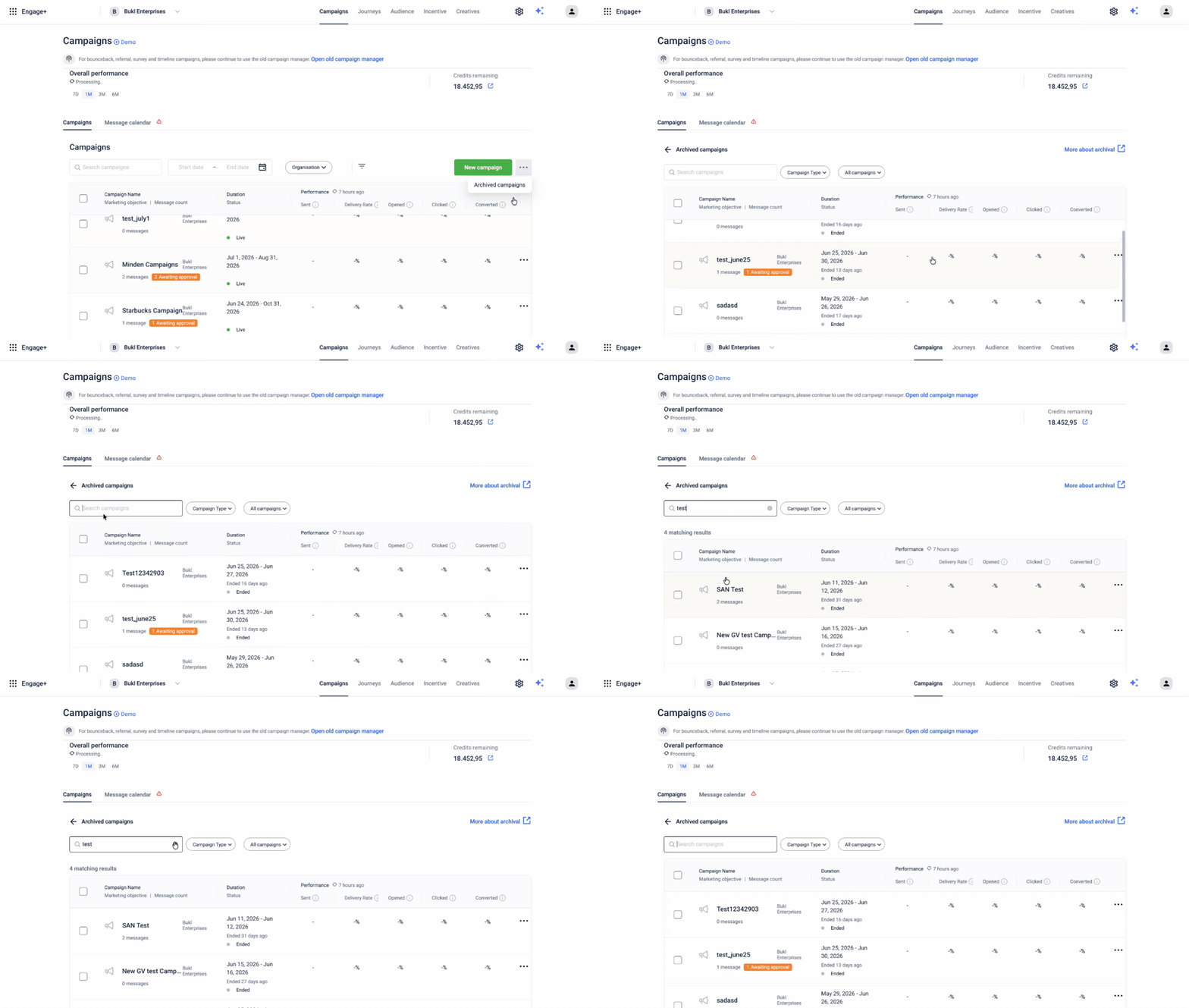
Archived campaigns don't appear in the default campaign list. To view them:
- Navigate to Engage+ > Campaigns.
- Select Archived from the filter options next to New campaign.
You can search and filter archived campaigns the same way you would active ones.
Unarchive a campaign
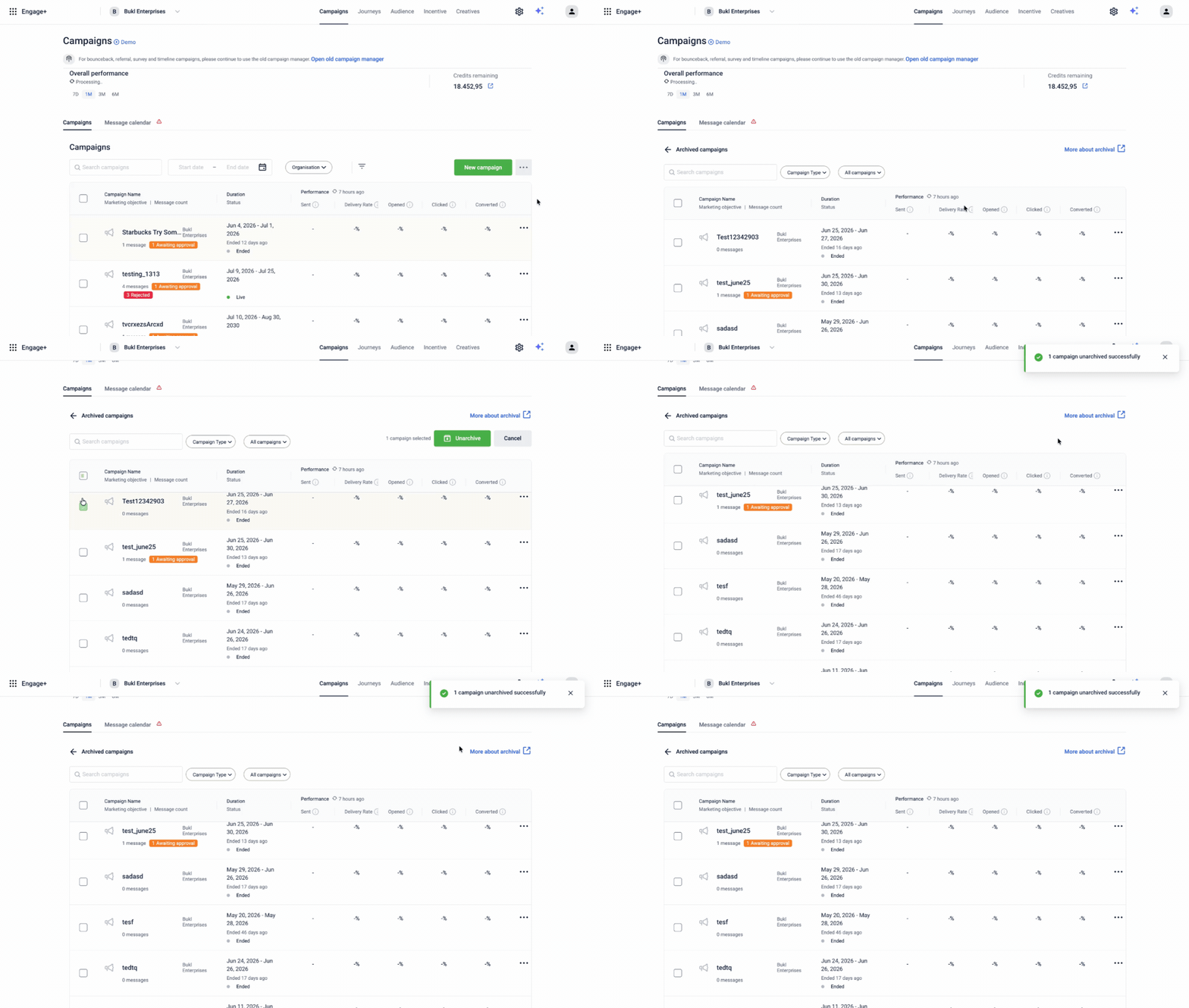
To unarchive a campaign, follow the given steps below:
- Navigate to Engage+ > Campaigns.
- In the status filter, select Archived.
- Find the campaign you want to unarchive.
- Select the actions menu (⋮) for that campaign.
- Select Unarchive.
- In the confirmation dialog, select Unarchive to confirm.
The campaign returns to the active campaign list. A success notification appears: Campaign unarchived.
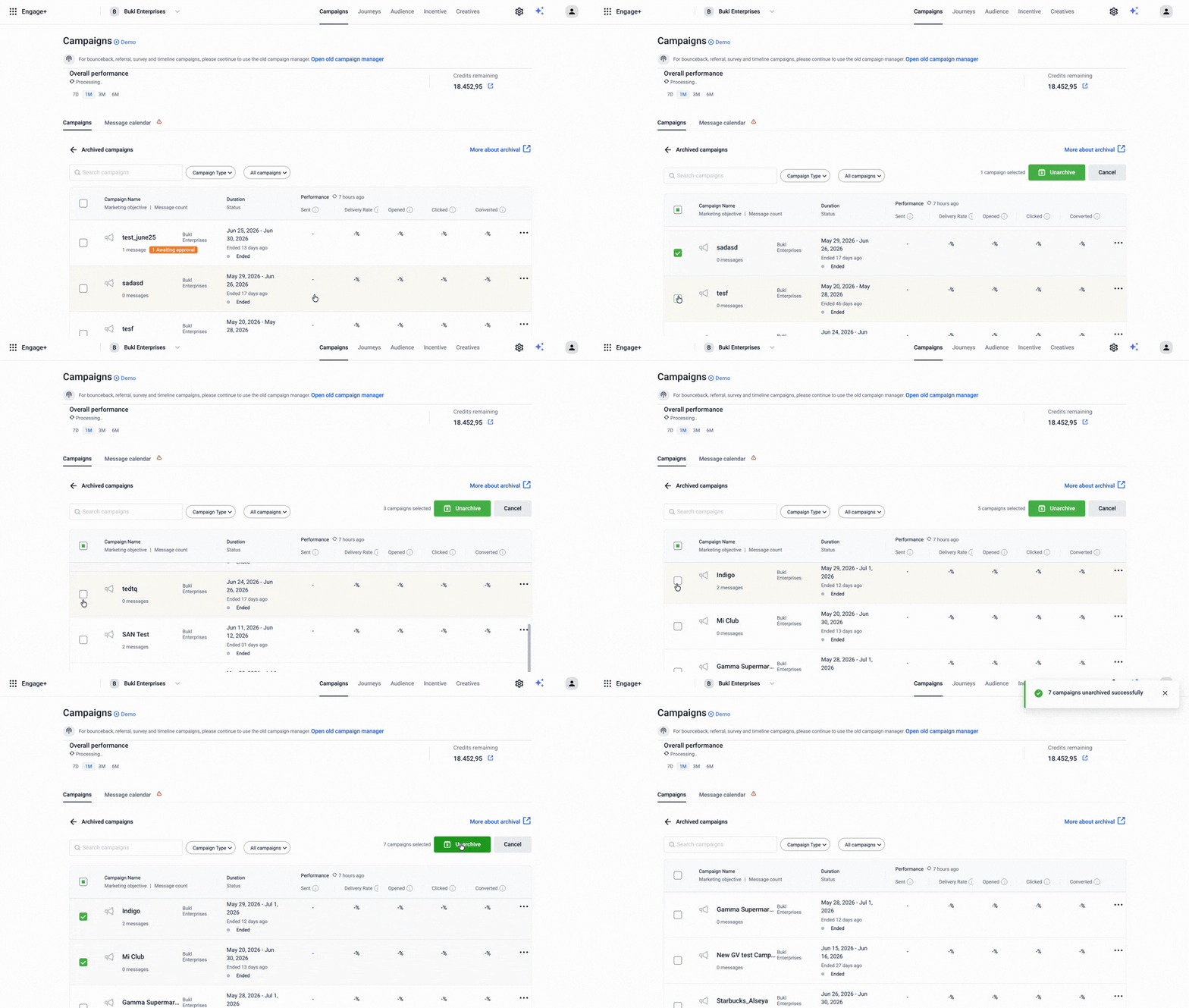
Bulk unarchive campaigns
To bulk unarchive a campaign, follow the given steps below:
- Navigate to Engage+ > Campaigns.
- In the status filter, select Archived.
- Select the checkboxes next to the campaigns you want to unarchive.
- Select Unarchive.
- In the confirmation dialog, select Unarchive to confirm.
A success notification shows the number of campaigns unarchived.
Updated 13 days ago