
View and Organize Dataflows
The Connect+ UI provides search, filter, and tag options to help you organize dataflows within your organization.
View dataflows
You can view all created dataflows on the Connect+ home page. Search for dataflows by name or filter them using tags.
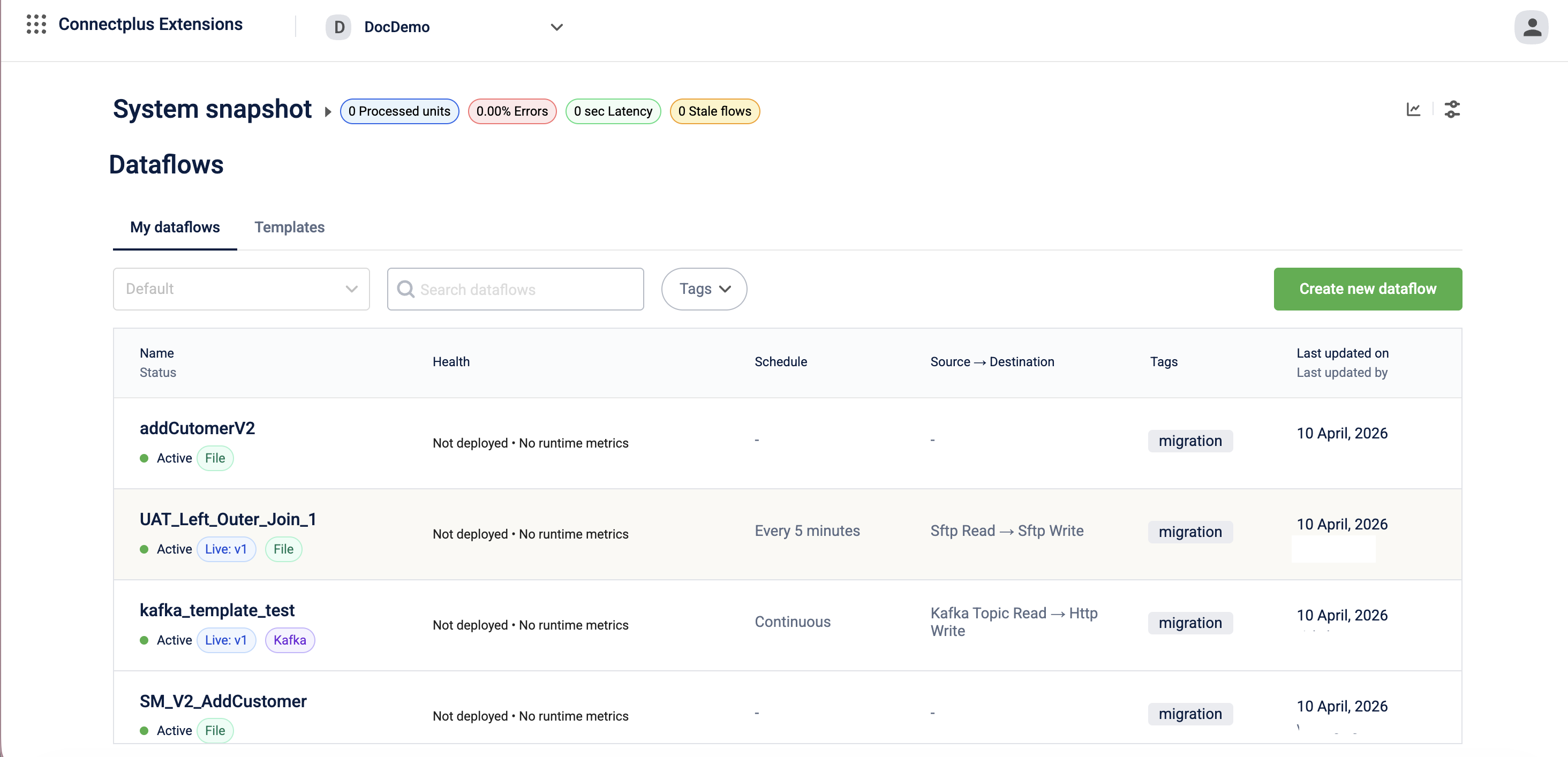
Organize dataflows using tags
A tag is a label used to categorize dataflows. It helps you group and easily locate related dataflows.
For example, you can assign the tag Transaction to all dataflows related to the transaction entity, making them easier to identify and manage.
A tag can be associated with multiple dataflows, but each dataflow can have only one tag. The maximum length of a tag is 15 characters.
To assign a tag, enter a label in the Tags field when creating or editing a dataflow in the Draft state.
Search and filter dataflows
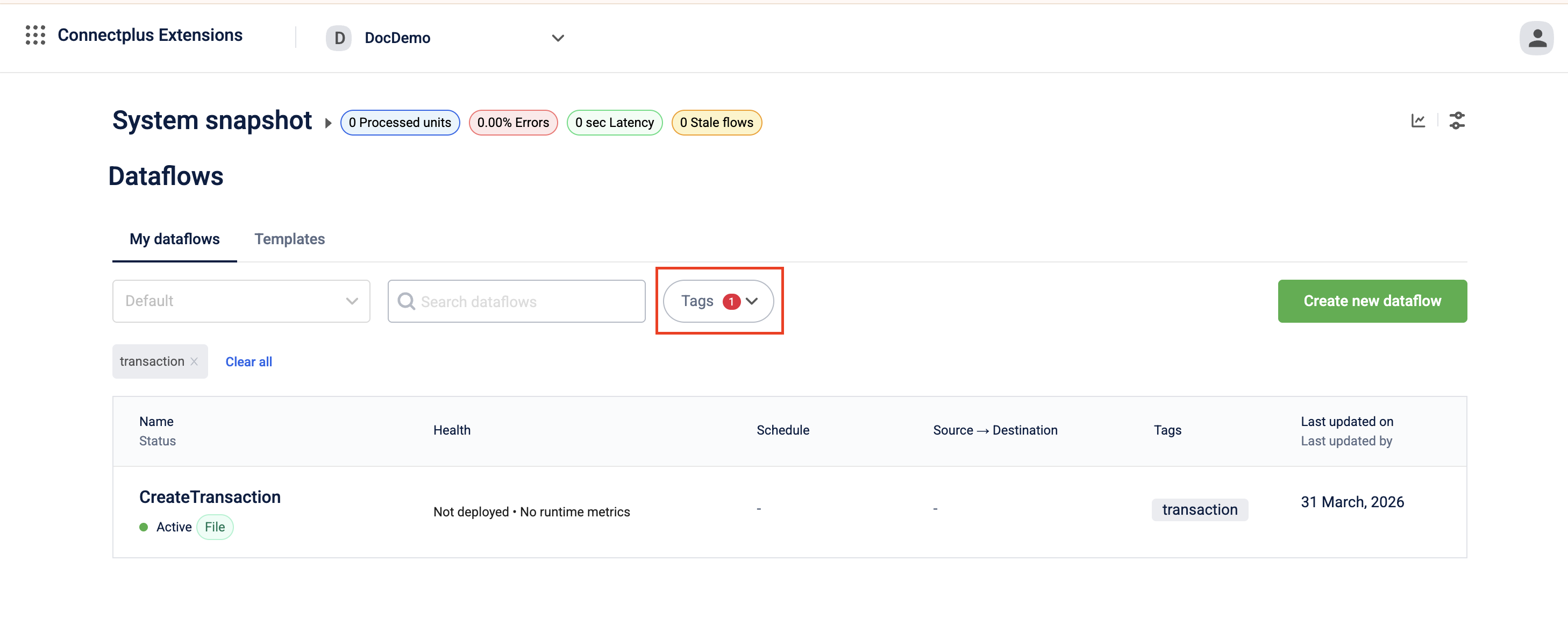
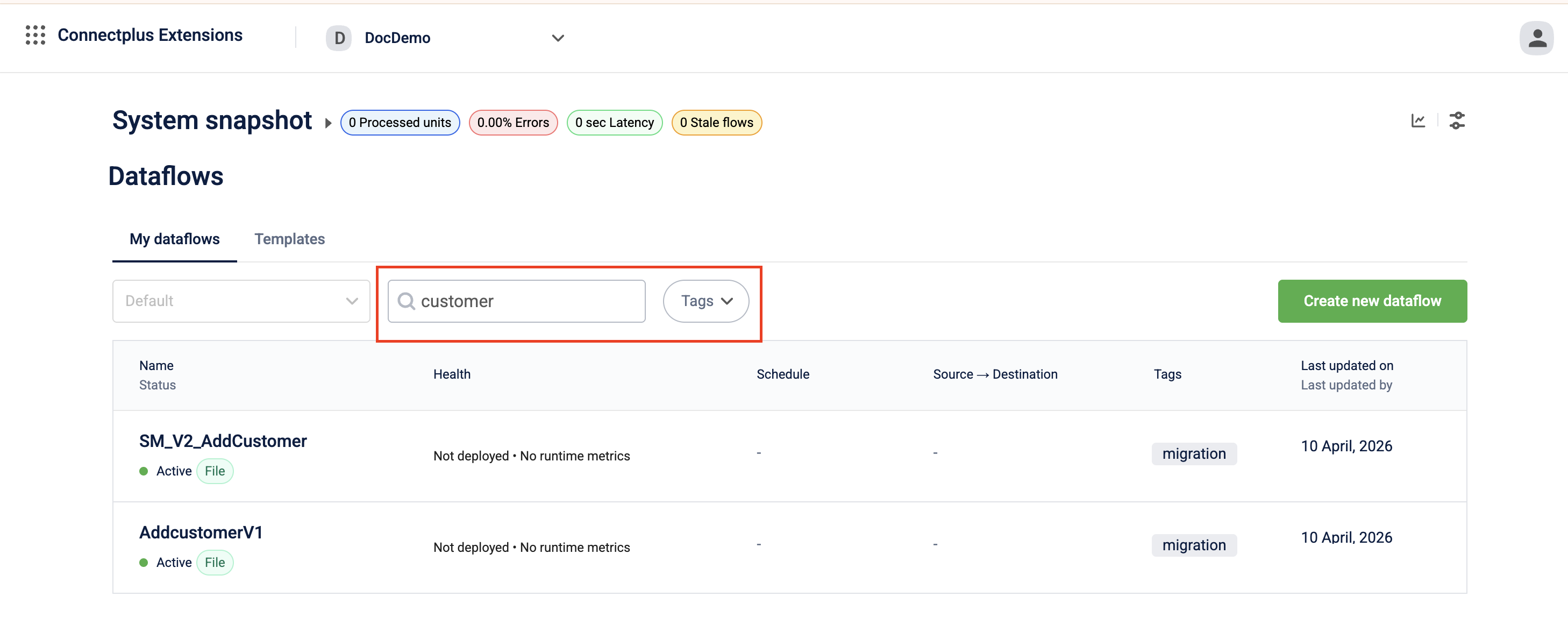
Use the search and filter options on the dataflow listing page to find specific dataflows. You can use text search, tags, or both.
Use Text search to enter the full or partial name of a dataflow in the search bar.
Use Tag to select a tag from the filter options and view only the dataflows associated with that tag.
View dataflow versions
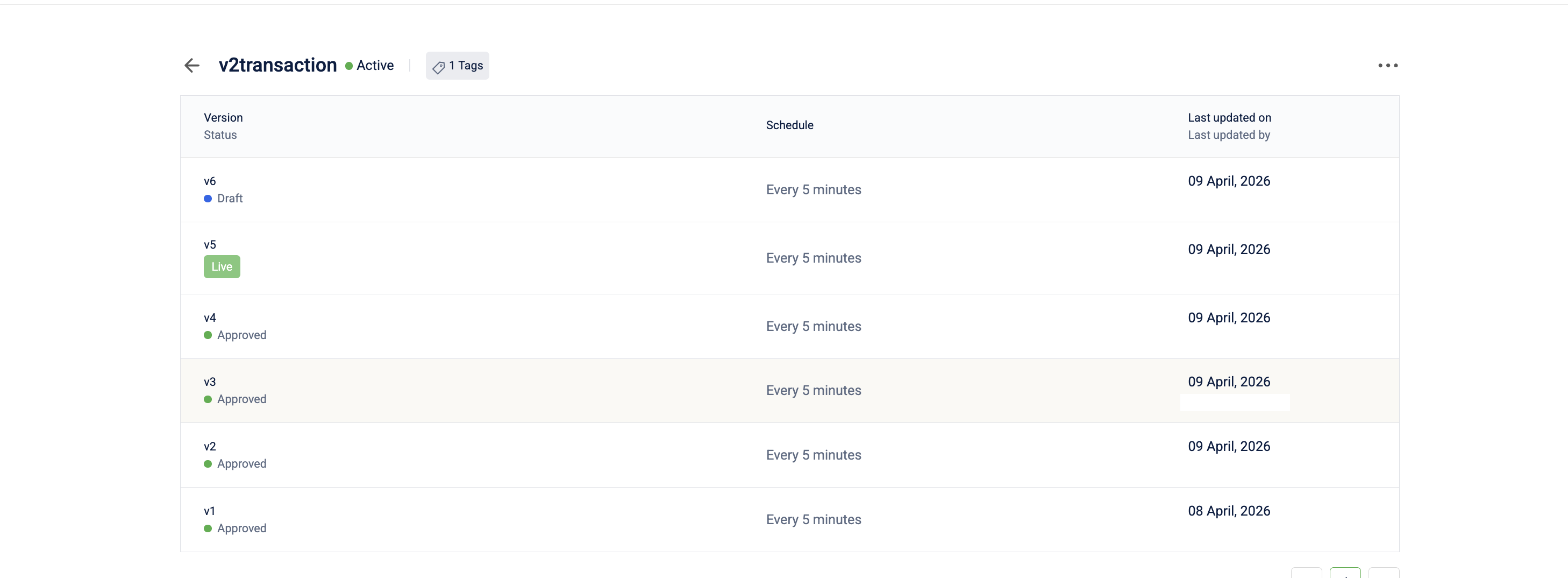
Connect+ dataflows are version-controlled. When you create a dataflow, it starts as version v1 in the Draft state.
When a version is approved, the system automatically creates the next version with an incremented number. The new version starts in the Draft state and is a copy of the approved version, ready for further updates.
Compare versions
You can compare code changes between any two versions of a dataflow.
-
In the dataflow canvas, click the version compare icon.
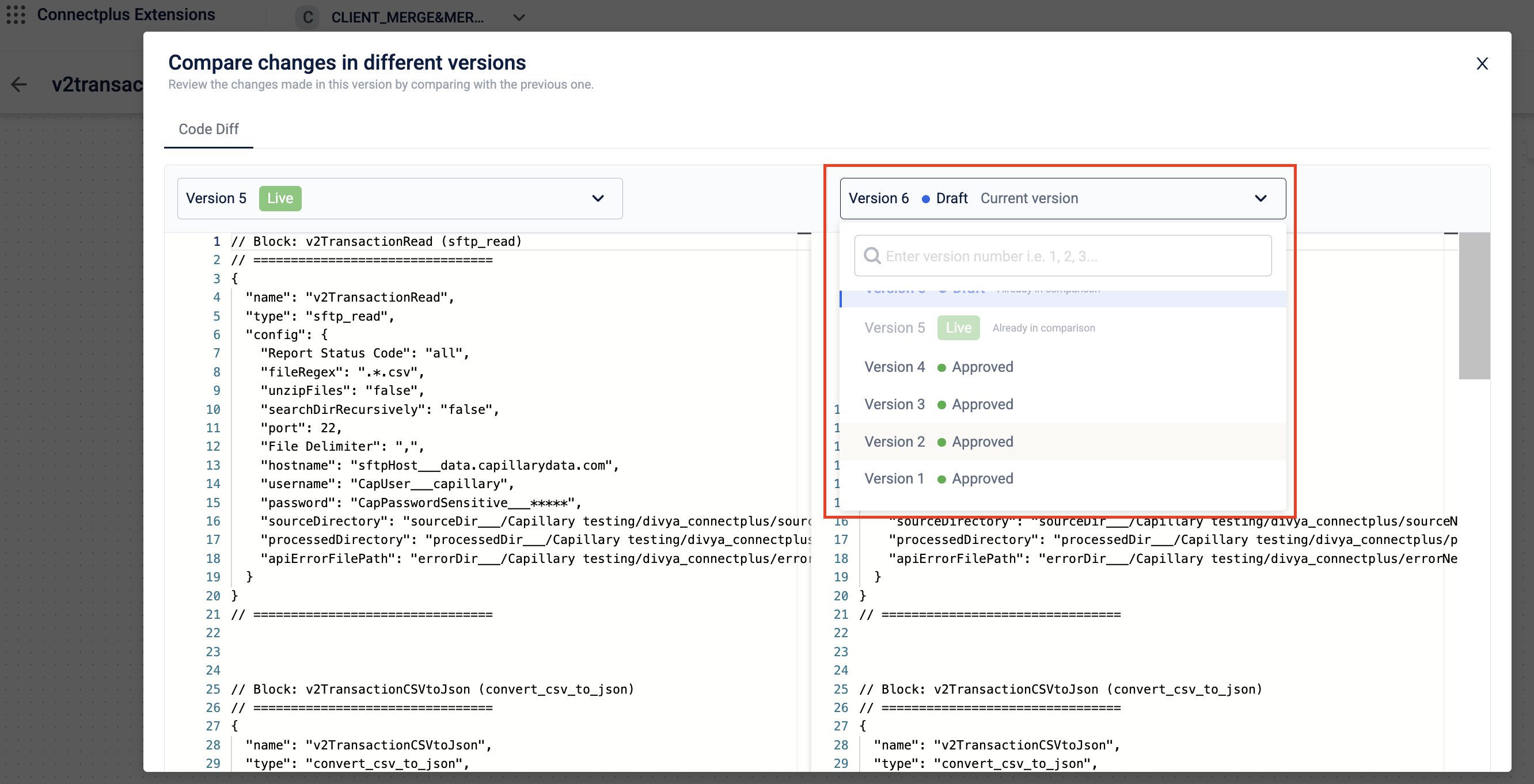
The compare versions window opens.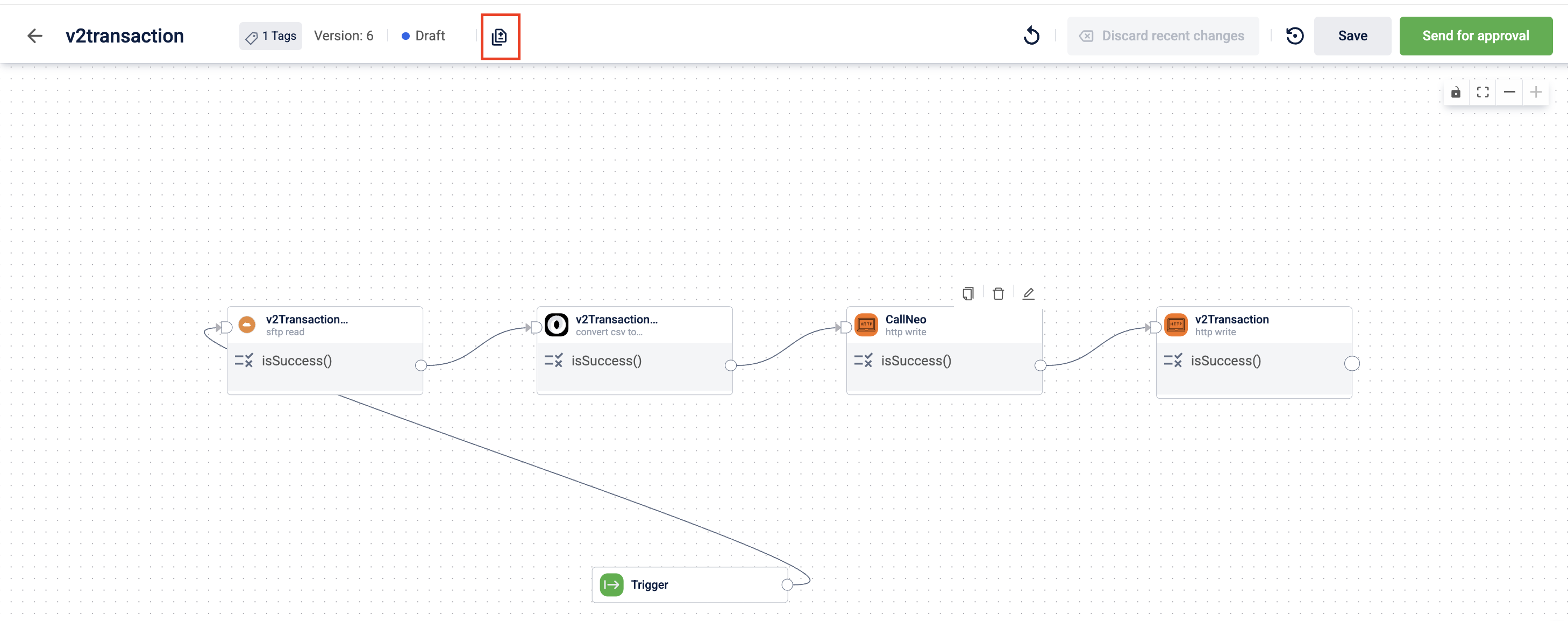
-
Use the drop-down to select the two versions you want to compare.
Note
The version compare icon is available only for dataflows in
Draftstate.
Restore a version
You can revert the current dataflow version to the most recently approved version.
-
In the dataflow canvas, click the restore version icon.
A Revert Rule modal appears.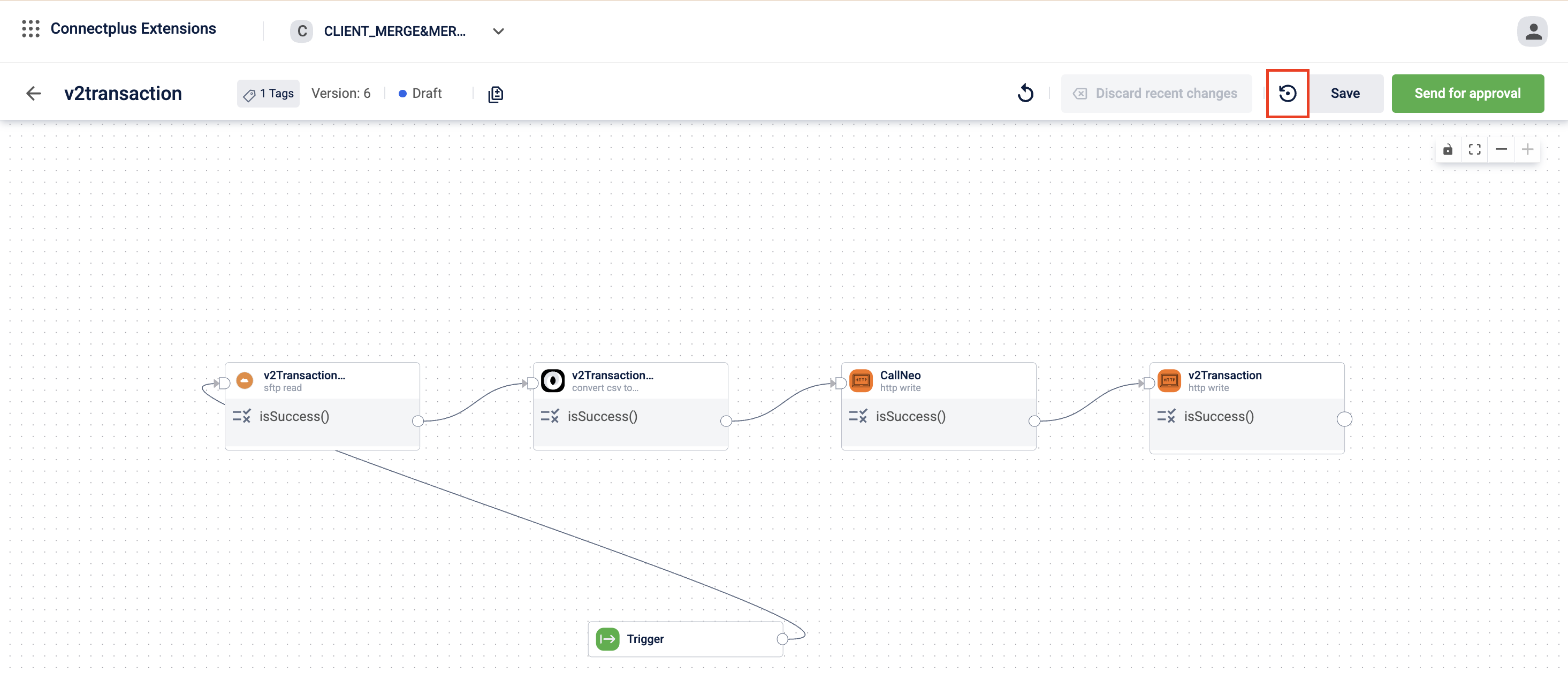
-
Enter the dataflow name on the confirmation modal.
-
Click Yes.
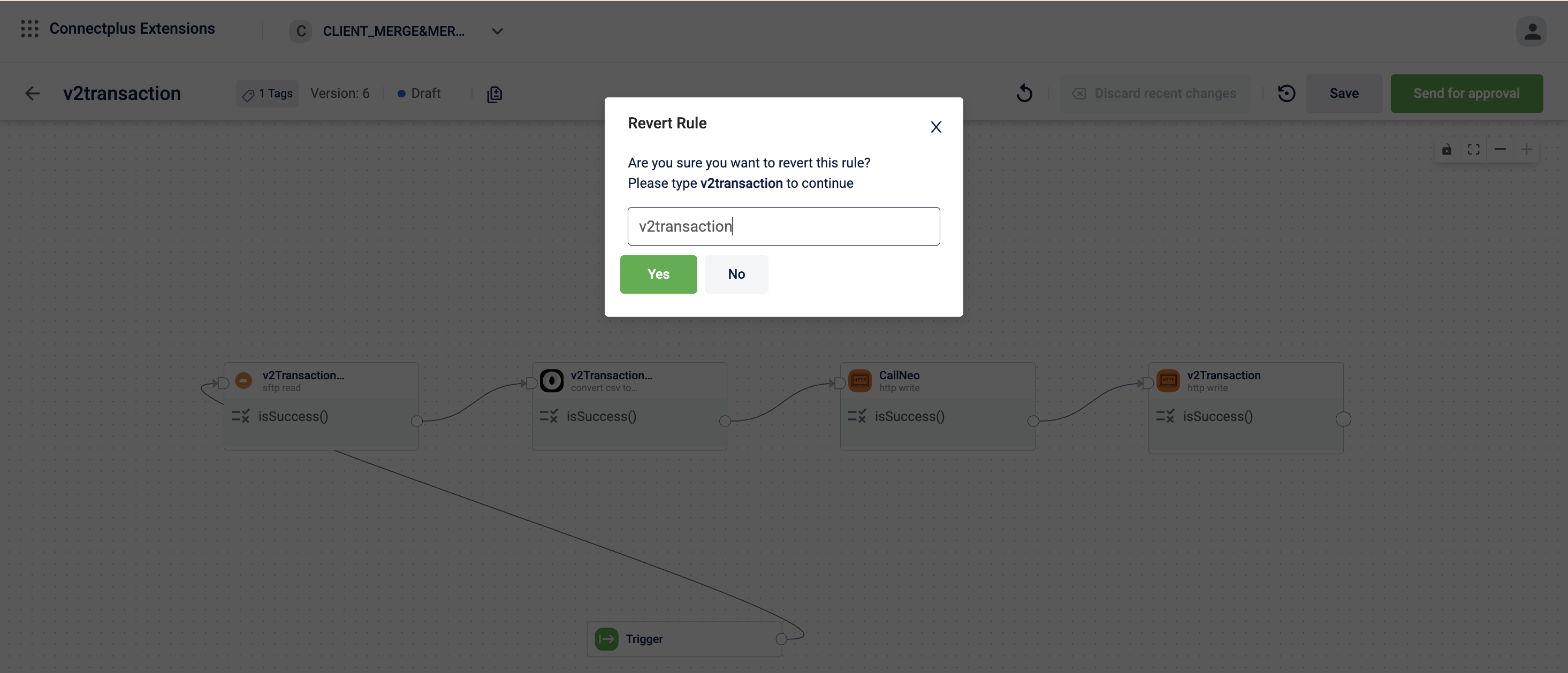
The version is restored to the most recently approved version.
Note
The restore version icon is available only for dataflows in Draft state.
Sync config updates
When config values are updated in Extension Configurations, you don't need to update each block individually. The sync option pulls the latest values from Extension Configurations to the dataflow in a single step, including updated credentials.
-
Open the dataflow in
Livestatus. -
Click the sync icon in the top-right corner of the canvas.
The Sync Configuration panel opens.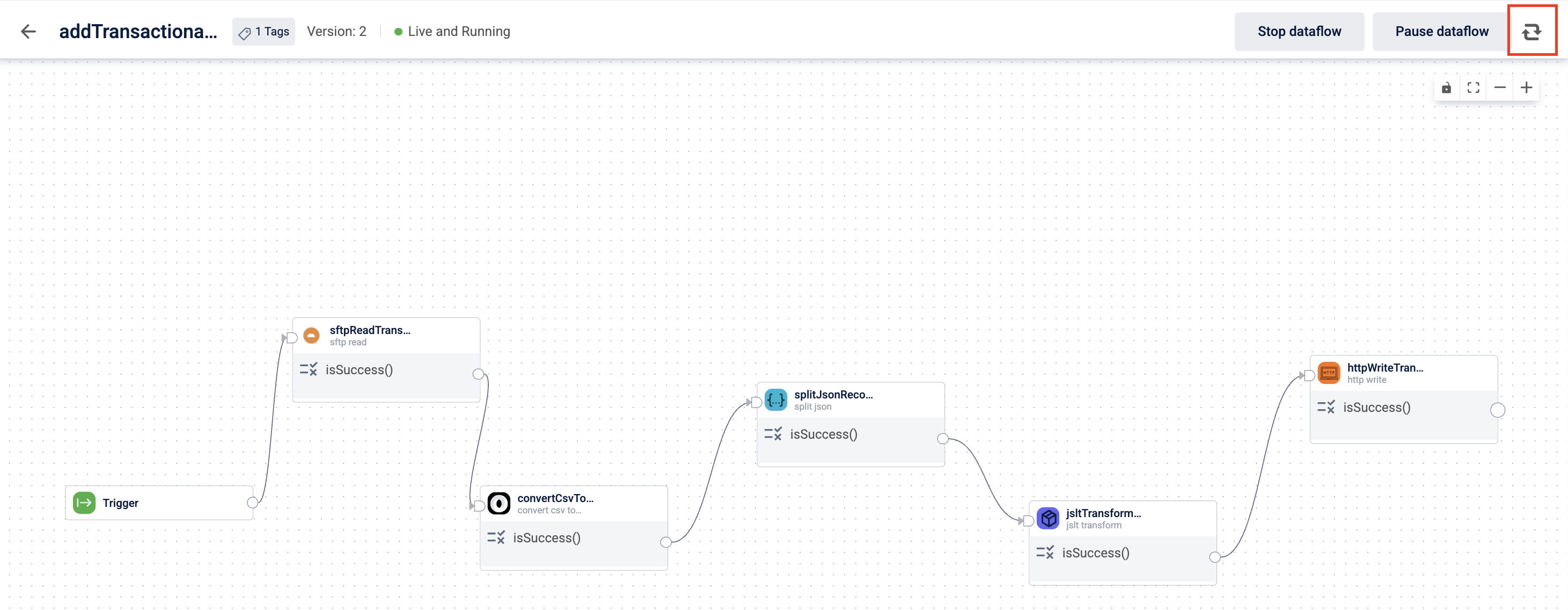
-
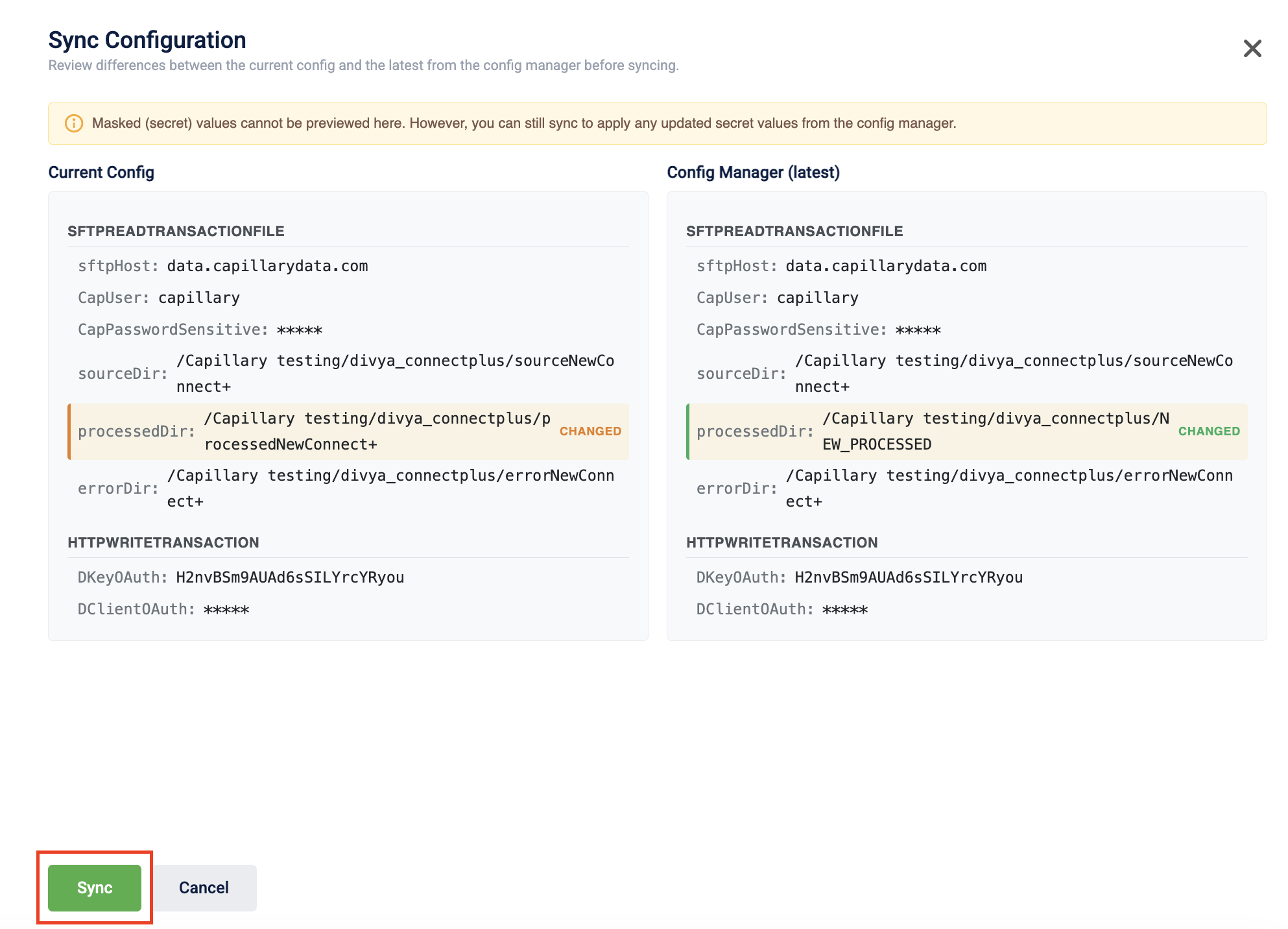
Review the difference between Current Config on the left and Config Manager (latest) on the right. Fields marked CHANGED show values that have been updated in Extension Configurations.
-
Click Sync.
A confirmation dialog appears. -
Click Sync now.
The dataflow applies the latest values across all blocks without restarting.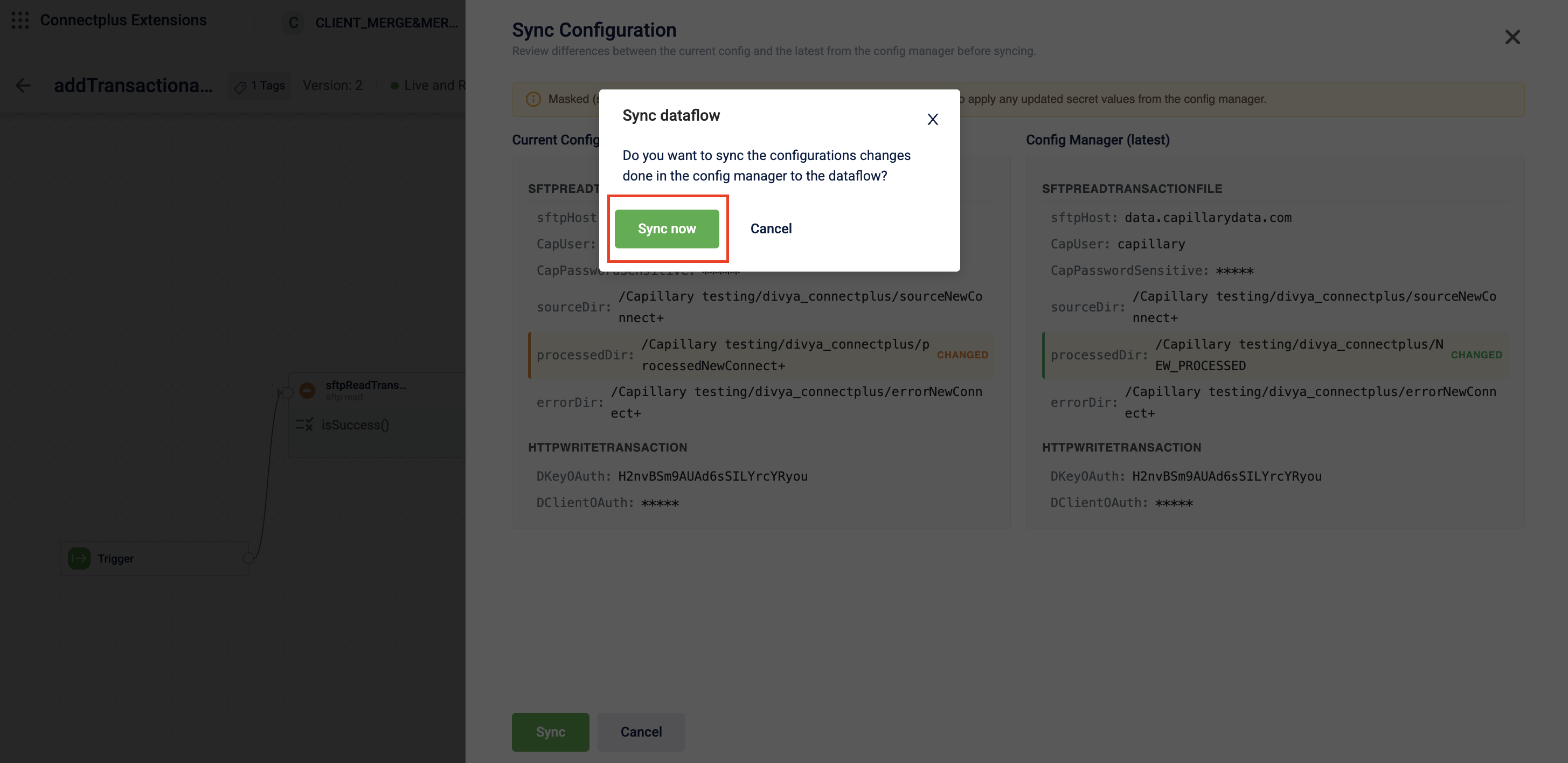
Note
Masked values are displayed as
*****in both columns. You can't preview secret values here, but syncing still applies any updated secret values from Extension Configurations.
Updated 3 months ago