
aiRA Coder
Know what aiRA coder is and it's capabilities
Connect+ includes a built-in AI assistant called aiRA Coder. It is integrated directly into the dataflow canvas and lets you build, understand, and manage dataflows through plain-language conversation. Instead of assembling every block manually or writing transformation scripts from scratch, you describe what you want and aiRA Coder generates the result.
aiRA Coder is available by default in the Connect+ UI. No separate setup is required. You access it by clicking the icon in the bottom-right corner of any dataflow canvas.
aiRA Coder is particularly useful for bridging the gap between technical and non-technical users. Standard integration patterns can be generated without knowing which blocks to select or what scripts to write. For experienced developers, it speeds up repetitive configuration tasks and makes it easier to understand flows built by others.
How aiRA Coder works
Every prompt you enter goes through a five-step process before any output is shown on the canvas.
-
Prompt enrichment: The system enhances your input using Retrieval-Augmented Generation. Relevant context and examples are added to your prompt before it reaches the language model.
-
Intent interpretation: The language model analyses the enriched prompt and identifies what you are trying to accomplish.
-
Dataflow generation: Based on the interpreted intent, the system generates a draft configuration. This includes the required blocks, connections, and any transformation scripts.
-
Validation: A system-level validator checks the generated output for missing or misconfigured blocks, empty nodes, and syntax issues in script blocks.
-
Preview and explanation: The validated draft appears on the canvas alongside a step-by-step explanation of each block. You can accept the output, request changes with a new prompt, or discard and regenerate.
Accessing aiRA Coder
To open aiRA Coder from the Connect+ UI,
-
Log in to Connect+ and open any dataflow.
-
Click any version on the version listing page to open the canvas.
-
Click the icon in the bottom-right corner of the canvas.
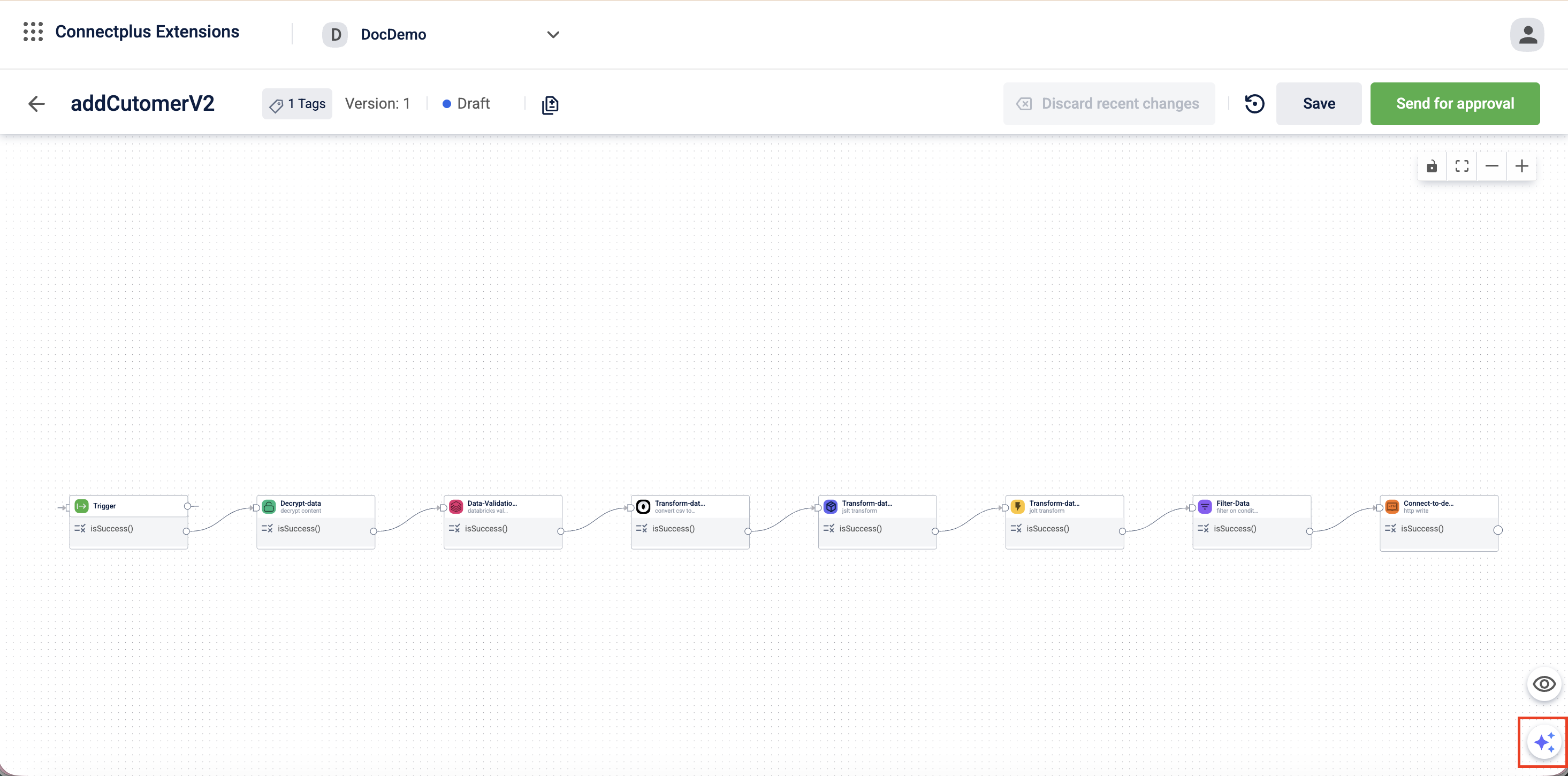
The aiRA Coder panel opens. You can type a prompt and click the Send icon to submit it.
Capabilities
aiRA Coder supports five distinct capabilities. Each is described below with guidance on when to use it and example prompts.
Create a dataflow
You can describe a dataflow requirement in plain language and aiRA Coder generates the full block sequence, including transformation scripts where needed.
This is the fastest way to start a new dataflow when a matching global template does not exist or when your use case has specific requirements that a template does not cover.
When to use this: When building a new dataflow from scratch and you have a clear description of the source, transformation, and destination.
How to use it:
-
Create a new dataflow and open the canvas.
-
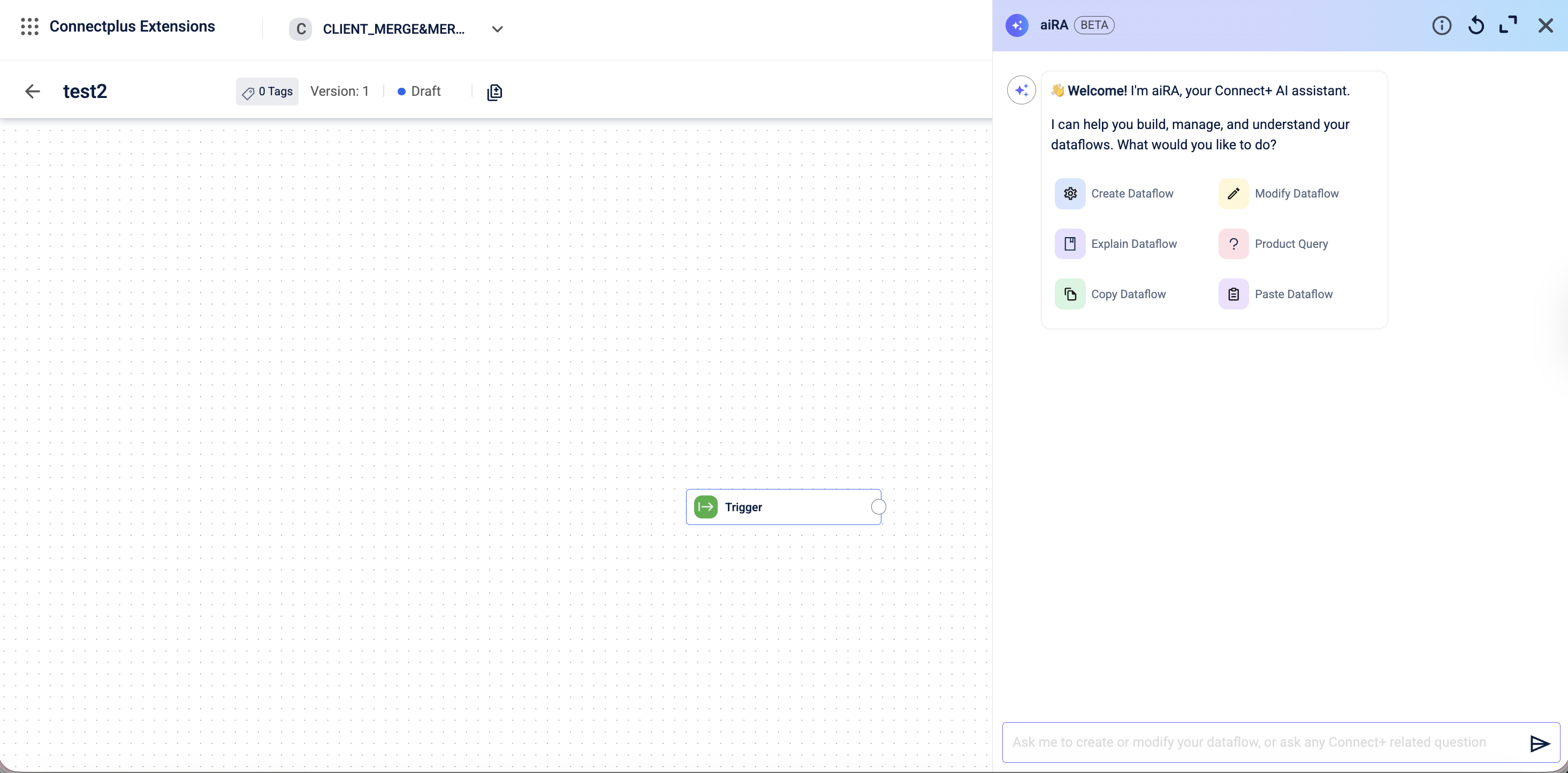
Click the chat icon in the bottom-right corner to open aiRA Coder.
-
Select Create dataflow.
A list of templates appears. -
Select a template or enter a prompt to create a dataflow based on your requirements.
-
Click the Send icon to submit the prompt.
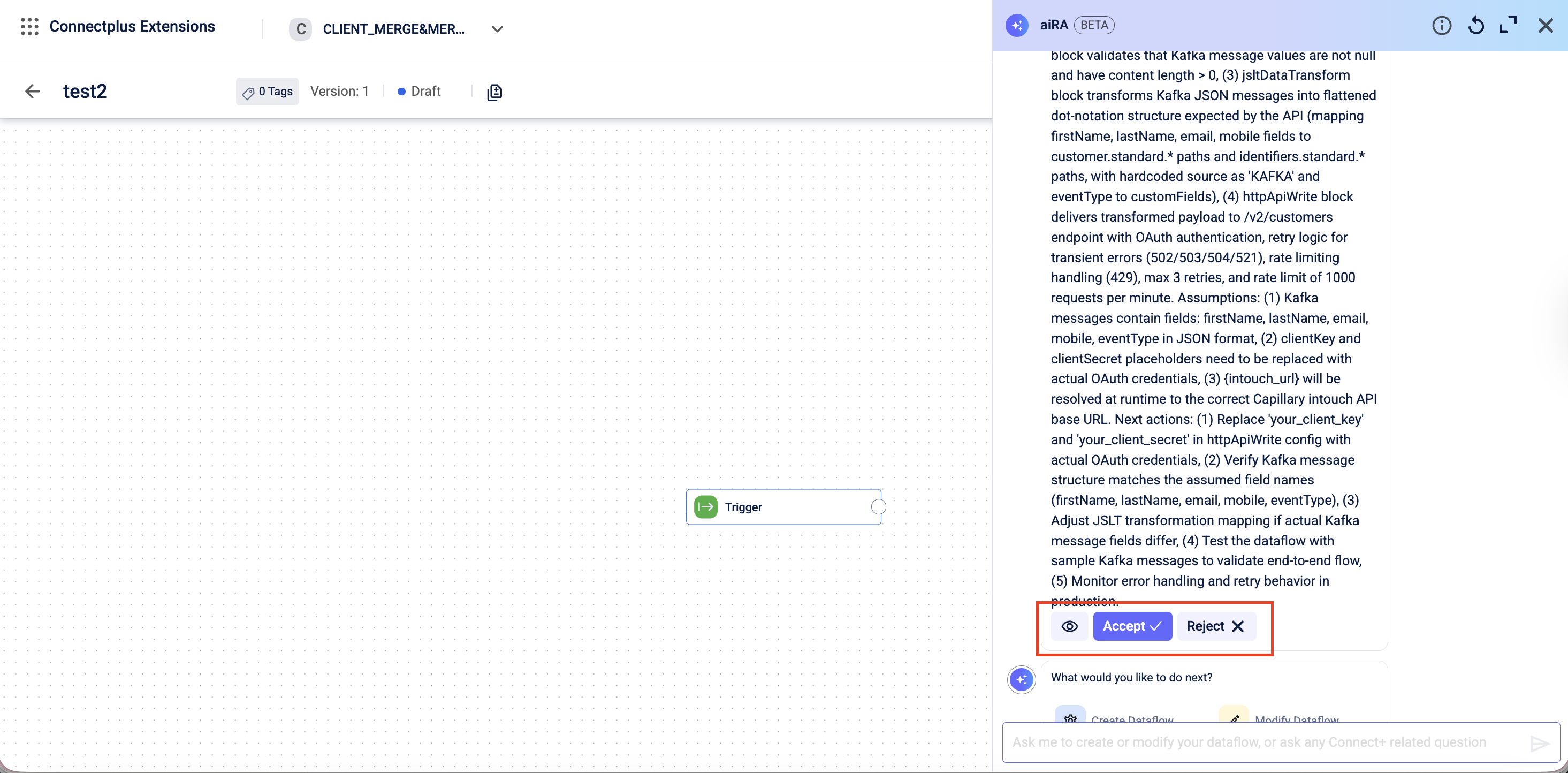
aiRA returns a proposed dataflow with a step-by-step explanation and a preview. -
Review the changes.
-
Click Close Preview to close the preview without making any changes.
-
To accept or reject changes, open the aiRA Coder modal by clicking aiRA Coder. In the modal, you can:
-
Accept Preview – Save and apply the AI-generated changes.
-
Reject Preview – Discard the AI-generated changes.
-
Example prompts:
- "Read a CSV file from SFTP, convert it to JSON, and call the InTouch v2 customer bulk API."
- "Create a dataflow that reads transaction data from FTP on a daily schedule and calls the transaction add API."
Note: aiRA Coder generates a starting configuration based on your prompt. Review the output and update any field mappings specific to your organization before making the dataflow live.
Modify a dataflow
You can use aiRA Coder to update an existing dataflow in Draft state. Instead of editing block configurations manually, you describe the change you want, and aiRA Coder applies it.
Supported modifications include:
- Adding or removing blocks
- Changing filter conditions
- Updating JSLT transformation expressions
- Reconfiguring block properties such as API endpoints, group size, and error codes
When to use this: When you need to make structural or logical changes to a Draft dataflow and want to avoid manual block-level editing.
How to use it:
-
Open the dataflow in Draft state that needs modification.
-
Click the aiRA Coder icon.
-
Click Modify Dataflow or enter a prompt describing the modification.
On clicking Modify Dataflow aiRA Coder lists common changes.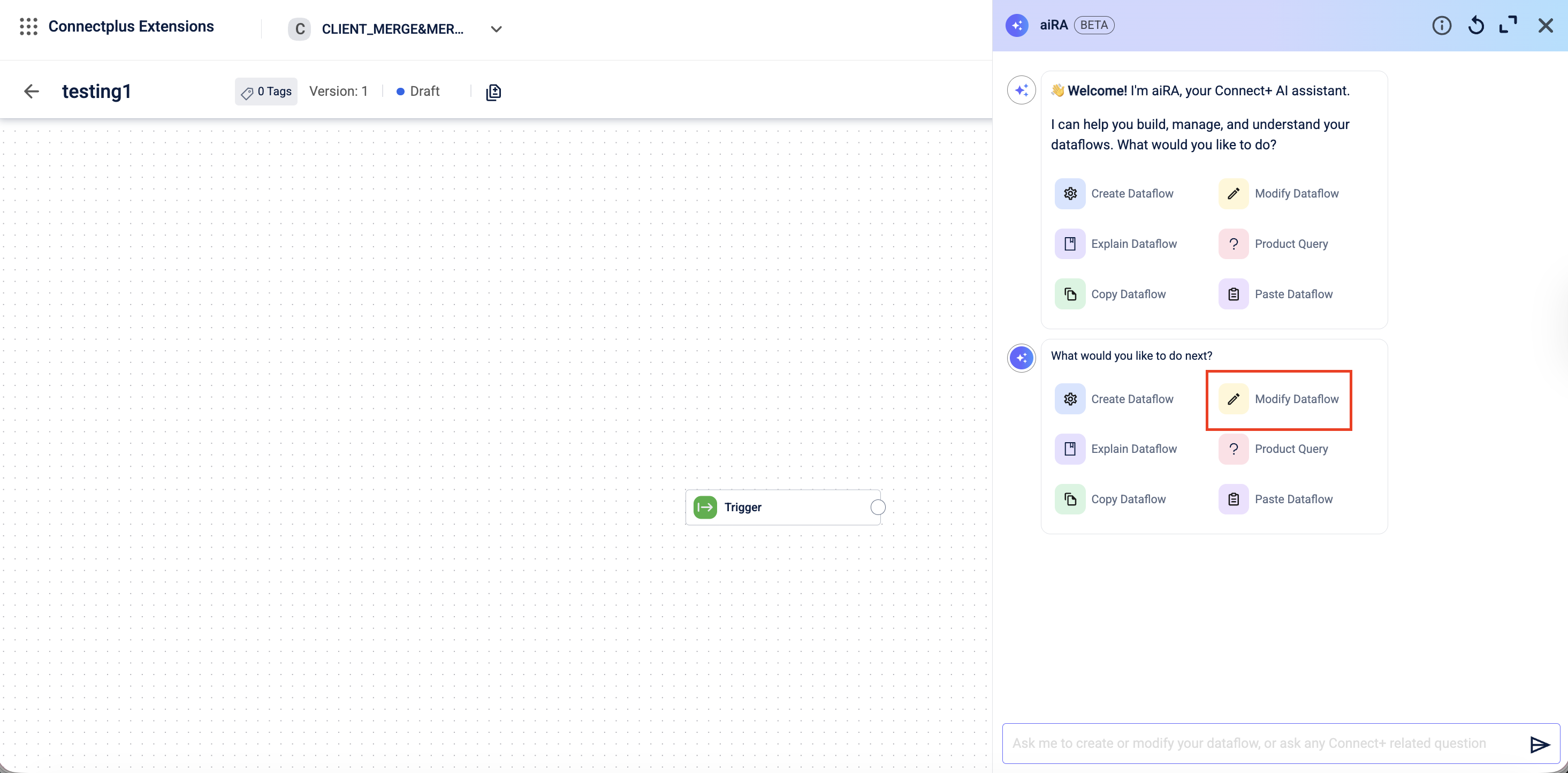
-
Click a suggested change or enter a prompt describing your modification click the Send icon.
aiRA Coder generates the updated configuration and displays a preview.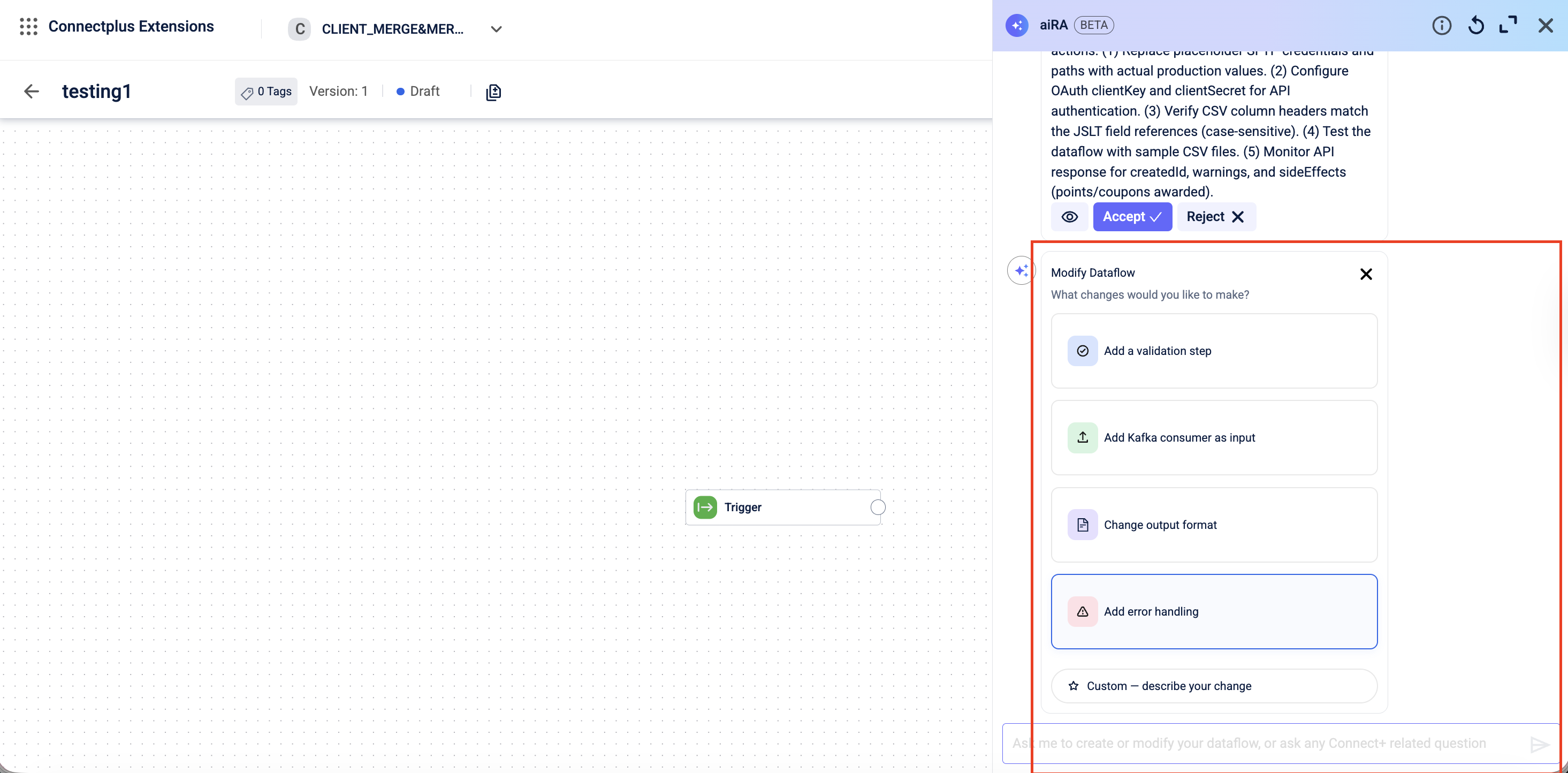
-
Review the changes using the Preview icon.
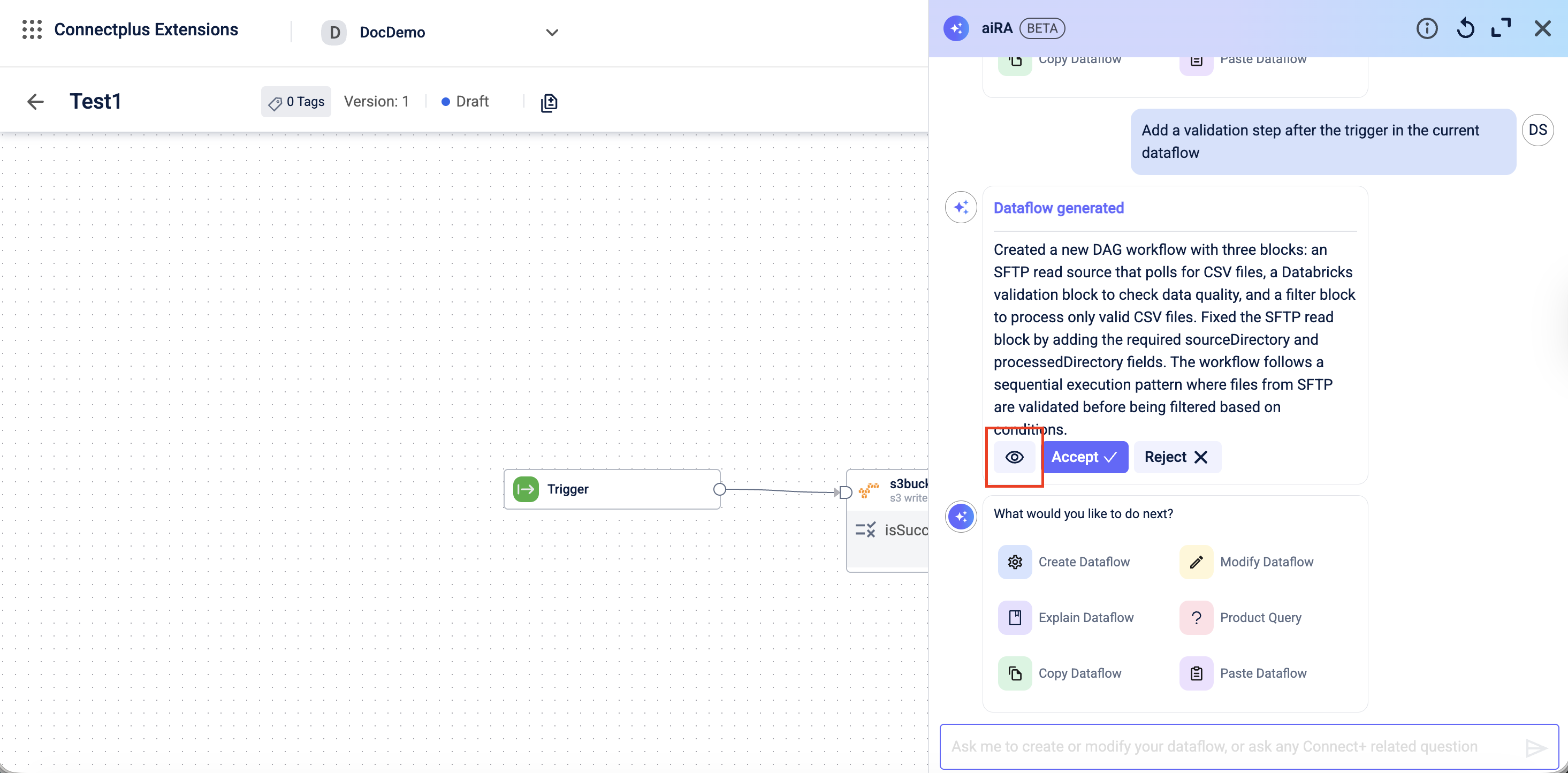
-
After the review, click Accept to apply the changes to the canvas or Reject to discard the changes.
-
If you selected Accept, select Yes, continue on the confirmation modal.
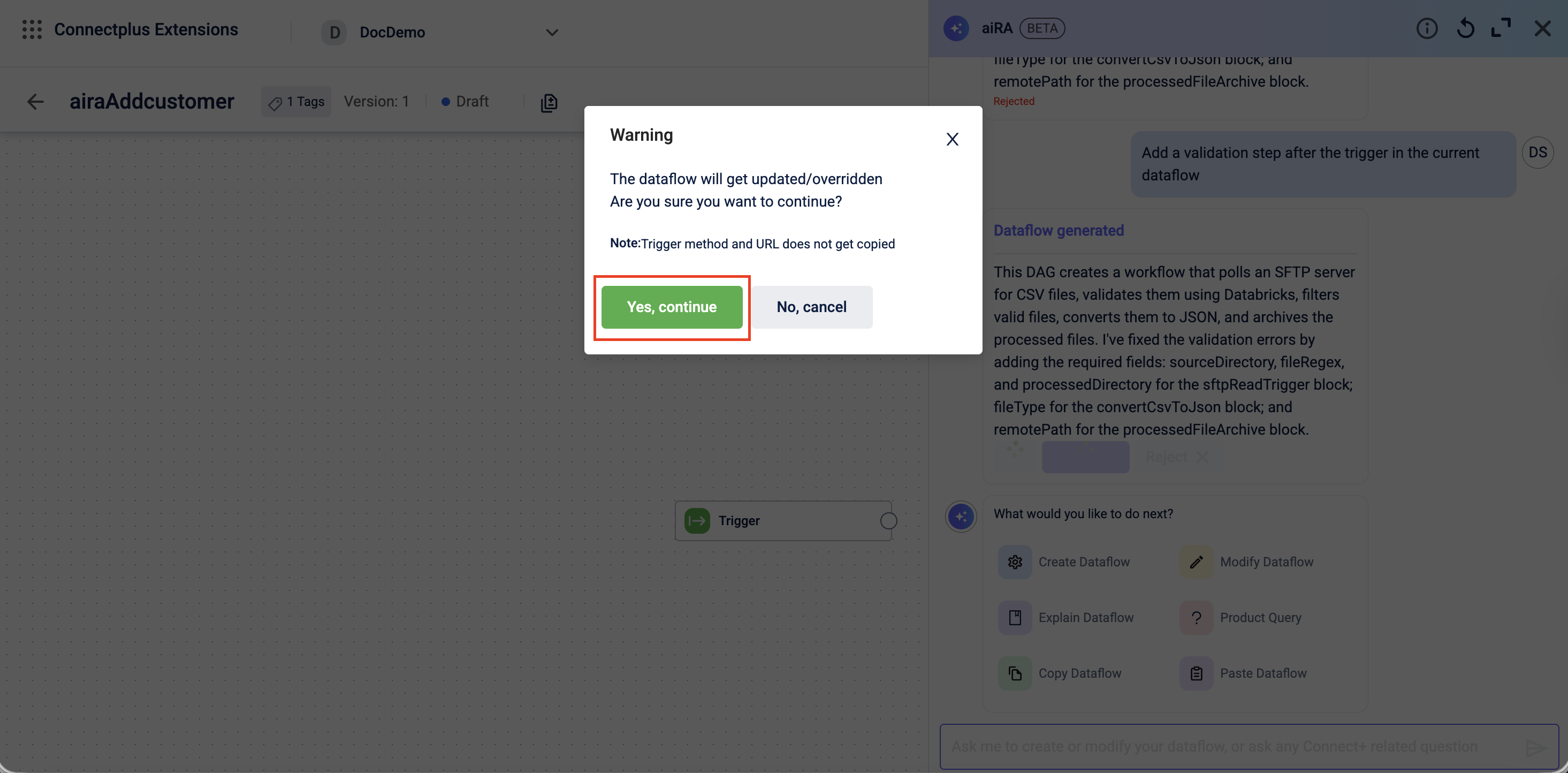
-
Click Save.
Example prompts:
- Update the group size in the Convert-CSV-to-JSON block from 10 to 20
- Add a filter block between the Convert-CSV-to-JSON block and the Transform-data block to pass only records where the source is INSTORE.
- Remove the filter block from the dataflow and connect the Convert-CSV-to-JSON block directly to the Transform-data block.
Summarise a dataflow
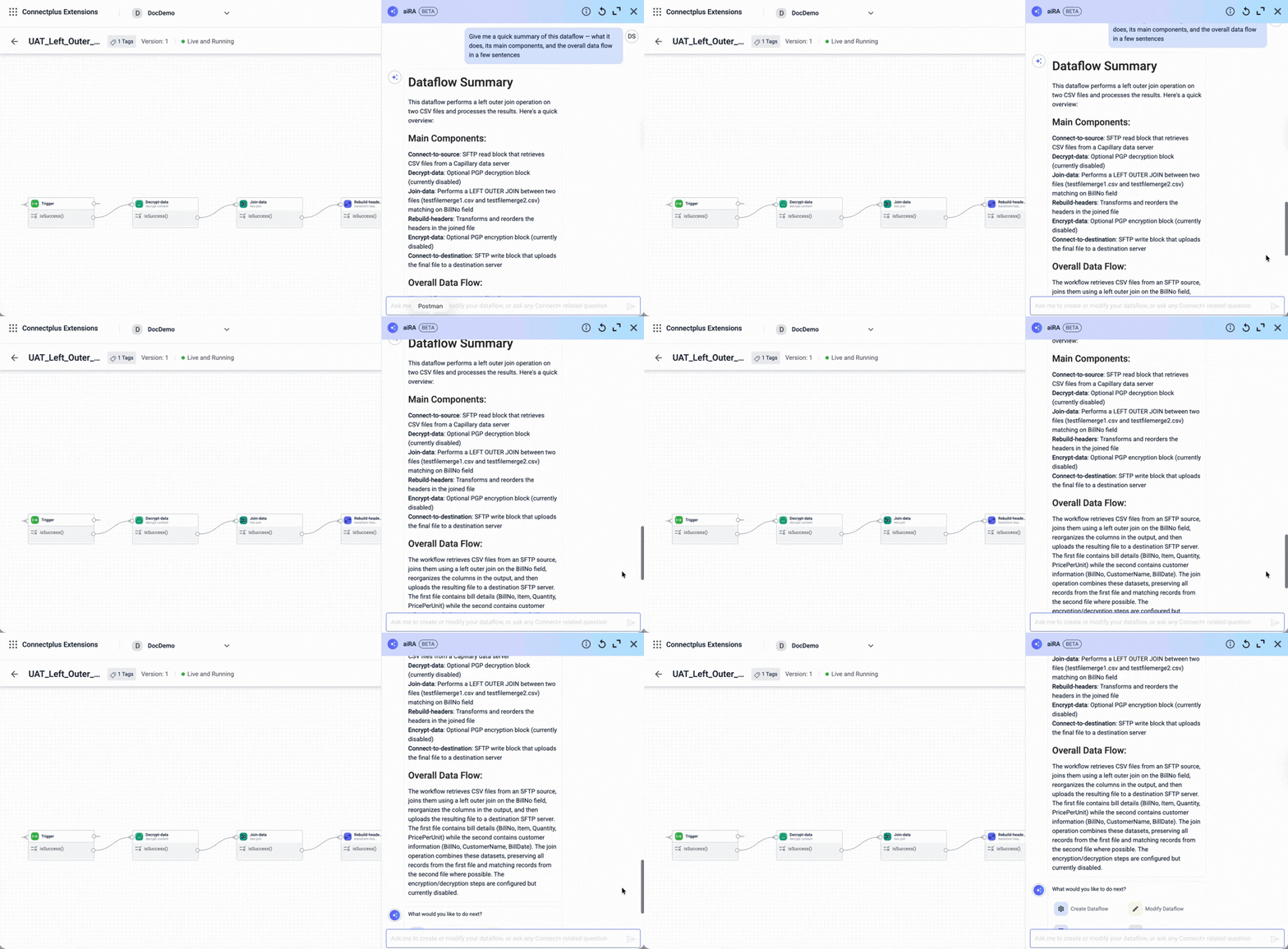
You can ask aiRA Coder to explain what a dataflow does. It reads the current configuration and returns a plain-language description of each block and an overall summary of the flow.
This is useful when you need to understand a dataflow built by someone else, review logic before approval, or prepare documentation for a handover.
When to use this: When opening an unfamiliar dataflow or reviewing a dataflow before sending it for approval.
How to use it:
-
Open the dataflow version for which you need a summary.
-
Click the icon to open aiRA Coder.
-
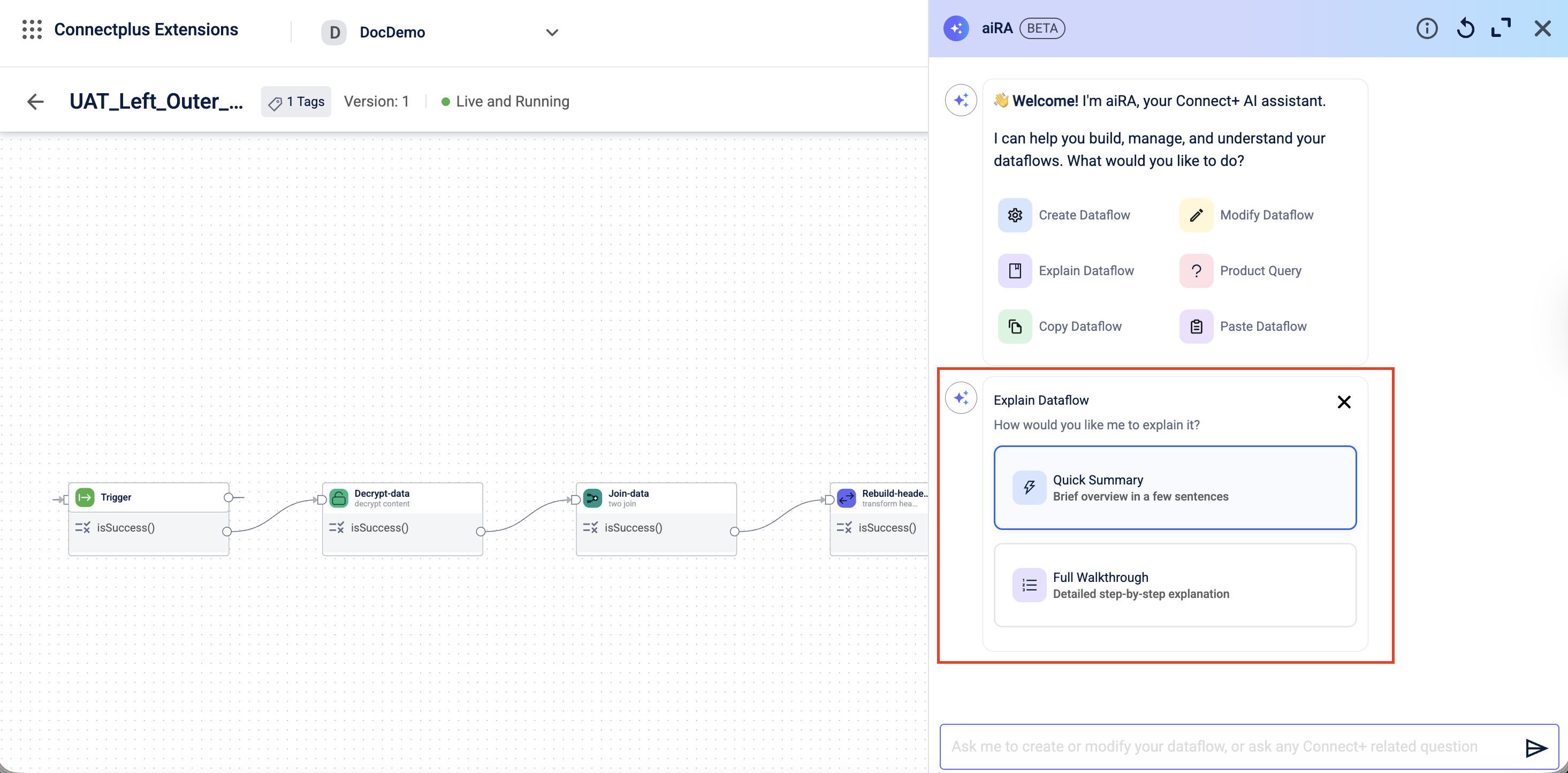
Select Explain dataflow or enter your prompt.
A list of explanation level options appears.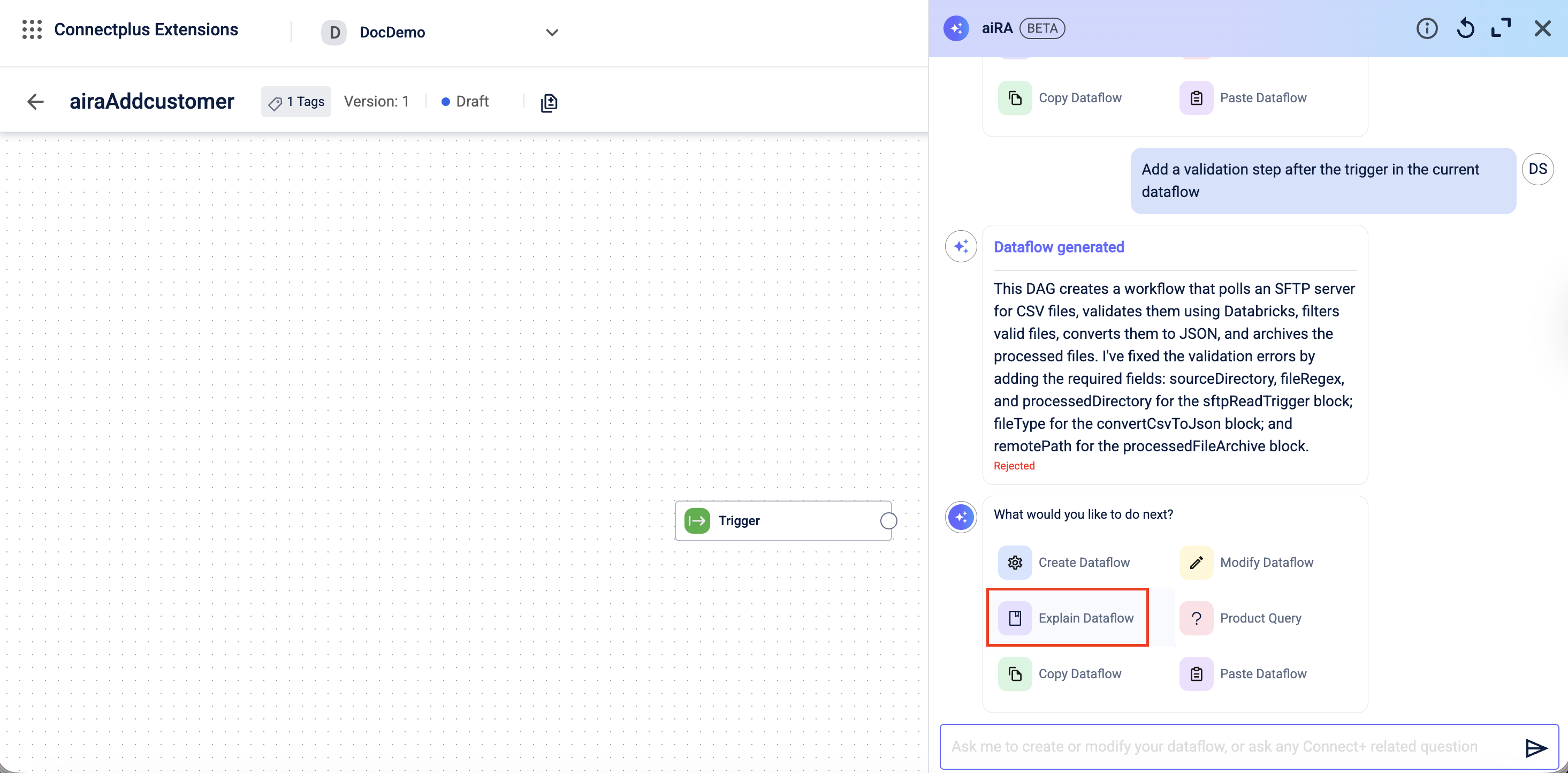
-
Select the required level of explanation.
aiRA Coder provides a block-by-block breakdown or an overall description of the dataflow’s purpose and logic, based on the selected option.
Example prompts:
- "Explain this dataflow."
- "Explain the
http_writeblock." - "What does this dataflow do?"
Copy and paste a dataflow
You can use aiRA Coder to copy a dataflow from one organization and paste it into another, within the same cluster. This removes the need to rebuild common integration patterns from scratch in each organization.
The copy and paste operation requires three sequential prompts: a copy prompt, a view prompt, and a paste prompt. To skip the view step, use the copy and paste options in aiRA Coder. In this case, the view step is integrated with the paste step.
When you copy a dataflow, it is saved to your personal dataflow store, which is linked to your email address. You can store and retrieve dataflows across sessions.
When to use this: When a working dataflow in one organization needs to be reused in another organization, or when a global dataflow template needs to be brought into your organization.
How to use it:
Step 1: Copy the dataflow
-
Open the dataflow you want to copy.
-
Open aiRA Coder.
-
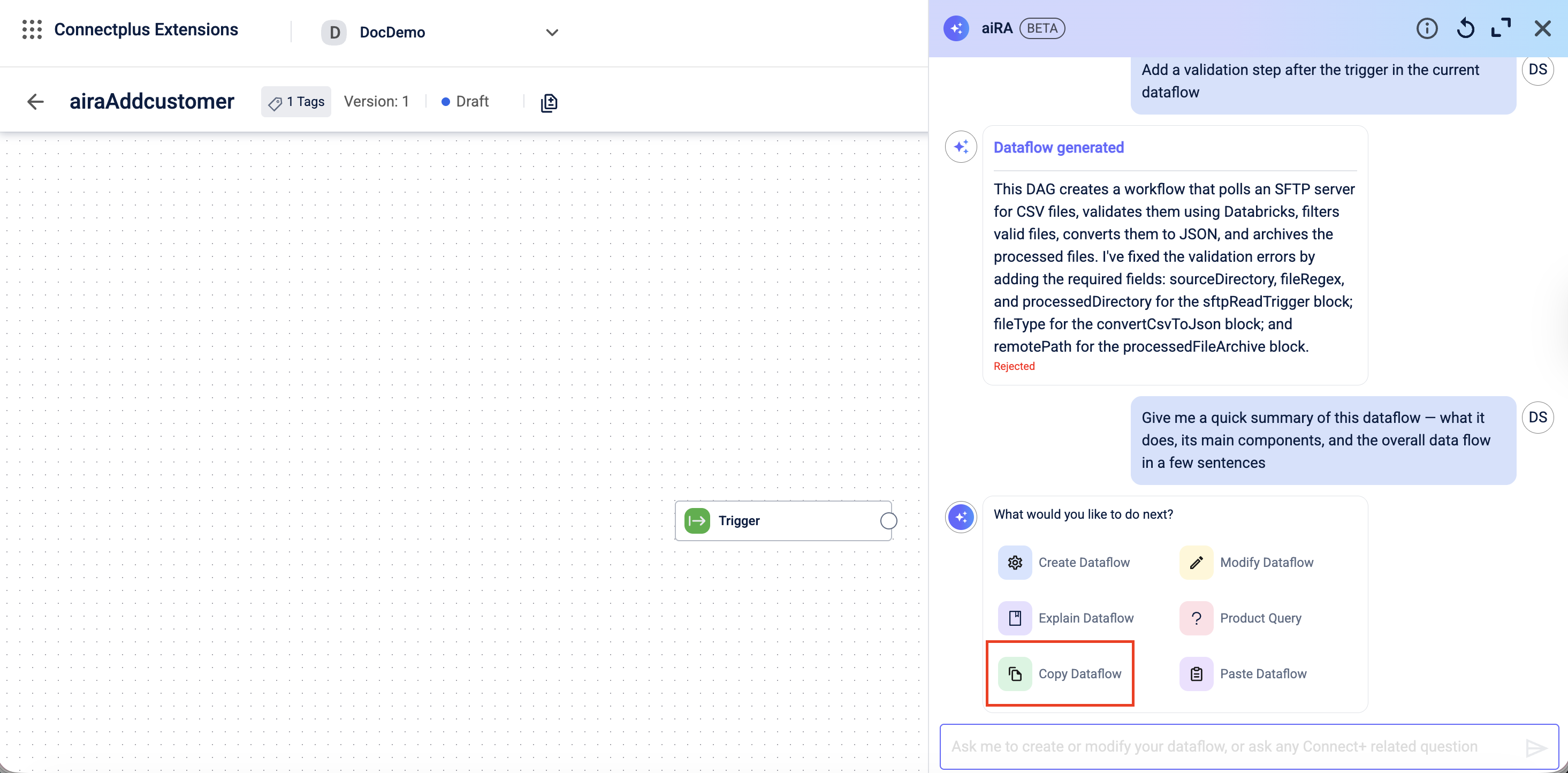
Select Copy Dataflow to auto-generate the copy prompt in the text bar, or enter the copy prompt manually with a meaningful description.
-
Click the Send icon.
The aiRA Coder saves the dataflow to your personal dataflow store. Only saved dataflow versions are copied. Unsaved changes on the canvas are not included.
Example copy prompt
"Copy version 4 of the dataflow AddCutomerV2 with the description 'Move to ANB organization'."
Step 2: View your dataflow store
- Navigate to the target organization and open a canvas.
- Open aiRA Coder and enter a view prompt specifying the cluster.
- Click the Send icon.
aiRA Coder lists the last ten dataflows you copied in the specified cluster.
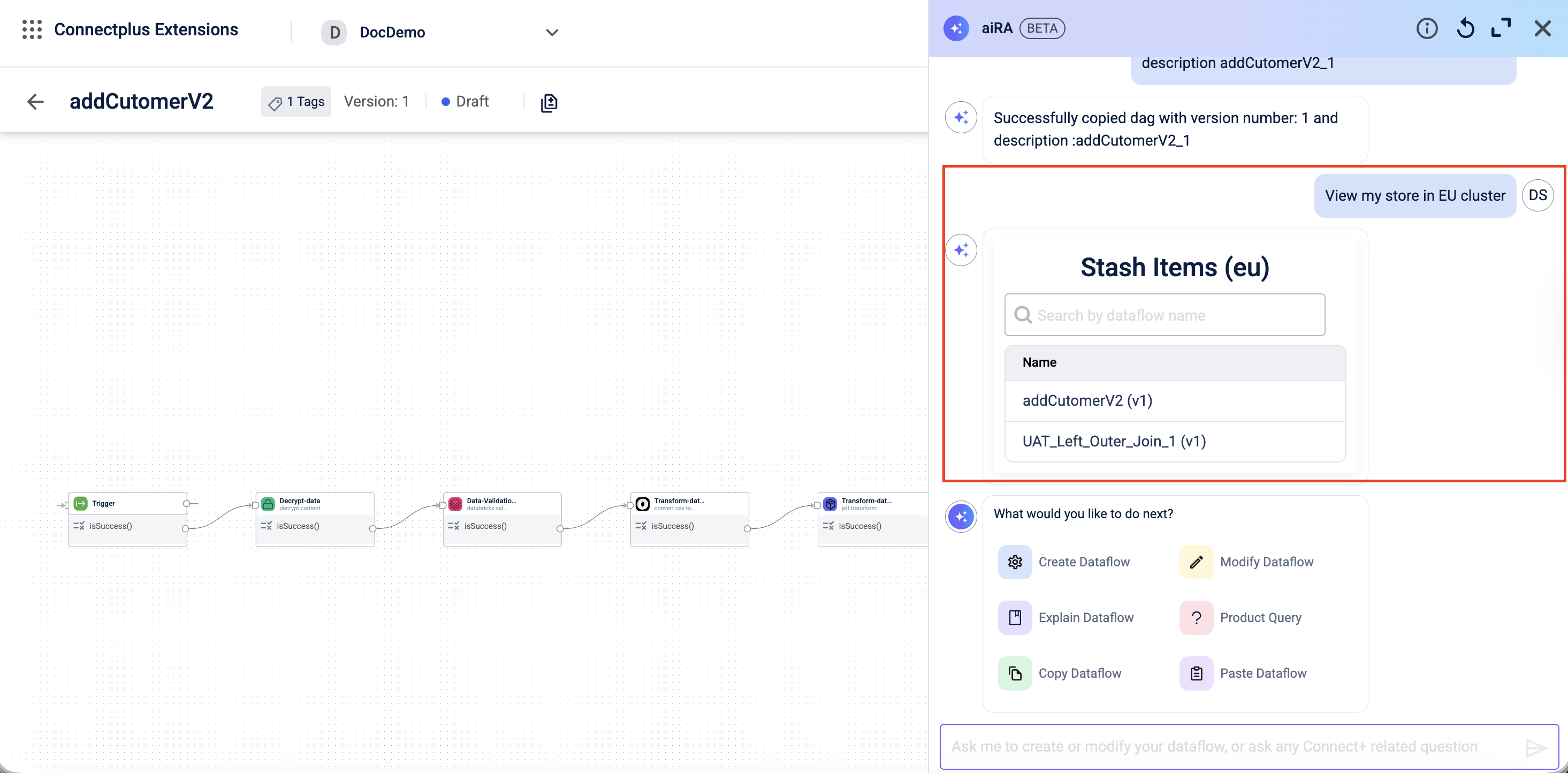
Example view prompt
- "View my dataflow store from the APAC cluster."
- "View my stash in the EU cluster."
Step 3: Paste the dataflow
-
Select the dataflow from the list returned in Step 2.
Alternatively, select Paste Dataflow in aiRA Coder.
aiRA Coder lists the dataflows copied in the cluster and automatically generates the paste prompt. The paste prompt is not editable. -
Click the Send icon.
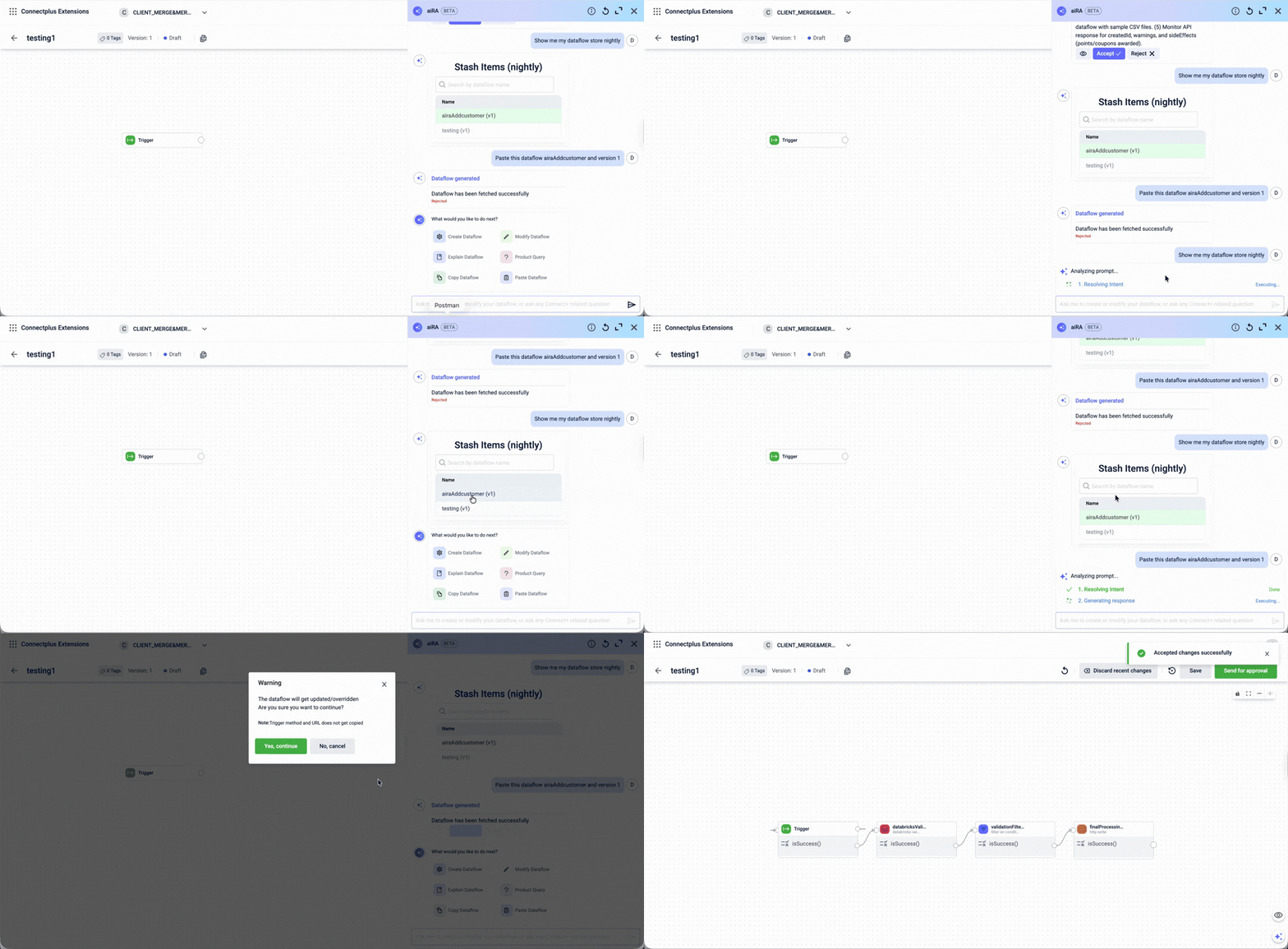
The dataflow is pasted onto the canvas in Draft state. Review and edit as needed before saving.
Guidelines for copy and paste:
- Always include a meaningful description in your copy prompt. This is mandatory. If you omit it, aiRA Coder will ask you to provide one.
- Specify a version number in the copy prompt to copy a specific version. If you do not specify a version, aiRA Coder copies the version currently open on the canvas.
- Specify the cluster name in the view prompt. You can only view one cluster at a time.
- The Trigger block and any tags assigned to the dataflow are not copied.
- You can copy and paste only one dataflow at a time.
- The original dataflow remains intact after copying. This feature copies, not moves.
Get documentation assistance
You can ask aiRA Coder questions about Connect+ concepts, features, and workflows directly from within the canvas. aiRA Coder queries the official documentation and returns an answer in plain language.
This is useful when you need a quick reference without leaving the interface, or when you want to understand platform behaviour, block options, or configuration rules.
When to use this: When you have questions about how Connect+ works and want an answer without switching to external documentation.
How to use it:
- Open any dataflow canvas.
- Click the aiRA Coder icon.
- Type your question and click the Send icon.
Alternatively, select Product Query in aiRA Coder and choose an option from the list to get information on that topic.
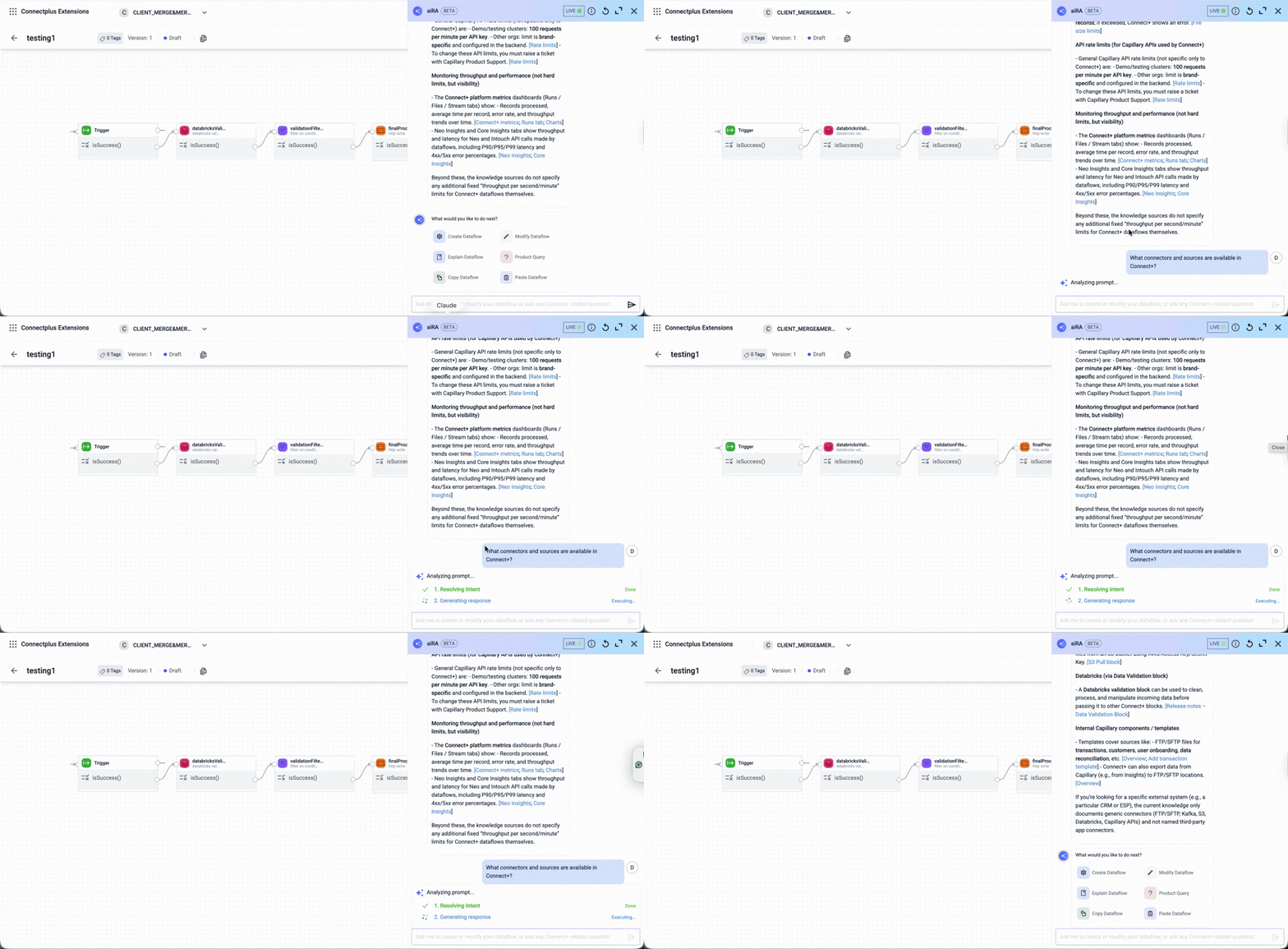
Example prompts:
- "What is a sttp_read block?"
- "Explain the usage of JSLT transform block"?"
- "What is the difference between Pause and Stop?"
Known limitations
The following limitations apply to the current version of aiRA Coder. These will be addressed in future releases.
- Token size limitations may restrict the generation of complex dataflows. If your dataflow is very large, break it into smaller prompts.
- Nesting or calling one dataflow from another is not supported.
- External libraries are not supported.
- aiRA Coder generates a starting configuration. Review all outputs before making a dataflow live.
- Currently, you cannot create a dataflow which uses an API with query parameters.
Prompting Best Practices
To get the best results from aiRA, follow these tips:
- Use clear and specific language
- Write in full sentences or step-by-step instructions
- Avoid vague prompts like
HiorHelp
Updated 2 months ago