
Configure Email
You can create an email either from scratch or by using an existing email template.
An email template refers to a pre-designed email layout that includes predefined structure, formatting, and placeholders such as tags and labels, and sometimes sample content. Templates help maintain brand consistency and reduce the time required to create emails.
If you choose to use an existing template, you can edit and customize its content, design elements, subject line, and placeholders as needed before saving or publishing the email.
Note
The ability to save an email template without an unsubscribe tag depends on the
EMAIL_UNSUBSCRIBE_TAG_MANDATORYconfiguration. If this setting is disabled, you must include a valid unsubscribe tag to save the template. If enabled, the template can be saved without it. To make any changes to this setting, raise a Jira ticket to the Product Support team.
Creating a new email from scratch
-
On the Engage+ homepage navigate to Creatives, section > Email tab, click Create New.
-
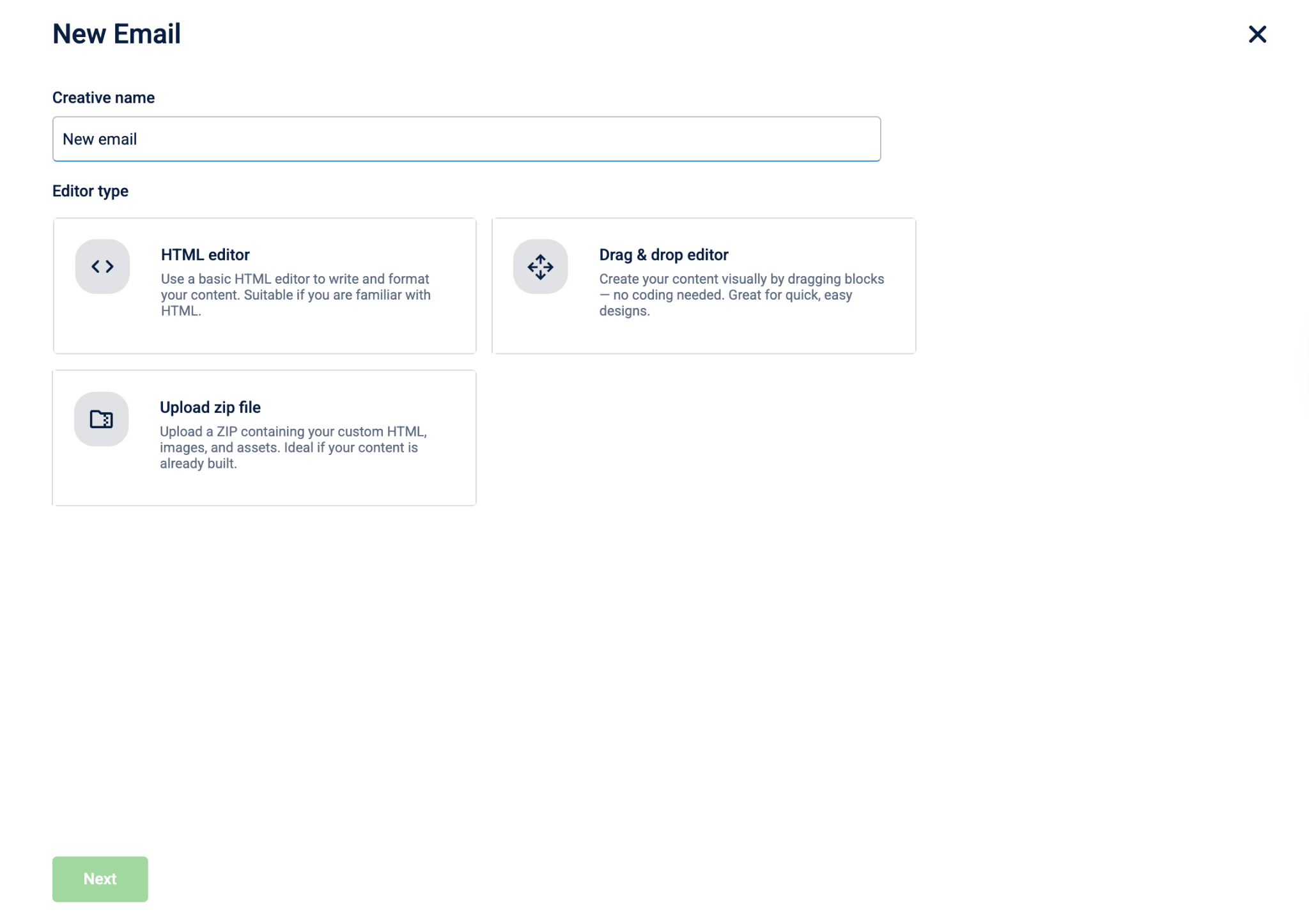
In the Creative name, enter the name for the Email template.
-
Select the editor for creating the template. You can choose from the following options:
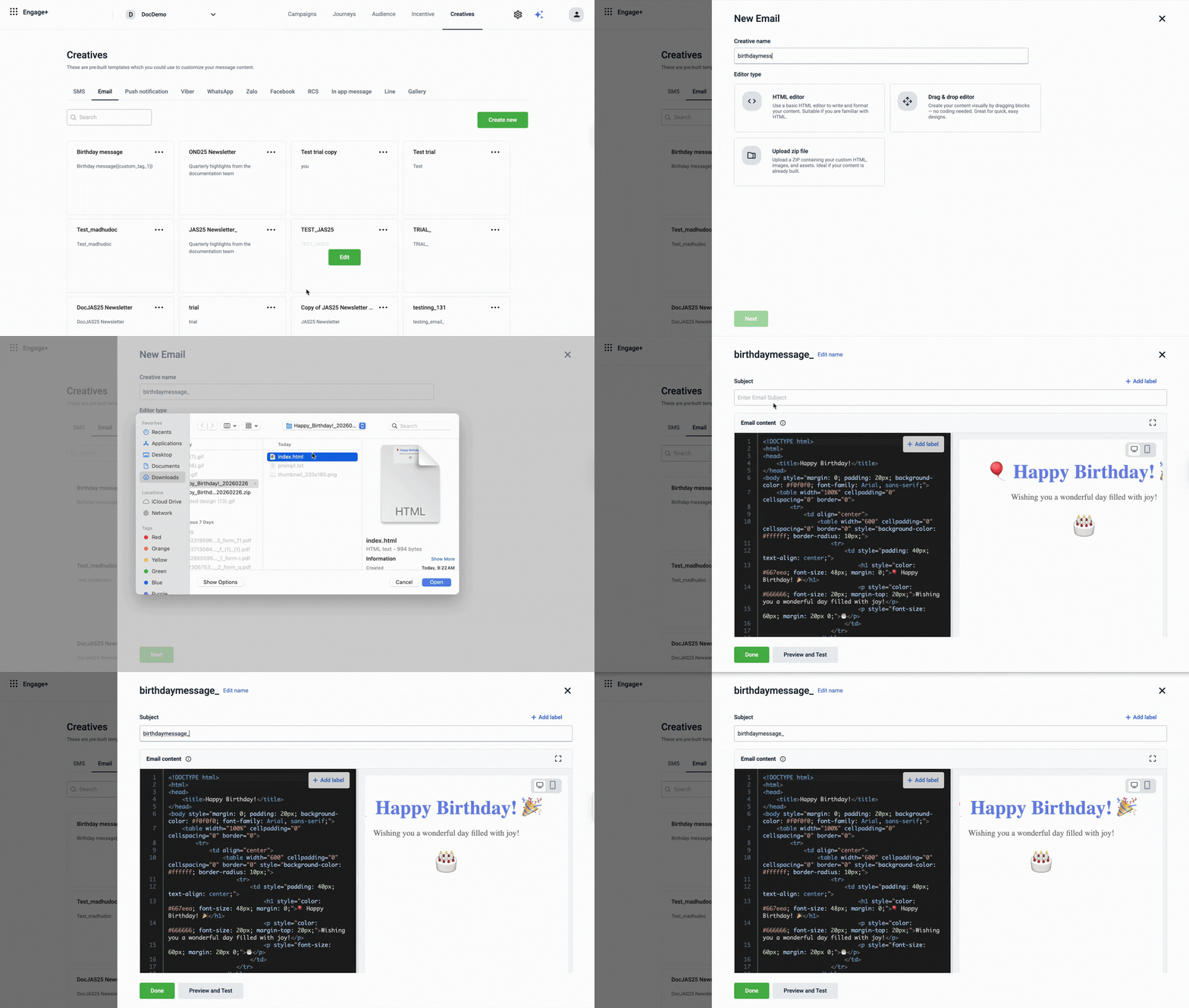
- HTML Editor – Use the basic HTML editor to write and format your email content. If you already have ready HTML, you can copy and paste it directly into the editor.
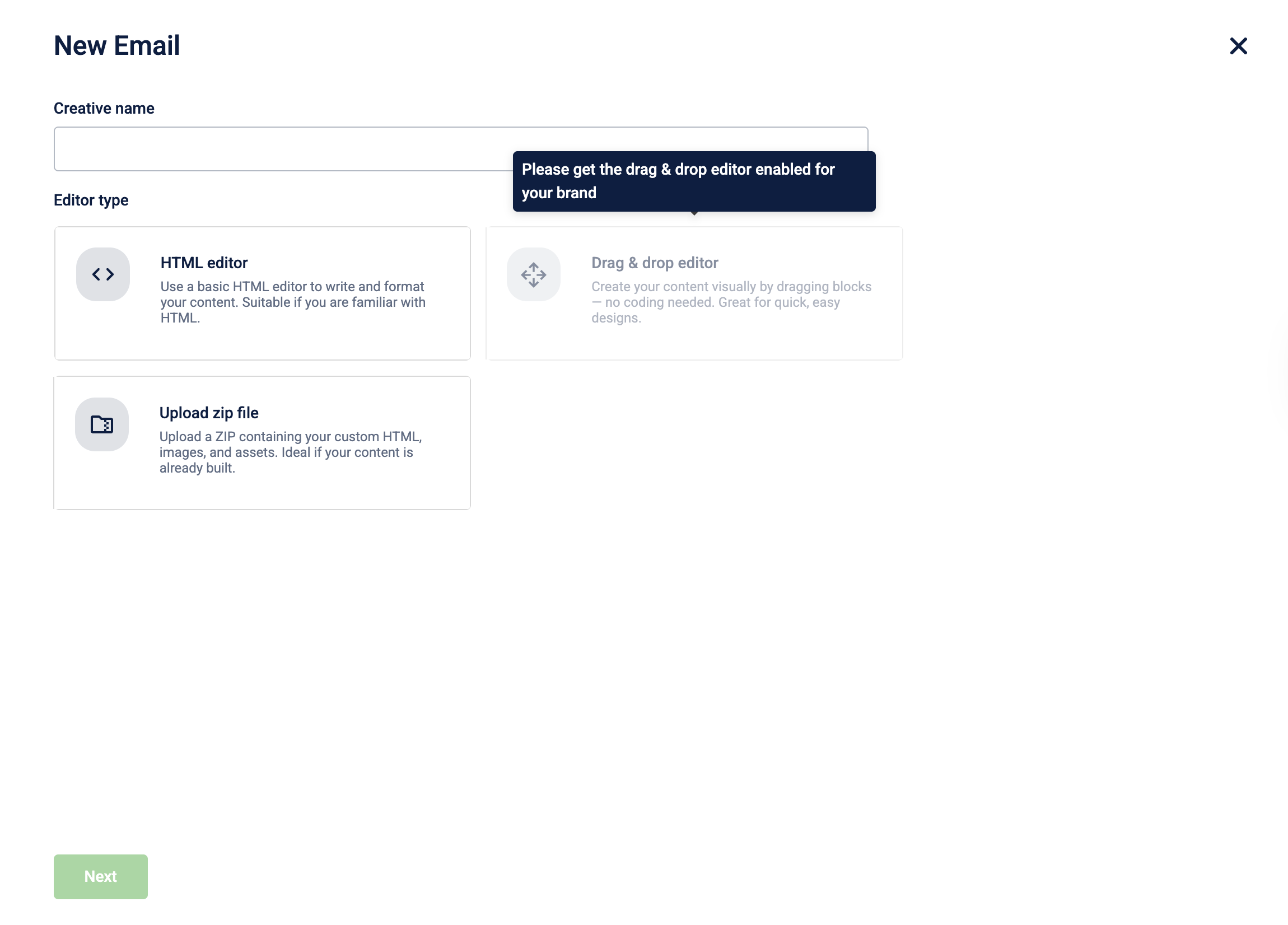
- Drag and drop Editor –Create the email template using the visual drag-and-drop editor. This editor is disabled by default. Raise a ticket with the PST team to enable this option for your organization.
- Upload ZIP File – Upload a ZIP file containing the HTML file and associated images for the template.
-
Select Start from Scratch.
-
Enter the subject and configure the email content based on the editor selected.
-
Click Create. To see a preview, select Preview and Test.
Creating an email using an existing template
To create a new email template using an existing template, follow the given steps:
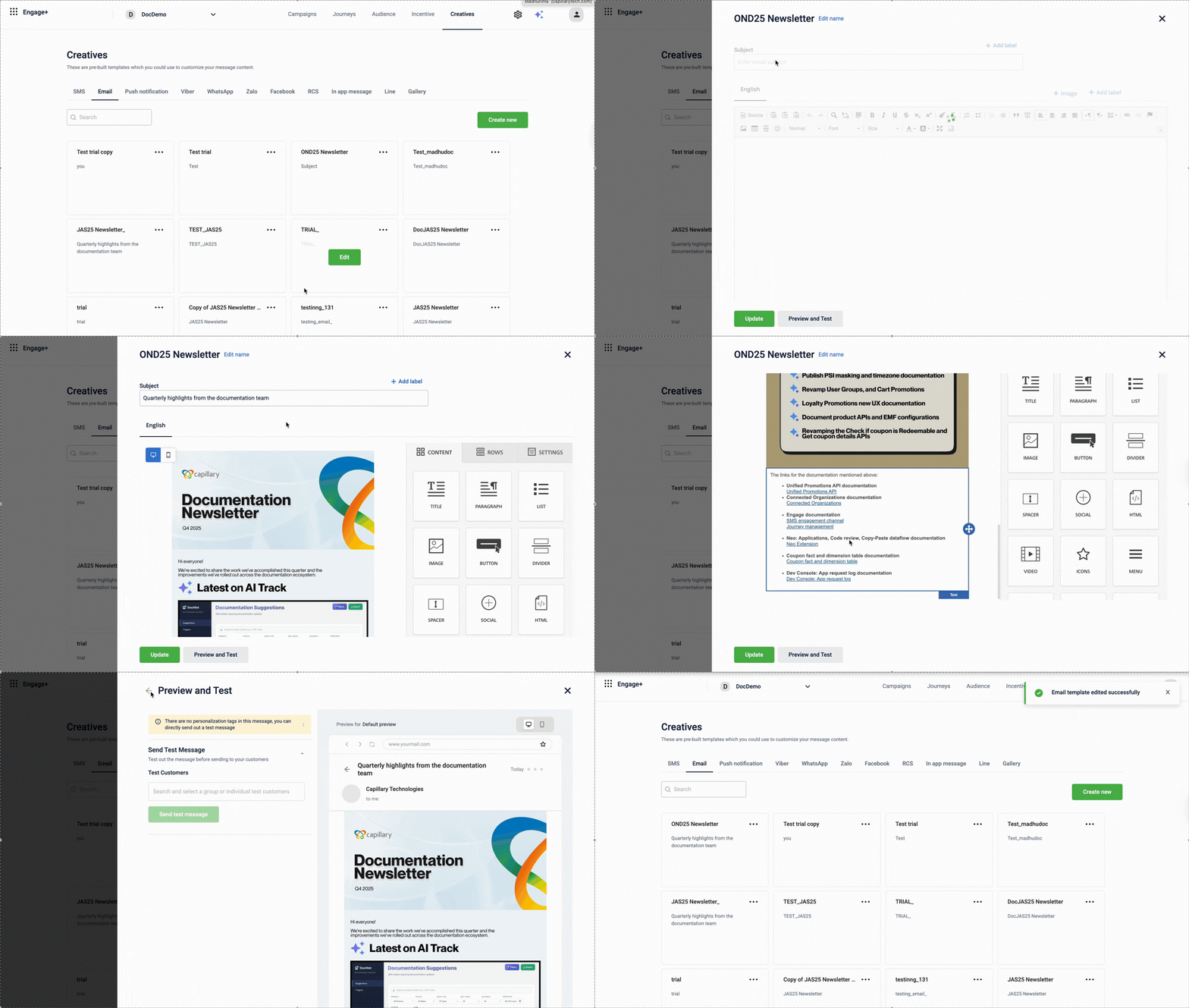
- On the Engage+ homepage navigate to the Creatives section > Email tab, and from the list of existing templates, choose the desired template and click on Edit.
- Update the subject and modify the email body as needed.
- Click update. To see a preview, select Preview and Test.
The email template has been edited successfully.
Creating an Email using the HTML editor
You can create an email template using the HTML editor either from the Creatives section or from the campaign message creation flow. The HTML editor allows you to write email content directly in HTML or paste prebuilt HTML and preview it in real time. You can also write or paste Liquid expressions within the HTML to personalize the email content.
Note: If you want to switch to the CK editor, raise a Jira ticket to the Product Support team to enable it for your organization.
Important
Use email-compatible HTML when creating templates. Follow standard email best practices such as table-based layouts and inline CSS to ensure consistent rendering across email clients. Avoid CSS frameworks, external stylesheets, and scripts.
To create an Email Template using the HTML Editor, follow the steps below
-
From the Engage+ home page, navigate to Creatives and select Email.
-
On the Email listing page, select Create New.
-
Enter a Creative name for the email template and select HTML Editor as the creation mode.
-
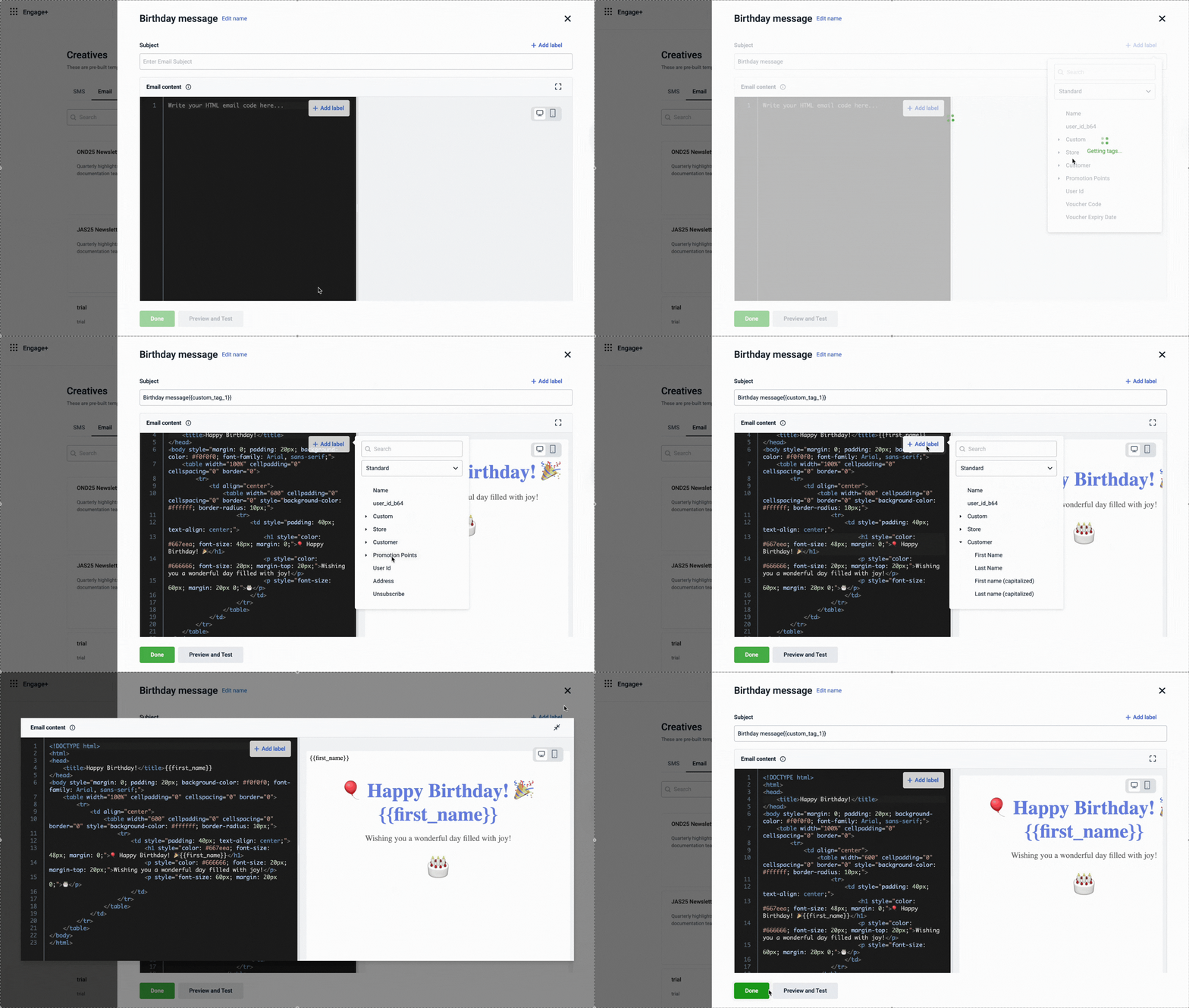
Enter the email subject in the Subject field. To insert dynamic values, select
- Add label
-
In the Email content section:
-
Use the HTML editor (left pane) to write or paste your HTML code or liquid expression.
-
Use the preview (right pane) to view a real-time preview of the rendered content.
-
-
Select
- Add label
-
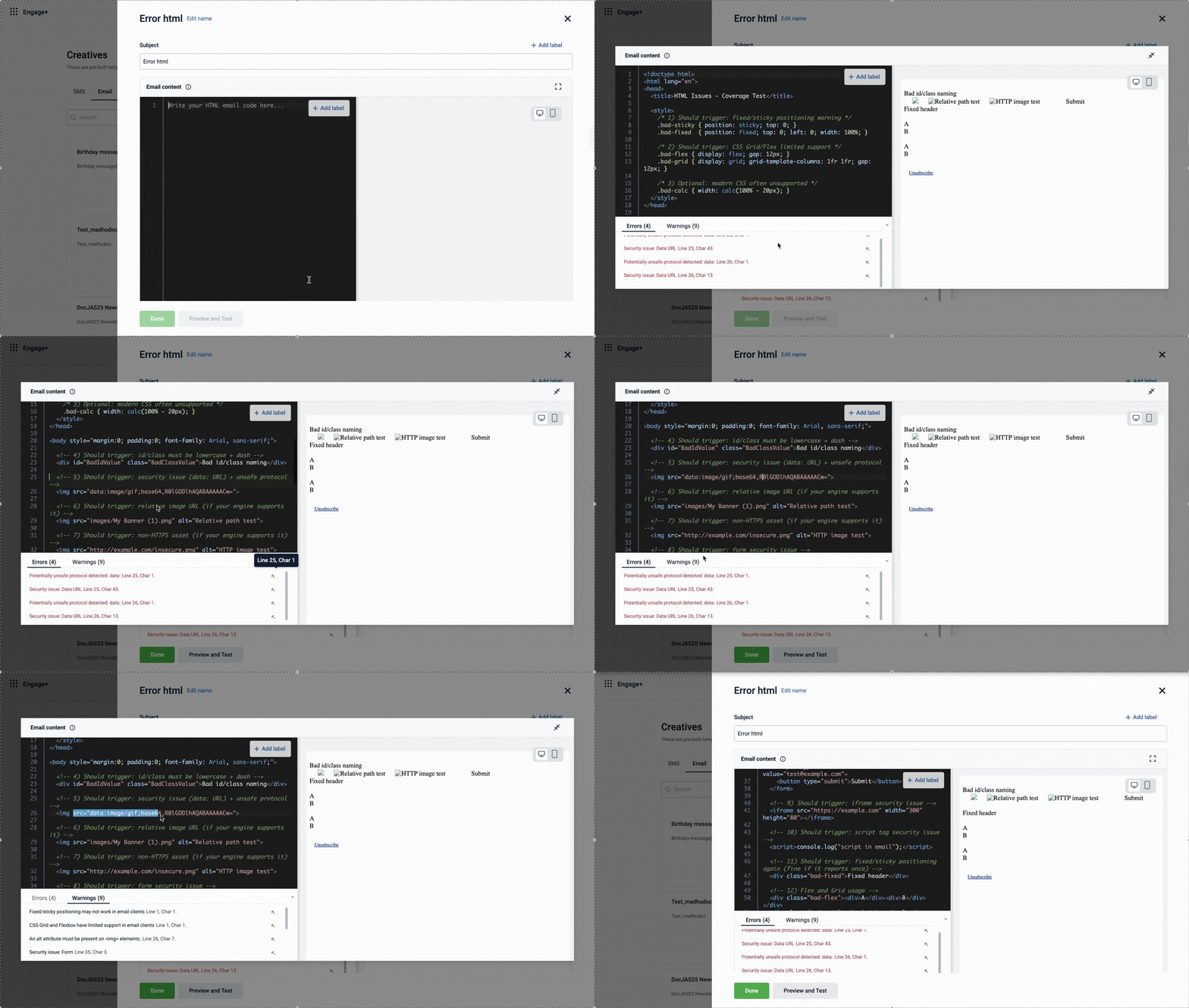
Review validation warnings displayed at the bottom of the editor. For each issue listed, select the arrow icon next to the warning to navigate directly to the corresponding line in the HTML editor where the fix is required.
Below are the types of validation issues you may encounter in the editor:
-
Errors: Displays critical issues in the HTML or Liquid code, such as restricted protocols (for example,
data:URLs), unclosed or malformed Liquid output tags (missing}}), invalid variables, or incomplete control statements (for example,{% if %}without{% endif %}). Errors must be resolved before you can save the template. -
Warnings: Displays HTML and content-level validation warnings, including formatting issues such as indentation, spacing, or syntax-related recommendations, unclosed CSS rules, and missing required attributes (for example, missing
altattributes for<img>elements)Note: Each warning includes the line number and character position where the issue occurs. You can still save the template if it contains warnings. However, if the template contains errors, the system will not allow you to save it until all errors are resolved.
-
-
Use the preview toggle to switch between desktop and mobile views. To expand the preview area, select the expand icon in the preview pane.
-
(Optional) Select Preview and Test to preview the email and test it with a set of test customers.
-
Select Done to save the template.
The saved template appears in the Email listing page and can be reused in future campaigns.
HTML Editor Validation Messages and Warnings
While creating or editing an email using the HTML Editor, the system performs multiple checks on the HTML content. These checks help identify invalid markup, unsupported elements, potential security risks, and compatibility issues across email clients and devices.
The following tables describe the validation errors, warnings, and guidance messages that may appear in the editor, along with what each message indicates.
- Input & Sanitization Errors
| Rule Key | Description |
|---|---|
sanitizer.invalidInput | The HTML input is invalid. The editor expects the content to be a string. |
sanitizer.invalidInputNonEmpty | The HTML input must be a non-empty string. Empty content is not allowed. |
sanitizer.sanitizationFailed | HTML sanitization failed due to an internal error. The error details are displayed for troubleshooting. |
sanitizer.dangerousProtocolDetected | A potentially dangerous protocol (for example, javascript:) was detected and blocked for security reasons. |
- Email Client & CSS Compatibility Warnings
| Rule Key | Description |
|---|---|
sanitizer.emailMultimediaNotSupported | Multimedia elements (such as video or audio) may not be supported across all email clients. |
sanitizer.emailPositioningNotSupported | Fixed or sticky positioning may not render correctly in email clients. |
sanitizer.emailModernCssLimited | Modern CSS features such as Grid and Flexbox have limited support in email clients. |
sanitizer.emailViewportUnitsNotSupported | Viewport units and rem may not be supported consistently across email clients. |
- Mobile Responsiveness Warnings
| Rule Key | Description |
|---|---|
sanitizer.mobileTablesNotFriendly | Table-based layouts may not adapt well to smaller screen sizes. |
sanitizer.mobileRelativeFontSizes | Relative font sizes (em, rem, %) are recommended for better mobile scaling. |
sanitizer.mobileFixedWidthsProblematic | Fixed-width elements may cause layout issues on mobile devices. |
sanitizer.mobileRelativeUnits | Relative units (em, rem, %) are recommended to improve mobile responsiveness. |
- Production Readiness Guidance
| Rule Key | Description |
|---|---|
sanitizer.productionValidHtml | The HTML should be valid before deploying the template to production. |
sanitizer.productionSanitizedContent | The content has been sanitized for security. Review the changes before deployment. |
sanitizer.productionInlineCss | Inlining CSS is recommended for better compatibility with email clients. |
sanitizer.productionLargeContent | The content size is large ({size} characters). Consider optimizing for mobile performance. |
- Validation & Parsing Errors
| Rule Key | Description |
|---|---|
validator.validationFailed | General validation failed due to an error in the HTML structure. |
validator.liquidValidationFailed | Liquid syntax validation failed. The template contains invalid Liquid expressions. |
validator.cssValidationFailed | CSS validation failed due to invalid or unsupported CSS rules. |
validator.unclosedCssRule | An unclosed CSS rule was detected. |
validator.emptyCssRule | An empty CSS rule was detected and flagged as invalid. |
- Security & Compatibility Checks
| Rule Key | Description |
|---|---|
validator.unsafeProtocolDetected | A potentially unsafe protocol was detected in the content. |
validator.scriptTagsDetected | Script tags were detected. These may be filtered or removed in production environments. |
validator.outlookIncompatible | The specified HTML element may not be supported in Microsoft Outlook. |
validator.emailCssUnsupported | The CSS feature used may not be supported across common email clients. |
validator.mobileIncompatible | The specified element may not be supported on mobile email clients. |
validator.largeImageDetected | Large image dimensions were detected. Image optimization is recommended for mobile viewing. |
Creating an Email by uploading a Zip file
You can create an email template by uploading a ZIP file that contains the HTML file and all associated images. The total size of the ZIP file, including images, must not exceed 5 MB.
To create an email template by uploading a ZIP file follow the steps below:
- Navigate to Creatives, section > Email tab, click Create New.
- In the Creative name, enter the name for the Email template.
- Select Upload zip file as the editor to create the template.
- The HTML Editor modal opens. The options available in this modal are the same as those provided when creating an email template using the HTML Editor.
- Select Create for saving the template.
The saved Email content appears in the Email listing page and can be reused in future campaigns.
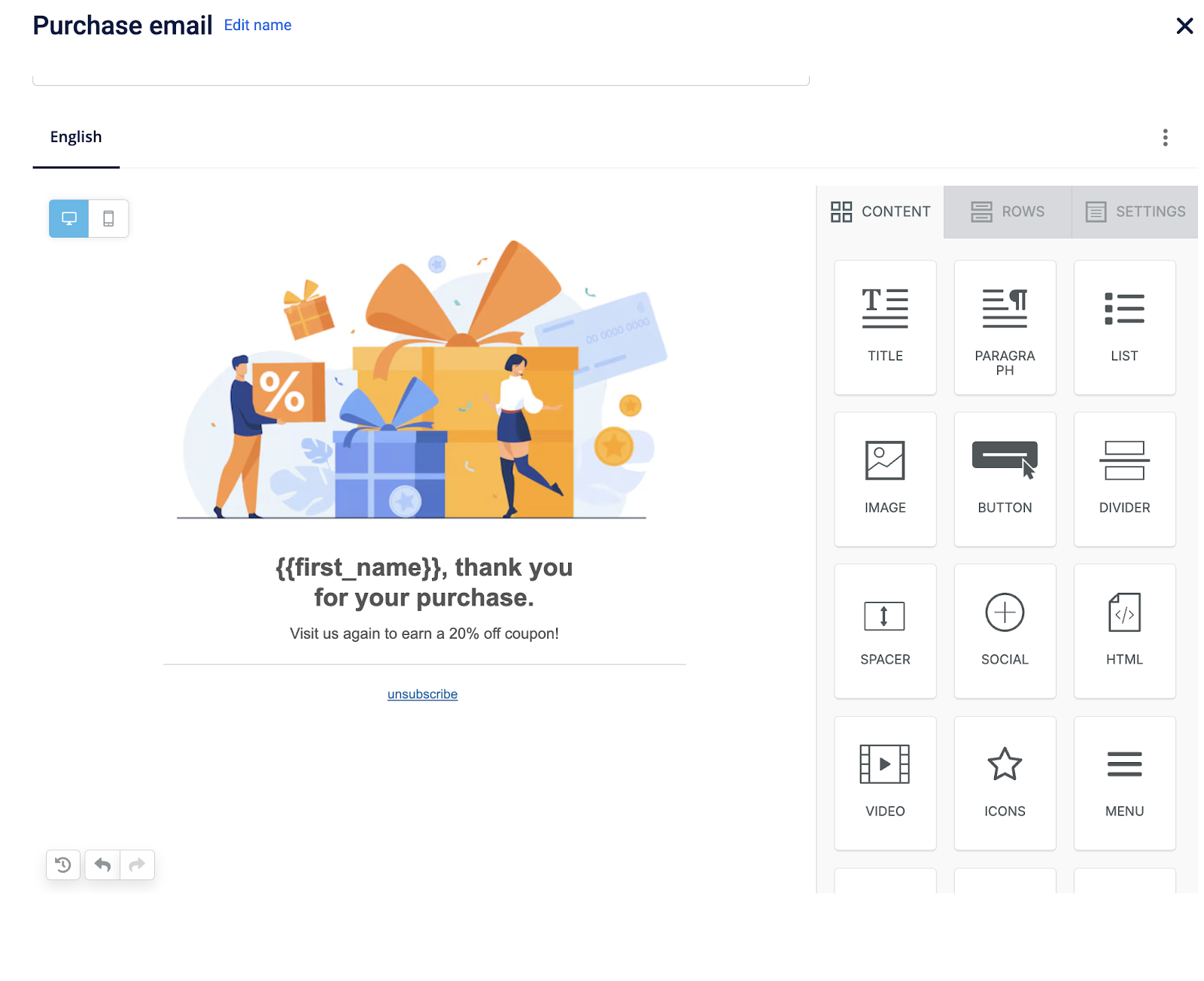
Creating an Email using the Drag & drop editor
You can create an email template using the Drag & drop Editor, which allows you to build content by adding and arranging blocks without writing any code. You can start from an inbuilt template or create a template from scratch. By default, this editor is not enabled. Raise a ticket with the PST team to get it enabled for your organization.
Note: If required, inbuilt templates in the Drag & drop editorcan be hidden for your organization. Raise a Jira ticket to the PST team to configure this setting.
To create an email template using the drag and drop editor, follow the steps below:
Building the Email layout and content
Use rows and content blocks together to create the email body.
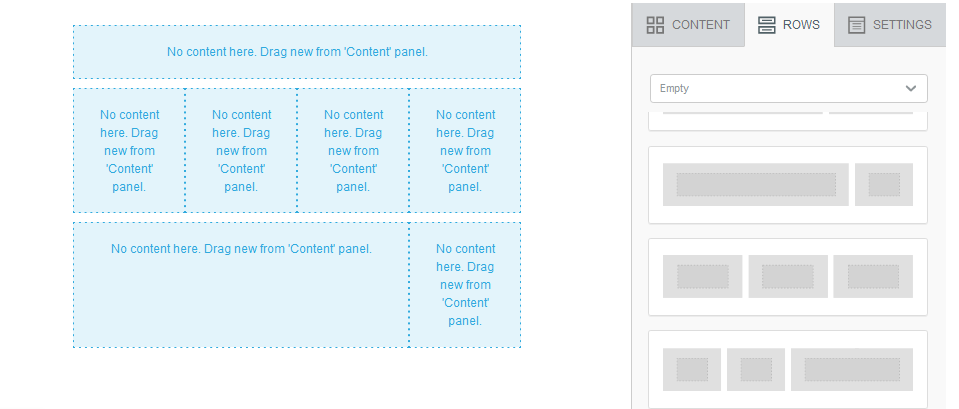
- From the Rows tab, drag and drop a row into the email body. Add additional rows as required. Each row has a predefined column structure.
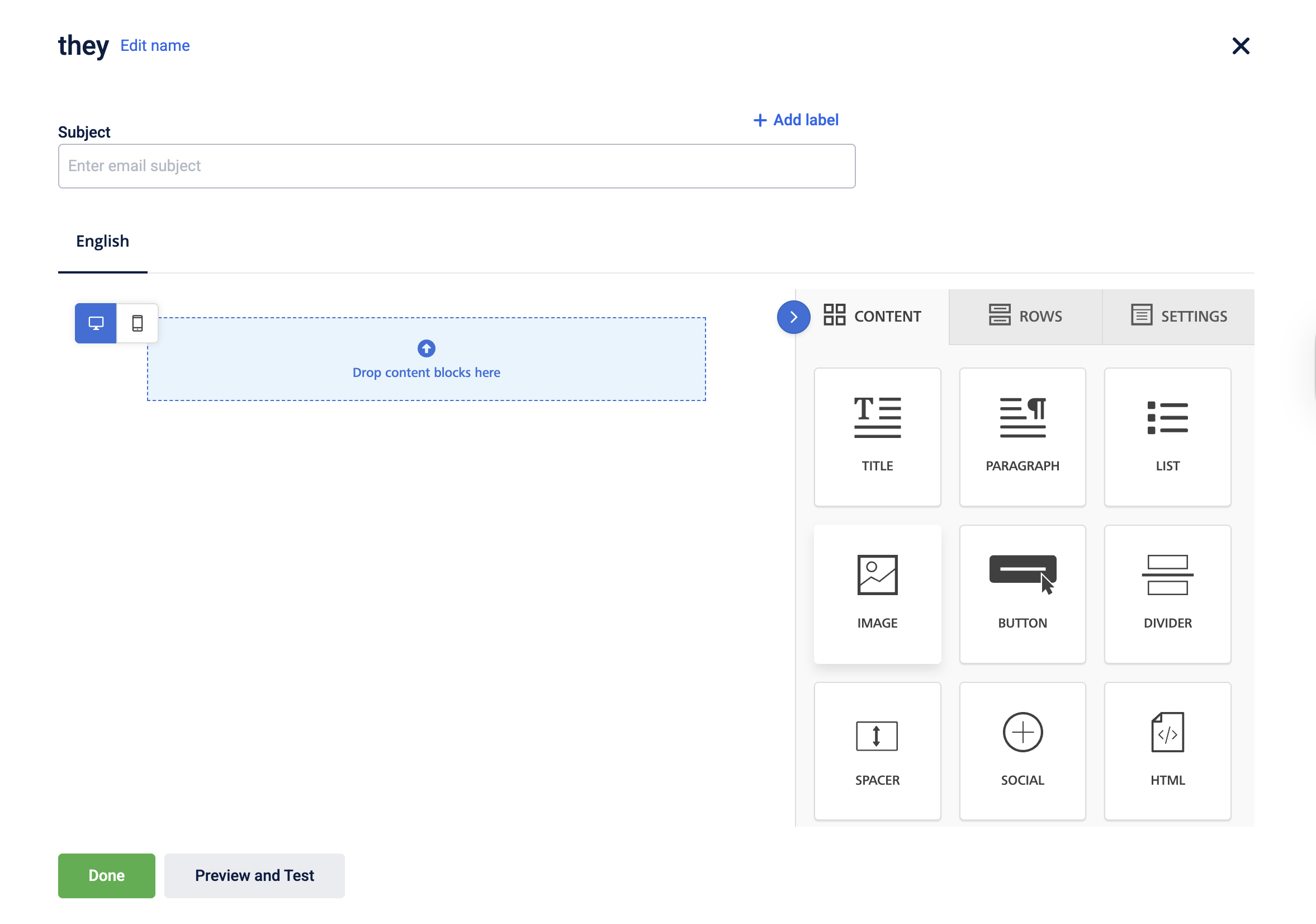
- Switch to the Content tab and drag the required content blocks into the rows.
Available Content Blocks
| Block | Description |
|---|---|
| Title | Adds a heading or title. |
| Paragraph | Adds formatted text content. |
| List | Adds a bulleted or numbered list. |
| Text | Adds a simple text message. |
| Image | Adds images from the library or local system. Supported formats: JPEG, PNG, GIF. Base64 images are not supported. |
| Button | Adds action buttons such as Click here or Submit. |
| Divider | Divides a row into multiple columns. |
| Social | Adds social media icons linked to the organisation’s social channels. |
| HTML | Inserts custom HTML code such as tags, hyperlinks, or headers. |
| Video | Embeds a video using a video link. |
| Icon | Adds small image icons, typically used for logos or symbols. |
| Menu | Adds a navigation menu with configurable links. |
| Stickers | Adds stickers from the library. |
| GIFs | Adds animated images from the library. |
Block options
After selecting the content block, you can view all the content properties and block options to modify the content.
| Property | Description |
|---|---|
| Padding | Adds space inside the content block. You can apply padding to all sides (Overall) or individually to the Top, Bottom, Left, and Right. |
| Margin | Adds space outside the content block, separating it from surrounding content. You can configure margins for individual sides. |
| Font style | Changes the font applied to the selected text |
| Font color | Changes the colour of the text within the selected content block. |
| Bold | Applies bold formatting to emphasize selected text. |
| Italics | Applies italic formatting to the selected text. |
| Alignment | Aligns the text to the left, centre, or right. |
| Add Bullets | Formats text as a bulleted list to present information clearly. |
| Hide on | Controls content visibility by device type. You can choose to hide the content on desktop or mobile views. |
Add Personalization and dynamic content
In the editor, move the required blocks from the Content and Row tabs, and then add your content. You can perform the following:
-
Add text with labels and tags, and then apply formatting. You must include an unsubscribe tag in all email content. You can also customize the unsubscribe message's landing page using Vulcan.
Note
i. You can add labels in the email subject and the body.
ii. Ensure all tags contain data. If tags are inconsistent, a validation error occurs.
iii. When using dynamic labels in templates (for example,
{{gap_to_upgrade_tracker}},{{gap_to_renew_tracker}}), the system validates all labels before sending the message. If any one label fails to resolve and returns a null value, the message is not sent, and the customer can be skipped from the communication.iv. Ensure that Liquid loops and dynamic tags remain within the correct HTML structure and that all required variables are present in the payload. If dynamic tags (for example,
coupon.standard_image_1) cannot be resolved due to template changes or missing variables, email delivery may fail. -
Add images
-
Personalize the message with the Liquid language. Applicable for the email subject and body. When writing Liquid code, use straight quotes (' or ") only. Curly quotes (“ ”) will break your template.
For example -
Correct expression:{% if slab_name == 'Platinum' %}
Incorrect expression:{% if slab_name == “Platinum” %} -
Add dynamic headers and footers. Add dynamic headers and footers. You can also use an organisation's custom fields to apply dynamic elements, such as headers and footers, that are specific to that organisation. This is helpful in a connected organisation setup. For more information, refer to the documentation on Adding Dynamic Content Using Custom Fields.
-
Add a barcode that contains the customer's loyalty identification information. You can include this barcode in customer registration emails, updates, or campaign messages. For more information, refer to the section on Adding barcodes for emails.
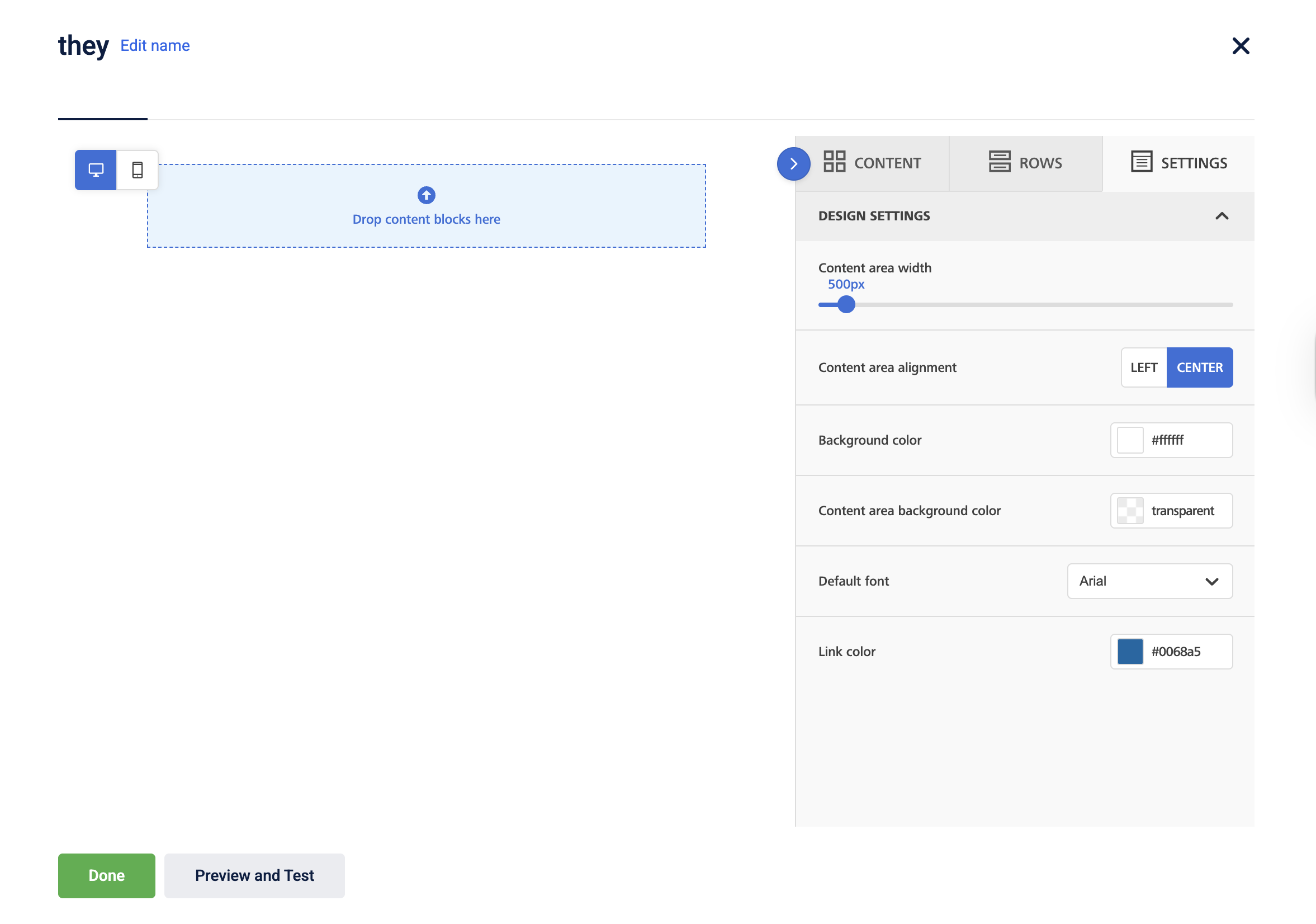
Configuring Email appearance (Settings Tab)
Use the Settings tab to define the overall appearance of the email.
| Block | Description |
|---|---|
| Content area width | Sets the width of the main content section in the email. |
| Content area alignment | Aligns the content area to the left and center. |
| Background color | Sets the overall background color of the email. |
| Content area background color | Sets the background color specifically for the content area. |
| Default font | Sets the font of the text. |
| Link color | Sets the color of all hyperlinks in the email. |
Review and save the email template
Once the content is added to the email template you can review and save the template.
To review and save the email template, perform the following steps:
-
Select Preview and Test to populate values for any tags and labels, review the rendered content, and send test messages to test customers before sending the email.
-
Select Create to save the email template.
Barcode in Email
Note
- When sending email communication that includes a barcode, ensure that the barcode feature is enabled. This feature is disabled by default, so you must raise a JIRA ticket with the sustenance team to activate the
ENABLE_CUSTOMER_BARCODE_TAGflag before using barcodes in emails.- Barcode feature can be used both in Loyalty programs and on Engage+.
This feature enables you to create a barcode that contains customer identifier information and can be used by customers for identification purposes. Customers can use this barcode at the POS to identify themselves and earn/claim loyalty benefits.
Prerequisites to enable barcode
-
To enable barcode generation, the following configurations must be enabled:
- CONF_REGISTRATION_BARCODE_GEN_ENABLED: Set the value to 0 or 1. Default value: 0- False
- CONF_BARCODE_VALUE_IDENTIFIER: Set the value to 0,1 or 2 to set the barcode identifier. You can set the identifier according to the information to embed in the barcode.
| Value | Description |
|---|---|
| 0 | Mobile number of the customer. |
| 1 | Email ID of the customer. |
| 2 | The external ID of the customer. |
- Raise a Jira ticket assigned to the Foundation team and enable bucket, namespace, and CDN URL support for the barcode service on the respective cluster where the organization is located.
Configuring barcode
Capillary supports six types of barcodes, given below:
- ITF
- PDF417
- EAN 13
- UPC A
- QR code
- CODE 128
Default barcode configuration
| Field | Value |
|---|---|
| Default barcode type | CODE_128 |
| Image type | PNG |
| Default barcode styles according to the barcode type: | |
| -ITF |
|
| -QR_CODE |
|
| -PDF_417 |
|
| -EAN_13 |
|
| -UPC_A |
|
| -CODE_128 |
|
| Field | Data Type | Description |
|---|---|---|
| default_barcode | String | Default barcode type that will be used if no barcode type is mentioned in the barcode service API. |
| showBarcodeText | Boolean | If set to true, the text will be displayed with config. |
| imageHeight | Integer | Height of the image in pixels. |
| imageWidth | Integer | Width of the image in pixels. |
| imageWidthPadding | Integer | Padding around the width of the barcode image. This property is applicable when showBarcodeText is set to true. Not applicable for ITF barcode. |
| imageHeightPadding | Integer | Padding around the length of the barcode image. This property is applicable when showBarcodeText is set to true. Not applicable for ITF barcode. |
| fontName | String | Name of the font. Not applicable for EAN 13, PDF417, QR Code, ITF barcode. |
| fontSize | String | Size of the font. Not applicable for ITF and QR code. |
To edit the default barcode configuration, create a JIRA ticket to the Capillary sustenance team.
Generating barcode
According to the configuration, during customer registration, the Customer Add API calls the barcode service and the barcode image is stored in the images table in the backend. If the identifier provided in the configuration is changed using customer identifier change API, a new barcode image is created and saved. You can retrieve the barcode image details using the GET customer details API.
NoteIf you want to create a barcode for an existing user or regenerate a barcode, create a ticket to the Sustenance team.
To embed the barcode in the email creative, perform the following:
- Navigate to the Engage+ homepage, and select the campaign to send the email creative.
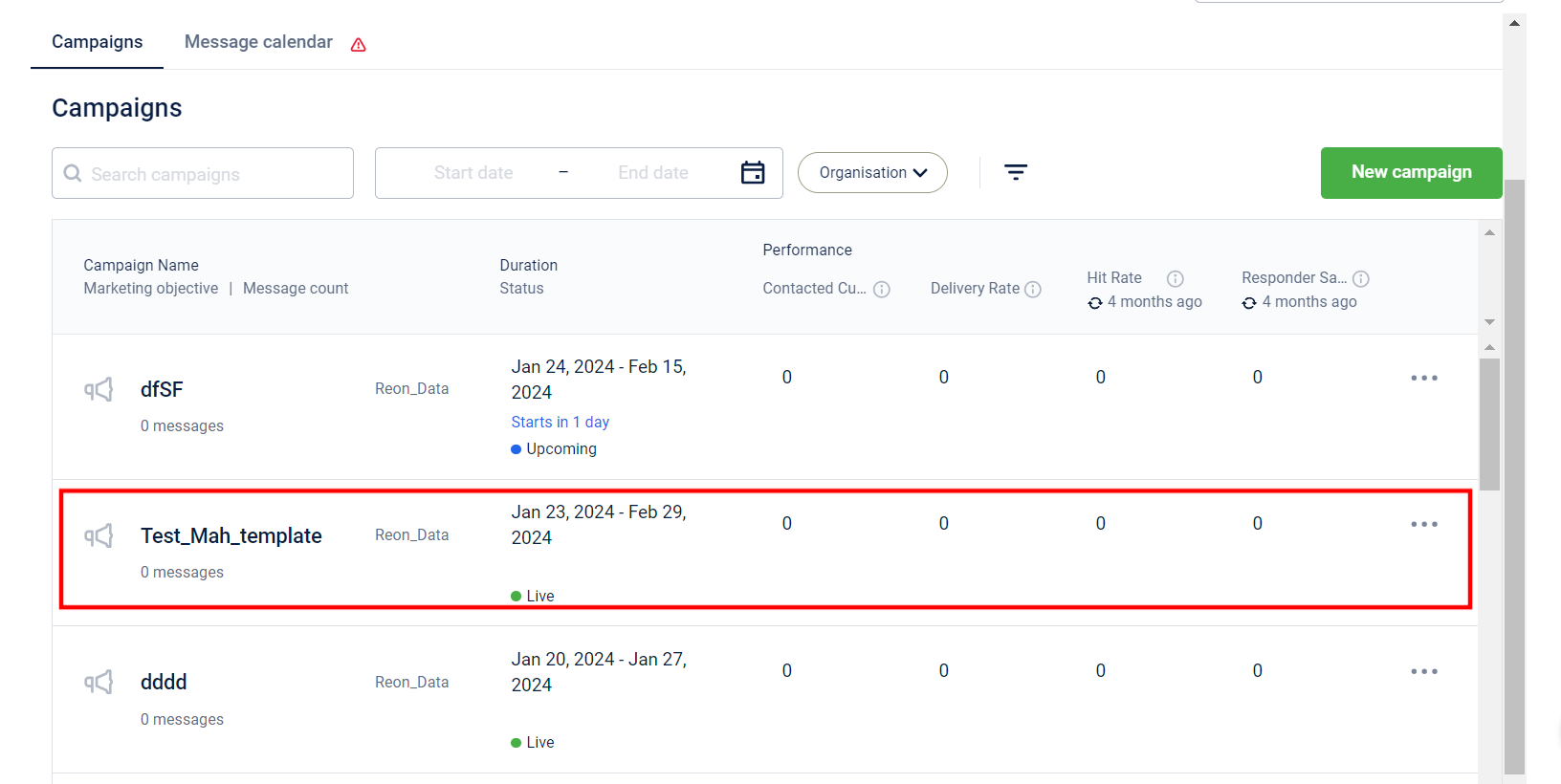
- Select New message to create a new email creative.
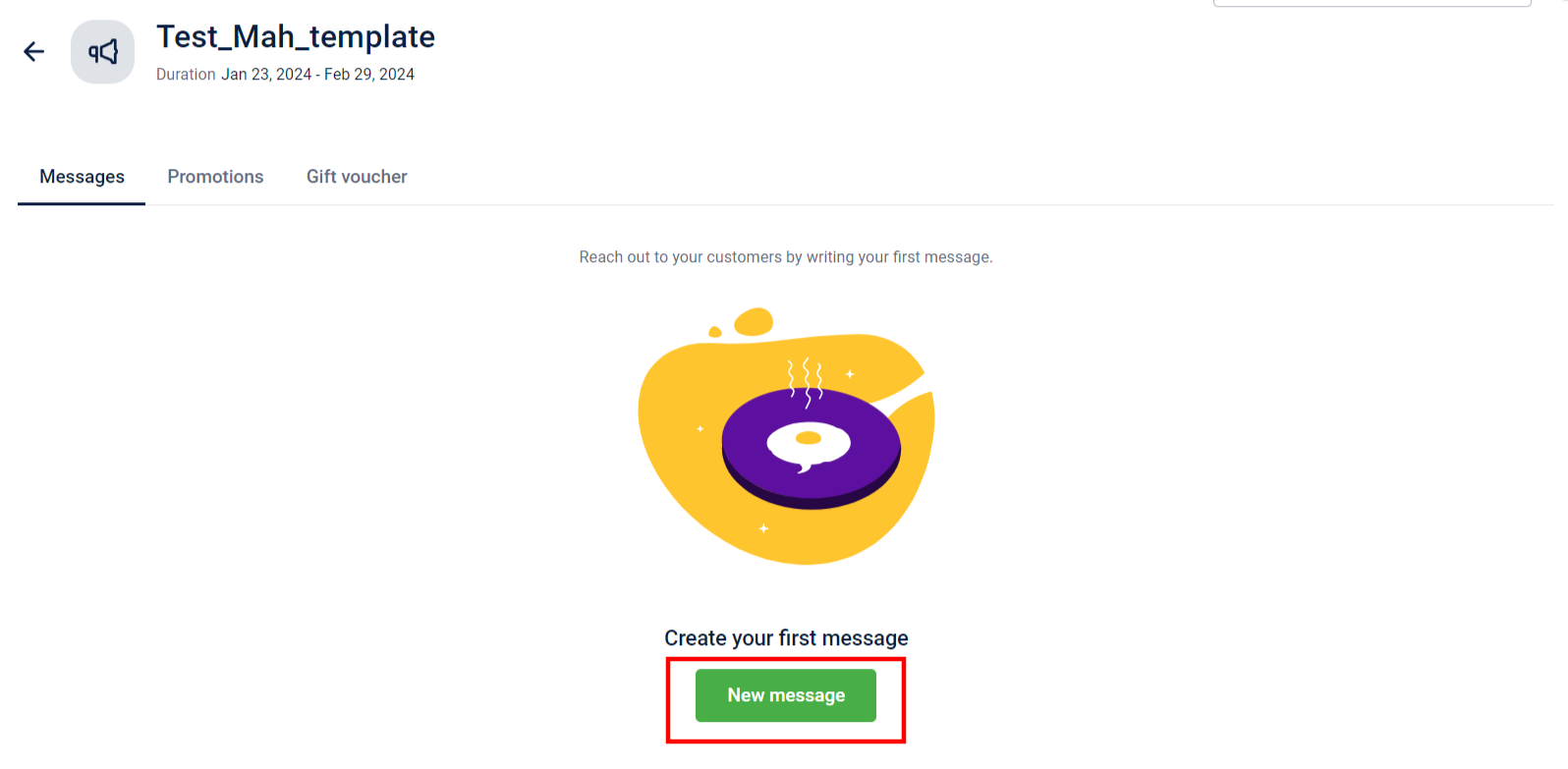
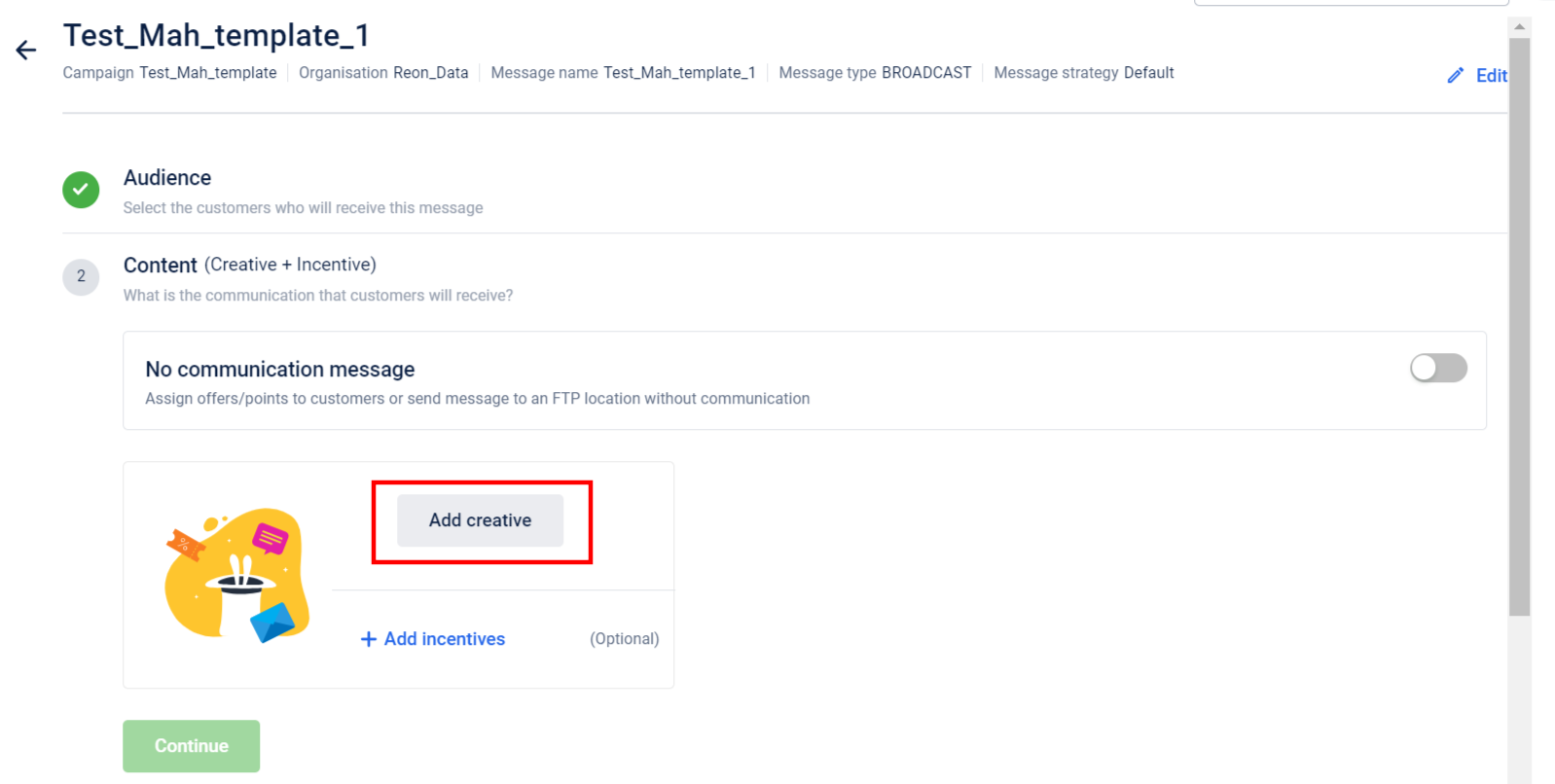
- In the Content section, select Add creative.
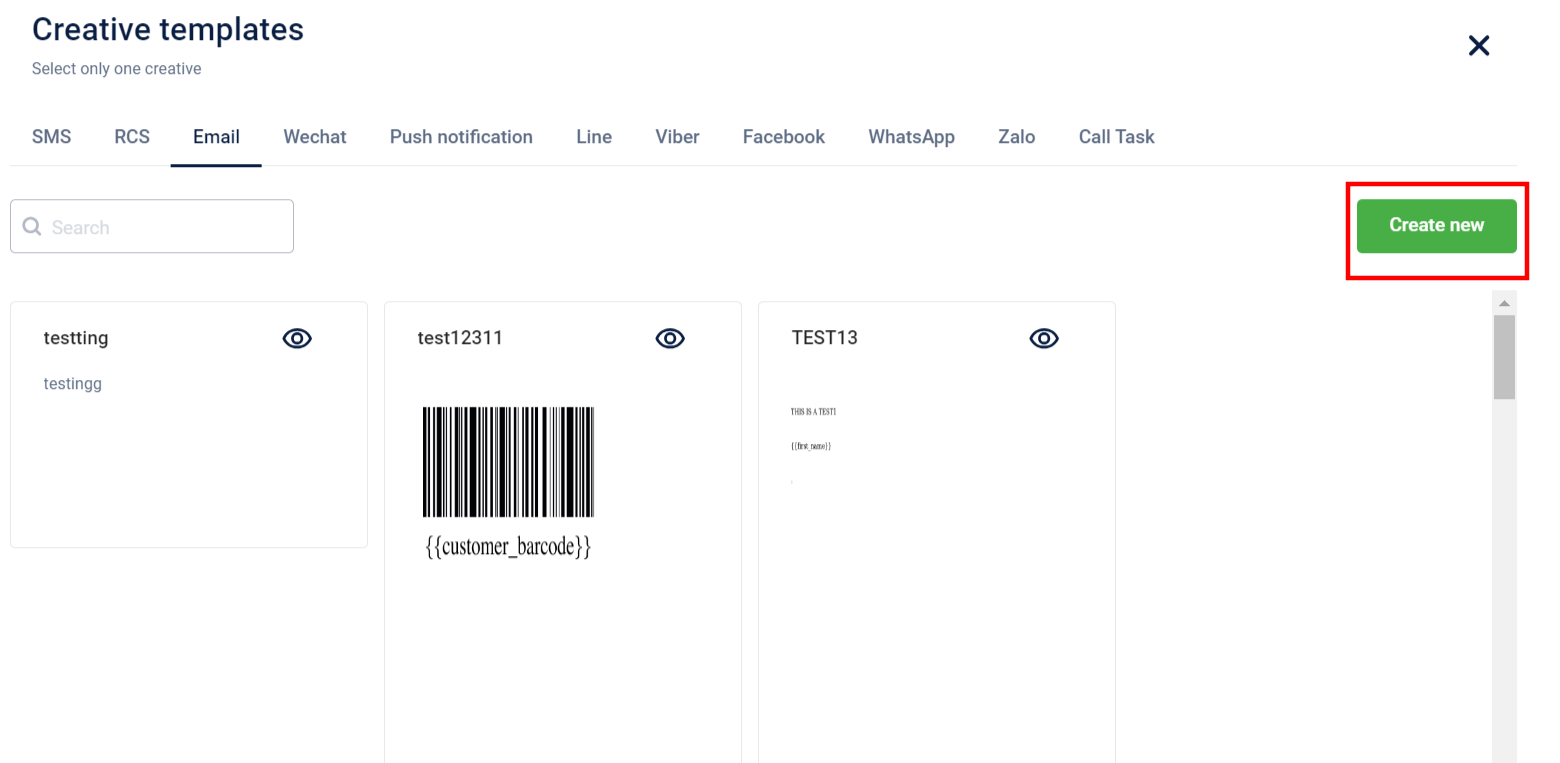
- Navigate to the Email tab and click Create new.
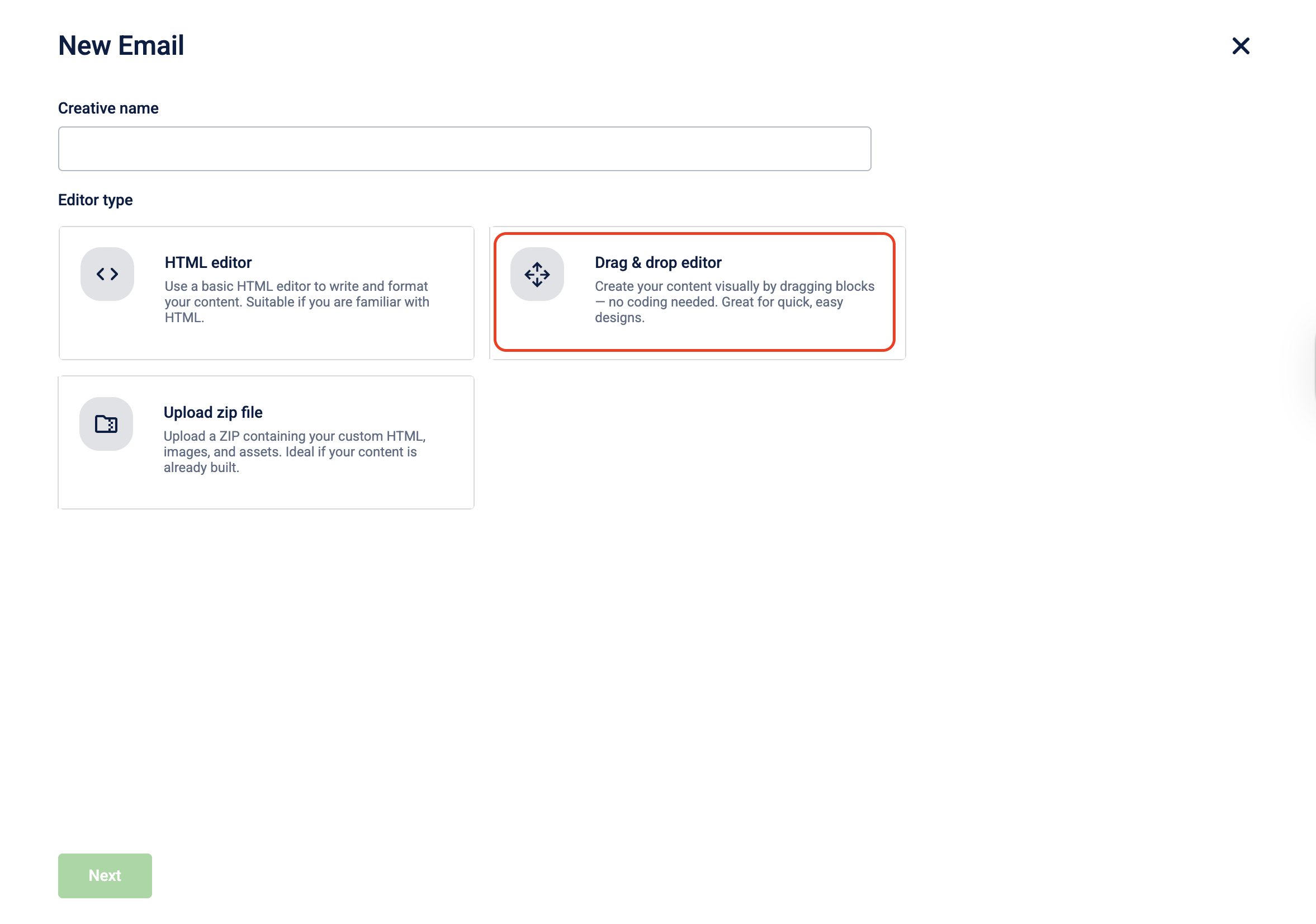
- Click Drag & drop editor and click Continue.
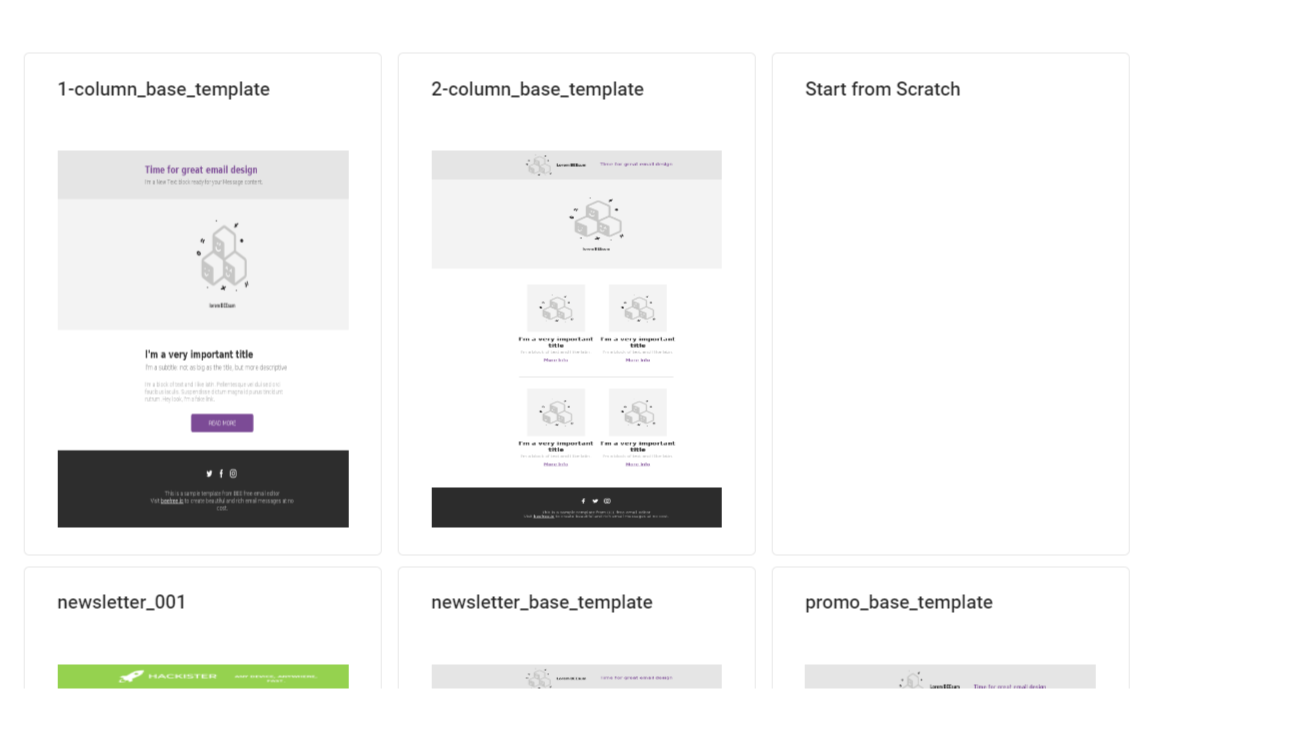
- Select a template of your choice.
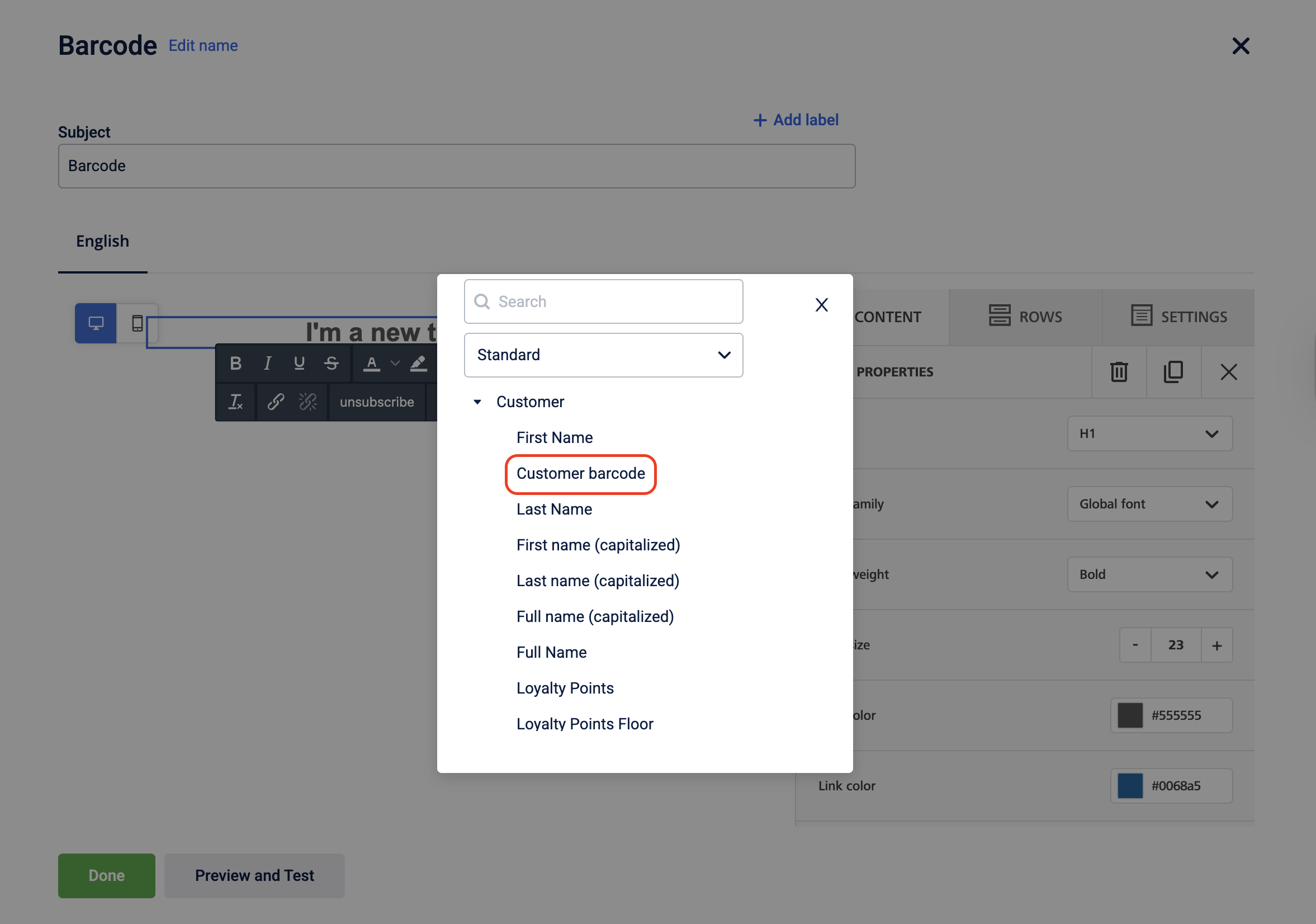
- In the email body, click Add label and select Customer barcode label.
- Embed the
{{customer_barcode}}tag in your email template.
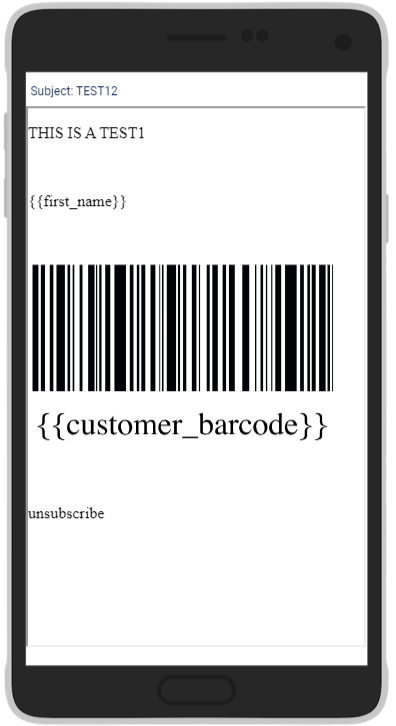
A barcode has been generated for the customer. A broken image is sent to the customer if a barcode fails to generate.
Customize Unsubscribe landing page
You can customize the default unsubscribe landing page using Vulcan. To request customization, connect with your Customer success executive.
You can customize the following elements:
- Brand logos
- Custom text or messaging
- Language-specific versions
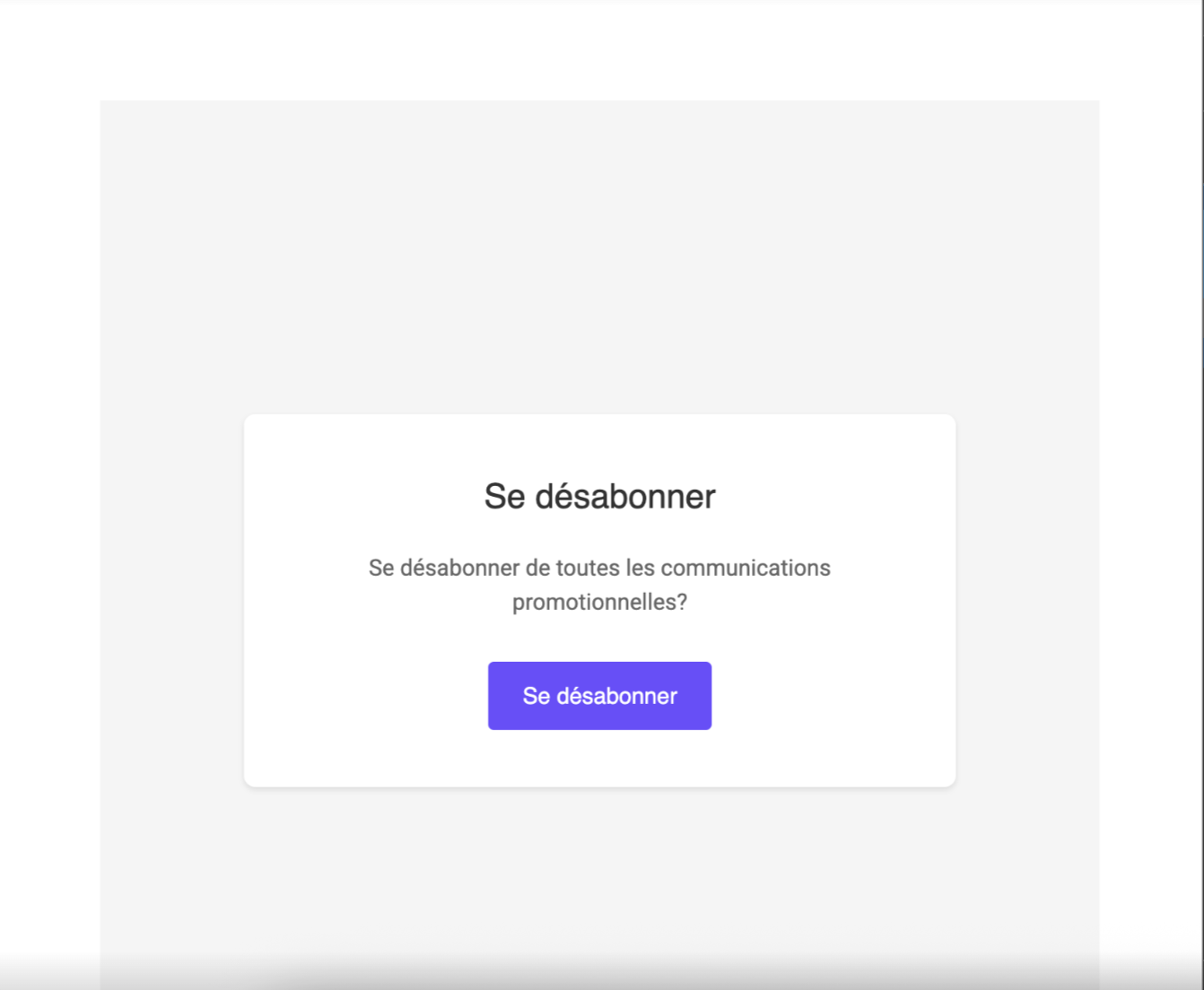
An example of how the unsubscribe landing page will look when customized for French language.
Troubleshooting email image quality issues
Notes
- Do not forcefully enlarge images.
- Use actual images or image URLs in zip files without enlarging them.
| Issue | Resolution |
|---|---|
| File size is getting reduced | Expected behavior. File size reduction due to image transformations does not affect user experience. Specify image dimensions to maintain quality. <br>For example, if the email specifies a height and width of 200 x 300, images are transformed to match these dimensions instead of saving the original image, which might have very high dimensions. Consequently, the file size is reduced. This reduction could also occur due to dynamic image quality adjustments based on file sizes. |
| Image getting compressed excessively | Compression varies with file size. Smaller images have less compression; larger images undergo higher compression. This makes sure that irrespective of the file size, similar quality of images is achieved after compression. Do not artificially enlarge images to increase the file size. |
| Images saved in avif format instead of jpeg | Images are saved in their actual format except when the device supports avif format. avif format enables saving the images in smaller file sizes without impacting image quality. |
For information on Generate OTP APIs, refer to the API documentation.
Updated 3 months ago