
Copy and Paste a Dataflow
You can use Aira Coder to copy and paste dataflows across organizations in the same cluster or across clusters. You use natural language prompts to copy and paste a dataflow. When you copy a dataflow, Neo stores it in your personal dataflow store that is attached to your email ID. You can view your stored dataflows using a view prompt and paste a selected dataflow onto the canvas using a paste prompt.
To paste a dataflow, you select a dataflow from your dataflow store. When you select it, Aira Coder automatically generates a predefined paste prompt that is used to paste the dataflow. You cannot edit the auto-generated prompt or write the prompt manually for the paste function.
To copy and paste a dataflow, you must use the copy, view, and paste prompts in sequence. For example, if you want to copy the dataflow CheckCodeDiff from Organization A to Organization B, follow this sequence:
-
Use a copy prompt from any version of the dataflow you want to copy.
Example: “Copy the dataflow CheckCodeDiff with the description ‘Move’.” -
Use a view prompt in the target organization to view your dataflow store.
Example: “View my dataflow store from the EU cluster.” -
Use a paste prompt to paste the required version.
Example: “Paste the dataflow CheckCodeDiff with version 4.”
After the dataflow is pasted, you can preview the changes before you accept or reject them. You can also edit the pasted dataflow if required, before saving.
You cannot copy Trigger block and tag.
The dataflow to which you are pasting must be in Draft state
Prerequisites
- Neo Edit access to the source and target organization
Guidelines for using copy-paste prompts in Aira Coder
Follow these best practices when using the copy-paste prompts in Aira Coder:
-
Include a meaningful description for the action with every copy prompt. This is a mandatory requirement, and if the description is missing, the system prompts you to add one.
Example: “Copy this dataflow to my dataflow store with the description ‘Move’.” -
Specify a version number of the dataflow that you want to copy. This helps you to copy any version of the dataflow, irrespective of the version that is currently open. If you do not specify one, Neo copies the version of the dataflow that is currently open in the canvas.
-
Specify the cluster from which you want to view your dataflow store.
Example use case: Copying version 4 of the dataflow CheckCodeDiff from organization DocDemo to another organisation ANB
Step 1: Open the desired dataflow in DocDemo org and copy the dataflow

Prompt:
Copy version 4 of the dataflow CheckCodeDiff with the description “Copy to another organization”.What happens
-
Neo copies the saved version of the dataflow and ignores any unsaved changes on the canvas.
-
Neo stores metadata such as the dataflow details, the cluster, your user information, and the organization ID associated with the dataflow.
-
Neo adds the copied dataflow to your personal dataflow store.
Additional sample prompts for copy
| User prompt | Response |
|---|---|
| Copy this dataflow to my dataflow store with the description “Copy to another organization” | The current dataflow open in the canvas is copied. |
| Copy version 2 of this dataflow to my store with the description “Copy to another organization”. | Version 2 of the dataflow open in the canvas is copied to the dataflow store. |
| Copy v4 of this DAG to store with the description “Copy to another organization”. | Version 4 of the dataflow open in the canvas is copied into the dataflow store. |
| Copy live version of CheckCodeDiff dataflow with the description “Copy to another organization” | The live version of the dataflow CheckCodeDiff is copied into the dataflow store. |
Step 2: Open a canvas in the organization ANB and view your dataflow store
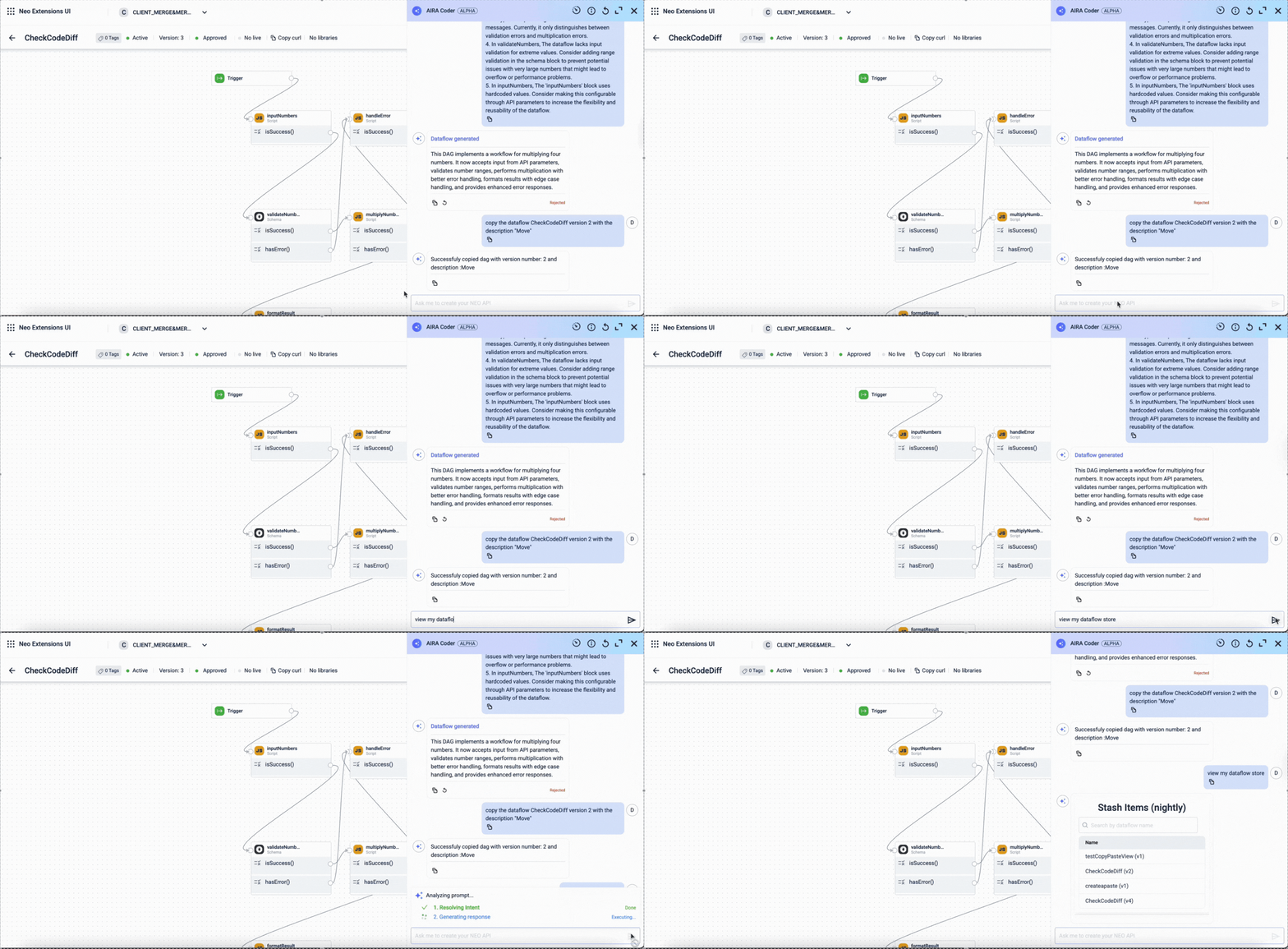
Prompt
View my dataflow store from APAC clusterWhat happens
- The system lists up to the last 10 dataflows you copied in the APAC cluster.
Additional sample prompts for view
| User prompt | Response |
|---|---|
| View my dataflow store. | The last 10 dataflows you copied in the current cluster are listed. |
| View my dag stash | The last 10 dataflows you copied in the current cluster are listed. |
| View my dataflow store. | Provide the destination cluster name (like nightly, staging, etc.) to view DAG store content. |
| View the dataflow store in the APAC cluster. | The last 10 dataflows you copied in the APAC cluster are listed. |
| View my stash from EU | The last 10 dataflows you copied in the current cluster are listed. |
Invalid view prompt examples
| User prompt | Response |
|---|---|
| View my dataflow store from eucrm and asiaapac clusters | Neo allows viewing only one cluster at a time and will display a message if you attempt to view multiple clusters. |
| Show dataflow store of Organization A. | Viewing is cluster-specific, not organization-specific. You receive a prompt to specify the cluster. |
Step 3: Open the dataflow in the Organization ANB to paste the copied dataflow
Prompt

Paste this dataflow CheckCodeDiff and version 4.What happens
- The dataflow stored in your dataflow store is pasted onto the canvas.
Frequently Asked Questions (FAQ)
- What is the copy and paste feature used for?
The copy and paste feature allows you to copy dataflows across organizations in the same cluster or across clusters using natural-language prompts in Aira Coder.
- Do I need to follow a specific sequence while using this feature?
Yes. You must use the prompts in the following order:
-
Copy the dataflow.
-
View your dataflow store.
-
Paste the selected dataflow.
You cannot paste a dataflow without viewing and selecting it first.
- Can I copy a dataflow from any version?
Yes. You can trigger the copy action from any version of the same dataflow. However, you cannot copy a dataflow while another dataflow is open on the canvas.
- Does the unsaved changes on the canvas get copied?
Neo copies only the saved dataflow.
Unsaved changes on the canvas are not copied.
- Do I need to specify a version number in the copy prompt?
No. Specifying a version number is optional.
If you do not specify a version, Neo copies the version currently open on the canvas.
- What metadata is stored when I copy a dataflow?
Neo stores the following metadata:
-
Dataflow details
-
Cluster
-
User information
-
Organization ID associated with the dataflow
- What does Neo not copy?
The following items are not copied:
- Trigger block
- Tags associated with the dataflow
- How many copied dataflows can I view?
Neo displays up to the ten most recently copied dataflows for the cluster you specify. If you do not specify a cluster, Neo shows the last ten dataflows from your dataflow store for your current cluster by default.
- Can I paste a dataflow into any organization?
Yes, you can paste a dataflow into any organization in the same cluster or another cluster where you have access.
- In what state does the pasted dataflow appear?
Pasted dataflows always open in Draft state, allowing you to review and modify them before saving.
- Can I edit the pasted dataflow?
Yes. After pasting, you can edit the dataflow before saving it.
- Can I preview the dataflow before pasting?
Yes. Aira Coder provides a preview before applying the changes.
- Can I copy or paste multiple dataflows at once?
No. You can copy and paste only one dataflow at a time.
For example, if you need to move ten dataflows from Organization A to Organization B, you must perform the copy, view, and paste sequence separately for each dataflow. The system does not support copying or pasting multiple dataflows in a single action.
- Can a user with view-only permissions use this feature?
No. Users must have the Neo Edit permissions use Aira Coder for copy and paste.
- Can I use this feature to move the dataflow from one organization to another?
No, you can only copy and paste the dataflow. The original dataflow will remain intact.
Updated 5 months ago