
Test and Preview across engagement channels
When you create new message content for a selected engagement channel, you can use the Preview and Test feature to review how the message will appear before sending it to your audience. This feature is supported for all the engagement channels except Line and WeChat.
This helps you validate both the content and design across all supported engagement channels
- Preview: View the email content and design before saving.
- Test message: Send test messages from the email test message section to selected test customers or test groups to review the content and design before sending to the audience. Only users added as test customers or included in a test customer group can receive test messages.
You can do this either from the creatives or from the message creation flow within a campaign.
Note
A default limit of 10 test messages per user within a 24-hour window is always enforced. Any messages sent beyond this limit will be blocked until the 24-hour window resets. This limit applies across all the engagement channels. To increase this limit, raise a Jira ticket with the Product Support team. The updated limit will be applied within 24 hours.
Previewing and testing the message content from creatives
To preview and test a message content from the creatives, follow the steps below.
- From the Engage+ homepage, navigate to the Creative section and select the required engagement channel to preview and test the message content.
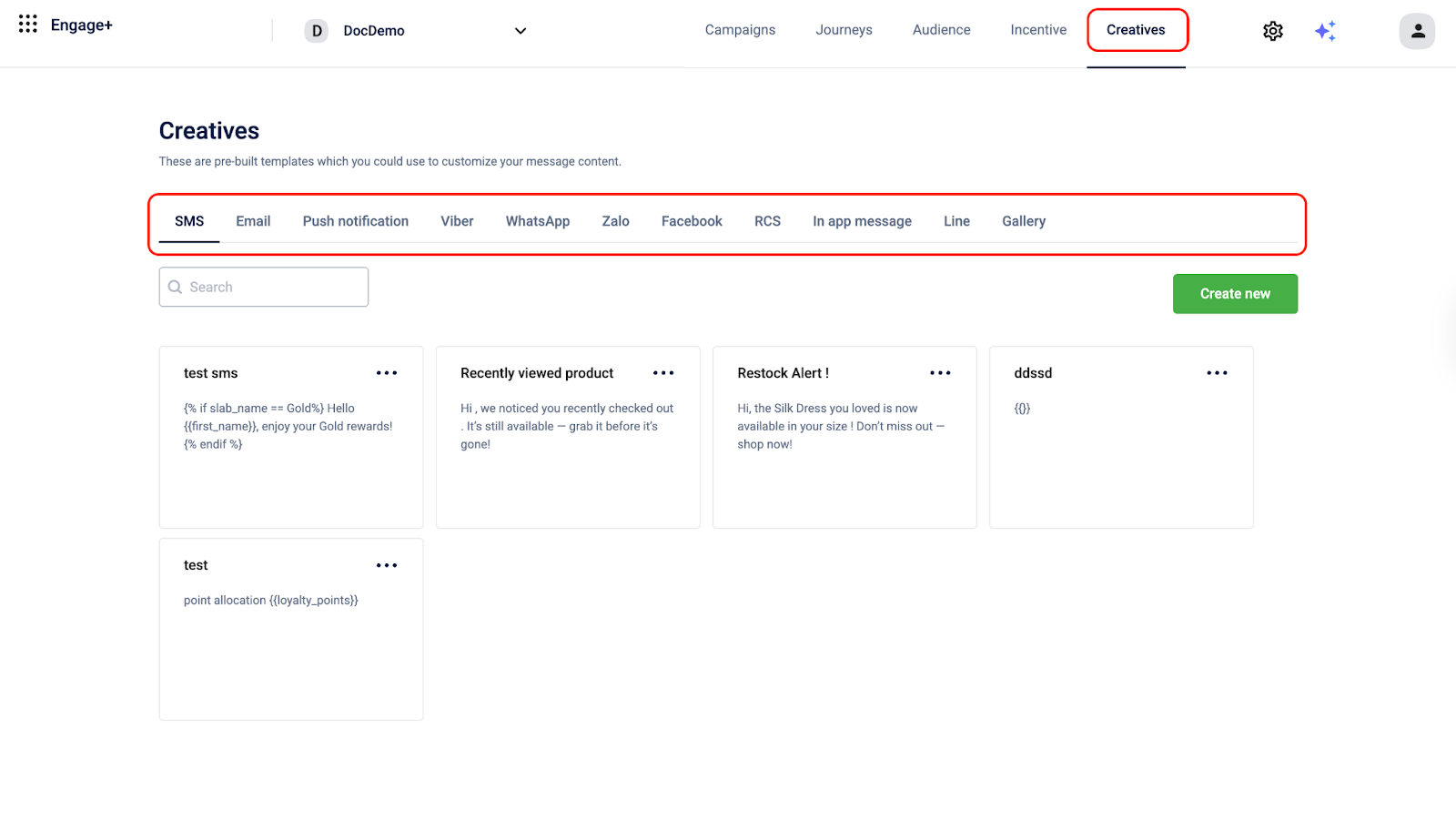
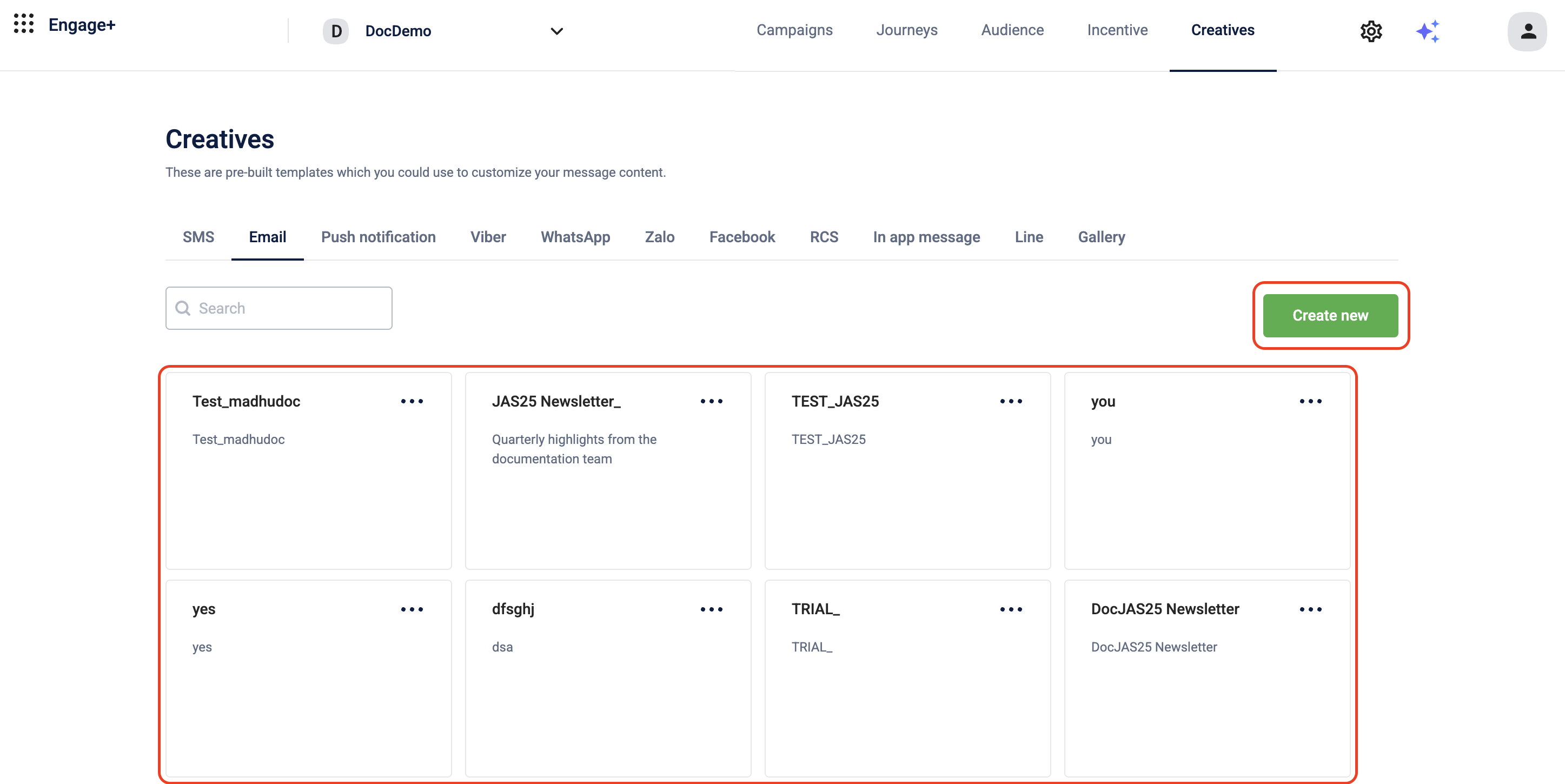
- On the engagement channel listing page, you can either navigate to an existing template or select Create new.
-
Select Create new to create a new message template for the selected engagement channel and add all required labels to it. You can also include the custom tags while creating the template.
-
Select Preview and test. A modal appears that lists all tags and labels in the template.
-
Include custom values against the tags and labels, perform the following:
- An input form appears with input boxes for all the tags in the template content. Enter the value for the tags.
- You can add the values automatically or manually.
-
To fetch the values automatically, navigate to the customer search box and search for a registered customer by using mobile number, email, or external ID. Once a customer is selected, all user-specific tags are automatically filled with that customer's data. The customer should have the values defined in their profile for the fields to populate the values automatically. Otherwise, an error message will appear.
Note: Only registered customers can be searched and selected. If you search for an unregistered customer, a No customers found message is displayed.
-
To add the values manually, enter the values for each tag. You can also select Show JSON and enter values for these tags in the JSON. Certain tags or labels are marked with an asterisk
*,for example,voucher_expiry_dateandpromotion_expiry_date. The values for all asterisk*tags must be entered manually for them to appear in the preview.
-
-
Select Update preview. The message content appears on the right with all tag values filled.
-
To discard custom values, select Discard custom values. You can click either of the two layouts to view the message content in desktop or mobile views.

-
After updating the preview, select Send test messages. You can select individual test customers, test groups, or select multiple test groups to send messages. The available test users are retrieved from the test customer configurations defined at the organization level.
-
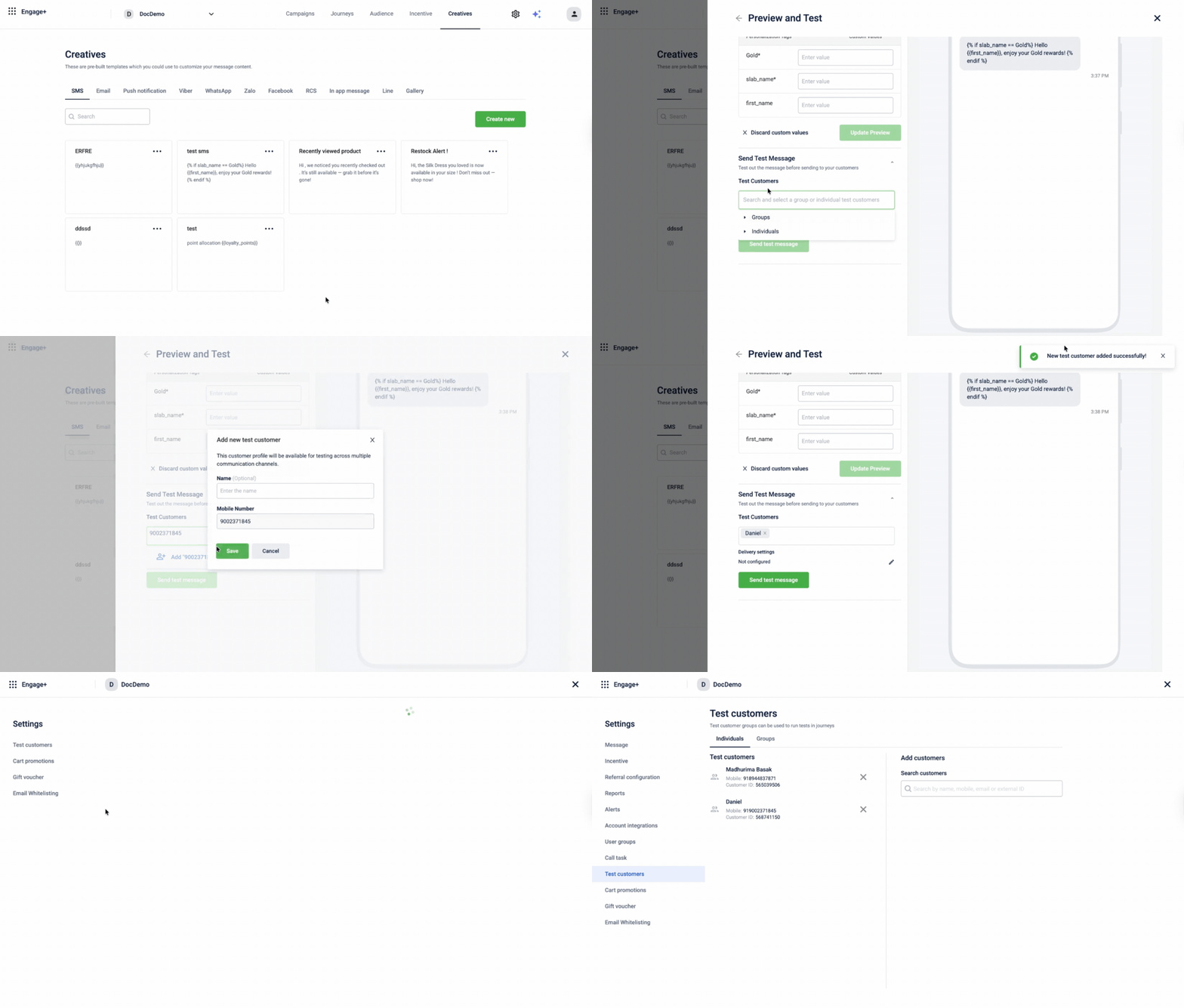
If the required user is not available in the Test Customers field, add them directly from the Test Customers section. This is applicable for SMS and Email engagement channels only. To add a test customer, follow the steps below:
i. In the Test Customers field, enter a mobile number or email address based on the selected engagement channel and select Add as "identifier" Test Customer from the dropdown.
Note: For SMS, mobile numbers must contain a minimum of 8 digits and a maximum of 15 digits. Numbers outside this range are not accepted and are not allowed to add as a test customer.
ii. A Add new test customer modal appears, verify the pre-filled mobile number or email.
iii. (Optional) Enter a name in the Name field.
iv. Select Save. The added test customer is assigned a customer ID. This ID is for testing purposes only and cannot be looked up in MemberCare.
The user is added as a test customer and is available for selection in the Test Customers field. The added customer is also listed in the Test Customers section under Campaign Settings. If the number or email belongs to an existing customer, a confirmation modal appears displaying their name, mobile number or email, and customer ID, select Save to add them to the test customer list, or Cancel to exit.
Notes
- The test customer you add here is saved to your organization's test customer list in campaign settings and is available for testing across multiple engagement channels.
- If a test customer is removed from the test customer list in campaign settings, they no longer appear in the dropdown. To add them again, type the same mobile number or email address in the Test Customers field and follow the same steps above. When re-adding, the name field will be empty, enter any name and select Save. The name you enter appears in the current session, but once you refresh the page, the name reverts to what was originally saved for that profile in campaign settings.
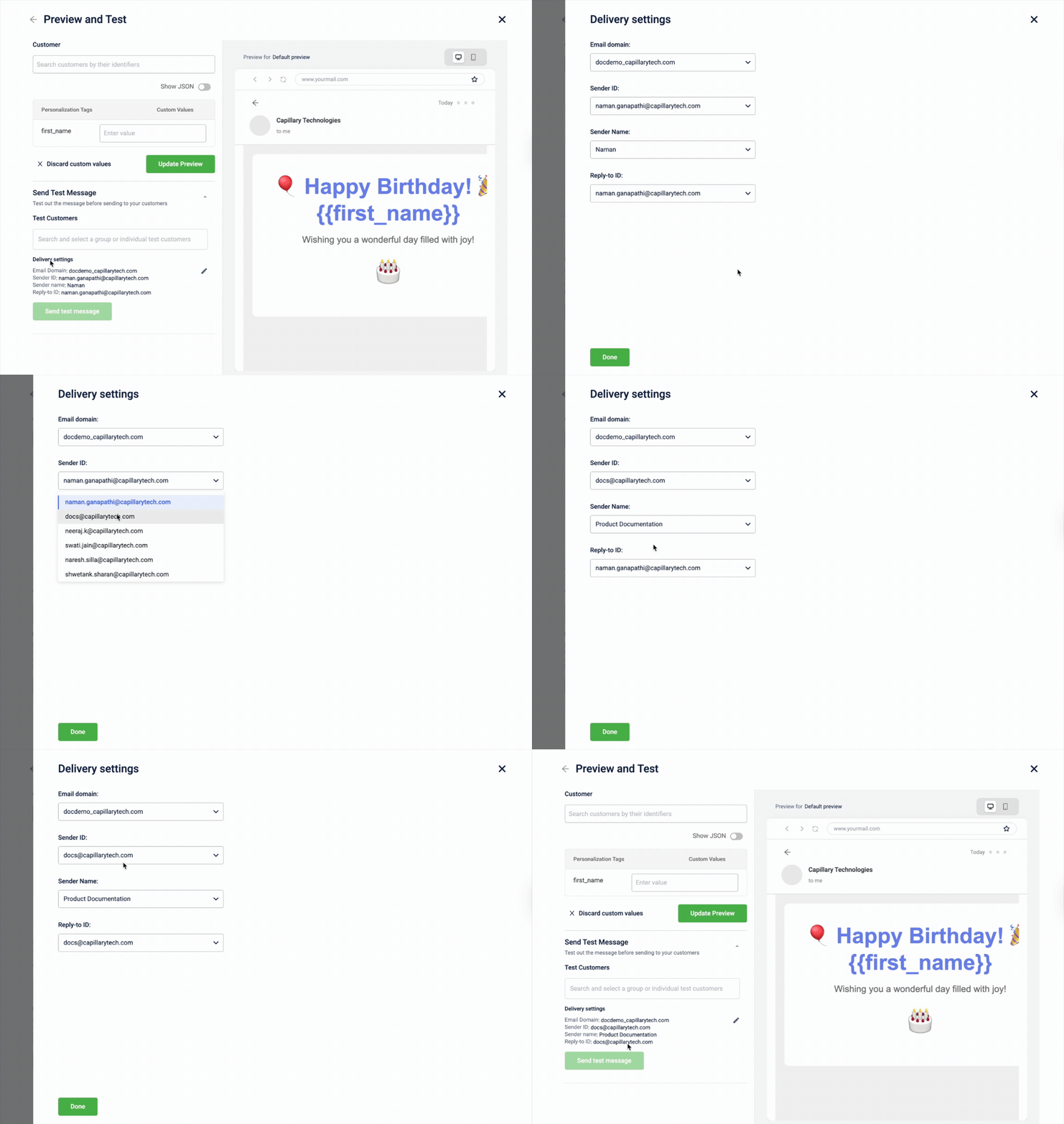
- In the Delivery settings section, view the sender details used to send the test message, select the edit (pencil) icon, a modal appears to update the sender details by selecting the required Sender ID based on the configured engagement channel, then select Done.
Note: This option is available only for WhatsApp, Email, and SMS engagement channels.
Multiple sender IDs are available only if they are pre-configured at the gateway level. For WhatsApp, if the selected template is approved for a specific gateway, the Account field is non-editable and cannot be changed. Only the Sender Number can be updated, and only if multiple numbers are configured for that gateway. For more information on gateway configuration for the above mentioned channels, refer to Configure SMS Settings, Configure Email Settings, and Configure WhatsApp Settings.
- Click Send test message. The message will be sent to the selected users.

Notes
- You can also use Preview and Test from the Engagement channel listing page. To preview, select any engagement channel with existing templates, click the three-dot menu, and select Preview and Test. The Preview and Test modal appears, allowing you to preview and test the message directly.
- You can send up to 10 test emails per day per user when previewing and testing messages. If you reach this limit, the system will display a RATE_LIMIT_EXCEEDED error and block further test emails for that day. To increase this limit, raise a Jira ticket with the Product Support team. The updated limit will be applied within 24 hours. For more information on communication limit refer to Set up communication limits for each channel documentation.
Previewing and testing the message content within a campaign.
To preview and test a message content flow within a campaign, follow the steps below.
- From the Engage+ homepage, navigate to the Campaigns section. You can either select an existing campaign or create a New campaign.
- Create a message, navigate to the creatives section, and select Add creative.
- Select the required engagement channel to preview and test the message content from the creatives.
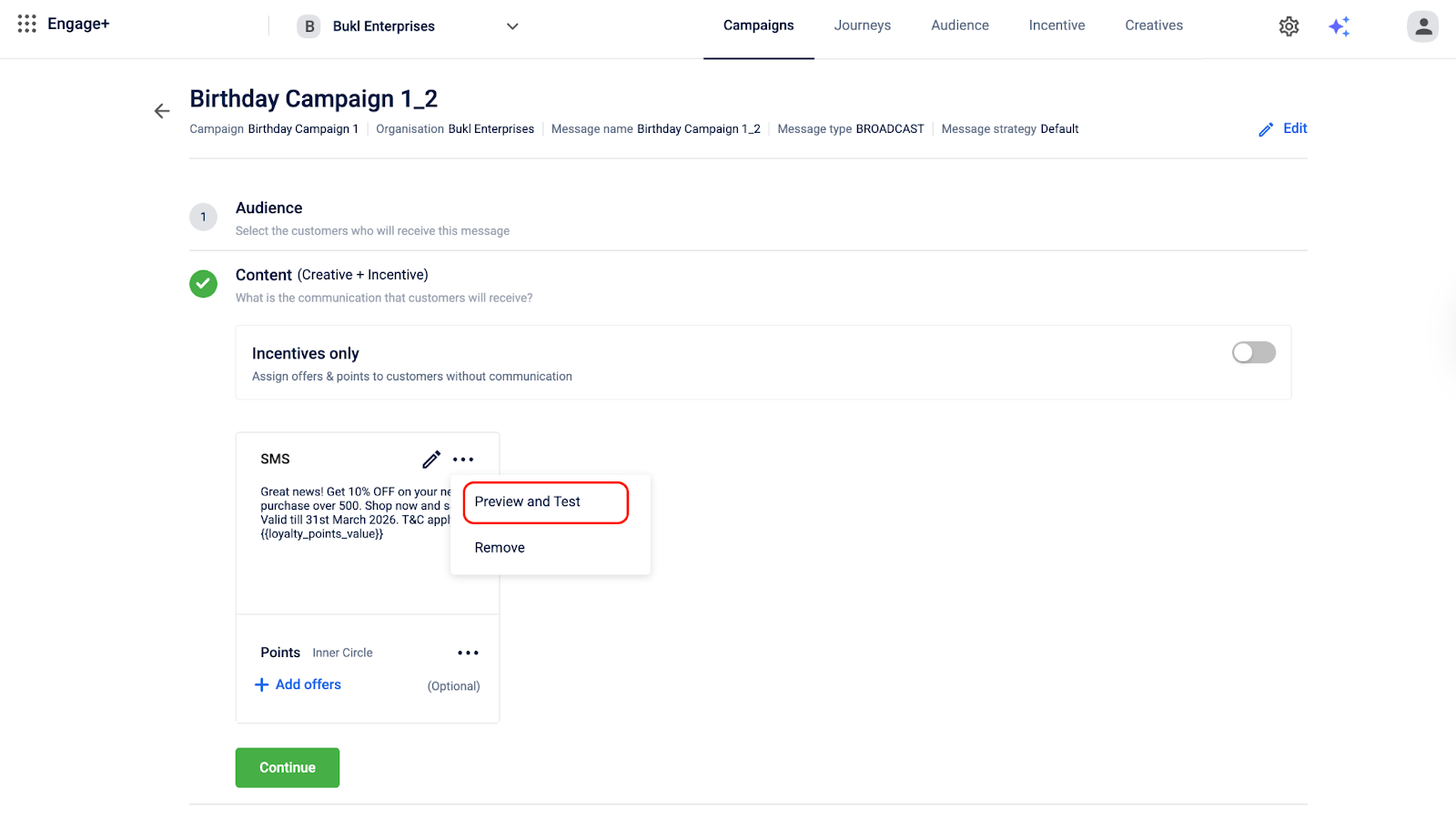
- You can use Preview and Test during the message creation. After selecting the creative, click the three-dot menu and select Preview and Test to preview and test the message content.
- Schedule the message and Send for approval.
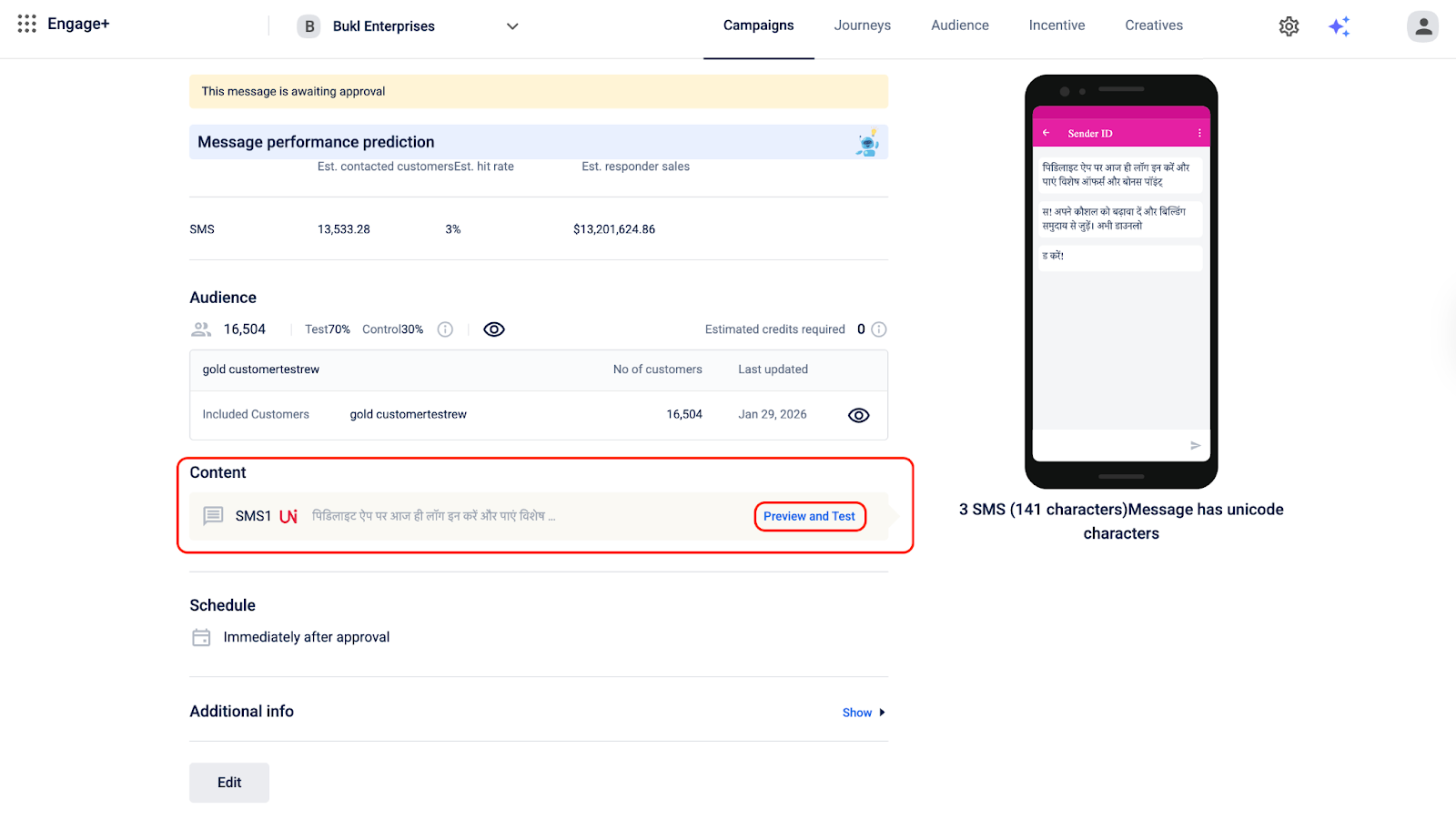
- You can also use Preview and Test before the campaign is approved. On the Message Dashboard, in the Content section, the selected channel is displayed. Click Preview and Test on the right side to test the message.
Note
When testing messages within a campaign, you can send up to 10 test messsage per user each day. If you exceed this limit, you will see a RATE_LIMIT_EXCEEDED error and cannot send more test emails until the next day. To increase this limit, raise a Jira ticket with the Product Support team. The updated limit will be applied within 24 hours. For more information on communication limit refer to Set up communication limits for each channel documentation.
Updated 2 months ago