
Configure Events and Conditions
Events in a journey are a user event, also known as entry trigger, wherein the customer enters the journey based on any transactional or non-transactional activity (behavioral events). You can further add conditions based on the selected event to define which customers qualify to enter the journey. With the help of user events, brands can include multiple paths within a journey depending on customer activity.
There are two types of user events -
- Transactional events - This refers to customer activity related to a purchase, transaction, registration, or coupon redeemed which can be used to trigger or personalize customer journeys. When adding a transactional event, the brand must select specific events that define when customers will enter the journey.
- Behavioral events - This refers to user activities that can be tracked and used to trigger or personalize journeys. These events include both standard events and custom events.
- Standard events are predefined and based on common attributes such as price, quantity, productType, cardId, and productName.
- Custom events can be created to track specific user actions that are not covered by standard events. For steps to create custom events, refer to the Add and Map Custom Event documentation.
You can also use behavioral events to define conditions, filter your audience, and create different journey paths based on user behavior.
Notes
- Newly created Behavioral Events (BE) will appear in the Journeys dropdown one day after creation.
- When configuring a Behavioral Event, make sure to select the “Loyalty” checkbox.
Adding transactional events
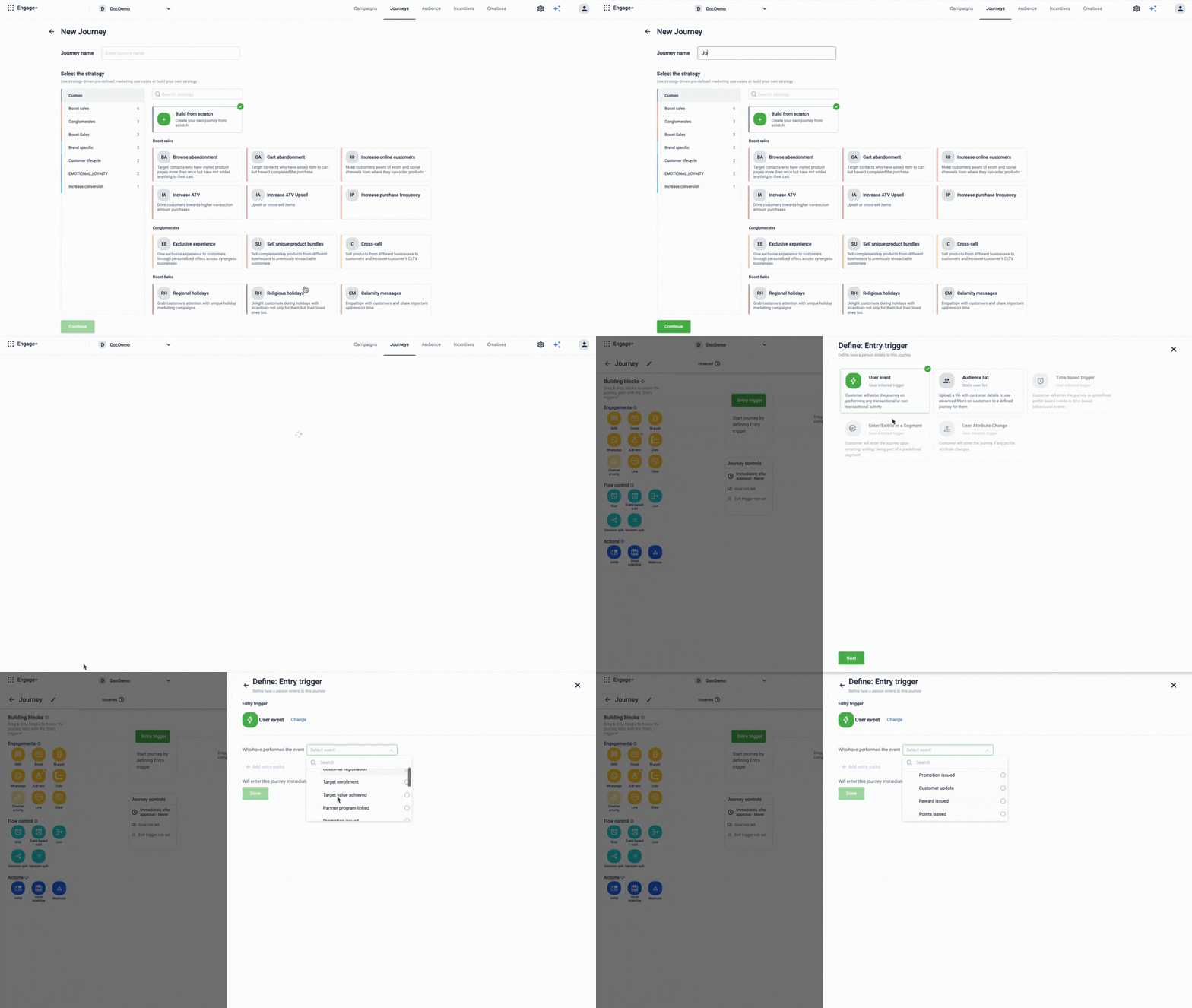
To add a transactional event perform the following:
- Create a new journey.
- On the journey canvas, select Entry Trigger.
- Choose User Event as the type of entry trigger.
- From the Who have performed the event drop-down, select the event type Transactional.
- From the list of available transactional events, select the one that best matches the action you want to trigger the journey. The table below lists the available events along with their descriptions.
| Event condition | Description |
|---|---|
| Current transaction | Checks when a user enters into a journey when a transaction is completed. |
| Customer registration | Checks when a user enters into a journey based on the customer registration event. Configure the associated rules and actions as needed. |
| Coupon redeem | Checks when a user enters into a journey when a coupon is redeemed . Use this event to configure actions based on coupon redemption. |
| Target enrollment | Checks when a user enters into a journey when they are enrolled in a target . |
| Target value achieved | Checks a user enters into a journey when the predefined target value is achieved . |
| Partner program linked | Checks when a user enters into a journey when they are linked to a partner program . |
| Promotion issued | Checks when a user enters into a journey when a promotion is issued to them . |
| Customer update | Checks when a user enters into a journey based on the customer update event. |
| Reward issued | Checks when a user enters into a journey whenever a reward is issued . |
| Points issued | Checks when a user enters into a journey when points are issued . |
| Coupon issued | Checks when a user enters into a journey when a coupon is issued . |
| Tier upgraded | Checks when a user enters into a journey their tier is upgraded . |
| Tier downgraded | Checks a when user enters into a journey when their tier is downgraded . |
NoteCustomer registrations performed via Connect+ triggers the standard customer registration event, as Connect+ internally uses the Customer Add API. This means such events can be used as entry conditions in Journeys.
However, registrations performed through the Data Import Framework do not trigger events and therefore cannot be used to initiate Journeys.
Adding behavioral events
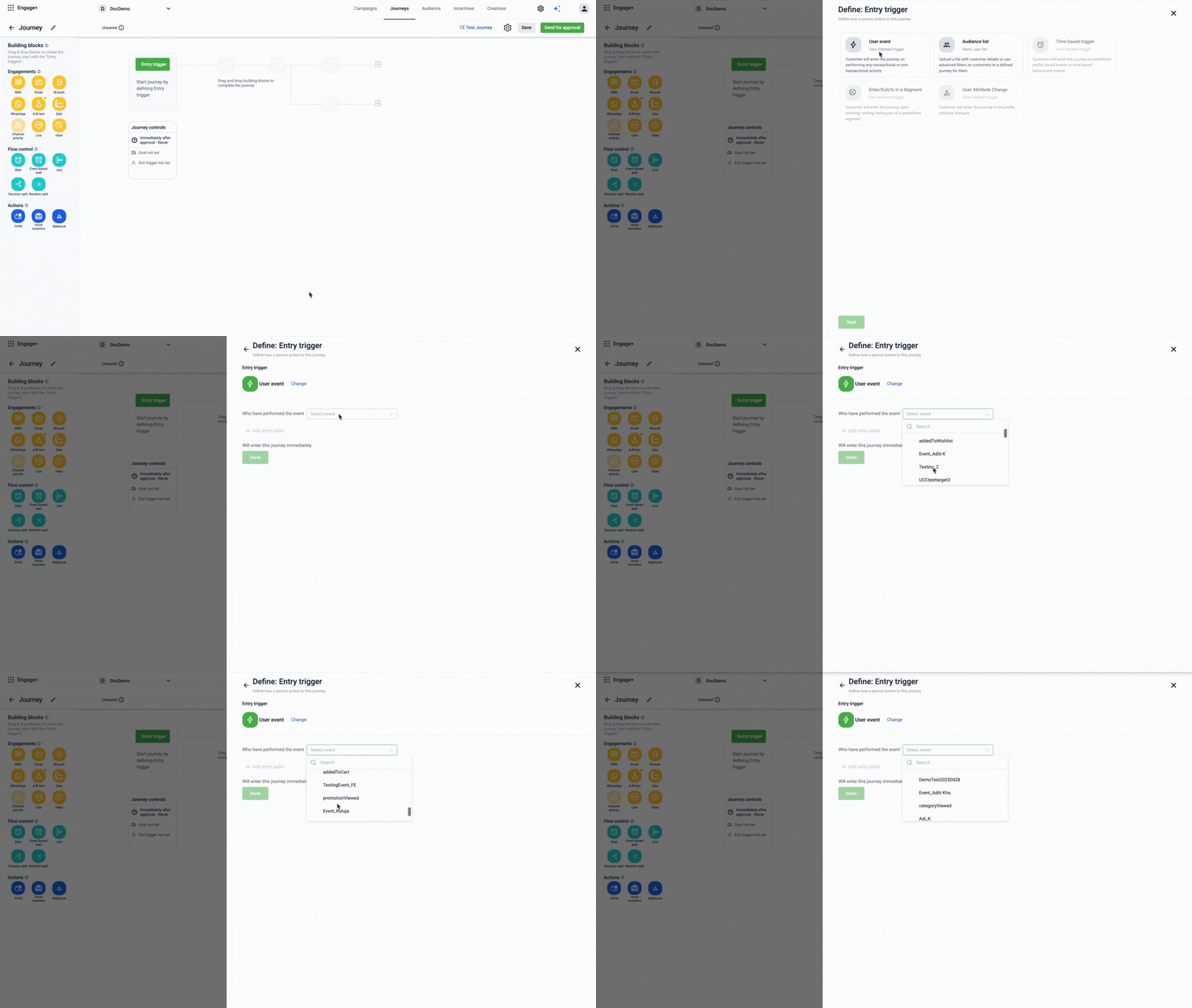
To add behavioral events perform the following:
- Create a new journey.
- On the journey canvas, select Entry Trigger.
- Choose User Event as the type of entry trigger.
- From the Who have performed the event drop-down, select the event type Behavioral.
- From the list of available behavioral events, you can either select from the existing custom events (if they meet your requirements) or create your own custom events.
Adding conditions in user event
Conditions in a User Eventallow you to define which customers can enter a journey based on specific criteria.
For example, if you want to send an engagement offer only to customers who haven’t made a purchase in the past month, you can set a condition to include only those customers. This ensures that your journey targets the right audience.
You can set conditions based on either Transactional Events or Behavioral Events. When you select a Transactional Event, a list of available events appears from which you can choose the specific customer action to track. Similarly, when you select a Behavioral Event, you can choose from relevant customer interaction events to define your entry conditions.
Adding conditions for transactional events
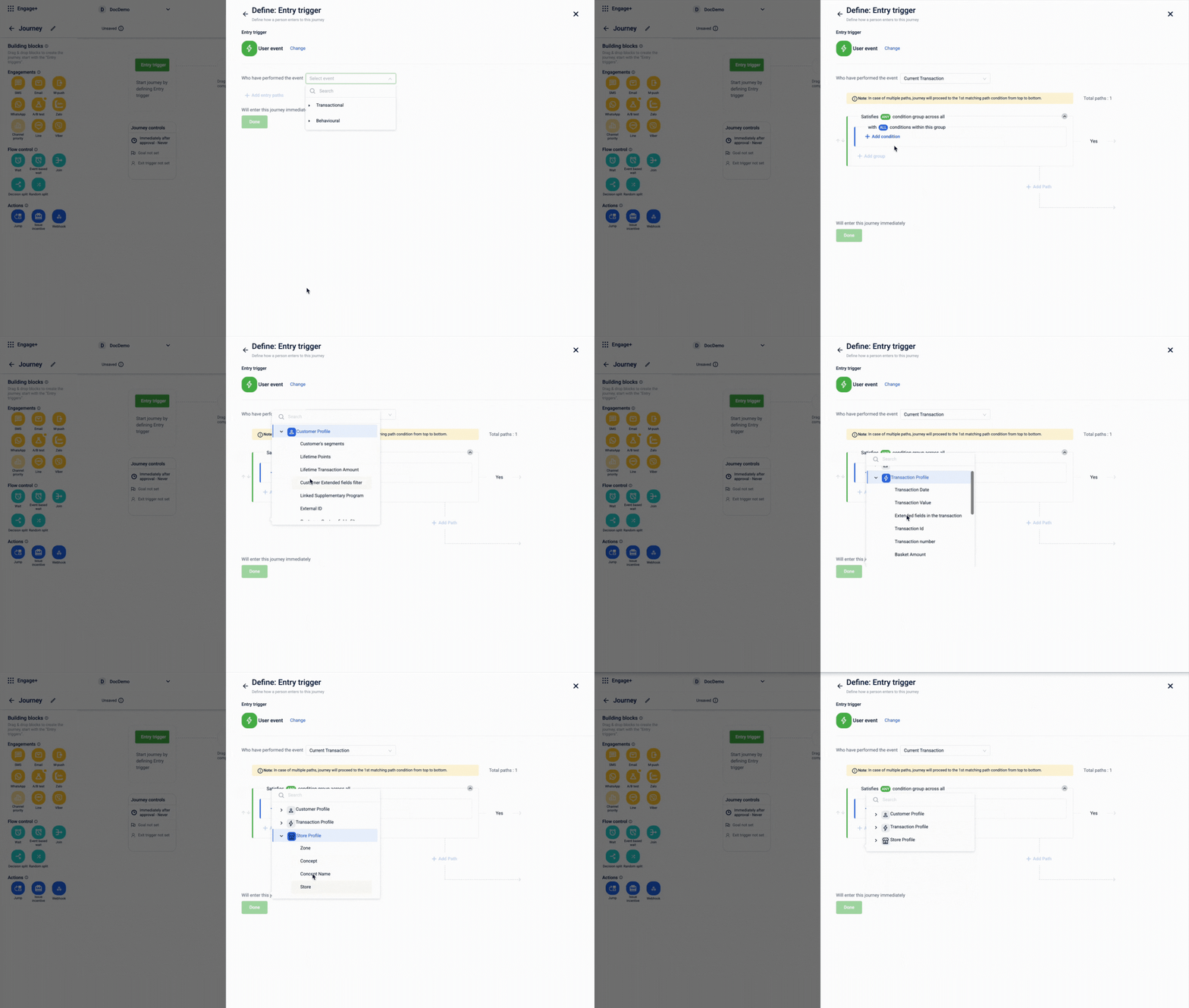
To add conditions for Transactional Events, perform the following:
- Create a new journey.
- On the journey canvas, selectEntry Trigger.
- Choose User Eventas the type of entry trigger.
- From the Who have performed the event drop-down, select the event type Transaction event.
- Select +Add entry paths to define further criteria for the customer to enter the journey.
- Select +Conditions to add further conditions. For transactional event types, you can define conditions using various attributes based on the selected transactional type. These attributes help segment and direct customers through different paths based on specific characteristics or purchase details, such as loyalty status or engagement patterns.
Event Profiles and Attribute
The table below lists the available attributes for all transactional and behavioral event types along with their descriptions.
NoteDate range conditions in Journey entry filters include customers whose date values exactly match the selected start and end dates.
For example, if you create a Journey on 10 March 2026 and set the condition as registration date between 10 March 2026 and 15 March 2026:
- Customers who register on 10 March 2026 will be included
- Customers who register between 11 March and 14 March will be included
- Customers who register on 15 March 2026 will also be included
In other words, customers are considered from the start date itself.
Select the appropriate date field (such as registration date or promotion Start Date), as these refer to different stages of a customer’s journey.
Transactional event
- Customer profile ( This applies to all the transaction event type )
| Attributes | Description |
|---|---|
| Customer's segments | Check if the customer belongs to a specific segment or cluster (such as a behavioral or demographic group). |
| Lifetime points | Check if the customer’s total accumulated loyalty points (lifetime points) meet a specified threshold. |
| Lifetime transaction amount | Check if the customer’s total spend (lifetime purchase value) reaches a defined amount. |
| Customer extended fields filter | Check if a customer’s profile contains a specific value in an extended field. |
| Linked supplementary program | Check if the customer is linked to a specific supplementary or partner program. |
| External ID | Check if the customer’s profile matches a specific external ID or pattern. |
| Customer custom fields filter | Check if a customer’s profile contains (or does not contain) a specific value in a custom field. |
| Current points balance | Check if the customer’s current balance of redeemable points meets a specified condition. |
- Transaction profile (This applies to Current transaction event type)
| Attributes | Description |
|---|---|
| Transaction date | Check if a transaction occurs on a specific date or within a date range. |
| Transaction value | Check if the total value of a transaction meets a specified condition. |
| Extended fields in the transaction | Check if a transaction contains a specific value in an extended field. |
| Total discount | Check if the total discount applied to a transaction meets a specified condition. |
| Transaction number | Check if the transaction number (or ID) matches a specific value or pattern. |
| Line-item count | Check if the number of line items in a transaction meets a specified condition. |
| Basket amount | Check if the total value (amount) of a transaction's basket meets a specified threshold. In scenarios where the basket amount can match the threshold exactly, it is recommended to use the greater than (>) operator. Using greater than or equal to (≥) will also qualify transactions where the basket amount equals the threshold, allowing customers to enter the journey even when that may not be intended |
| Bill points | Check if the number of points awarded for a transaction meets a specified condition. |
| Transaction Id | Check if a transaction matches a specific transaction ID. |
| Custom fields in the transaction | Check if a transaction contains a specific value in a custom field. |
| Gross amount | Check if the gross amount (total before discounts) of a transaction or its line items meets a specified condition. |
| Bill date | Check if the transaction occurred on a specific bill date or within a date range. |
| Outlier stauts | Checks whether the transaction is normal or flagged with a specific status such as FRAUD, or RETRO. |
- Store profile (This applies to Current transaction, customer update , coupon issued and coupon redeem event type)
| Attributes | Description |
|---|---|
| Zone | Check if a transaction occurs in a specific geographical zone or region. |
| Concept | Check if a transaction occurs in a specific concept (a logical grouping of stores, like a brand). |
| Concept name | Check if a transaction occurs in a store belonging to a specific concept name. |
| Store | Check if a transaction occurs at a specific store. |
- Customer Registration Event Profile (This applies to Customer registration event type)
| Attributes | Description |
|---|---|
| Customer Registration Event Source | Channel through which the registration happened. |
| Created At | Date when the registration event reached Capillary system in in yyyy-mm-dd format. |
| Entered At | Date when the customer was registered with the brand in in yyyy-mm-dd format. |
Note: Only customers whose registration date is strictly between the journey's start date and end date are eligible to enter the journey. Customers whose registration date matches the journey's start date or end date are not eligible.
- Cart promotion / Gift voucher redemption (This applies to Cart promotion / Gift voucher event type which is triggered when a user performs the entry action)
| Attributes | Description |
|---|---|
| Cart promotion / Gift voucher redeemed from mentioned promotions | Check if the user has redeemed a cart promotion or gift voucher from the specified promotions. |
| Created At | Date when the cart promotion or gift voucher redemption event was captured in the Capillary system in yyyy-mm-dd format. |
- Target Profile (This applies to Target enrollment, Target value achieved and Promotion issued event type)
| Attributes | Description |
|---|---|
| Target Rule ID | Unique identifier of the target rule. |
| Target Rule Name | Name of the target rule. |
| Target Group Start Date | Start date of the associated target group. |
| Target Group End Date | End date of the associated target group. |
| Target Group ID | Unique identifier of the target group. |
| Target Group Name | Name of the target group. |
- Partner Program Profile (This applies to Partner program linked event type)
| Attribute | Description |
|---|---|
| Linked Supplementary Program | Name of the linked supplementary partner program. |
- Promotion Profile (This applies to Promotion issued event type)
| Attributes | Description |
|---|---|
| Promotion Name | Name of the issued promotion. |
| Promotion Start Date | Start date of the promotion. |
| Promotion End Date | End date of the promotion. |
| Promotion Issued Date | Date when the promotion was issued. |
| Promotion Issued Expiry Date | Expiry date of the issued promotion. |
- Customer Updated Profile (This applies to Customer update event type)
| Attribute | Description |
|---|---|
| Customer Previous Custom Fields Filter | Previous custom field values. |
| Customer Previous Label | Previously assigned customer label. |
| Customer Current Label | Current assigned customer label. |
| Customer Current Custom Fields Filter | Current custom field values. |
| Customer Previous Extended Fields Filter | Previous extended field values. |
| Customer Current Extended Fields Filter | Current extended field values. |
| Customer Previous Status | Customer’s status before the update. |
| Customer Current Status | Customer’s current status after the update. |
| Customer Updated Event Source | Source of the update event. |
| Created At | Date when the customer profile update event reached the Capillary system in yyyy-mm-dd format. |
- Reward Issued Profile (This applies to Reward issued event type)
| Attribute | Description |
|---|---|
| Reward Group | Category or group of the reward. |
| Reward Redemption Type | Redemption method (e.g., online/offline). |
| Reward Label | Label assigned to the reward. |
| Reward Type | Type of reward issued. |
- Points issued Profile (This applies to Points issued event type)
| Attribute | Description |
|---|---|
| Triggering Activity Name | Activity that triggered the point issuance. |
| Total Points Issued | Total points granted to the customer. |
| Created At | Date when the points issuance event reached the Capillary system in yyyy-mm-dd format. |
- Coupon Series Profile (This applies to Coupon issued and coupon redeem event type)
| Attributes | Description |
|---|---|
| Coupon Series Type | Type/category of the coupon series. |
| Added At Date | Date when the series was added. |
| Coupon from Mentioned Series | Specific coupon issued to the customer. |
| Coupon Series Description | Description of the coupon series. |
| Created At Date | Date when the coupon issuance or redemption event reached the Capillary system in yyyy-mm-dd format. |
- Coupon Redeem Profile ( This applies to Coupon reedem event type which is triggered when a user performs the entry action. )
| Attribute | Description |
|---|---|
| Coupon Code | The unique code of the coupon triggered the redemption event. |
| Coupon Redemption Date | The date when the coupon was redeemed. |
| Coupon Series Id | Identifier of the coupon series to which the redeemed coupon belongs. |
| Coupon Id | Unique identifier of the redeemed coupon. |
- Tier Upgraded Profile (This applies to Tier upgraded event type)
| Attribute | Description |
|---|---|
| Created At | Date when the tier upgrade event reached the Capillary system in yyyy-mm-dd format. |
| Loyalty Program ID | Identifier of the loyalty program. |
| Previous Tier Number | Customer’s previous tier. |
| Tier Upgraded Expiry Date | Expiry date of the upgraded tier. |
| Tier Upgraded Number | New tier assigned to the customer. |
- Tier downgraded Profile (This applies to Tier downgraded event type)
| Attribute | Description |
|---|---|
| Created At | Date when the tier downgrade event reached the Capillary system in yyyy-mm-dd format. |
| Loyalty Program ID | Identifier of the loyalty program. |
| Tier Downgraded Number | New downgraded tier assigned. |
| Previous Tier Number | Customer’s previous higher tier. |
| Tier Downgraded Expiry Date | Expiry date of the downgraded tier. |
Behavioral event
For behavioral event type you can define conditions using three key attributes. The available attribute categories are Customer Profile, Store Profile and Behavioral Event Profile. The Customer Profile and Store Profile attributes are the same as those used for transactional events. However, for the Behavioral Event Profile, you need to configure the attributes based on your specific requirements.
Operators
When you add a condition in the Entry Trigger or Event-based Wait block, you select an attribute and then choose an operator to define how that attribute value is evaluated. The operators available depend on the attribute type.
String operators
| Operator | What it does | Example |
|---|---|---|
| Contains | Matches any value that includes the text | Transaction number contains FEST |
| Starts with | Matches any value that begins with the text | Coupon code starts with FEST2024 |
| Ends with | Matches any value that ends with the text | Coupon code ends with 2024 |
| Exact | Matches only the exact value, including all spaces. The configured value must match the event attribute value exactly, including any leading or trailing whitespace. Any extra spaces in either the condition or the event data will prevent a match and block journey entry. | Tier name exact Gold |
| Matches Regex | Matches values that follow a specific pattern | Transaction number matches ^FEST2024 |
| Exists | Matches records where the selected attribute has a value | External ID exists |
| Does not exist | Matches records where the selected attribute has no value | External ID does not exist |
Note: Exists and Does not exist check whether the selected attribute has any value, rather than matching specific text like the other operators above. They're available on External ID, and on extended and custom fields. For example, select the Target enrollment event, add a condition on External ID, and choose Exists to include only customers who have an External ID on file.
Number operators
| Operator | What it does |
|---|---|
| Equal to | Matches the exact number |
| Not equal to | Excludes the exact number |
| Greater than | Matches values above the number |
| Greater than or equal to | Matches values at or above the number |
| In range | Matches values that fall between two numbers |
Matches Regex operator
The Matches Regex operator lets you filter customers using a pattern rather than an exact word or phrase. It's available for string-type attributes only and works in both the Entry Trigger and Event-based Wait blocks.
What is regex?
A regex pattern is a rule used to check whether a value follows a specific format or contains specific words. Its like a search rule instead of looking for an exact word, you define what a value should look like. Use it when a single attribute stores complex values like coupon codes, tier names, or transaction numbers that standard operators like contains and others can't match with enough precision.
For example, you can write a rule that says: "this value must start with FEST", in regex that looks like ^FEST or "this value must contain either GOLD or PLATINUM", in regex that looks like .*GOLD.*|.*PLATINUM.* .
Understanding regex pattern reference
A regex pattern is a rule that checks whether a value follows a specific format. Here are the most common symbols:
| Symbol | What it does | Example | Matches |
|---|---|---|---|
.* | Any text appears here | .*GOLD.* | Any value containing GOLD |
| | Or — matches either pattern | .*GOLD.*|.*SILVER.* | Any value containing GOLD or SILVER |
^ | Must start with | ^FEST | Any value starting with FEST |
$ | Must end with | 2024$ | Any value ending with 2024 |
[A-Z] | Any uppercase letter in this range | [A-Z]{3} | Any three uppercase letters, like TXN or ABC |
\d | Any digit | \d{4} | Any four-digit number, like 1234 or 5678 |
Combine these for more specific patterns. For example, ^FEST.*2024$ matches any value that starts with FEST and ends with 2024.
Difference between Regex and other operators
Standard operators like Contains, Starts with, and Ends with work well for simple conditions but fall short when you need to match multiple values or complex patterns in a single condition. Matches Regex gives you that precision.
Example: A brand wants to target customers who shopped at stores in Mumbai, Delhi, or Bangalore. Store codes are stored as STORE_MUM_001, STORE_DEL_002, STORE_BLR_003.
| Operator | How you would set it up | What it matches | Limitation |
|---|---|---|---|
| Contains | Three separate conditions — Contains: MUM, Contains: DEL, Contains: BLR | One city per condition | Cannot match multiple values in one condition |
| Starts with | Three separate conditions — Starts with: STORE_MUM, Starts with: STORE_DEL, Starts with: STORE_BLR | One city per condition | Cannot match multiple prefixes in one condition |
| Ends with | Ends with: 001 | Matches store number, not city | Cannot identify the city — matches unintended stores |
| Exact | Exact: STORE_MUM_001 | Only one specific store | Matches only one specific store — cannot cover multiple stores in the same city |
| Matches Regex | One condition — .*MUM.*|.*DEL.*|.*BLR.* | All three cities in one condition | None |
Example use cases
- Engage customers who redeem specific coupon formats
A brand runs multiple promotional offers and each offer has its own coupon code format — for example, FEST2024-XXXX for festive offers or WELCOME-XXXX for new customer offers. The brand wants to trigger a journey only for customers who redeem coupons from specific offers.
In the Entry Trigger block, the brand selects Current Transaction as the event and adds a condition where the Transaction Number matches the regex pattern .*FEST2024.*|.*SUMMER24.*|.*WELCOME.*|.*BDAY.*. When a customer makes a transaction using a coupon that matches any of these patterns, they enter the journey and receive a follow-up SMS.
A brand wants to send a personalized reward SMS to customers who enroll into specific loyalty tiers. After a customer enters the journey, the brand adds a Wait Until Event block and selects Target Enrollment as the event. The brand adds a condition where the Target Group Name matches the regex pattern .*GOLD.*|.*PLATINUM.*|.*ELITE.*|.*PREMIUM.*. Only when the customer enrolls into a tier whose name matches any of these patterns do they move forward in the journey and receive the reward SMS.
Supported attributes
The table below lists the profiles and their corresponding fact names that support the Matches Regex pattern.
| Profile | Fact Names |
|---|---|
| Coupon Redeem | coupon_code |
| Coupon Redemption | get coupon series description, get coupon series type |
| Customer Profile | External ID, Customer Custom fields filter |
| Customer Registration | Customer registration event source |
| Customer Updated | Customer Previous Label, Customer Current Label, Customer Updated Event Source, Customer Previous Custom Fields Filter, Customer Current Custom Fields Filter, Customer Previous Extended Fields Filter, Customer Current Extended Fields Filter, Customer Previous Status, Customer Current Status |
| Points Issued | Triggering Activity Name |
| Promotion Profile | Promotion Name |
| Reward Issued Profile | Reward Type, Reward Redemption Type |
| Store | Concept name |
| Target Profile | Target rule name, Target group name |
| Transaction Profile | Transaction number, Custom Field, Outlier Status |
Use the Matches Regex operator
This operator is available in the Entry Trigger block and the Event based wait block.
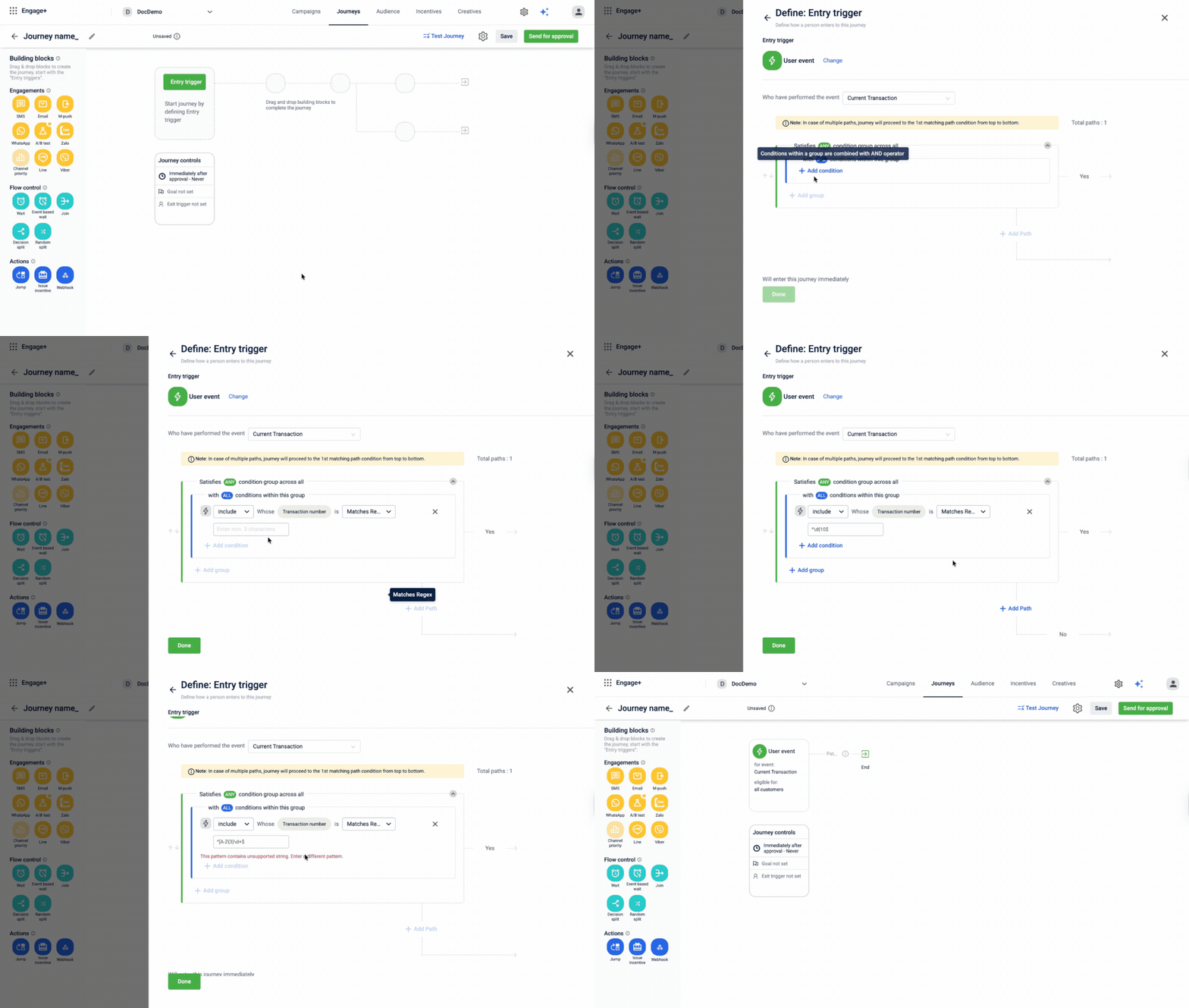
To use regex operator in the entry trigger block follow the given steps below:
- Open your journey and select the Entry Trigger block.
- Select an event, For example - Current Transaction
- Under Add Condition, select a string-type attribute.
- In the operator dropdown, select Matches Regex.
- Enter your regex pattern in the input field. If the pattern is invalid, an error message appears below the field. Once you correct the pattern, the error clears automatically.
- Select Done to save the condition.
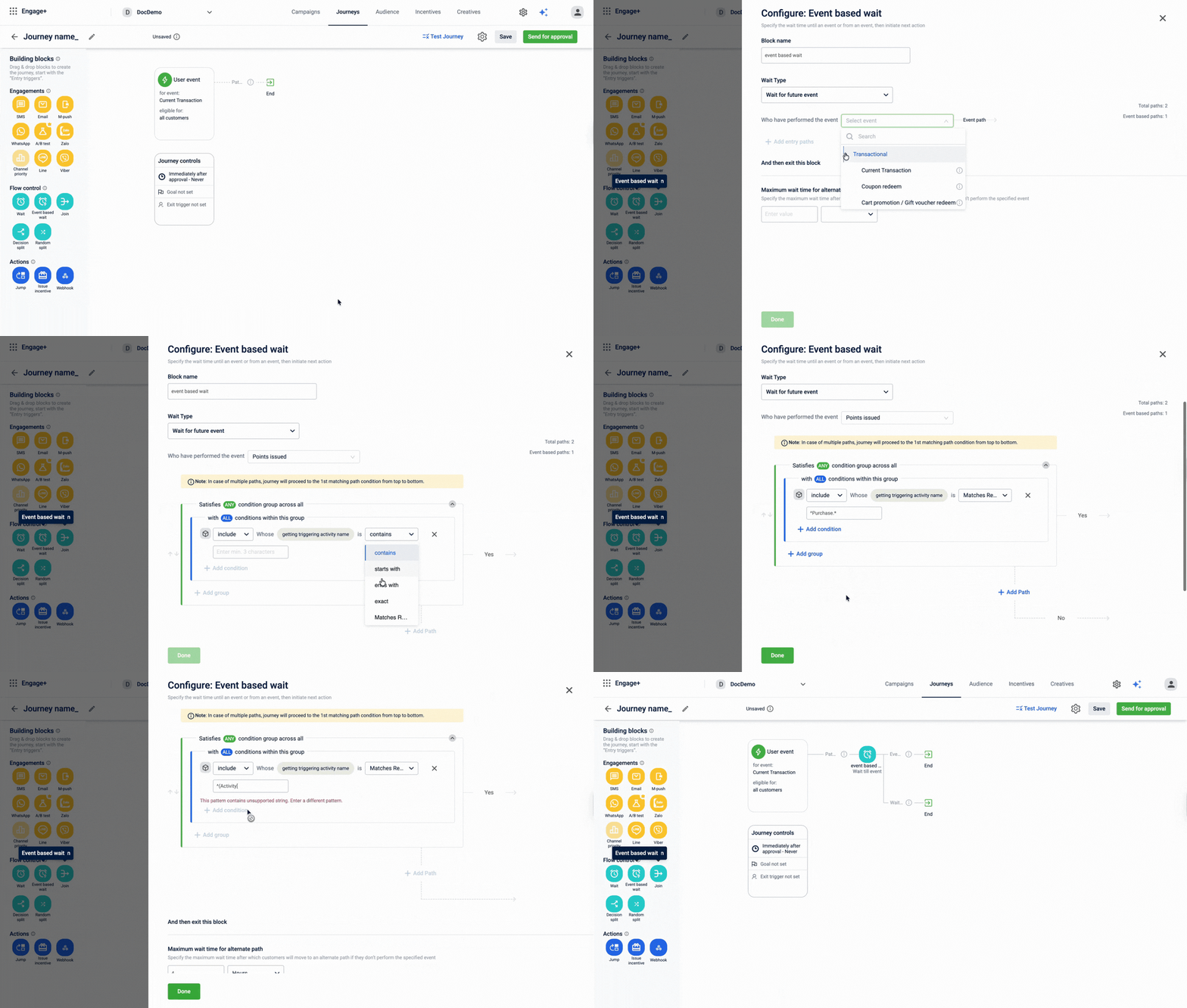
To use regex operator In the in the Wait Until Event block
- Open your journey and select the Wait Until Event block.
- Select Configure Event and choose an event.
- Select a string-type attribute from the attribute list.
- In the operator dropdown, select Matches Regex.
- Enter your regex pattern in the input field. If the pattern is invalid, an error message appears below the field. Once you correct the pattern, the error clears automatically.
- Select Done to save the condition.
Updated 12 days ago