
Brand Actions
Brand actions are the specific rewards or operational outcomes that are triggered when a customer successfully meets the conditions of a loyalty promotion. Once a customer completes the required activity, like making a purchase, the system executes the linked brand action, such as issuing points, granting a coupon, upgrading a tier, or sending a communication. You can add up to 10 brand actions to a single activity to create rich, multi-faceted rewards.
Issue Currency
The issue currency action allows you to issue points or alternate currencies to a customer or user group.
Use Case
Prerequisites
- Create a loyalty program
- Configure the reward currency to issue
Requirement:
A retail brand wants to reward customers with loyalty points for every successful purchase. The brand also wants to apply proration, and control expiry rules and define the rounding strategy for the points issued.
Solution:
- Select the Issue Currency action.
- Select Points or the required alternate currency from the Currency dropdown.
- Choose Members to issue currency to individual customers or Member groups to issue currency to a group.
- Configure the proration type to control how currency is calculated.
- Configure the expiry type to define currency validity.
- (Optional) Use Additional settings to define rounding strategies and conversion timing.
- Save the action to complete the configuration.
Strategies for issuing currency
Issuance strategies define the calculation method used to determine the amount of currency a customer earns upon completing a qualifying activity. This is where you configure whether to award a fixed amount, a value proportional to a transaction, or a multiplied bonus, providing precise control over your reward structure.
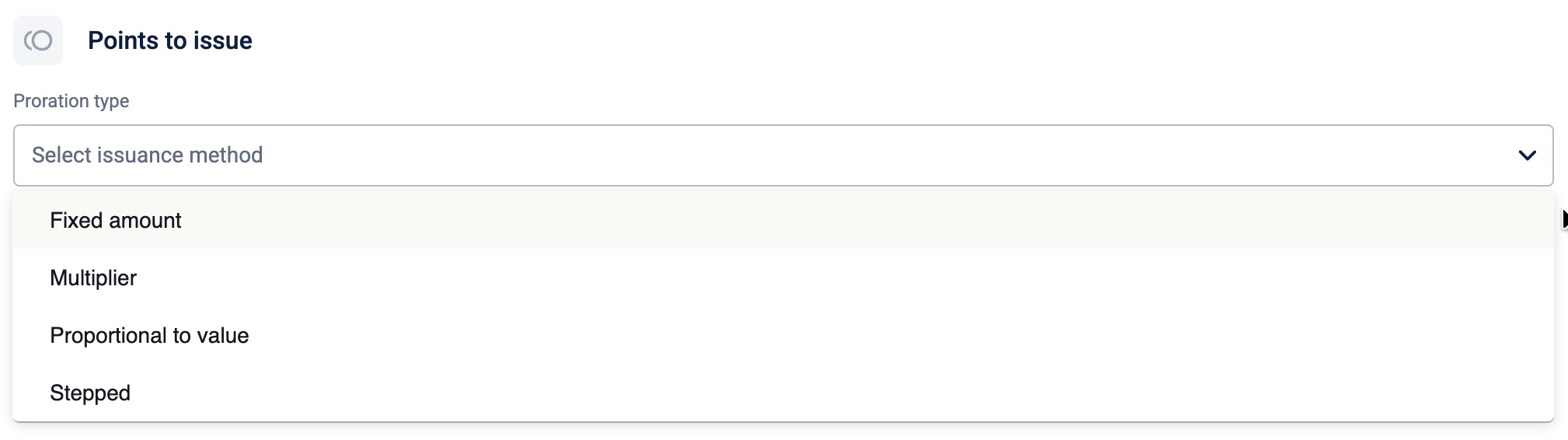
The table below elaborates on the available proration types:
| Proration type | Description | Example |
|---|---|---|
| Fixed amount | Issue a fixed number of reward currencies upon the successful completion of an activity. The reward amount is fixed and doesn't depend on the transaction amount. | A customer is awarded a fixed 50 points for updating their profile. |
| Multiplier | Issue reward currencies by multiplying the transaction's total amount by a defined factor. This strategy is commonly used for awarding "double points" or "triple points". | With a multiplier of 200%, a customer who spends $50 earns 100 points (200% of $50). |
| Proportional to Value | Issued reward currencies are calculated as a direct percentage of the transaction's total amount. If you select this option, you must also select the value to use for the proportion. | If the proration is set to 10%, a transaction of $500 will earn 50 points (10% of 500). |
| Stepped | Awards a fixed number of points for each defined tier or "step" of value achieved within a single transaction. For each "step" or interval reached, a set number of points is given. | If the step size is $150 and the points per step are 5, then: A $150 transaction earns 5 points. A $300 transaction earns 10 points. A $450 transaction earns 15 points, and so on. |
All proration types listed above, including Proportional to Value with Line Item Quantity as the base value, are supported for both points and alternate currencies.
Defining the value for proportioning
When you select the Proportional to Value issual strategy, you must define the specific base value that the system will use for the calculation.
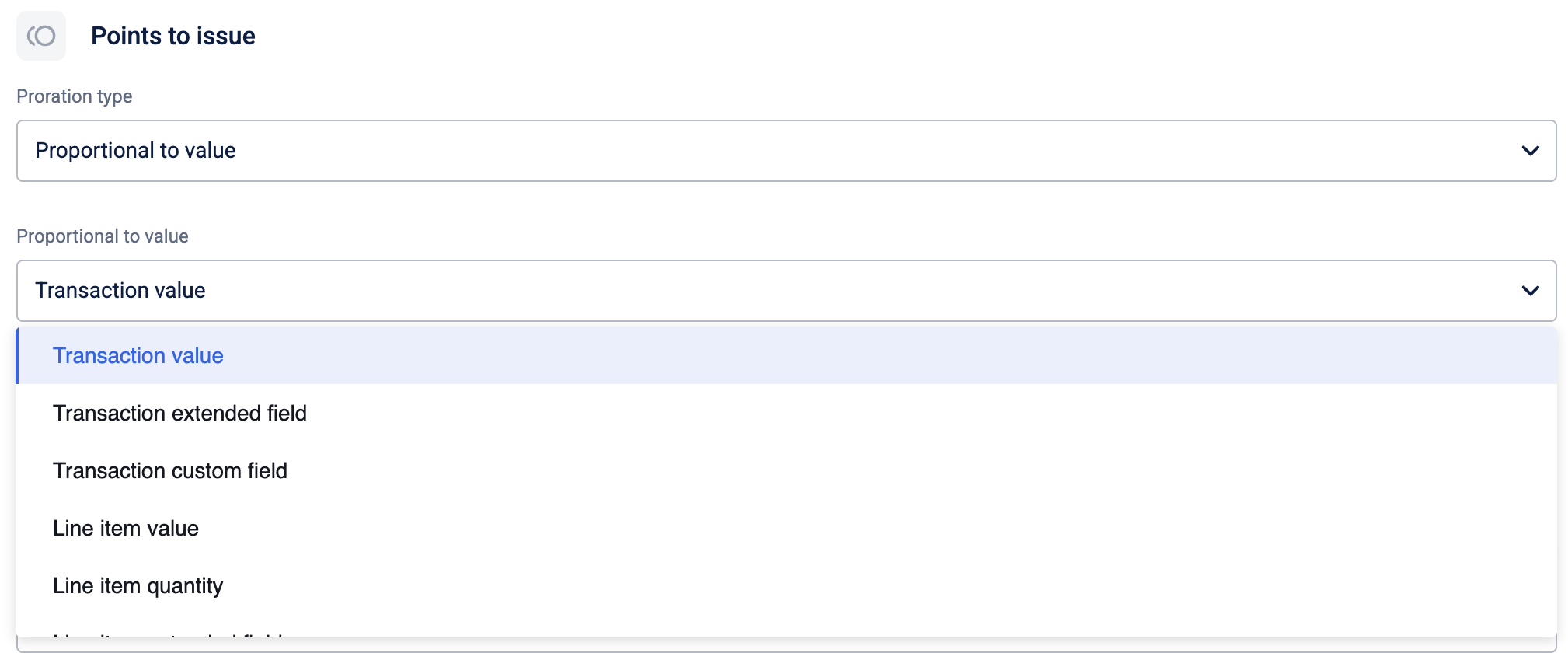
The following table details the available base values you can select:
| Proportional Value | UI term | Description | Example |
|---|---|---|---|
| Transaction Value | Uses the total monetary value of the transaction (bill amount) as the base for calculation. You can use this to issue reward currency based on the customer's transaction value. | If a customer spends $100 and the proration is set to 10%, the system calculates 10% of $100 to award 10 points. | |
| Transaction Extended Field | Uses a numeric value stored in a specific extended field attached to the entire transaction as the base for calculation. When selecting this option, you must also select the extended field. You can use this to issue reward currency based on an extended field in a transaction. | A transaction has a "Delivery Fee" field value of $20. If the proration is 50%, the customer earns 10 points based on that delivery fee. | |
| Transaction Custom Field | Uses a numeric value stored in a specific custom field attached to the entire transaction as the base for calculation. When selecting this option, you must also select the custom field. You can use this to issue reward currency based on an extended field in a transaction. | If a custom field "Tip Amount" has a value of $10, and proration is 100%, the customer earns 10 points. | |
| Line Item Value | Uses the price of a specific line item within the transaction as the base for calculation. You can use this to issue reward currency on specific products. | A customer buys a shirt for $50. If the rule targets "Apparel" and proration is 20%, they earn 10 points based on the shirt's price. | |
| Line Item Quantity | Uses the count (quantity) of specific items purchased rather than their price. You can use this when you want to reward bulk purchases. | A customer buys 5 coffee mugs. If proration is set to 100% (1 point per item), they earn 5 points. | |
| Line Item Extended Field | Uses a numeric value stored in a specific extended field attached to a specific item in a transaction. When selecting this option, you must also select the extended field. You can use this to issue reward currency based on an extended field in a line item. | A hotel booking is made with a "Room nights count" field value of 4. If proration is 50%, the customer earns 2 points based on the room nights. | |
| Remaining gap to milestone (before this event) | Gap to upgrade as per condition (G) | Uses the remaining gap between the customer's current tracker value and the target milestone defined in the tracker condition. This is calculated before the current event's contribution is added. When selecting this option, you must also select the tracker. You can use this to issue reward currency based on the current progress of a customer in a tracker. | A customer has already spent $800 in a tracker window where the goal is $1000. The gap (G) is $200. If proration is 10%, they earn 20 points based on the remaining distance to the goal when they make their transaction. |
| Value this event contributes toward the milestone | Event Tracked Value as per condition (E) | Uses the specific value that the current event contributes to the tracker condition. This isolates the portion of the transaction relevant to the tracked goal. You can use this to issue reward currency based on the value that is contributed towards a tracker's progress. | A customer has already spent $800 in a tracker window where the goal is $1000. The event value (E) is $200. If proration is 10%, they earn 20 points based on the value contributed towards the tracker's progress. |
| Remaining gap to milestone (after this event) | Gap to upgrade after event | Uses the remaining gap between the customer's current tracker value and the target milestone defined in the tracker condition. This is calculated after the current event's contribution is added. When selecting this option, you must also select the tracker. You can use this to issue reward currency based on the current progress of a customer in a tracker. | A customer has already spent $800 in a tracker window where the goal is $1000. The gap is $200. The customer makes a transaction of $100, and the tracker gap is $100. If proration is 10%, they earn 10 points based on the remaining distance to the goal. |
| Surplus above milestone target | Difference (E - G) | Uses the value by which the current event's contribution exceeds the remaining gap to the target milestone. This is the surplus value contributed after the milestone is reached. When selecting this option, you must also select the tracker. You can use this to issue reward currency based on the amount that exceeds the tracker target. | A customer has already spent $800 in a tracker window where the goal is $1000. The gap (G) is $200. A customer makes a transaction, and the event value (E) is $300. The difference (E-G) is $100. If proration is 10%, they earn 10 points based on the value exceeding the milestone. |
Selecting the line item calculation method
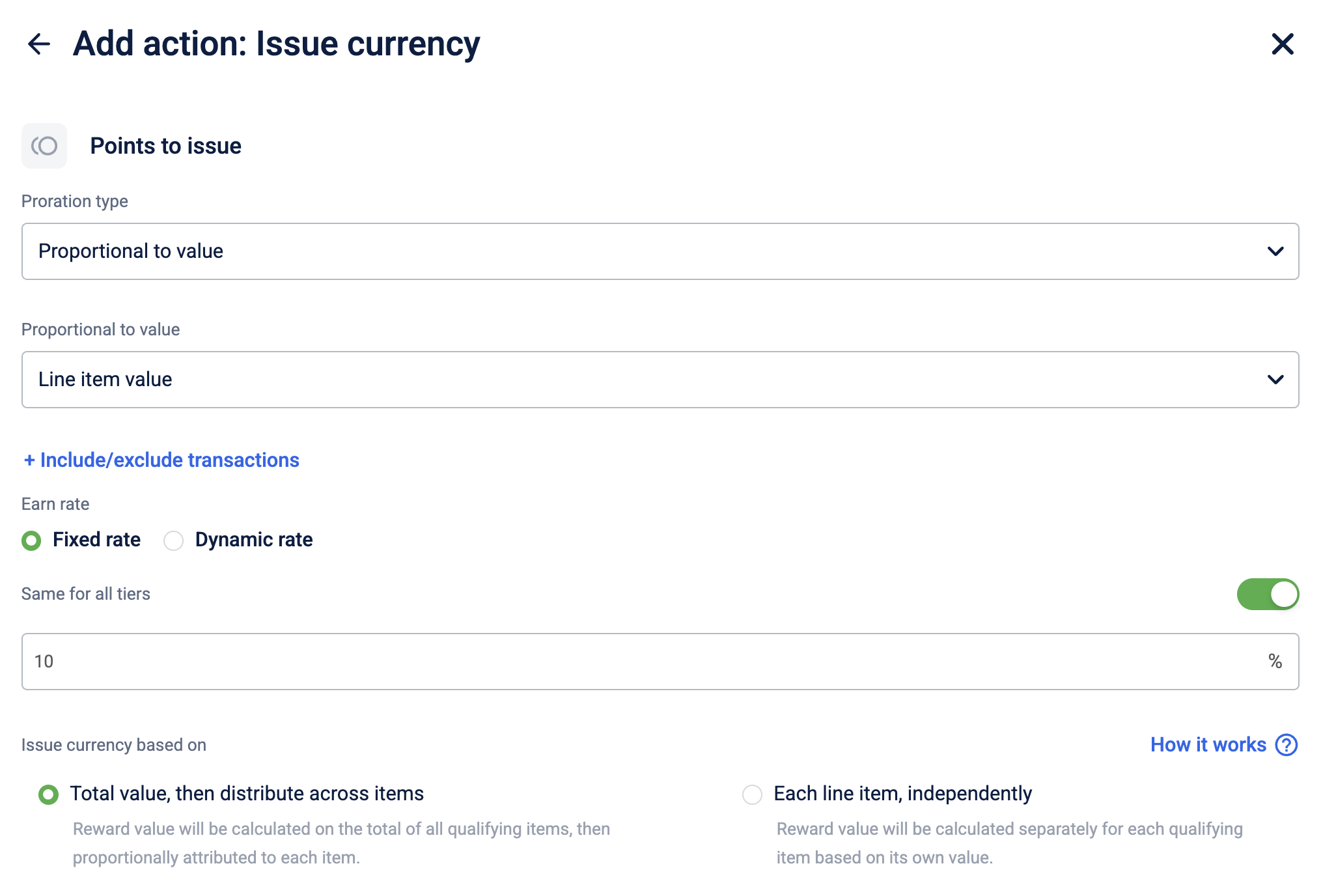
When the activity type is Single, Proration type is Proportional to value or Stepped and the Proportional to value is set to a line item-based value (Line item value, Line item quantity, Line item extended field, or Line item custom field), you can configure how currency is calculated across line items.
| Aggregation type | Description | Example |
|---|---|---|
| Total value, then distribute across items (default) | Currency is calculated on the total of all qualifying line items, then proportionally attributed to each item based on their individual source values. | A customer buys shoes ($120.50), socks ($45.75), and a belt ($83.75), total $250.00. With 10% proration and rounding to the nearest integer, the system totals $250, calculates 25 points, then distributes proportionally: 12.05, 4.58, and 8.38 points to each item. Total awarded: 25 points. |
| Each line item, independently | Currency is calculated separately for each qualifying line item based on its own value. | A customer buys shoes ($120.50), socks ($45.75), and a belt ($83.75). With 10% proration and rounding to the nearest integer, the system calculates points independently: $120.50 → $121 → 12.1 points, $45.75 → $46 → 4.6 points, $83.75 → $84 → 8.4 points. Total awarded: 25.1 points. |
Strategies for expiring currency
Currency expiry strategies define the rules that define the lifespan of the currency awarded to a customer. By configuring how long currency remains valid, you can manage program liability, encourage timely redemption, and align the reward's lifecycle with your business objectives.
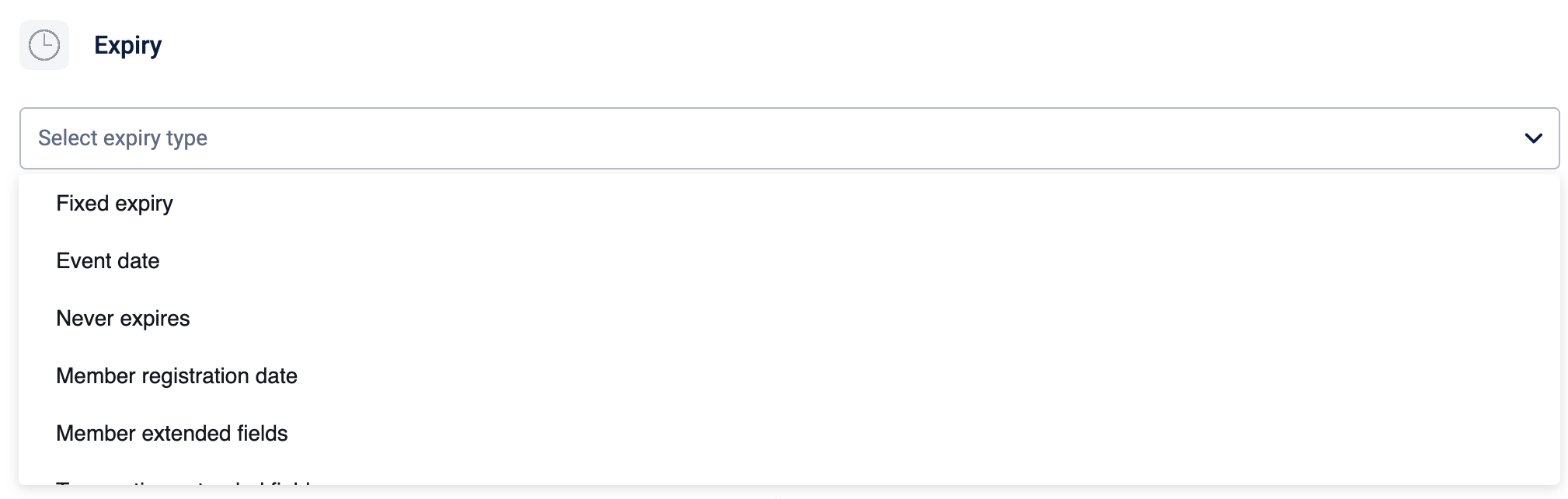
The table below elaborates on the available expiry types:
| Expiry Type | Description | Example |
|---|---|---|
| Fixed Expiry | Currency expires on a specific calendar date or on a recurring date. The expiry is calculated from the issuance date and is not affected by any subsequent customer activity. Specific date: Select this if you want the issued currency to expire on a fixed date. For example, points expire on 25th December 2025. Recurring expiry: Select this if you want the issued currency to expire based on a yearly recurring time period. For example, points expire on the 15th of January every year. Note: The points will expire at the end of the day (23:59). | If the expiry is set to 90 days, currency earned on January 15th, 2025, will expire on April 15th, 2025. |
| Event Date | Currency expires after a fixed period calculated from the date of the earning activity (for example, a transaction or registration). | If the expiry is set to 60 days from the event date, currency earned from a purchase made on March 1st will expire on April 30th. |
| Never Expires | Currency issued with this strategy will never expire. It remains in the customer's balance indefinitely unless it is redeemed. | Currency earned by the customer will remain valid and will not be removed from their balance due to inactivity. |
| Customer Registration Date | Currency expires on the registration date of the customer. This registration date refers to the date on which the customer got enrolled or registered in the loyalty program. | Customer's registration date in the loyalty program. If a customer registered on June 10, 2023, any currency earned with this strategy will expire every year on June 10th. |
| Customer Extended Fields | Currency expires after a specified period calculated from a date stored in a customer-level extended field (for example, a "Subscription Renewal Date"). | If a customer's 'Subscription Renewal Date' field is '2025-09-01' and the expiry is configured to be 30 days after this date, the currency will expire on October 1st, 2025. |
| Transaction Extended Fields | Currency expires after a specified period calculated from a date stored in a transaction-level extended field (for example, a "Hotel Check-in Date"). | If a transaction for a hotel stay has a 'Check-in Date' extended field of '2025-07-20' and the expiry is set to 14 days after this date, the currency will expire on August 3rd, 2025. |
| From Event Date (Rolling Period) | Currency expiry is reset and extended based on subsequent customer activity. Each new qualifying activity pushes the expiry date for the customer's entire balance further into the future by the configured duration. | A customer earns currency on January 1, 2024, with a 12-month rolling expiry. If they make another transaction on December 1, 2024, the expiry date for all their currency is reset and now extends to December 1, 2025. |
Strategies for rounding the transaction value
These strategies are applied to the transaction's monetary value before any currency calculations take place. This is useful for standardizing the calculation base and avoiding complex decimal math.
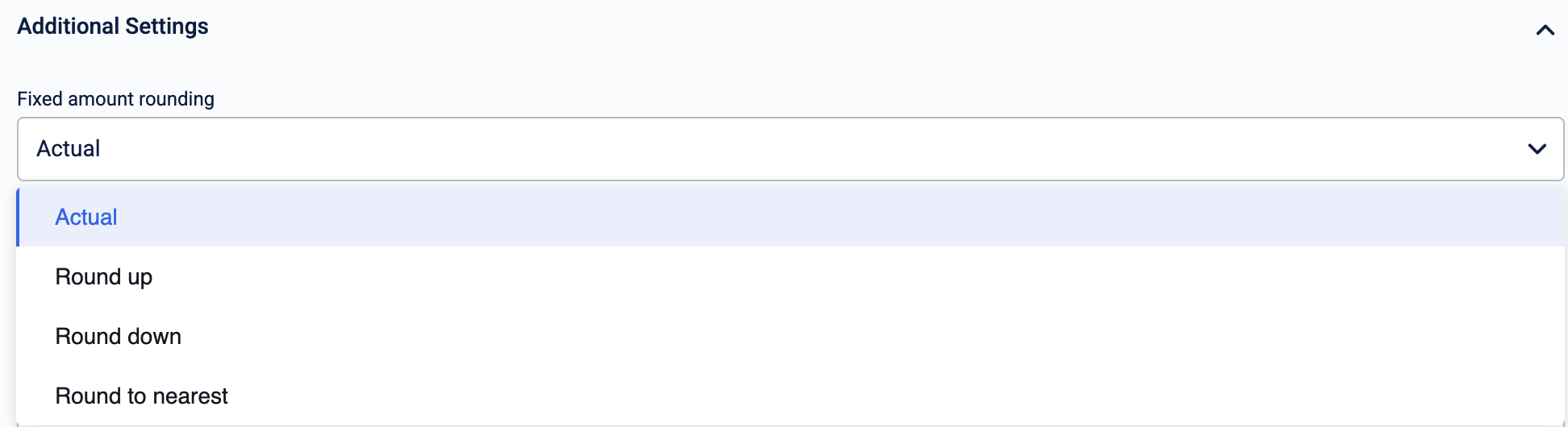
The following table lists the available strategies for rounding the transaction value:
| Rounding Strategy | Description | Example |
|---|---|---|
| Actual | Uses the exact, unrounded transaction value for the calculation. | A transaction of $50.75 is used as is. If the earning rule is 2 points per dollar, the calculated value would be 101.5 points. |
| Round up | Rounds the transaction value up to the next highest whole number before calculation. | A transaction of $50.25 is rounded up to $51. If the earning rule is 2 points per dollar, the customer earns 102 points. |
| Round down | Rounds the transaction value down to the nearest whole number, ignoring any cents. | A transaction of $50.75 is rounded down to $50. If the earning rule is 2 points per dollar, the customer earns 100 points. |
| Round to nearest | Rounds the transaction value to the nearest whole number using standard mathematical rules (0.5 and above rounds up). | A transaction of $50.49 is rounded to $50 (earning 100 points), while a transaction of $50.50 is rounded to $51 (earning 102 points). |
Strategies for rounding the issued currency
These strategies are applied to the final calculated currency value after all other calculations (like multipliers or proration) are complete. This ensures that only whole numbers are issued as currency.
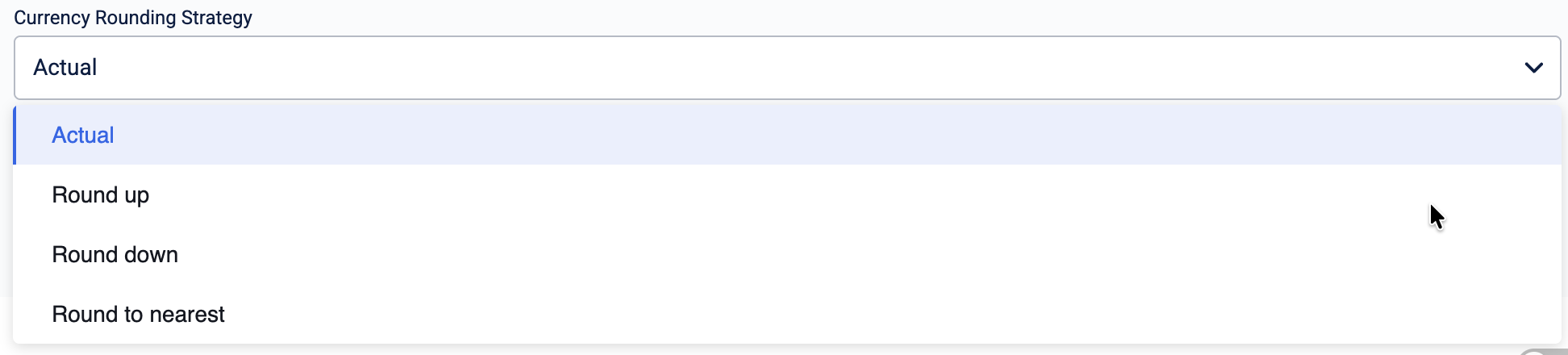
The following table lists the available strategies for rounding the issued currency:
| Rounding Strategy | Description | Example |
|---|---|---|
| Actual | Awards the exact, calculated currency value, including any decimal fractions. | A calculated value of 101.5 currency remains 101.5. |
| Round up | Rounds the final calculated currency up to the next highest whole number. | A calculated value of 101.1 currency is rounded up, and the customer is awarded 102 currency. |
| Round down | Rounds the final calculated currency down to the nearest whole number, effectively ignoring any decimal places. | A calculated value of 101.9 currency is rounded down, and the customer is awarded 101 currency. |
| Round to nearest | Rounds the final calculated currency to the nearest whole number using standard mathematical rules (0.5 and above rounds up). | A calculated value of 101.49 currency is awarded as 101, while a value of 101.50 currency is awarded as 102. |
| Round Half Even | Rounds the final calculated currency to the nearest whole number. When the value is exactly halfway, it rounds to the nearest even number (Banker's Rounding). This reduces cumulative rounding bias in high-volume programs. | A calculated value of 101.5 currency is rounded to 102 (nearest even), while a value of 102.5 currency is rounded to 102 (nearest even). |
Strategies for configuring the currency issuance time
The issuance timing determines precisely when the currency is credited to a customer's account after they have completed a qualifying activity. This control is essential for managing business processes, such as product return windows, or for scenarios where a final confirmation is required before a reward is granted.

| Issuance Strategy | Description | Example |
|---|---|---|
| Immediate | Awards currency instantly upon the successful completion of the qualifying activity. This provides immediate gratification to the customer and is the standard for most earning rules. | A customer makes a $50 purchase and immediately receives 50 points in their account. |
| Delayed by x days from activity | Awards currency only after a specified number of days have passed since the qualifying activity. This is commonly used to align with product return windows, ensuring currency is not awarded for purchases that are later returned. | A product has a 14-day return policy. The currency issuance is delayed by 15 days to ensure the points are awarded only after the return period has ended. |
| On external API call | Holds the currency in a pending or "promised" state until an external system confirms the issuance via an API call. This is ideal for scenarios where final eligibility depends on a separate confirmation, such as a partner validating an action. | A customer books a hotel room, and the points are held as 'promised'. After the customer completes their stay, the hotel's reservation system makes an API call to confirm the event, and the currency is then issued. |
| On transaction update | Awards currency only when the original transaction is updated to meet a specific condition or status. This is often used in order fulfillment workflows, where currency is granted upon shipment or delivery, not upon initial order placement. | A customer places an online order. The currency is configured to be issued only when the transaction status is updated to 'Shipped'. Once the warehouse ships the item, the status update triggers the point issuance. |
Filtering transactions (Include/Exclude)
When the activity type is Single and the proration type is Proportional to value or Stepped, you can control which transactions contribute to the currency calculation by adding include and exclude filter groups.
You can add up to one Include group and one Exclude group. Each group supports the following filter types:
| Filter type | Max conditions per group | Max selections |
|---|---|---|
| Payment modes | 1 | 200 |
| Brands | 1 | 200 |
| Categories | 1 | 200 |
| SKUs | 1 | 200 |
| Attributes | 2 | No limit |
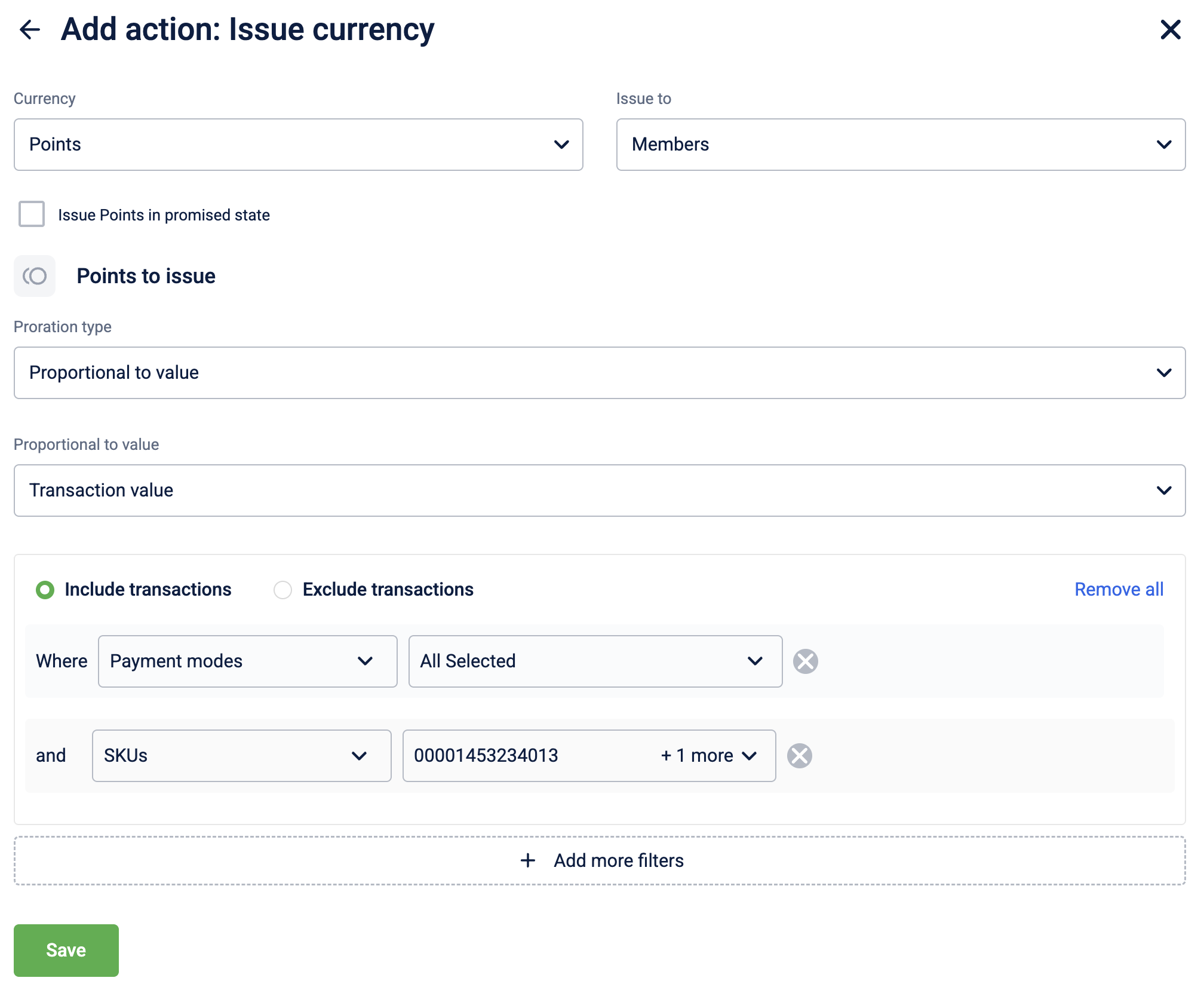
All conditions within a group are combined with AND logic. The same filter type can appear in both the Include and Exclude groups simultaneously.
Configuring the issue currency action
To configure the issue currency action, follow these steps:
- Select Issue Currency from the Add actions modal
- Select Points or a specific alternate currency to issue from the Currency dropdown
- Select Members to issue currency to an individual customer or select Member groups to issue currency to a user group.
- Select Issue currency in promised state to enable delayed accrual of the earned currency. The default delay is
0 days. - Select the proration type from the dropdown.
- (Optional) If you selected a line item-based value in the Proportional to value dropdown, select how the currency should be calculated under Issue currency based on.
- (Optional) Select + Include/exclude transactions to filter which transactions are included in the calculation.
- Select the expiry type from the dropdown.
- (Optional) Select the Additional settings box to view the available settings.
- (Optional) Select the fixed amount and currency rounding strategies from the dropdowns.
- (Optional) Select the conversion timing (delayed accrual strategy) strategies from the Conversion timing dropdown.
- (Optional) Enable the toggle under Communication to send a communication message.
- Select Save to complete the configuration.
Manage Tier
The manage tier action allows you to upgrade, downgrade, or renew the current tier for a member.
NoteThe Manage Tier action is supported for all promotion types, including promotions triggered by a Behavioural Event member action.
Use Case
Prerequisites
- Create a loyalty program
- Configure the tiers and tier rules for the loyalty program
Requirement:
A retail brand wants to automatically upgrade customers to a higher loyalty tier when they meet a defined criterion. The brand also wants to control tier expiry and customer communication.
Solution
- Add the Manage Tier action.
- Select the required tier action: Upgrade, Downgrade, or Renew.
- Choose the entity from the Members dropdown:
- Member to apply the tier change to an individual customer.
- Member group to apply the tier change to a group of customers.
- Select the appropriate tier upgrade strategy.
- Enable Advanced tier expiry settings and select the required tier expiry strategy.
- Enable Communication to notify customers of the tier change through supported channels.
- Save the action to complete the configuration.
Tier upgrade strategy

The following table lists the available upgrade strategy:
| Upgrade strategy | Description | Example |
|---|---|---|
| Specific tier | This strategy allows you to manually select a specific target tier (e.g., 'Gold', 'VIP') and directly upgrade the customer to it. This action bypasses the standard tier eligibility rules configured in the loyalty program. It is ideal for special circumstances, such as one-time promotional rewards, contest prizes, or discretionary customer service gestures, where you need to override the standard, automated tier logic. | A customer wins a 'VIP for a Year' reward. You can use the Specific tier option to directly upgrade the customer to the VIP tier, bypassing the normal spending rules. |
| As per tier strategy | This strategy automatically upgrades a customer to the next eligible tier by evaluating them against the pre-configured rules of your loyalty program. The system assesses the customer's current status, such as their points balance, purchase history, or tracker values, and promotes them to the highest tier for which they qualify. You do not manually select a target tier; the system handles the logic. This approach ensures that all upgrades are dynamic, rule-based, and consistent with your program's established tier structure. | The program's rule is: "Upgrade to Gold Tier at $1,000 lifetime spend." A customer's purchase brings their total spending to $1,050. They are then upgraded to the Gold Tier. |
Tier expiration strategies
In addition to upgrading, downgrading, or renewing a customer's tier, you can also define an expiration strategy for the new status. This enables you to create temporary tier adjustments, such as a 90-day trial of the Gold tier. Once the period ends, the temporary tier status is removed, and the customer is moved to the tier as per the loyalty program conditions.
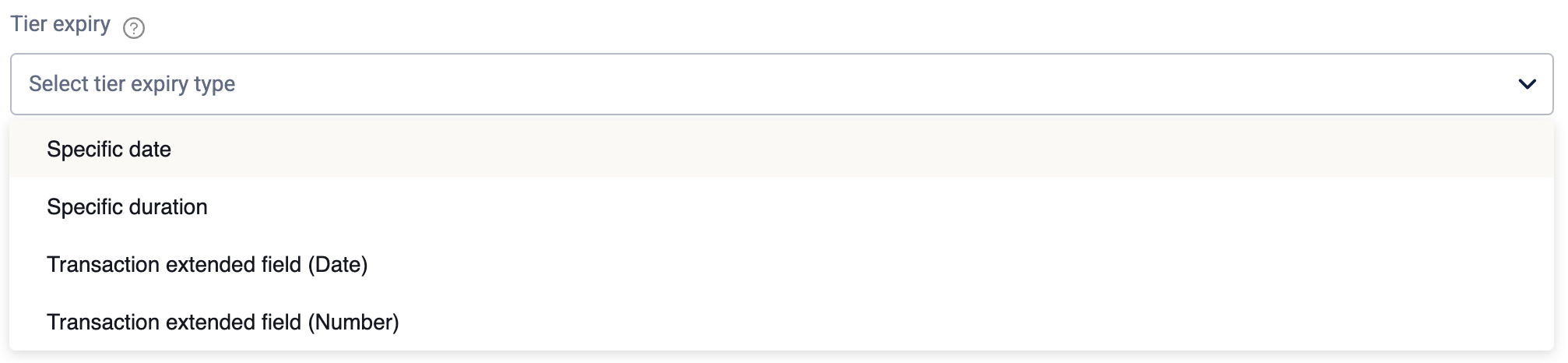
The following table lists the available expiration strategies:
| Expiry strategy | Description | Example |
|---|---|---|
| Specific date | Sets a fixed calendar date for the tier expiration. All customers receiving this tier change will have their new status expire on this exact date, regardless of when they earned it. | A holiday promotion upgrades members to the 'Gold Tier'. The expiration is set to a specific date of January 31, 2026. All members who receive this upgrade will revert to their Gold status on that date. |
| Specific duration | Sets the tier to expire after a specified number of days or months, calculated from the date the customer's tier was changed. Each customer will have a unique expiration date based on when they qualified. | A 'Welcome Offer' upgrades new members to the 'Silver Tier' with an expiration set to a specific duration of 90 days. If a member is upgraded on March 1st, their Silver status will expire on May 30th. |
| Transaction extended field (Date) | Sets the expiration date based on a date value stored in a transaction-level extended field. The tier will expire a specified number of days or months after the date found in that field. | A hotel booking promotion grants 'VIP Status'. The expiration is configured to be 30 days after the date in the 'CheckOutDate' transaction extended field. If a customer's check-out date is June 15th, their VIP status will expire on July 15th. |
| Transaction extended field (Number) | Sets the duration of the tier upgrade based on a numeric value stored in a transaction-level extended field. The number in the field is interpreted as the length of the tier status in days or months. | A partner promotion offers a tier upgrade. The expiration is set to use the value from the 'TrialPeriodDays' transaction extended field. If a transaction from the partner contains a value of 60 in that field, the member's tier upgrade will last for 60 days. |
Configuring the manage tier action
To configure the action, follow these steps:
-
Select Manage tier from the Add actions modal.
-
Select the required tier action. You can choose to upgrade a tier, downgrade a tier, or renew an existing tier.
-
Select the entity to perform the tier action from the Members entity dropdown. You can choose to upgrade the tier for a member (customer) or member group (user group).
-
Select the upgrade or downgrade tier strategy.
-
(Optional) Enable the Advanced tier expiry settings and choose the tier expiry strategy from the drop-down.
-
(Optional) Enable the toggle under Communication to send a communication message.
-
Select Save to complete the configuration.
Issue Badge
The issue badge action allows you to award a specific badge to a customer.
Use Case
Requirement: A brand is running a limited-time promotion where customers who make a single purchase of over $200 earn a "Big Spender" badge.
Prerequisites
- Create a loyalty program
- Configure the badge to issue
Solution:
- Create a loyalty promotion and define the metadata, enroling, opt-in and earning activities.
- Define the qualifying conditions for the earning activity.
- Add the Issue Badge action
- Select the "Big Spender" badge and configure the communication to notify the customer immediately upon earning the badge.
Configuring the Issue Badge action
To configure the Issue Badge action, follow these steps:
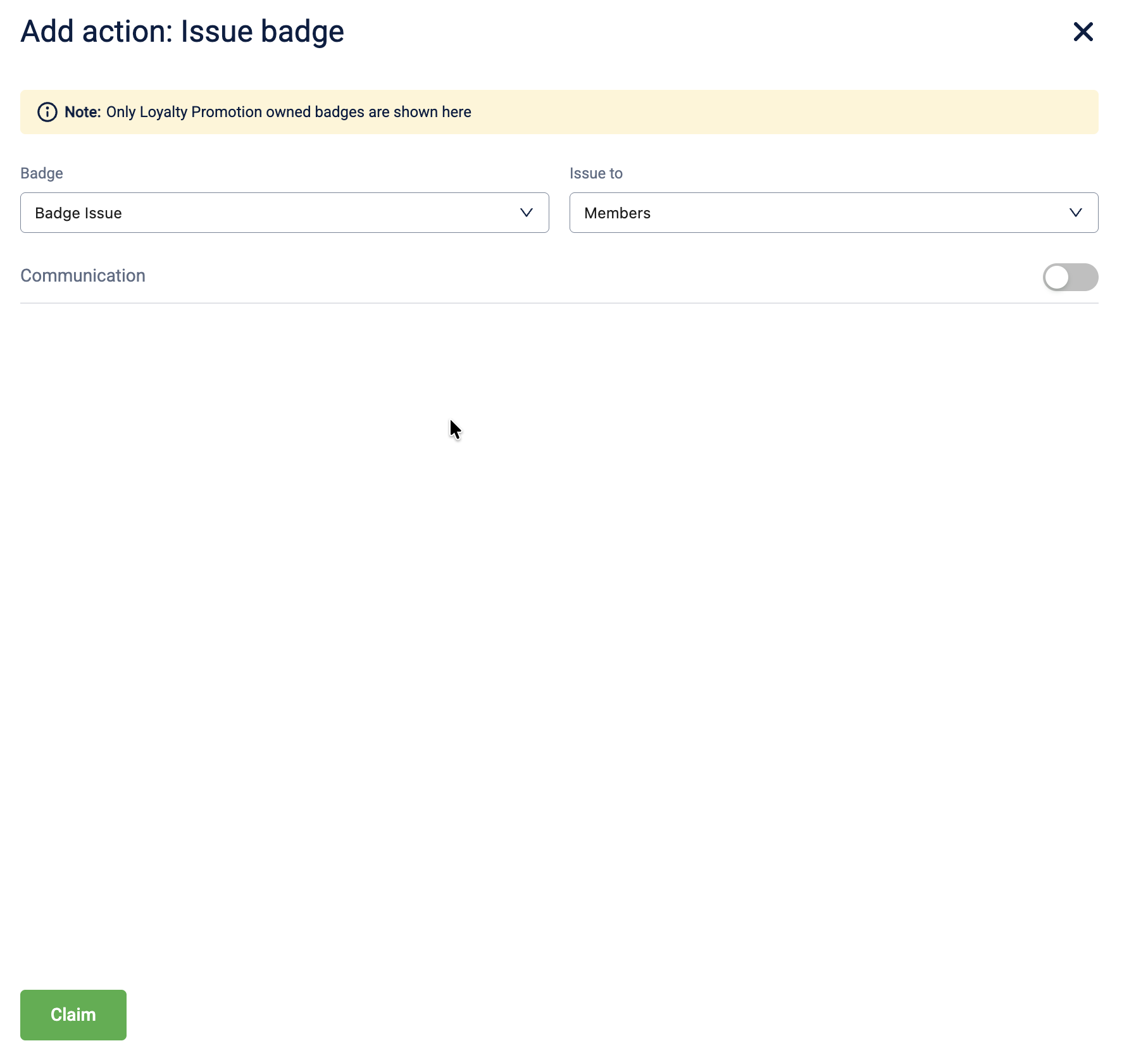
- Select + Add brand actions and select Issue Badge.
- In the Badge dropdown, select the specific badge to award.
- In the Issue to dropdown, select the recipient entity. The following options are available:
| Entity | Description |
|---|---|
| Members | Issues the badge to the individual customer, triggering the event. |
| Member groups | Issues the badge to a specific target group. |
| Referee | Issues the badge to the person being referred. |
| Referrer | Issues the badge to the person making the referral. |
-
Toggle Communication to ON to notify the customer when the badge is issued, and select the communication channels.
-
Select Claim to save the action.
Issue Coupon
The issue coupon action lets you issue specific coupons to customers. You can issue up to 500 coupons that are either "Live" or "Upcoming".
Notes
- Rounding: All quantity values are automatically converted to integers. Decimal values are rounded to the nearest whole number (e.g., 4.7 becomes 5, 3.2 becomes 3).
- Communication Channels: Loyalty+ integrates the Central Communications Engine. When using the Issue Coupon action, you can send notifications through supported channels like WhatsApp, Zalo, and LINE, in addition to standard SMS and Email.
- Delay/Delivery Scheduling: Delayed delivery is supported for Email, SMS, and WhatsApp notifications sent via the Issue Coupon action.
Use Case
Prerequisites
- Create a loyalty program
- Configure the coupon to issue
Requirement: A retail brand wants to incentivize higher spending during a sale. They want to issue a specific discount coupon for every ₹1000 spent in a single transaction. For example, spending ₹2000 yields 2 coupons, while spending ₹5000 yields 5 coupons.
Solution:
- In the Loyalty workflow, trigger the action on a Transaction Add event.
- Add the Issue Coupon action.
- Select the "Stepped" calculation method (Transaction Step Function).
- Configure the rule to issue 1 coupon for every ₹1000 spent.
Selecting the line item calculation method
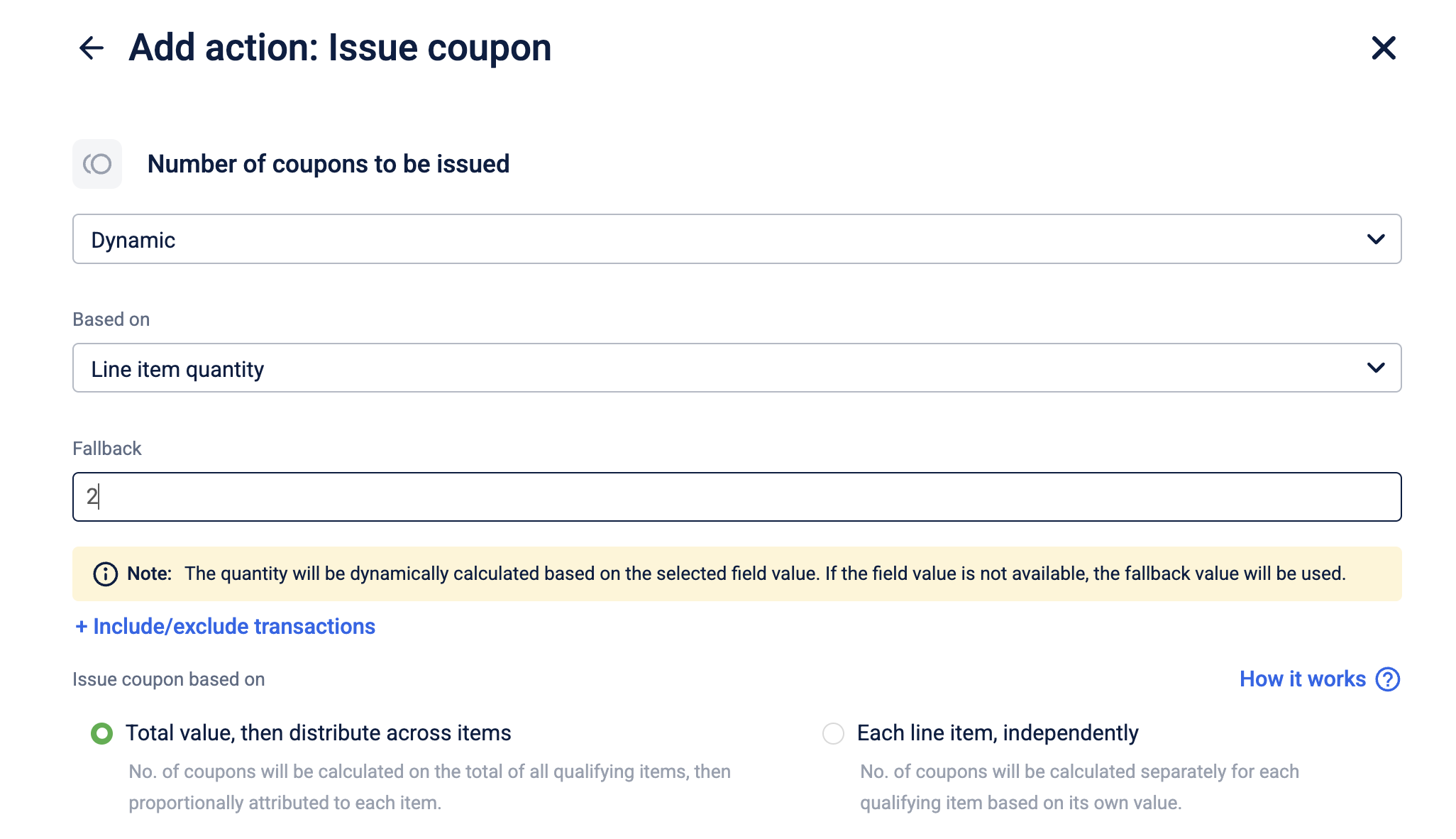
When the activity type is Single, the number of coupons to be issued dynamic or stepped and the Based on value is set to a line item-based value (Line item value, Line item quantity, Line item extended field, or Line item custom field), you can configure how the coupon quantity is calculated across line items.
| Aggregation type | Description | Example |
|---|---|---|
| Total value, then distribute across items (default) | The number of coupons is calculated on the total of all qualifying line items, then proportionally attributed to each item based on their individual source values. | A customer buys a shirt ($80), a tie ($60), and a jacket ($110), total $250. The rule issues 1 coupon per $100 spent. The system totals $250, calculates 2 coupons, then attributes them proportionally across items. Total awarded: 2 coupons. |
| Each line item, independently | The number of coupons is calculated separately for each qualifying line item based on its own value. | A customer buys a shirt ($80), a tie ($60), and a jacket ($110). The rule issues 1 coupon per $100 spent. Calculated independently: $80 → 0 coupons, $60 → 0 coupons, $110 → 1 coupon. Total awarded: 1 coupon. |
Configuring source value rounding
When the proration type is Dynamic or Stepped and a line item-based value is selected, you can configure how the source value is rounded before the coupon quantity is calculated. This setting is available under Additional settings and is not applicable for the Fixed amount proration type.
| Rounding strategy | Description | Example |
|---|---|---|
| Round up | Rounds the source value up to the next whole number before calculating the number of coupons. | A line item source value of $74.25 is rounded up to $75 before the coupon count is calculated. |
| Round down | Rounds the source value down to the nearest whole number before calculating the number of coupons. | A line item source value of $74.75 is rounded down to $74 before the coupon count is calculated. |
| Round to nearest integer (default) | Rounds the source value to the nearest whole number using standard rounding rules (0.5 and above rounds up). | A source value of $74.49 is rounded to $74, while $74.50 is rounded to $75. |
Filtering transactions (Include/Exclude)
When the activity type is Single and the proration type is Dynamic or Stepped, you can control which transactions contribute to the coupon calculation by adding include and exclude filter groups.
You can add up to one Include group and one Exclude group. Each group supports the following filter types:
| Filter type | Max conditions per group | Max selections |
|---|---|---|
| Payment modes | 1 | 200 |
| Brands | 1 | 200 |
| Categories | 1 | 200 |
| SKUs | 1 | 200 |
| Attributes | 2 | No limit |
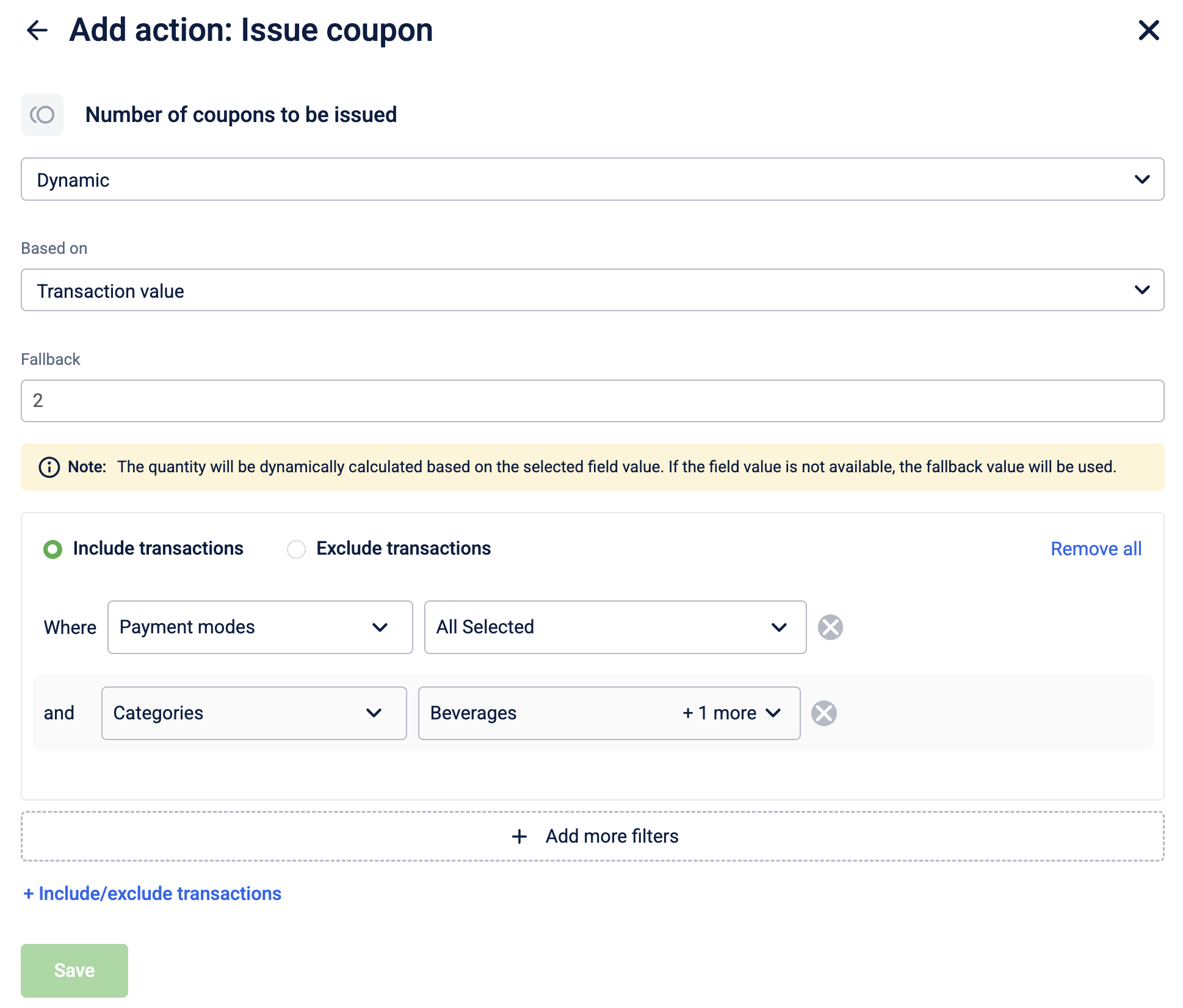
All conditions within a group are combined with AND logic. The same filter type can appear in both the Include and Exclude groups simultaneously.
Configuring the Issue Coupon action
To configure the Issue Coupon action, follow these steps:
-
Select Issue Coupon from the action list.
-
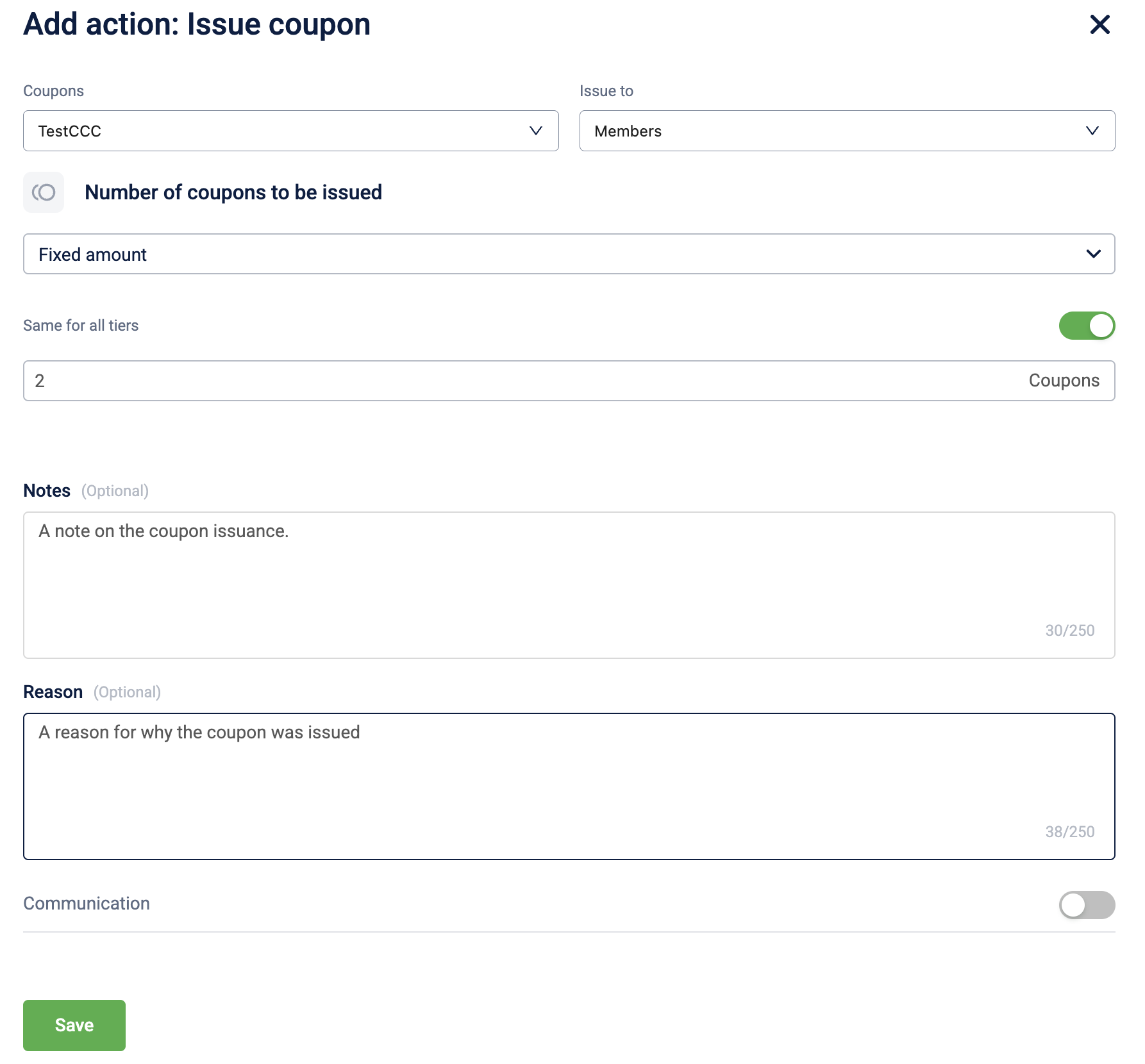
In the Coupons dropdown, select the specific coupon to issue.
-
In the Issue to dropdown, select the recipient entity. The following options are available:
| Entity | Description |
|---|---|
| Members | Issues the badge to the individual customer, triggering the event. |
| Member groups | Issues the badge to a specific target group. |
| Referee | Issues the badge to the person being referred (used in referral workflows). |
| Referrer | Issues the badge to the person making the referral (used in referral workflows). |
- In the Number of coupons to be issued dropdown, select the issual criterion. The following issue criteria are available:
| Coupon issue criteria | Description | Example |
|---|---|---|
| Fixed amount | A specific quantity of coupons is issued for a qualifying event, regardless of the transaction value. | A customer makes a purchase of $500. Because the rule is set to a fixed "1," they receive exactly 1 coupon, just as they would if they had spent only $10. |
| Multiplier | Applies a multiplication factor to the base quantity of coupons defined in the earn rule. | A customer makes a purchase during a "Double Rewards" promo. Instead of the standard 1 coupon, the system applies a 2x multiplier, and the customer receives 2 coupons for that single transaction. |
| Dynamic | The quantity of coupons is calculated as a percentage of a specific base value | A customer makes a purchase of $200. The rule is set to "Dynamic" with a condition of "5% of Transaction Amount." The system calculates 5% of 200, and the customer receives 10 coupons for that transaction. |
| Stepped | Issues a specific quantity of coupons for every defined interval of spend (step size). | A customer spends $300. The rule is configured to "Issue 1 coupon for every $100 spent." The system calculates three full intervals ($100, $200, $300) and issues a total of 3 coupons. |
-
Toggle Same for all tiers to ON to issue a fixed quantity of coupons for customers across all tiers. Toggle Same for all tiers to OFF to issue different quantities of coupons for customers across different tiers. If you create a new tier for the loyalty program, you must also reconfigure the values for the promotion.
-
Enter the quantity of coupons to issue.
-
(Optional) If you selected a line item-based value in the Based on dropdown, select how coupons should be calculated under Issue coupon based on.
-
(Optional) Select + Include/exclude transactions to filter which transactions are included in the calculation.
-
(Optional) Expand Additional settings and select the Fixed amount rounding strategy.
-
(Optional) In the Notes field, enter any additional comments about this coupon issuance. Max 250 characters.
-
(Optional) In the Reason field, enter the business justification for issuing the coupon, for example, goodwill gesture, promotional reward, or complaint resolution. Max 250 characters.
-
Toggle Communication to ON to notify the customer when the coupon is issued, and select the communication channels.
NoteTo include the issued coupon code in the communication message, use the
{{voucher_code}}tag in the message template. This tag only resolves when configured inside the Issue Coupon action's own communication settings and will not resolve if used in a communication configured outside this action. -
Select Save to complete the configuration.
Issue Reward
The issue reward action lets you issue specific rewards to customers.
Use Case
Prerequisites
- Create a loyalty program
- Configure the reward to issue
Requirement:
A retail brand wants to reward customers with a predefined reward when they make a purchase. The brand wants to issue rewards as a fixed quantity based on the customers' tier and also notify the customer.
Solution
- In the Loyalty workflow, trigger the action on the required qualifying event.
- Add the Issue Reward action.
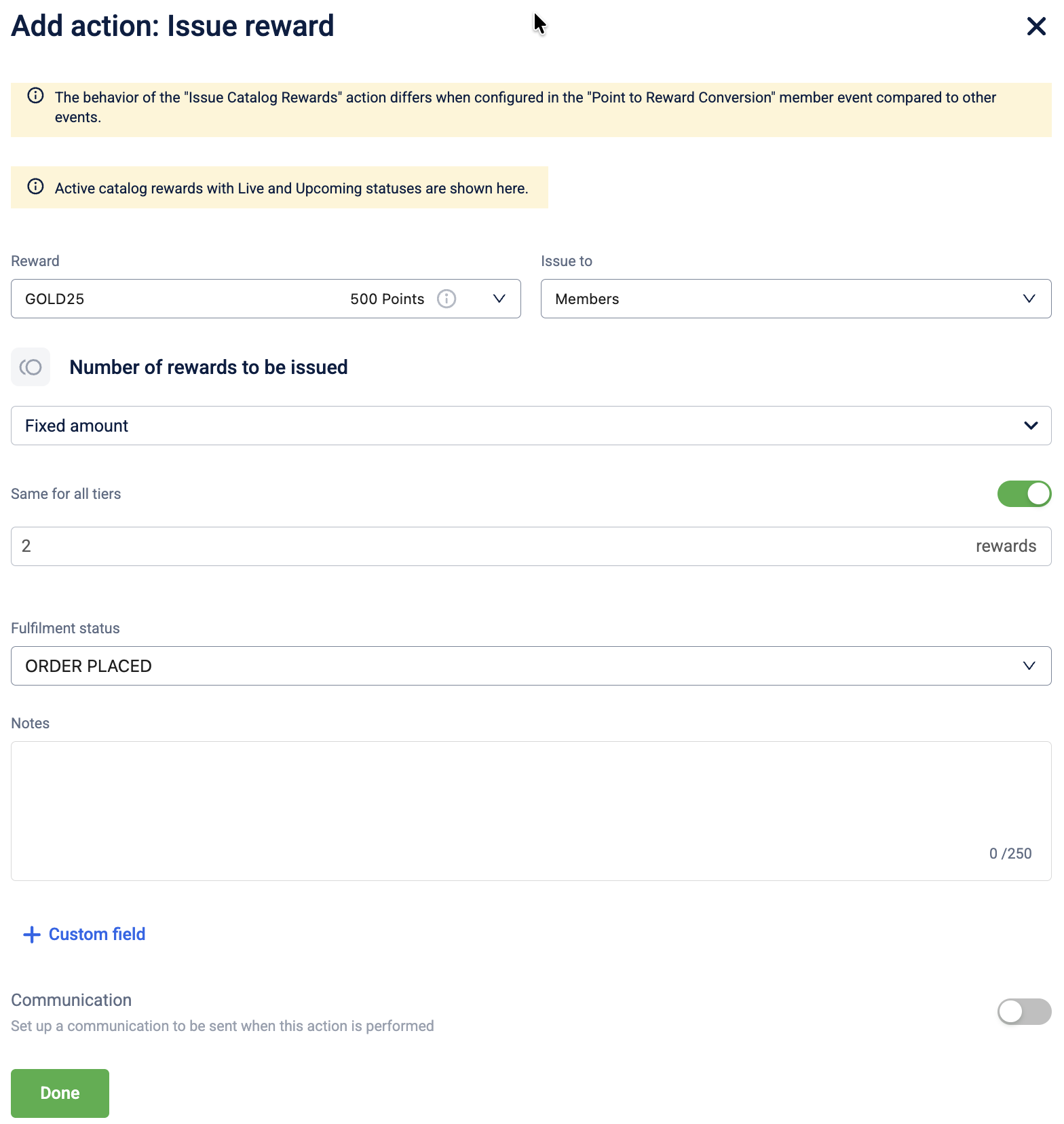
- Select the required reward from the Reward dropdown.
- Choose the recipient entity Members from the Issue to dropdown.
- Select the Number of rewards to be issued as Fixed amount
- Toggle Same for all tiers to OFF to issue different quantities of rewards for customers across different tiers and provide the number of rewards to issue for each tier.
- Enable Communication to notify customers through supported channels.
- Save the action to complete the configuration.
Selecting the line item calculation method
When the activity type is Single, the number of coupons to be issued dynamic or stepped and the Based on value is set to a line item-based value (Line item value, Line item quantity, Line item extended field, or Line item custom field), you can configure how the reward quantity is calculated across line items. You can also configure a fallback value to issue a fixed number of rewards incase the field value is not available.
| Aggregation type | Description | Example |
|---|---|---|
| Total value, then distribute across items (default) | The number of rewards is calculated on the total of all qualifying line items, then proportionally attributed to each item based on their individual source values. | A customer buys a skincare set ($75), a moisturizer ($55), and a perfume ($170), total $300. The rule issues 1 reward per $150 spent. The system totals $300, calculates 2 rewards, then attributes them proportionally across items. Total awarded: 2 rewards. |
| Each line item, independently | The number of rewards is calculated separately for each qualifying line item based on its own value. | A customer buys a skincare set ($75), a moisturizer ($55), and a perfume ($170). The rule issues 1 reward per $150 spent. Calculated independently: $75 → 0 rewards, $55 → 0 rewards, $170 → 1 reward. Total awarded: 1 reward. |
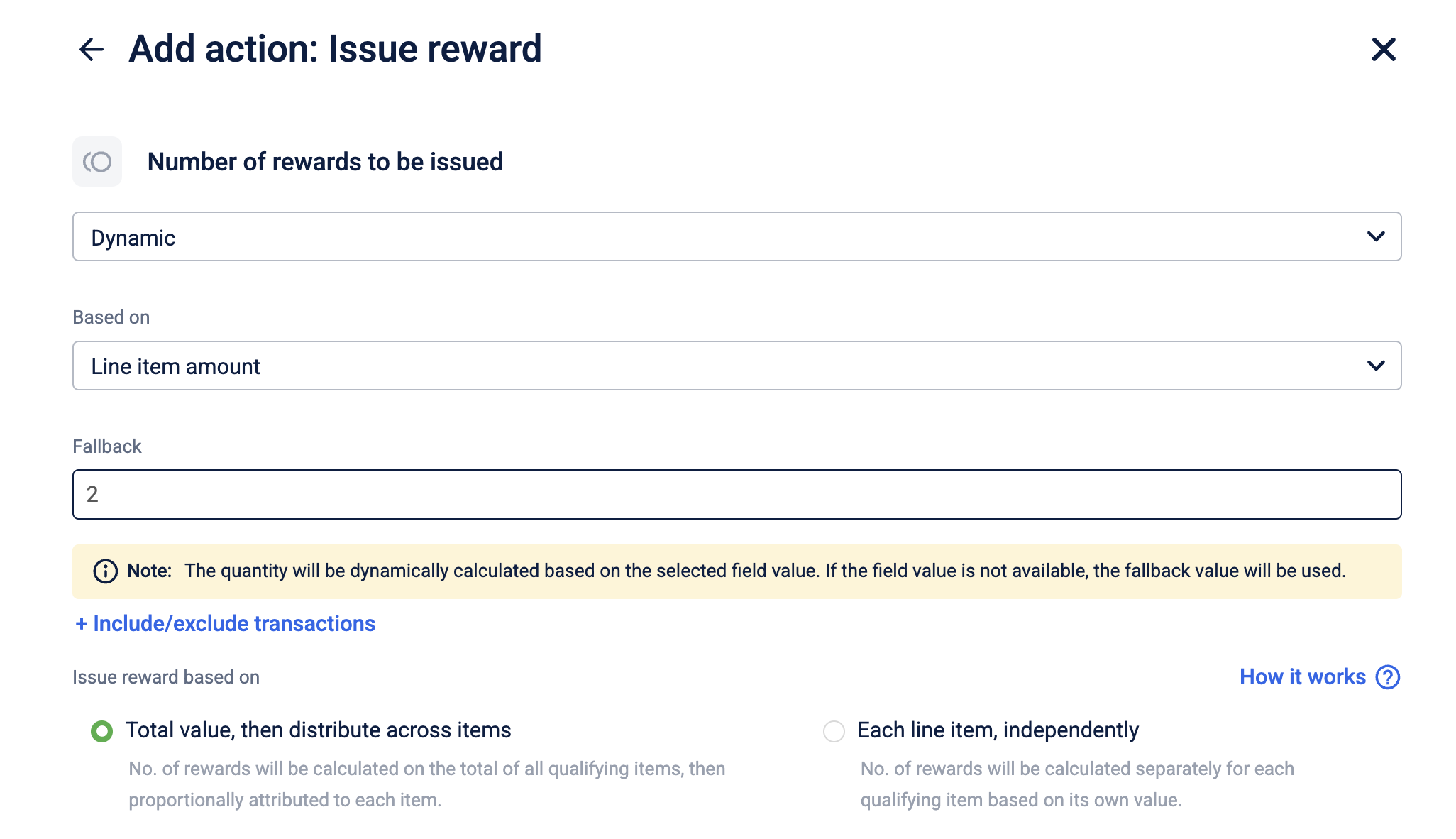
Configuring source value rounding
When the proration type is Dynamic or Stepped and a line item-based value is selected, you can configure how the source value is rounded before the reward quantity is calculated. This setting is available under Additional settings and is not applicable for the Fixed amount proration type.
| Rounding strategy | Description | Example |
|---|---|---|
| Round up | Rounds the source value up to the next whole number before calculating the number of rewards. | A line item source value of $74.25 is rounded up to $75 before the reward count is calculated. |
| Round down | Rounds the source value down to the nearest whole number before calculating the number of rewards. | A line item source value of $74.75 is rounded down to $74 before the reward count is calculated. |
| Round to nearest integer (default) | Rounds the source value to the nearest whole number using standard rounding rules (0.5 and above rounds up). | A source value of $74.49 is rounded to $74, while $74.50 is rounded to $75. |
Filtering transactions (Include/Exclude)
When the activity type is Single and the proration type is Dynamic or Stepped, you can control which transactions contribute to the reward calculation by adding include and exclude filter groups.
You can add up to one Include group and one Exclude group. Each group supports the following filter types:
| Filter type | Max conditions per group | Max selections |
|---|---|---|
| Payment modes | 1 | 200 |
| Brands | 1 | 200 |
| Categories | 1 | 200 |
| SKUs | 1 | 200 |
| Attributes | 2 | No limit |
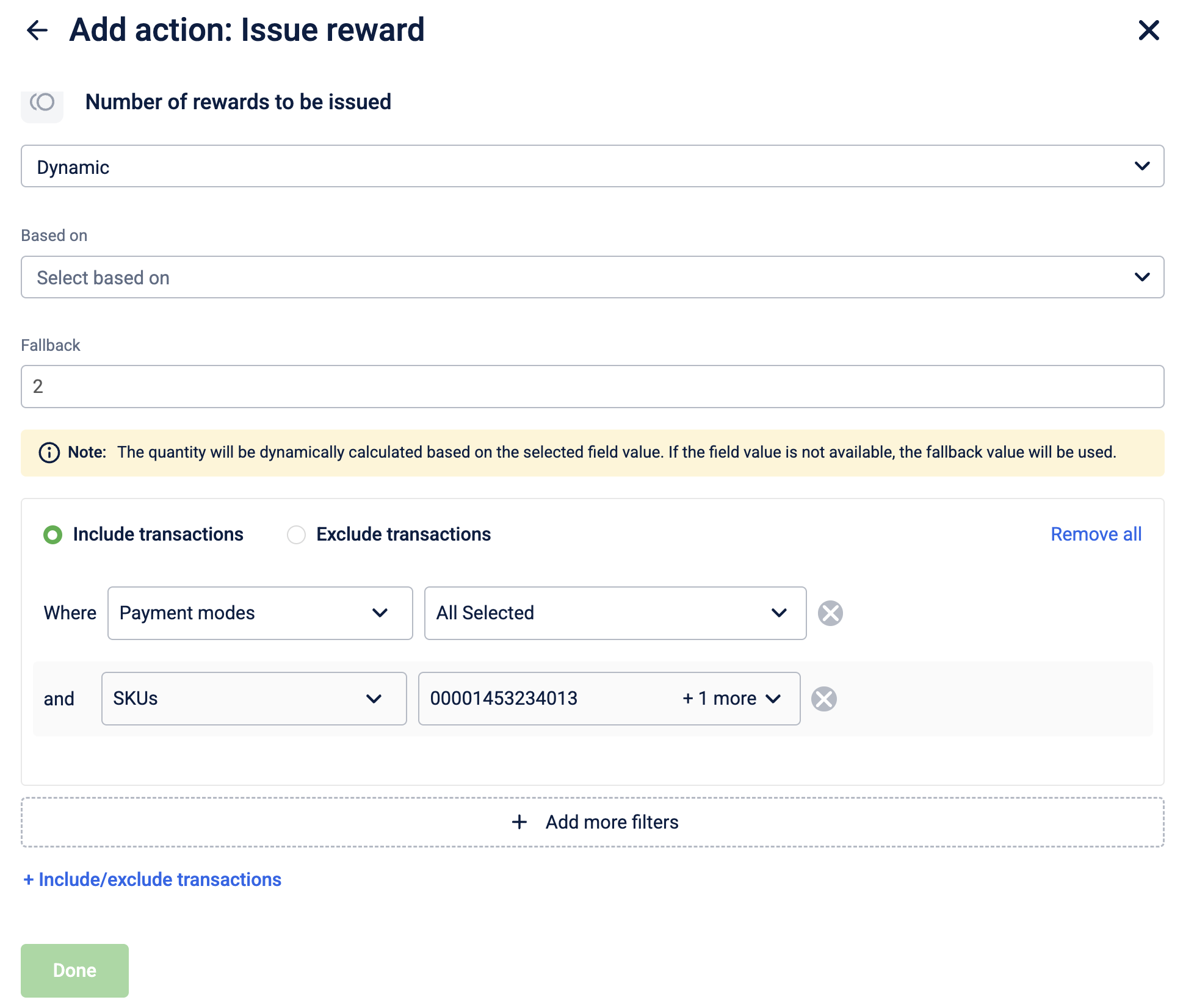
All conditions within a group are combined with AND logic. The same filter type can appear in both the Include and Exclude groups simultaneously.
Configuring the Issue Reward action
To configure the Issue Reward action, follow these steps:
-
Select Issue Reward from the action list.
-
In the Reward dropdown, select the specific reward to issue.
-
In the Issue to dropdown, select the recipient entity. The following options are available:
| Entity | Description |
|---|---|
| Members | Issues the badge to the individual customer, triggering the event. |
| Member groups | Issues the badge to a specific target group. |
| Referee | Issues the badge to the person being referred (used in referral workflows). |
| Referrer | Issues the badge to the person making the referral (used in referral workflows). |
- In the Number of rewards to be issued dropdown, select the issual criterion. The following issue criteria are available:
| Coupon issue criteria | Description | Example |
|---|---|---|
| Fixed amount | A specific quantity of coupons is issued for a qualifying event, regardless of the transaction value. | |
| Multiplier | Applies a multiplication factor to the base quantity of coupons defined in the earn rule. | |
| Dynamic | The quantity of coupons is calculated as a percentage of a specific base value | |
| Stepped | Issues a specific quantity of coupons for every defined interval of spend (step size). |
- Toggle Same for all tiers to ON to issue a fixed quantity of rewards for customers across all tiers. Toggle Same for all tiers to OFF to issue different quantities of rewards for customers across different tiers. If you create a new tier for the loyalty program, you must also reconfigure the values for the promotion.
- Enter the quantity of rewards to issue.
- (Optional) If you selected a line item-based value in the Based on dropdown, select how rewards should be calculated under Issue reward based on.
- (Optional) Select + Include/exclude transactions to filter which transactions are included in the calculation.
- (Optional) Expand Additional settings and select the Fixed amount rounding strategy.
- Toggle Communication to ON to notify the customer when the reward is issued, and select the communication channels.
- Select Save to complete the configuration.
Enrol Member in Loyalty Promotion
The enrol member in loyalty promotion action lets you enrol a member into a loyalty promotion.
Use Case
Prerequisites
- Create a loyalty program
- Create and configure a loyalty promotion
Configuring the Enrol member in Loyalty Promotion action
To configure the Enrol member in Loyalty Promotion action, follow these steps:
-
Select Enrol member in Loyalty Promotion from the action list.
-
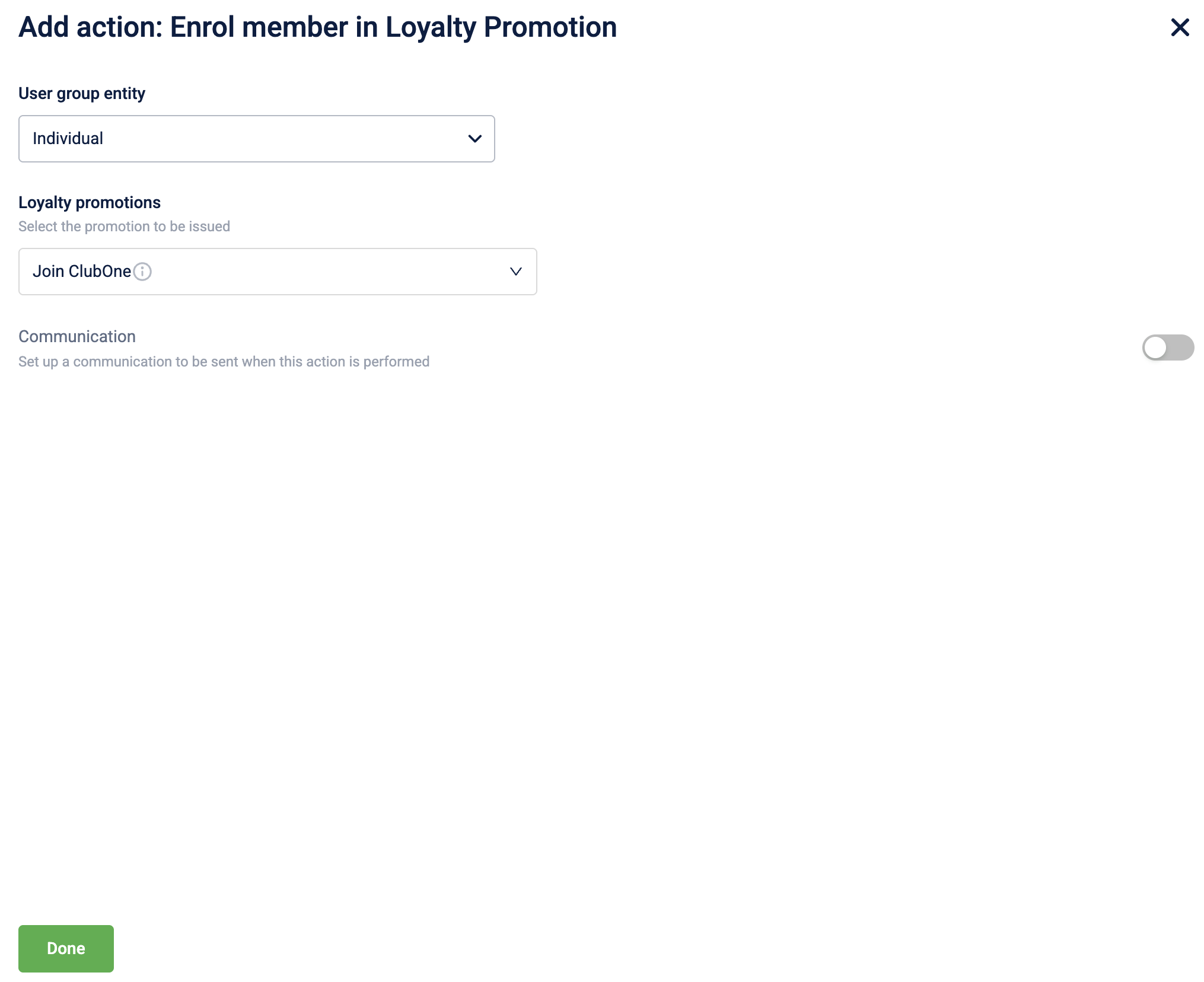
Select the entity to perform the enrol action from the User group entity dropdown. You can choose to enrol an individual customer or a user group.
-
In the Loyalty promotions dropdown, select the specific promotion to enrol the customer.
-
Toggle Communication to ON to notify the customer when the reward is issued, and select the communication channels.
-
Select Done to complete the configuration.
Opt-in Member in Loyalty Promotion
The opt-in member in loyalty promotion action lets you opt-in a member into a loyalty promotion.
Use Case
Prerequisites
- Create a loyalty program
- Create and configure a loyalty promotion
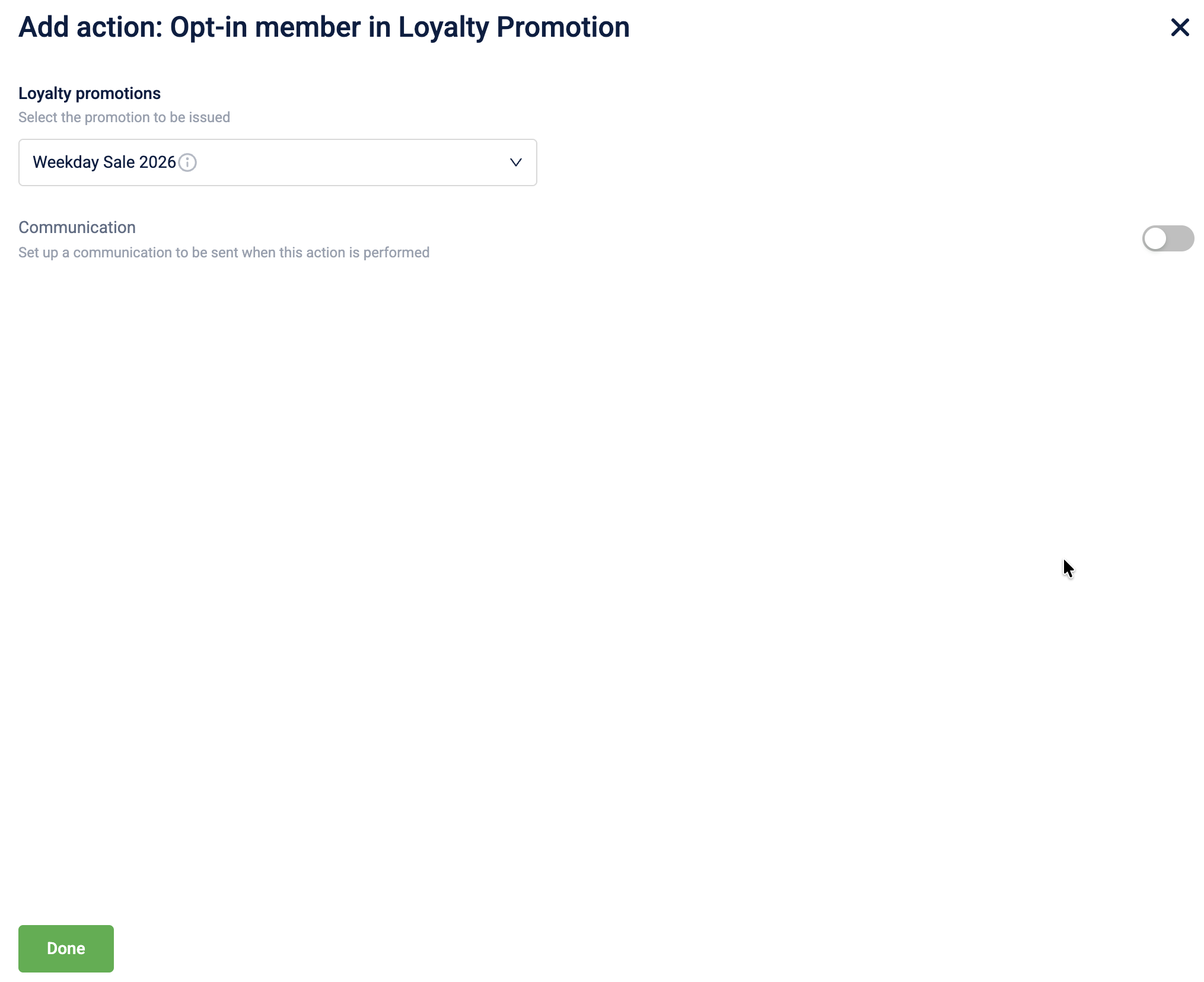
Configuring the Opt-in member in Loyalty Promotion action
To configure the Opt-in member in Loyalty Promotion action, follow these steps:
-
Select Opt-in member in Loyalty Promotion from the action list.
-
In the Loyalty promotions dropdown, select the specific promotion to opt-in.
-
Toggle Communication to ON to notify the customer when the reward is issued, and select the communication channels.
-
Select Done to complete the configuration.
Update Member Status
The update member status action allows you to modify the status and label of a customer based on their activities within a loyalty promotion.
Use Case
Prerequisites
Define member statuses and labels in your organization settings.
Requirement: A brand wants to automatically tag members as "High Value" if they make transactions worth more than ₹10,000 during a specific promotional period. Additionally, they want to label members with more than 5 returns as "Suspecting".
Solution:
- Create a loyalty promotion and define the metadata, enrolment, and earning activities.
- Define the qualifying conditions for the earning activity, for example, Transaction Value > 10000.
- Select the Update Member Status action.
- Select a status from the Status & label dropdown.
- Save the action to complete the configuration.
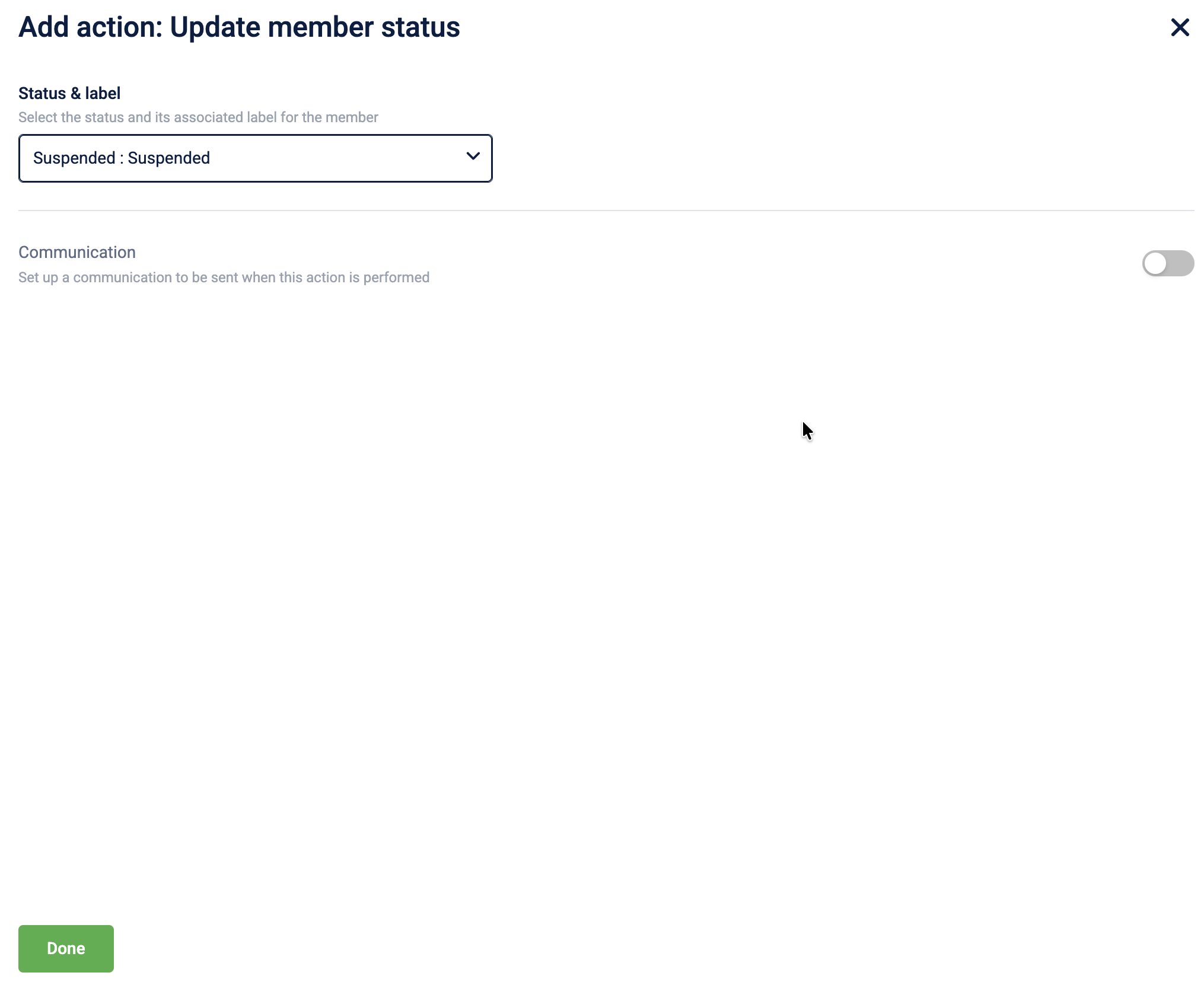
Configuring the Update Member Status action
To configure the Update Member Status action, follow these steps:
-
Select Update Member Status from the action list.
-
In the Status & label dropdown, select the new status and label to apply to the member.
-
(Optional) Enable Communication to notify members of the status change through supported channels.
-
Select Done to complete the configuration.
Send Communication
The send communication action allows you to send targeted messages to members through various channels directly from a loyalty promotion.
Loyalty+ and loyalty promotions integrates with the Central Communications Engine, enabling brands to send loyalty-related communications through supported channels like WhatsApp, Zalo, and LINE, in addition to standard SMS and Email. All communication channels available on Engage+ are automatically accessible when using this action, allowing for seamless integration of messaging within your promotion workflows.
NoteIf an organization has WhatsApp, Zalo, and LINE sender IDs configured on Engage+, the same will be available on Loyalty+. To configure a new sender ID, refer to Configuring WhatsApp Sender Details or raise a JIRA ticket to the gateways team. Refer to the Creatives documentation to create templates for WhatsApp and Zalo.
Reporting is available through Databricks to track communications sent through loyalty promotions, providing visibility into message delivery and customer engagement specifically for messages sent via the Send Communication action.
Use Case
Prerequisites
- Configure communication channels (SMS, Email, WhatsApp, etc.) and sender IDs in Engage+.
- Create message templates if required
Requirement: A brand wants to send a personalized "Welcome" message via WhatsApp to customers who enroll in a new "Summer Sale" promotion.
Solution:
- Create a loyalty promotion and configure the enrollment criteria.
- Select the Send Communication action to the enrollment workflow.
- Select WhatsApp as the channel.
- Choose the appropriate "Welcome" template.
- Save the action to complete the configuration.
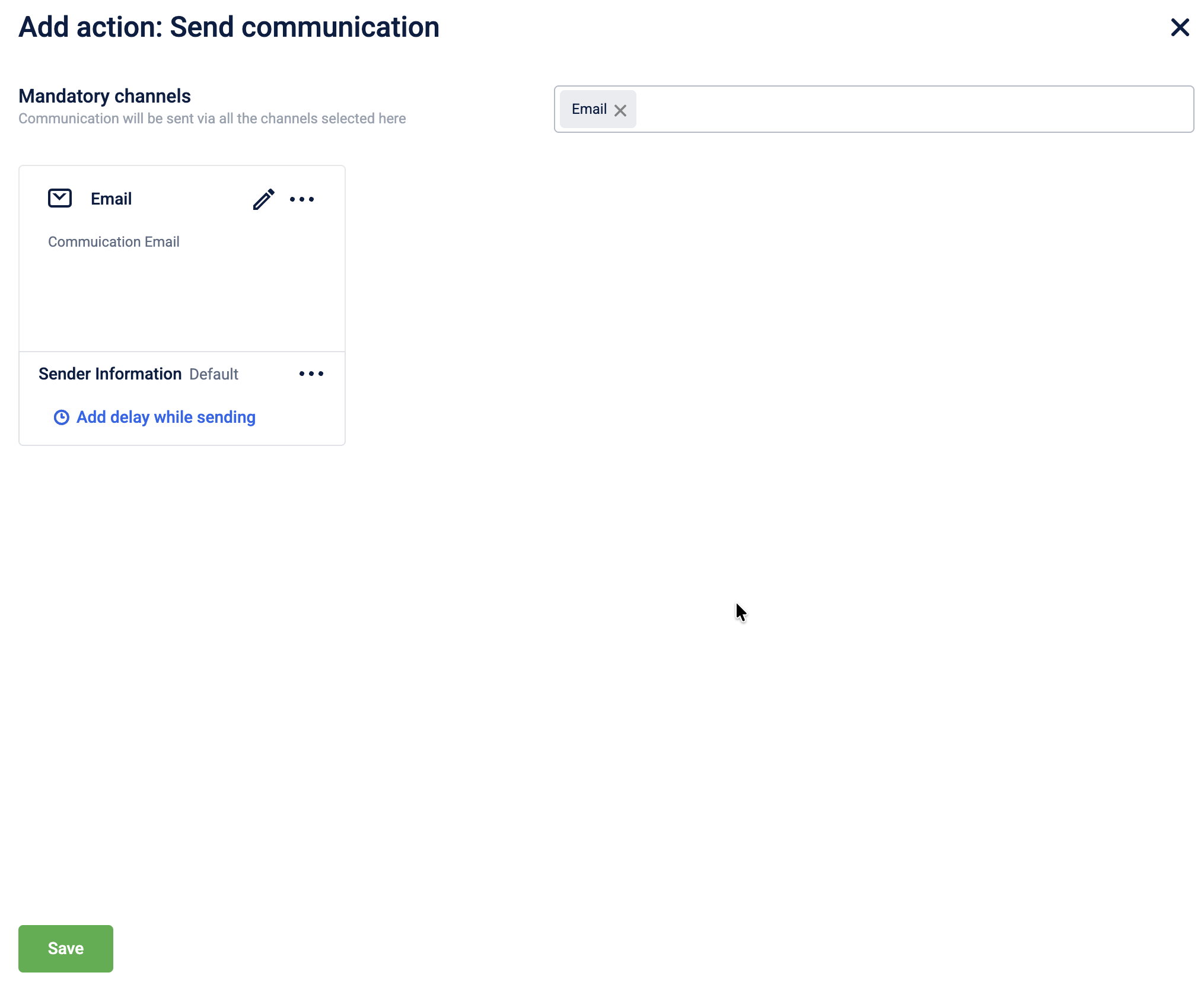
Configuring the Send Communication action
To configure the Send Communication action, follow these steps:
-
Select Send Communication from the action list.
-
Select the channel from the drop down menu.
-
Configure the message content. You can use labels to personalize the message content.
-
(Optional) Configure Delay Settings to send the message after a specific time interval.
-
Select Done to save the communication configuration.
-
Select Save to complete the action setup.
Enrol in Subscription Program
The Enrol in subscription program action allows you to enrol a customer into a specific subscription-based loyalty program.
Use Case
Prerequisites
- Create a loyalty program.
- Create and configure a subscription program within the loyalty program.
Requirement: A brand wants to automatically enrol high-value customers into their premium "VIP Club" subscription program when they make a single purchase over $1000.
Solution:
- Create a loyalty promotion and define an activity -Transaction Value > 1000.
- Select the Enrol in subscription program action.
- Select the "VIP Club" subscription program.
- (Optional) Configure a communication message to welcome the customer to the club.
- Save the action to complete the configuration.
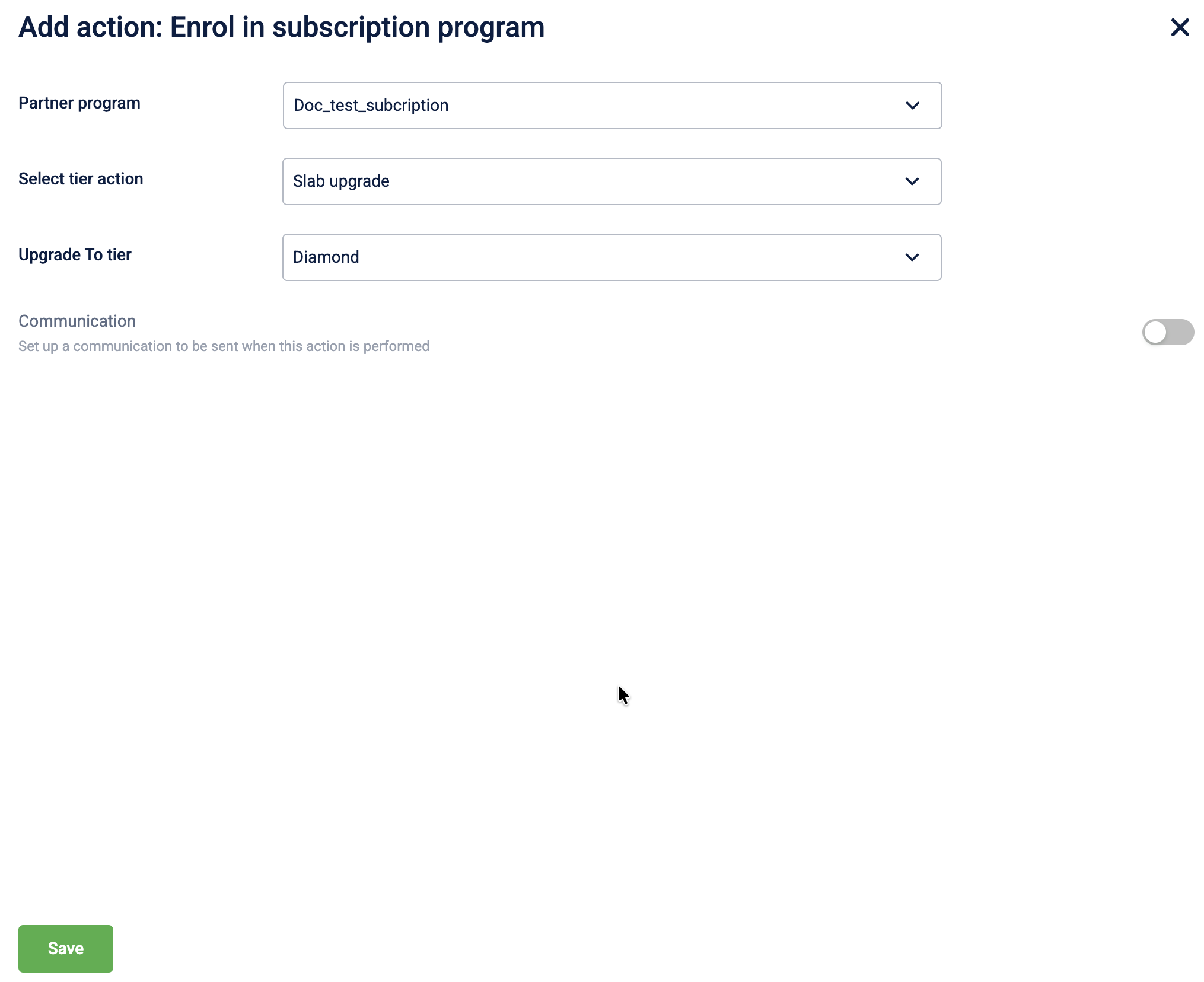
Configuring the Enrol in subscription program action
To configure the Enrol in subscription program action, follow these steps:
- Select Enrol in subscription program from the action list.
- In the Partner program dropdown, select the specific subscription program to enrol the customer in.
Note: Only active subscription programs linked to the current loyalty program will be available for selection. - In the Select tier action dropdown, choose the specific action related to the subscription tier
| Tier action | UI term | Description |
|---|---|---|
| No action | No tier action is performed. | |
| Renew tier | Renew slab | Member's current tier within the subscription program will be renewed. |
| Upgrade tier | Slab upgrade | Member's tier within the subscription program will be upgraded to the selected tier. |
| Referrer | Issues the badge to the person making the referral (used in referral workflows). |
-
(Optional) Enable Communication to notify customers of their enrolment through supported channels.
-
Select Save to complete the configuration.
Updated 23 days ago