
Understanding Timezone Management in the UI
Timezone handling in Capillary ensures that dates and times are displayed consistently, promotions and campaigns run at the correct local time, and support teams see predictable timestamps across all modules.
This page explains the key timezone concepts used across the platform, how date and time values behave during configuration and on listing pages, and which modules are currently on the standardized model.
Timezone basics
A timezone provides the regional context for date and time values. The same moment in time can appear differently across locations.
For example, a transaction that happens at a single instant may appear as:
- 16 December 2025, 14:30 in India
- 16 December 2025, 17:00 in Singapore
- 16 December 2025, 09:00 in London
Although the clock time differs, it represents the same event.
Note
- For organizations created from 2026 onwards, timezone handling is enabled by default. For organizations created earlier, contact the Capillary Product Support team to enable timezone support for your organization.
- Organizations with the CONF_ORG_DISABLE_MACHINE_TIME_CONV configuration enabled may experience billing time inconsistencies in the Membercare UI. This configuration is deprecated and should no longer be used.
Timezone concepts in Capillary
Organization timezone settings
Every Capillary organization has a base timezone that reflects where the business primarily operates. This is configured in the Capillary UI under Organization Settings > Organization Profile > Set Org TimeZone.
Capillary's timezone model extends beyond the organization level. Timezones can be configured at each level of the store hierarchy: zone, store, and till. This allows individual stores and checkout points to operate in their own local timezones, independent of the organization's base setting.
IANA timezone convention
Capillary uses the IANA timezone format (also called the tz database or Olson database) to represent timezones. Examples: Asia/Kolkata, America/New_York, Europe/London.
IANA names are preferred over fixed offsets (such as +05:30) because they carry Daylight Saving Time (DST) rules automatically. When you provide a timezone in IANA format, the system automatically applies the correct DST offset without any additional configuration.
Server timezone
The server timezone is Capillary's internal processing timezone. It is set at the platform level and cannot be changed by your organization.
- Insights reports will display timestamps in the server timezone (IST / Asia/Kolkata), regardless of where the brand is located.
- API responses return date-time values in the server timezone. This is relevant for the technical teams and integrations.
Daylight Saving Time (DST) handling
Daylight Saving Time (DST) is a practice observed in many countries where clocks are moved forward by one hour in spring and moved back in autumn. The purpose is to make better use of daylight during the longer days of summer.
For example, in the United States, clocks in the America/New_York timezone move:
- Forward by one hour on the second Sunday in March (spring forward)
- Backward by one hour on the first Sunday in November (fall back)
Not all countries observe DST. Countries near the equator, such as India, Singapore, and the UAE, do not adjust their clocks seasonally. Their UTC offset stays the same year-round.
Creation and scheduling page behavior
In supported modules, you can select a timezone during configuration. The selected timezone defines the local time context for that configuration.
Promotions (New UI) supports timezone selection at creation. A dropdown lists timezones in IANA format (for example, Asia/Shanghai, Europe/London). Available timezones are populated from the supported timezones configured in your organization settings. The selected timezone defines the local time context in which the promotion is scheduled.

All other supported modules — Streaks, Milestones, Gift Vouchers, Cart Promotions, and Campaigns use the organization timezone during creation.
DST handling during scheduling
Capillary supports timezone-aware scheduling and evaluation using IANA timezone identifiers (for example, America/New_York).
When a date and time are configured with an IANA timezone, Daylight Saving Time (DST) transitions are handled automatically.
How DST is handled
Capillary stores:
- The configured date and time
- The associated IANA timezone (for example,
America/New_York)
An IANA timezone represents a region, not a fixed offset. It includes:
- Historical timezone rules
- Future DST transition rules
- Exact dates when offsets change
During scheduling or evaluation, the system:
- Reads the configured date and time.
- Reads the associated IANA timezone.
- Determines the correct UTC offset for that specific date.
- Applies the correct offset when processing the event.
This ensures that time-based entities (such as promotions, campaigns, journeys, and rewards) run at the intended local wall-clock time, even when DST changes occur.
Example: DST-aware scheduling
A campaign is scheduled to start at:
- 1 November 2026, 9:00 AM
- Timezone:
America/New_York
If DST ends earlier that morning:
- The system applies the updated offset automatically.
- The campaign still starts at 9:00 AM local time.
- No manual adjustment is required.
What happens during DST transition hours
DST changes usually happen during early morning hours (for example, around 2:00 AM). During this time, one of two special cases can occur.
Spring Forward (Hour Skipped)
When DST starts, clocks move forward by one hour.
Example
Timezone: America/New_York DST starts: 8 March 2026
At 2:00 AM, the clock jumps directly to 3:00 AM.
This means the time between 2:00 AM and 2:59 AM does not exist.
If you try to schedule something at:
- 8 March 2026, 2:30 AM
- Timezone:
America/New_York
That time is not valid because it never occurs.
In such cases, the system may:
- Prevent the configuration, or
- Automatically adjust it to the next valid time.
Fall Back (Hour Repeated)
When DST ends, clocks move back by one hour.
Example
Timezone: America/New_York DST ends: 1 November 2026
At 2:00 AM, the clock moves back to 1:00 AM.
This means the time between 1:00 AM and 1:59 AM occurs twice.
Although both show the same clock time, they represent two different moments.
During this one-hour window, there may be minor timing differences depending on when the action occurred.
Note
These special cases affect only the exact hour when DST changes.
Outside that one-hour transition window:
- Scheduling works as expected.
- Time-based promotions and campaigns behave normally.
- No manual adjustments are required.
Best Practice
Avoid scheduling time-based configurations during the exact DST transition hour in regions that observe DST.
Scheduling outside that window ensures predictable behaviour.
View and listing page behavior
Listing pages across all supported modules display dates and times in the organization timezone, with the following variations.
Promotions (New UI) listing page uses split timezone references:
- Duration is displayed in the timezone selected during creation.
- Updated at is displayed in the organization timezone.
This preserves the original scheduling context while keeping audit timestamps consistent.
Audience listing page Date range filters use server time rather than the organization timezone.
Member Care
Member Care displays dates and times in the organization timezone by default. Unlike other modules, support agents can also select a different timezone using the timezone dropdown during a session. Available timezones are populated from the supported timezones configured in your organization settings.
This allows support teams to view timestamps in the customer's local context when investigating a query.
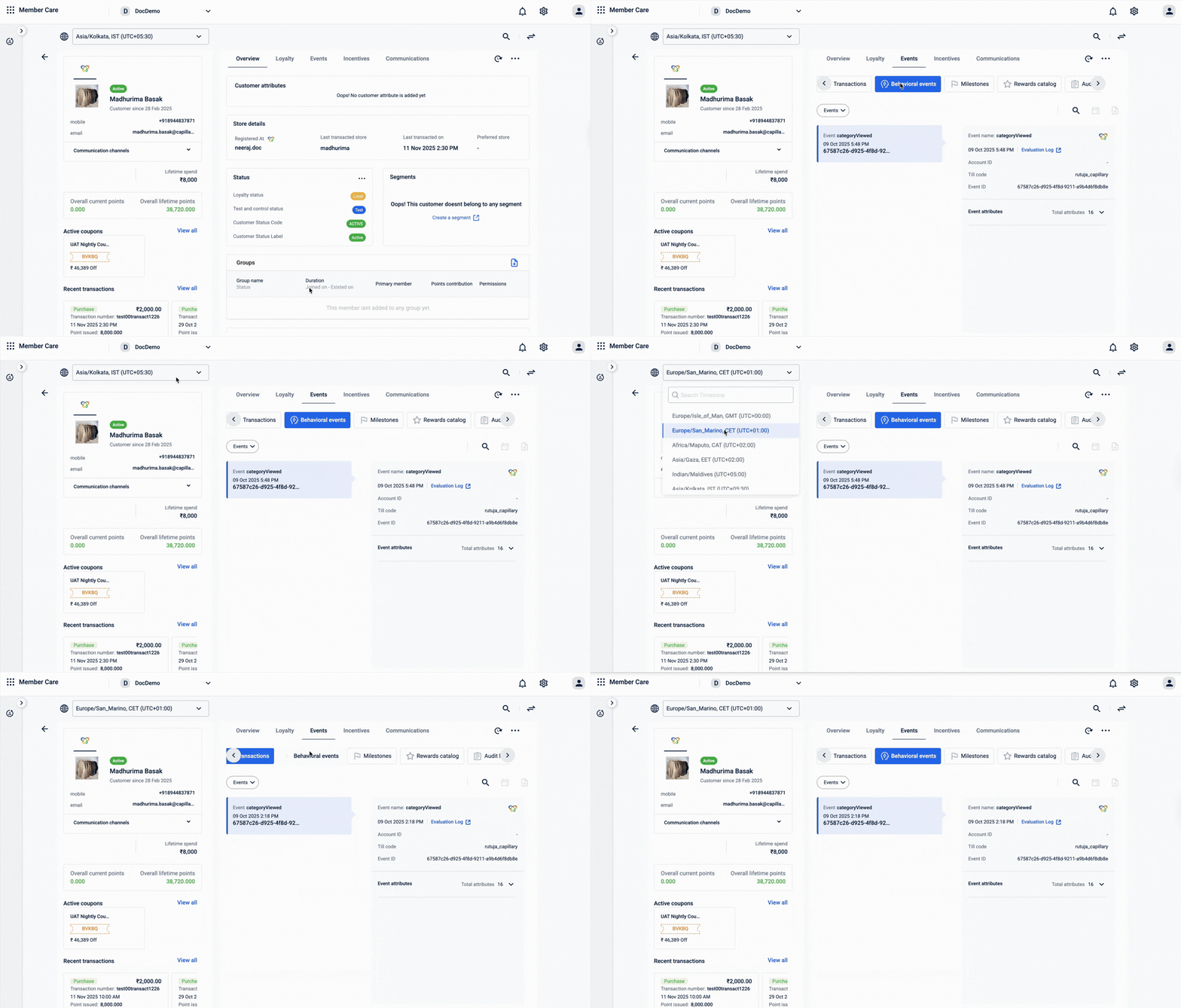
Exception note: In case of the coupon redemption tab, the time displayed in the UI is in the local system time when the coupon redemption event was processed, not when the customer actually redeemed the coupon.
Insights table (Databricks)
Timezone handling in Databricks is driven by the configuration ENABLE_INSIGHTS_TIMEZONE_CONVERSION . Once enabled, Insights stores all event timestamps in the server timezone, regardless of the store or region where the event originated. This applies consistently across all fact tables in Databricks, such as transactions, points awards, redemptions, slab upgrades, and more. For more information, refer to https://docs.capillarytech.com/docs/getting-started-databricks#timezone-handling.
Modules not yet on the standardized model
The following modules do not currently follow the standardized timezone model. Existing timezone behavior remains unchanged, and legacy display or processing logic may still apply.
- Loyalty Programs
- Rewards Catalog (also called Marvel Rewards)
- Data Import
- Connect+
- Badges UI
- Insights
- Offers / Coupons UI
For the deprecated modules, such as legacy Loyalty Promotion and legacy Connect+, the above standardisation does not apply.
Updated 2 months ago