
Rewards catalog - use cases
Use case 1: Restrict a cashback reward to Gold tier members
Requirement: A fashion retailer wants to offer a 10% cashback reward exclusively to Gold-tier loyalty members. Silver and lower-tier customers should not see or redeem it.
Step 1: Basic details
- Go to Rewards+ > Rewards Catalog and select New Reward.
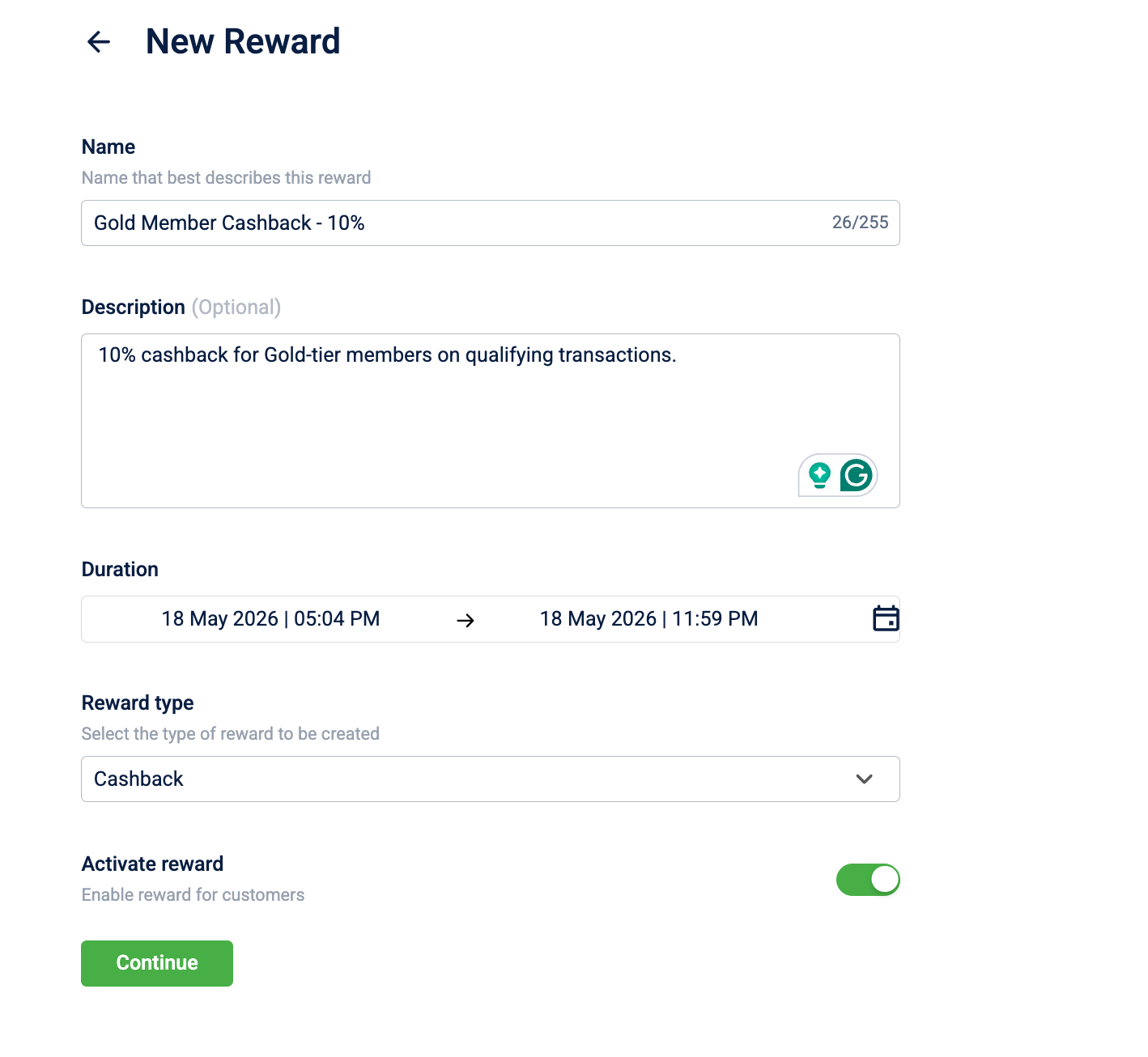
- Configure the following:
| Field | Value |
|---|---|
| Name | Gold Member Cashback - 10% |
| Description | 10% cashback for Gold-tier members on qualifying transactions. |
| Duration | Campaign start date — 31 Dec 2025 |
| Reward type | Cashback |
| Activate reward | On |
- Select Continue.
Step 2: Who can view the reward?
- Select Specific customers.
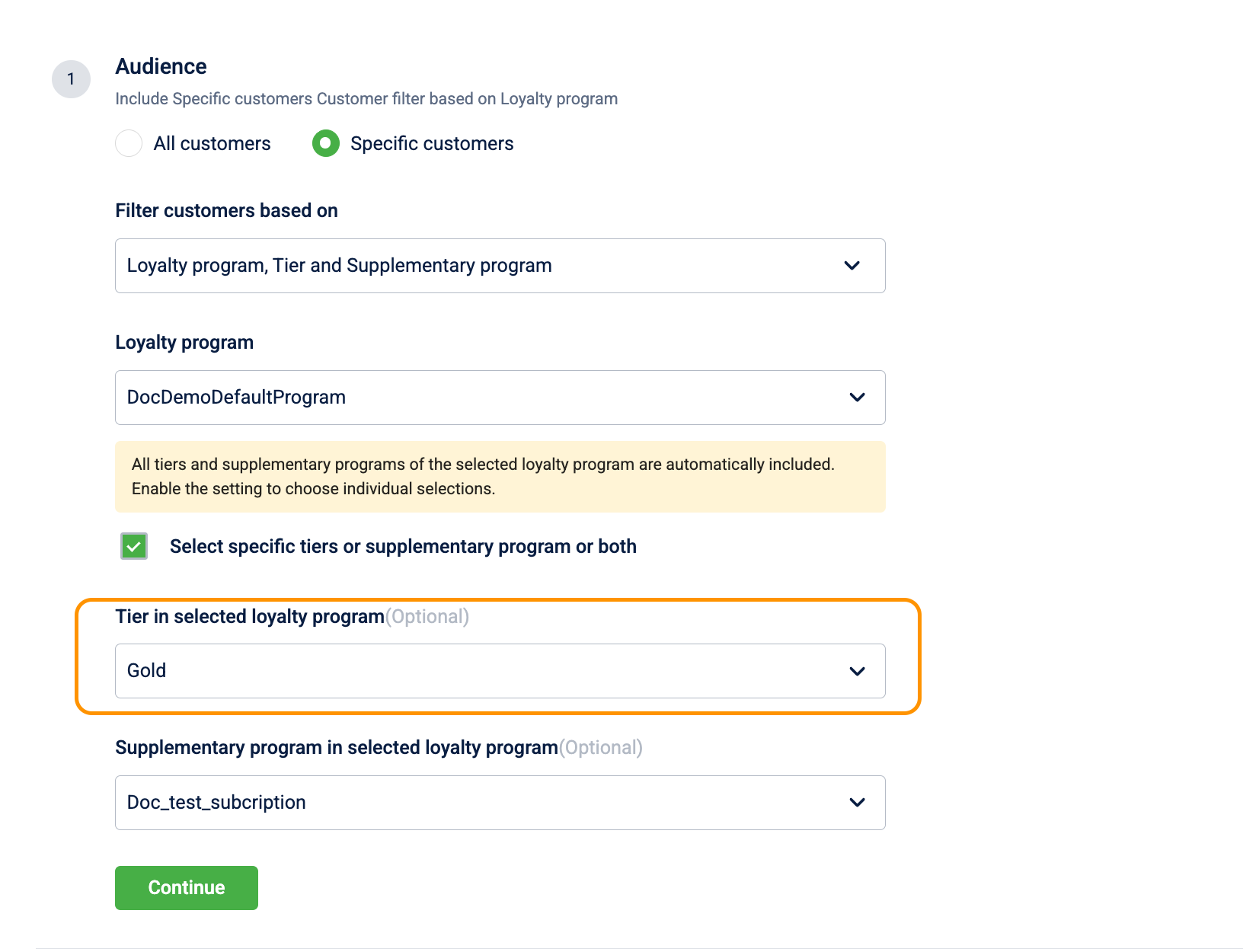
- From Filter customers based on, select Loyalty program, Tier and Supplementary program.
- Configure the following:
| Field | Value |
|---|---|
| Loyalty Program | Prestige Rewards Program |
| Select specific tiers or supplementary program or both | Enabled |
| Tier in selected loyalty program | Gold |
- Complete the remaining steps and select Save.
The reward is now visible only to Gold-tier members.
Use case 2: Restrict a gift voucher to VIP customers
Requirement: A fashion brand running an exclusive preview sale wants to issue a ₹500 gift voucher only to customers tagged as "valuable customer". Non-VIP customers should have no visibility of the reward.
Step 1: Basic details
- Go to Rewards+ > Rewards Catalog and select New Reward.
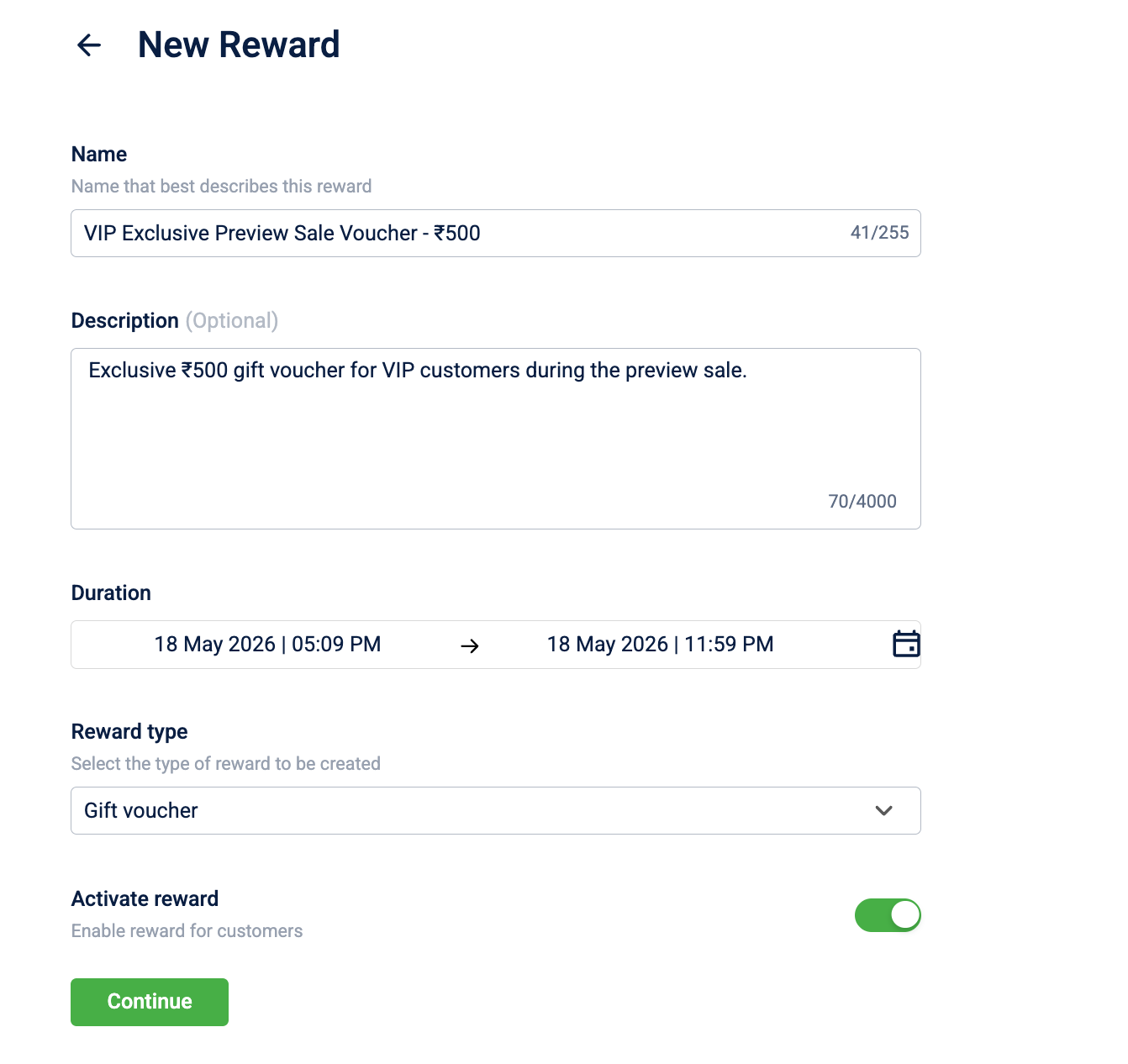
- Configure the following:
| Field | Value |
|---|---|
| Name | VIP Exclusive Preview Sale Voucher - ₹500 |
| Description | Exclusive ₹500 gift voucher for VIP customers during the preview sale. |
| Duration | Campaign start date — 15 Dec 2025 |
| Reward type | Gift Voucher |
| Activate reward | On |
- Select Continue.
Step 2: Who can view the reward?
- Select Specific customers.
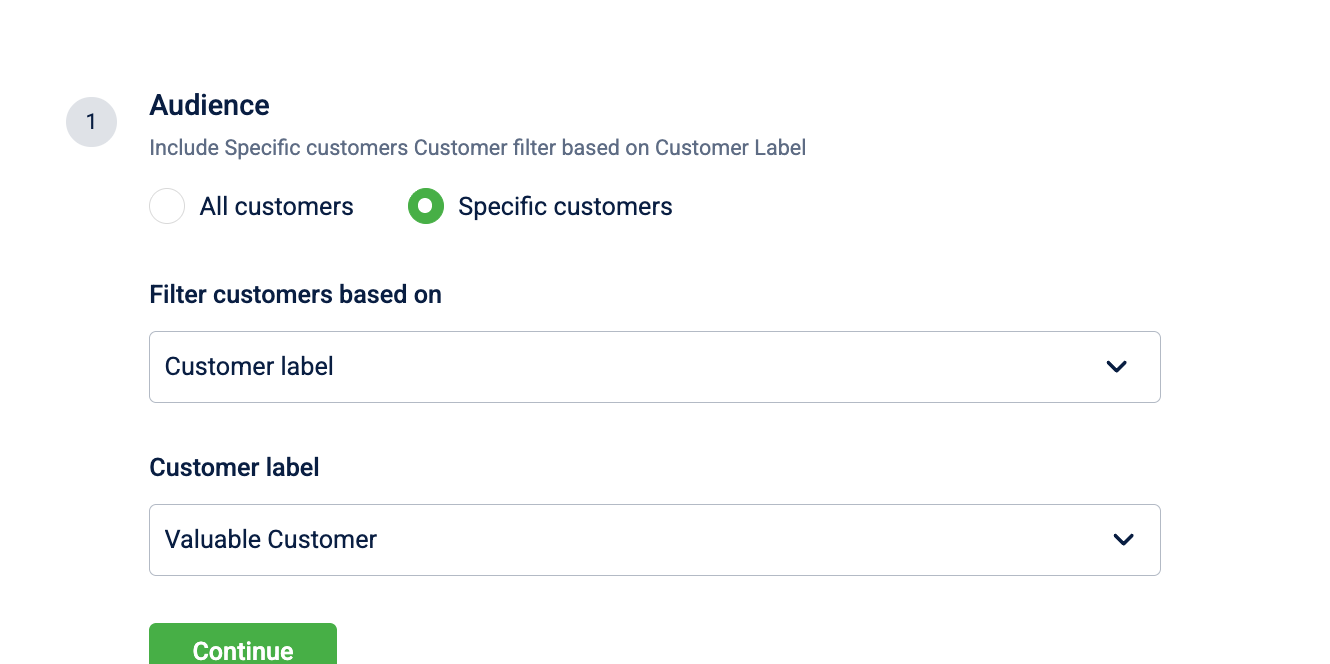
- From Filter customers based on, select Customer label.
- Configure the following:
| Field | Value |
|---|---|
| Customer label | VIP |
- Complete the remaining steps and select Save.
The reward is now visible only to Valuable customer labelled customers. Non-VIP customers cannot see or redeem the reward.
Use case 3: Restrict a wallet offer to a specific card series (NOT DONE)
Requirement: A bank has partnered with a retail brand to offer ₹200 wallet credits exclusively to HDFC Signature co-branded cardholders. Customers with any other card or no card should not see the offer.
Step 1: Basic details
- Go to Rewards+ > Rewards Catalog and select New Reward.
- Configure the following:
| Field | Value |
|---|---|
| Name | HDFC Signature Cardholder Wallet Credit - ₹200 |
| Description | ₹200 wallet credit exclusively for HDFC Signature co-branded cardholders. |
| Duration | Campaign start date — 31 Jan 2026 |
| Reward type | Wallet Offer |
| Activate reward | On |
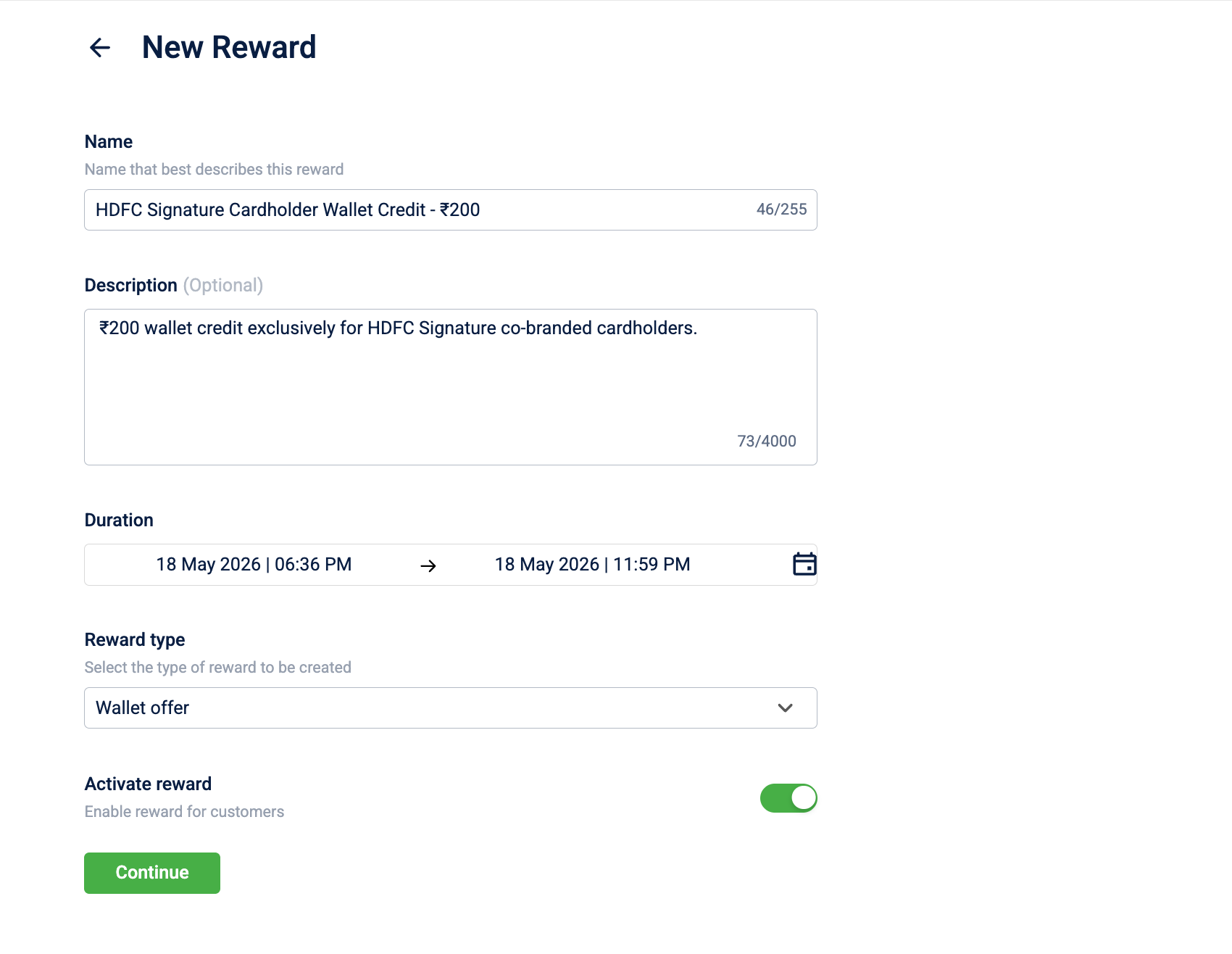
- Select Continue.
Step 2: Who can view the reward?
- Select Specific customers.
- From Filter customers based on, select Card Series.
- Configure the following:
| Field | Value |
|---|---|
| Card Series | HDFC Signature |
- Complete the remaining steps and select Save.
The reward is now visible only to customers holding the HDFC Signature card. Customers with a different card or no card will not see it in the catalog API response.
Use case 4: AND logic across audience filters : Program and Tier
Requirement: A travel brand wants to offer a free airport lounge access coupon only to customers who are both enrolled in the Prestige Travel Program and hold Platinum tier status. Enrollment in the program alone or Platinum status in a different program is not sufficient.
Step 1: Basic details
- Go to Rewards+ > Rewards Catalog and select New Reward.
- Configure the following:
| Field | Value |
|---|---|
| Name | Platinum Prestige - Free Airport Lounge Access |
| Description | Complimentary airport lounge access for Prestige Travel Program Platinum members. |
| Duration | Campaign start date — 31 Mar 2026 |
| Reward type | Coupon |
| Activate reward | On |
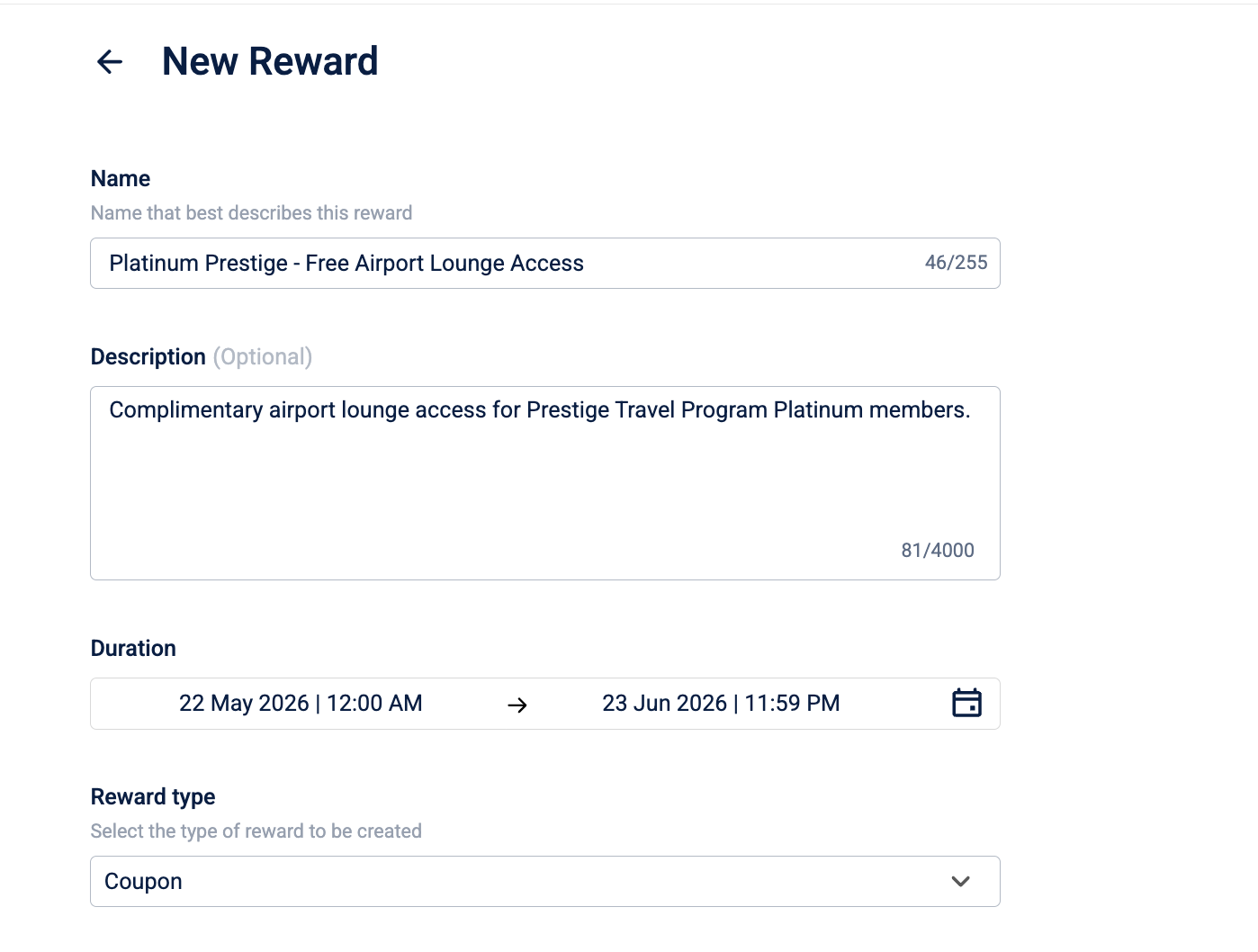
- Select Continue.
Step 2: Who can view the reward?
- Select Specific customers.
- From Filter customers based on, select Loyalty program, Tier and Supplementary program.
- Configure the following:
| Field | Value |
|---|---|
| Loyalty Program | Prestige Travel Program |
| Select specific tiers or supplementary program or both | Enabled |
| Tier in selected loyalty program | Platinum |
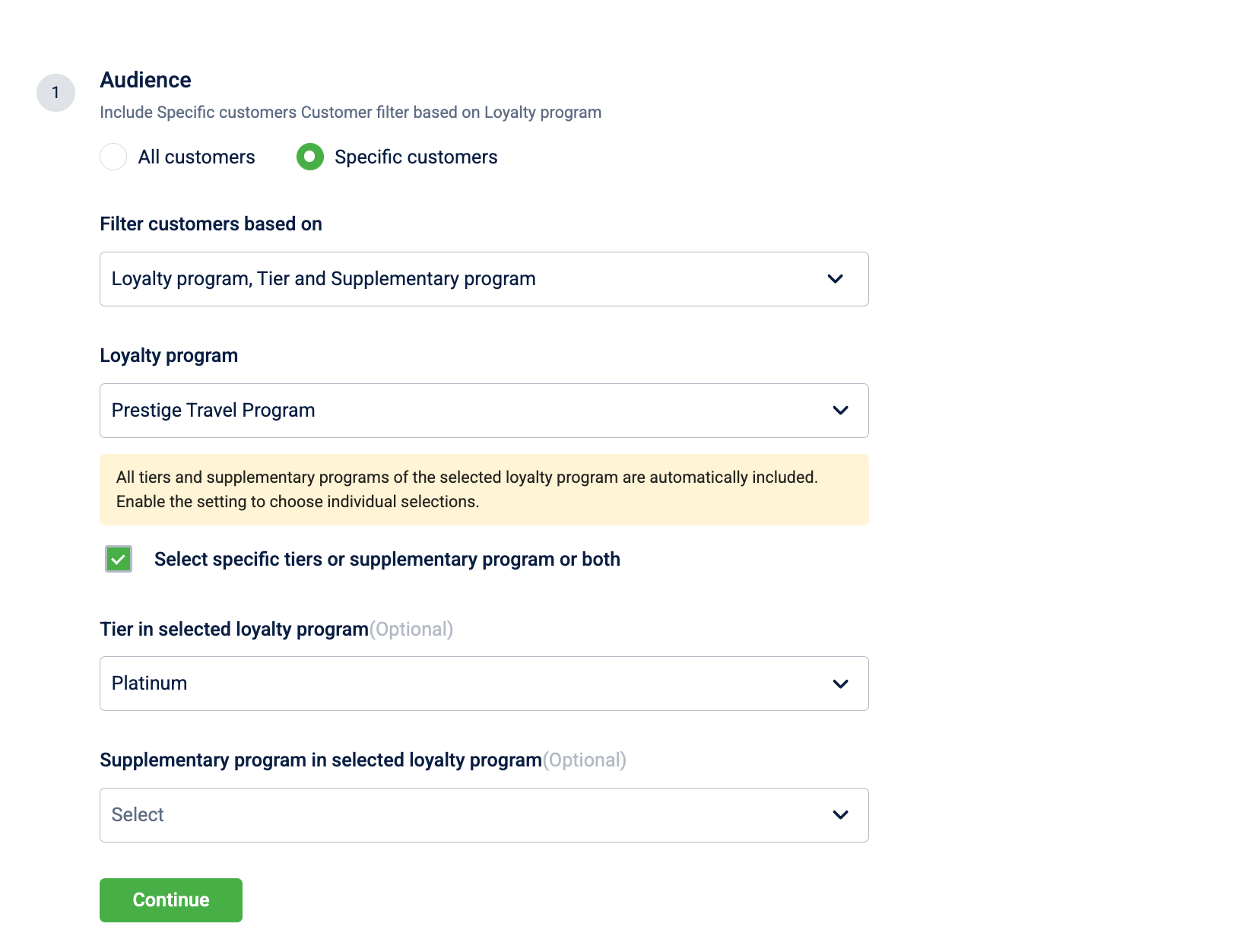
- Complete the remaining steps and select Save.
The reward is now visible only to customers who are enrolled in the Prestige Travel Program and hold Platinum tier status. Customers in the same program at a lower tier, customers in a different program, and customers with no program enrollment will not see it in the user reward API response.
Use case 5: Create a Gold-tier-only discount coupon
Requirement: A fashion retailer wants to offer Gold tier members an exclusive 20% discount coupon redeemable in-store, available for one month and limited to one redemption per customer.
Step 1: Basic details
- Go to Rewards+ > Rewards Catalog and select New Reward.
- Configure the following:
| Field | Value |
|---|---|
| Name | Gold Member 20% Off Coupon |
| Description | Exclusive 20% discount for Gold tier members, valid in-store only. |
| Duration | Campaign start date — last day of the month |
| Reward type | Coupon |
| Reward issued by | Your organization name |
| Activate reward | On |
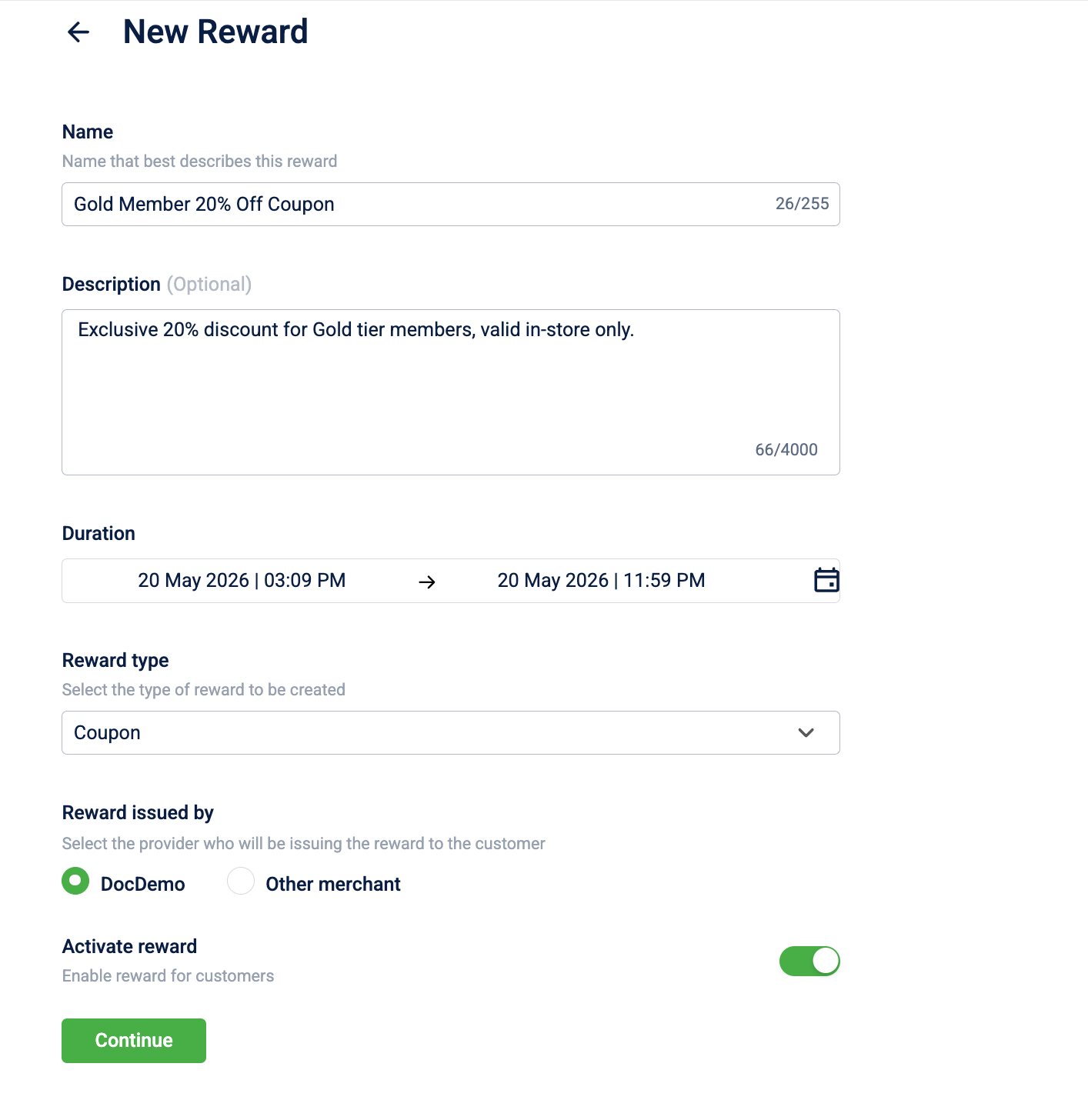
- Select Continue.
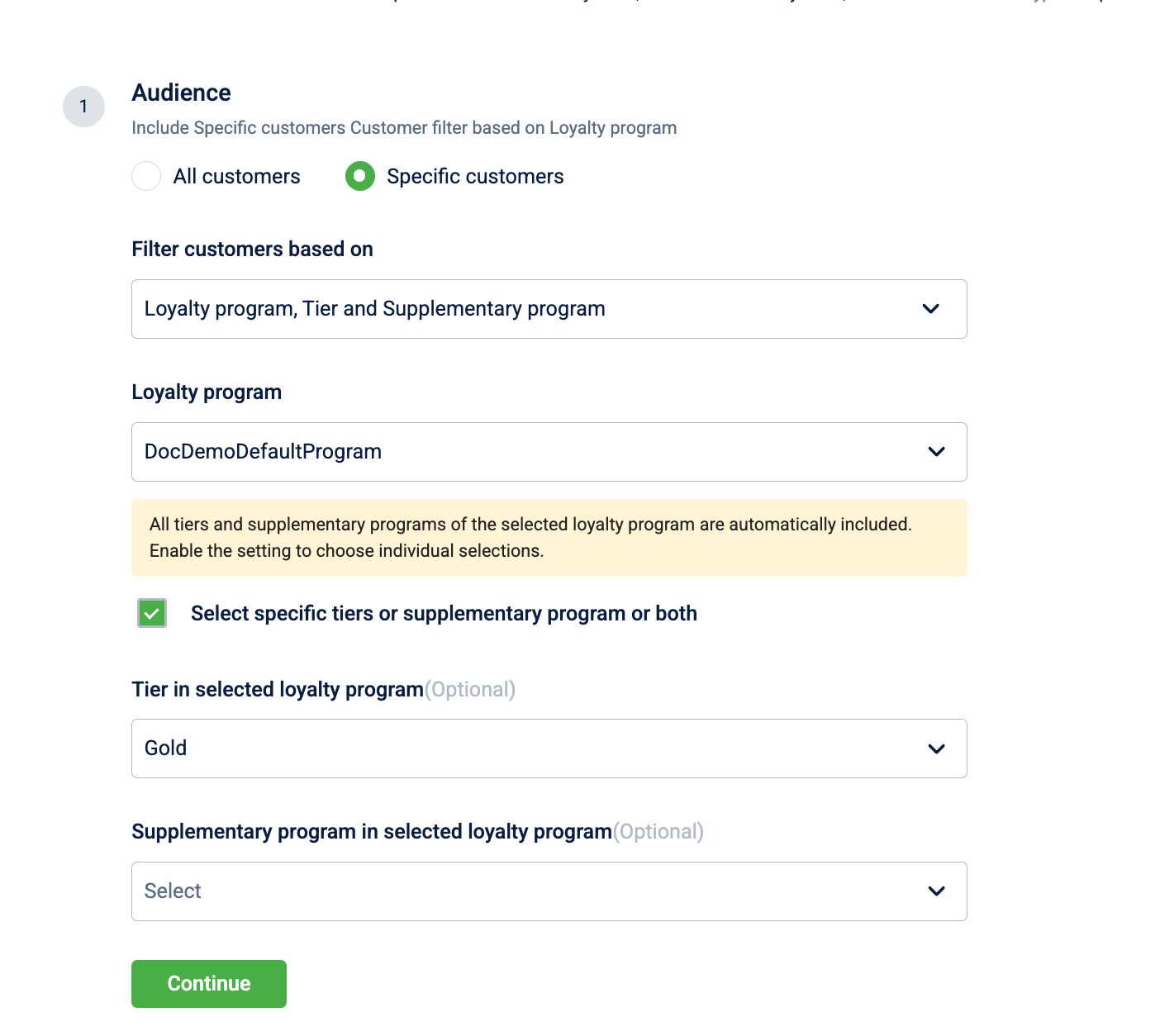
Step 2: Who can view the reward?
- Select Specific customers.
- From Filter customers based on, select Loyalty program, Tier and Supplementary program.
- Configure the following:
| Field | Value |
|---|---|
| Loyalty program | Select your loyalty program |
| Select specific tiers or supplementary program or both | Enabled |
| Tier in selected loyalty program | Gold |
- Select Continue.
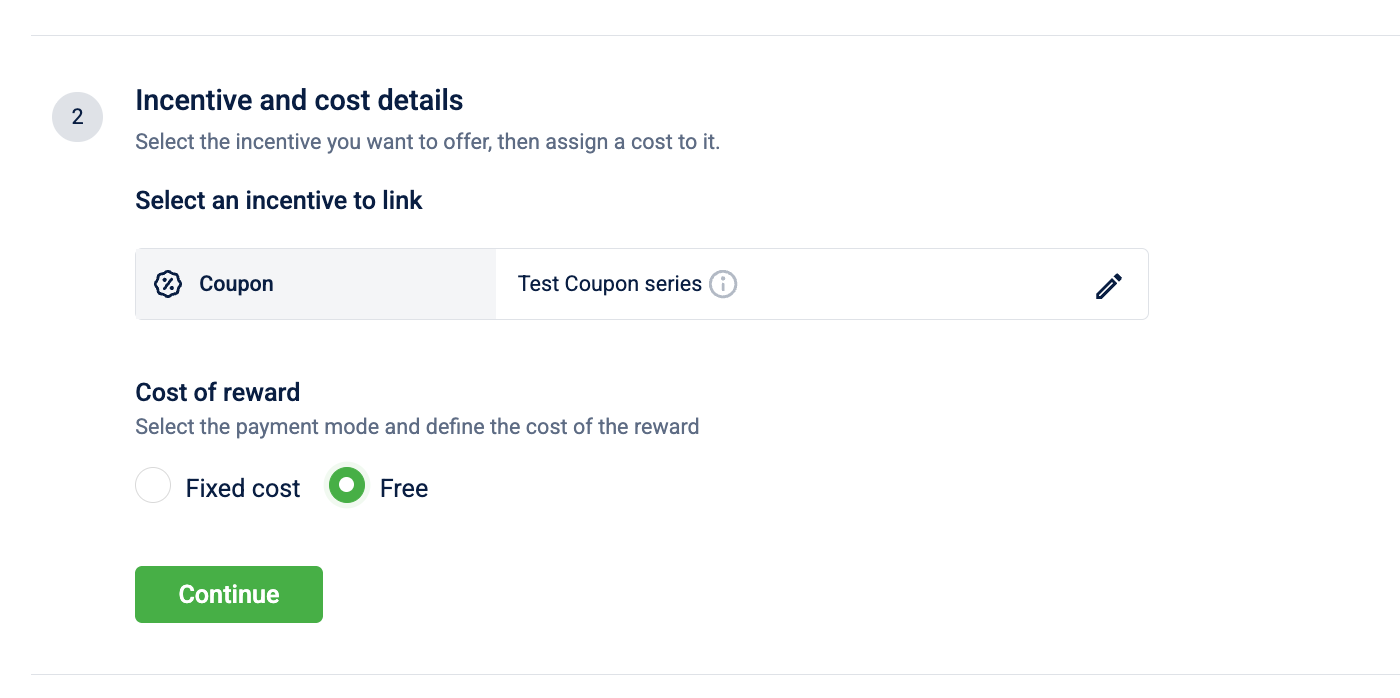
Step 3: Incentive and cost details
- Under Link Incentives, select the link entry and choose the coupon series configured with 20% off from the panel.
- Under Cost of reward, select Free.
-
Select Continue.
Step 4: Inventory limits
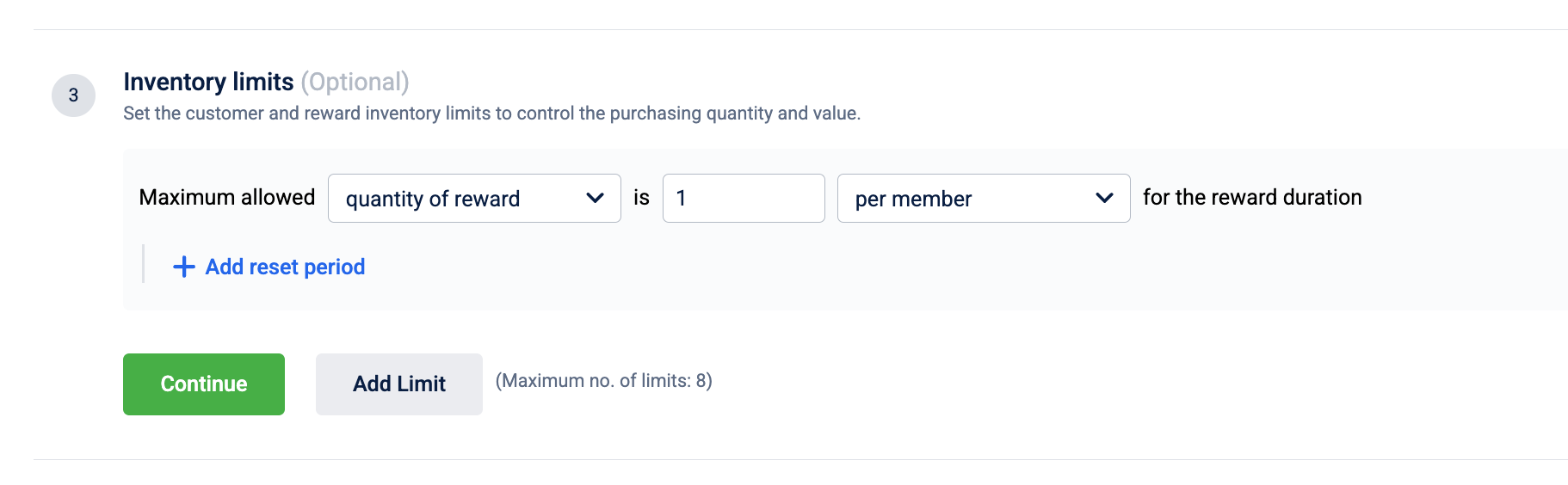
- Select Add Limit and configure the following:
| Field | Value |
|---|---|
| KPI | quantity of reward |
| Value | 1 |
| Scope of limit | per member |
- Complete the remaining steps and select Save.
Gold tier customers see this coupon in their catalog for the entire month. Each customer can redeem it once. Non-Gold customers cannot see it.
Use case 6: Run a weekend flash sale with a total redemption cap
Requirement: A grocery chain wants to give away a free ₹200 grocery voucher over a single weekend — limited to the first 300 customers who claim it, with one voucher per customer.
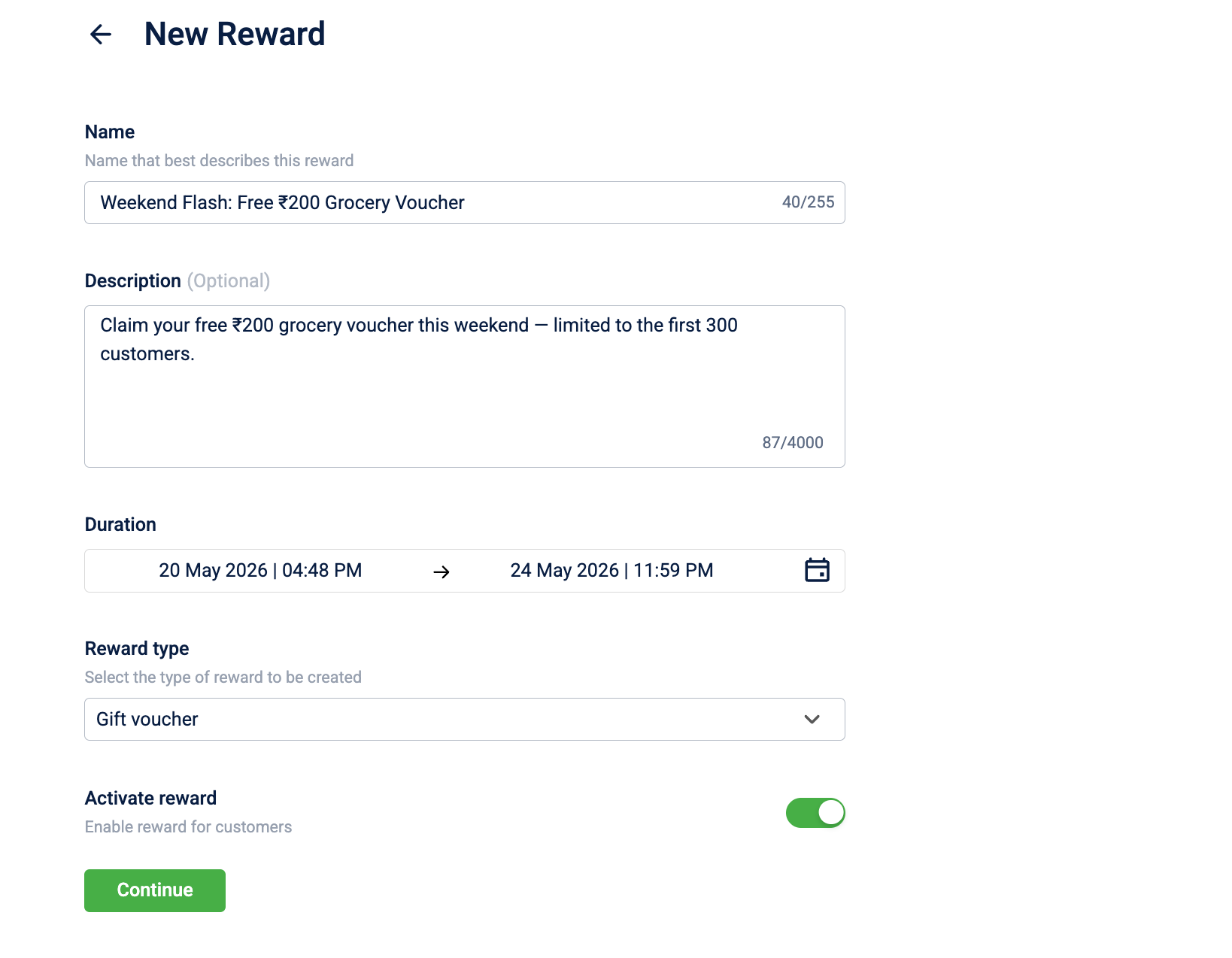
Step 1: Basic details
- Go to Rewards+ > Rewards Catalog and select New Reward.
- Configure the following:
| Field | Value |
|---|---|
| Name | Weekend Flash: Free ₹200 Grocery Voucher |
| Description | Claim your free ₹200 grocery voucher this weekend — limited to the first 300 customers. |
| Duration | Saturday 00:00 — Sunday 23:59 |
| Reward type | Gift voucher |
| Activate reward | On |
- Select Continue.
Step 2: Who can view the reward?
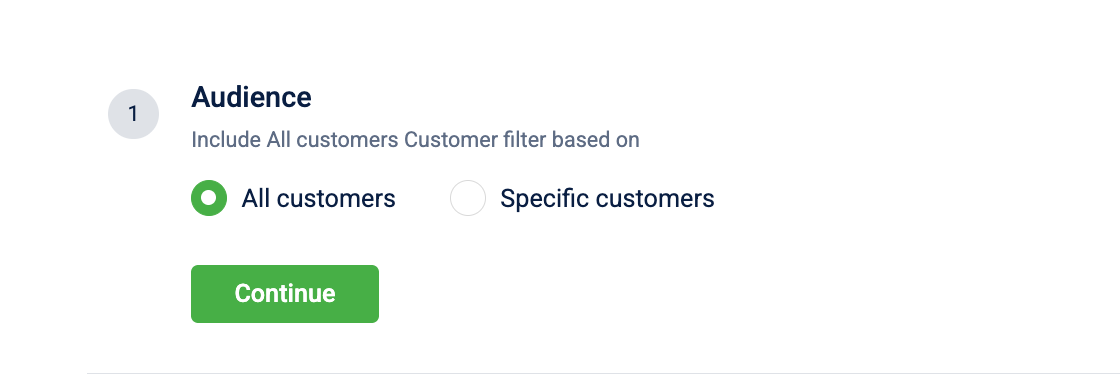
-
Select All customers, then select Continue.
Step 3: Incentive and cost details
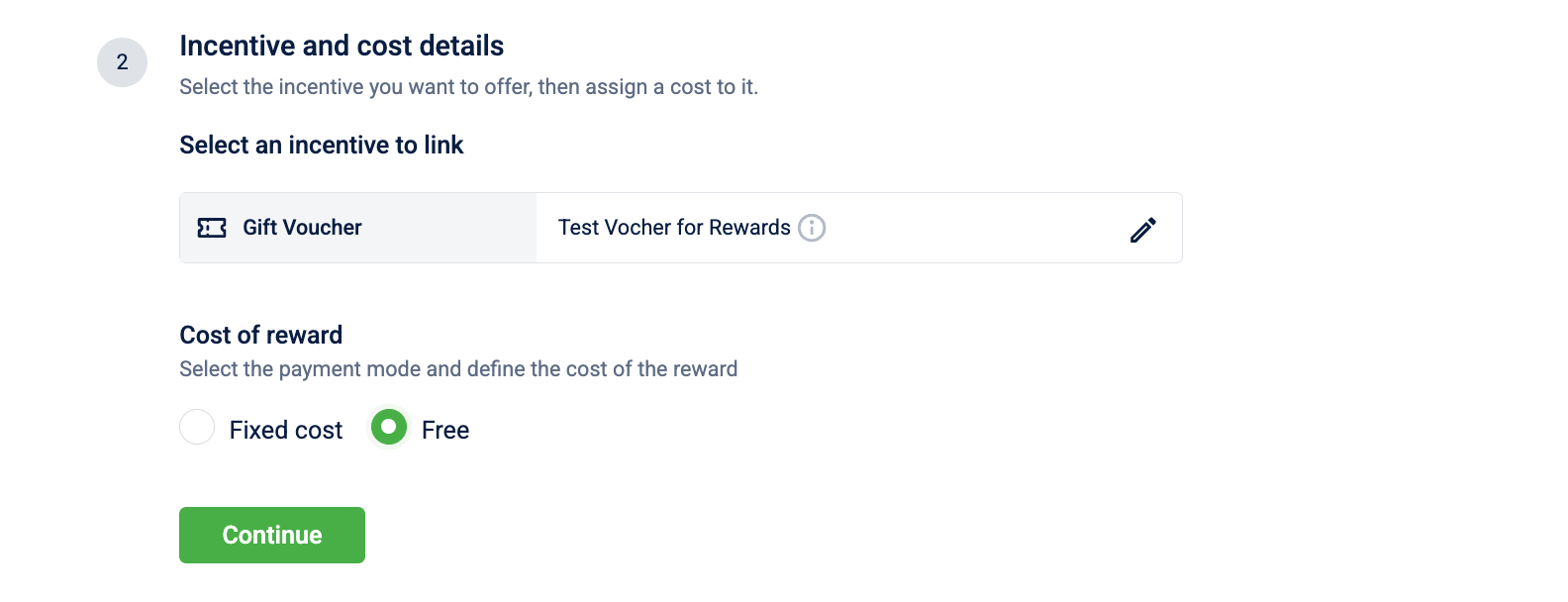
- Under Link Incentives, select the grocery voucher incentive from the panel.
- Under Cost of reward, select Free, then select Continue.
Step 4: Inventory limits
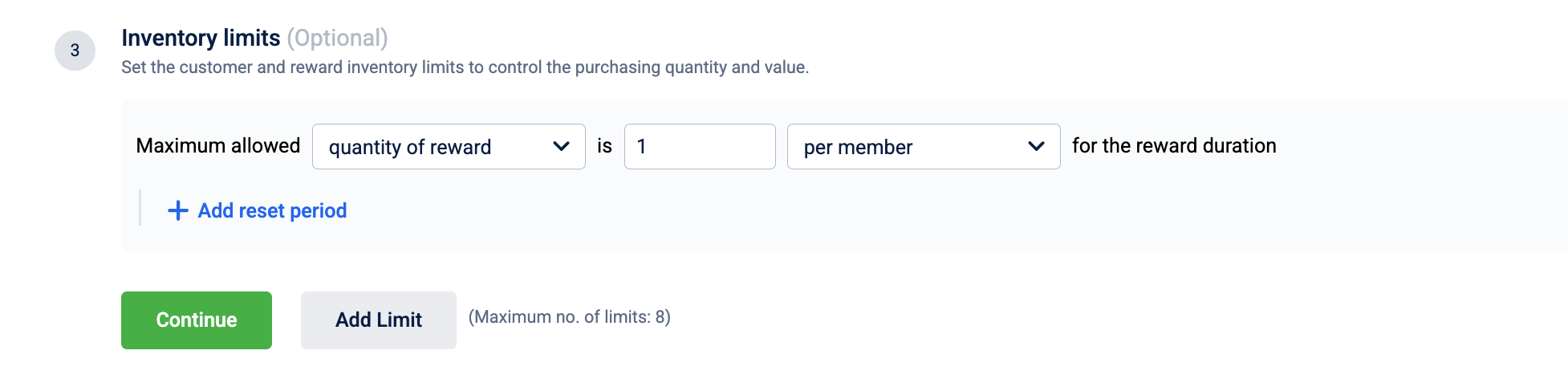
- Select Add Limit and configure the per-customer limit:
| Field | Value |
|---|---|
| KPI | quantity of reward |
| Value | 1 |
| Scope of limit | per member |
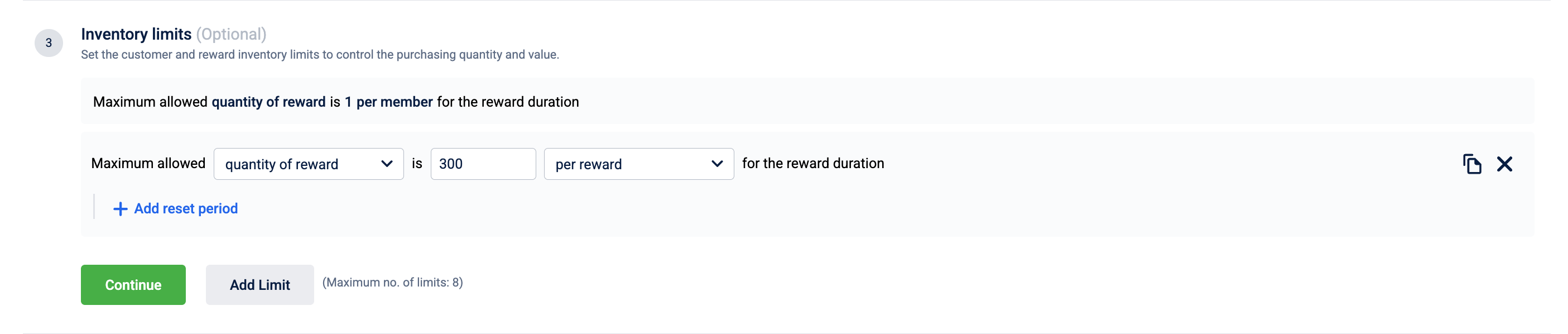
- Select Add Limit again and configure the total limit for reward:
| Field | Value |
|---|---|
| KPI | quantity of reward |
| Value | 300 |
| Scope of limit | per reward |
- Select Continue.
Step 6: Additional details
- In Label, enter
Hurry — only 300 available!.
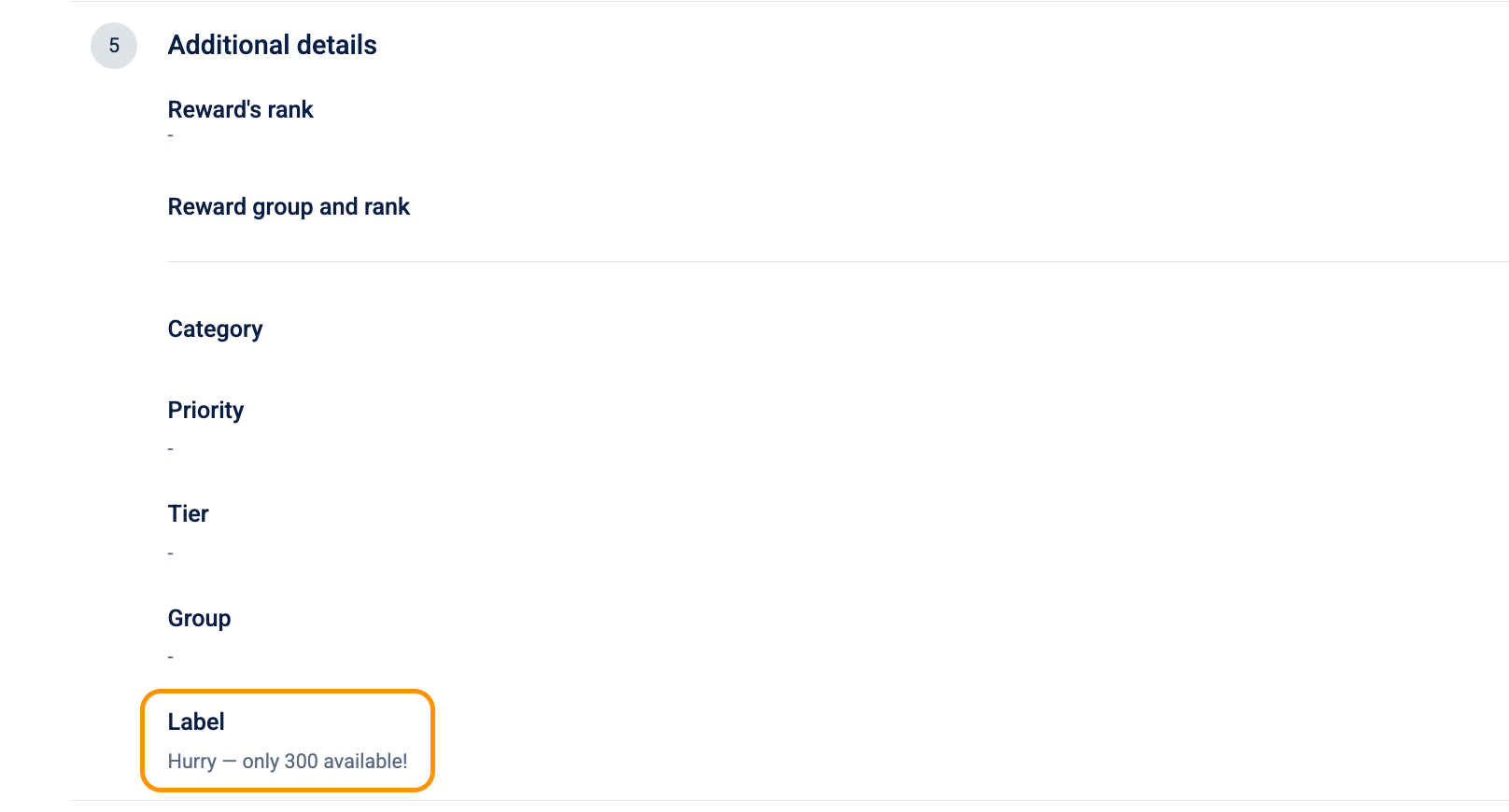
- Complete the remaining steps and select Save.
The voucher disappears from the catalog the moment 300 customers claim it or the weekend ends, whichever comes first. Each customer can claim only one.
Use case 7: Let customers convert points to airline miles
Requirement: A travel brand has partnered with an airline and wants customers to convert their loyalty points into miles at a fixed rate of 0.5 miles per point. Customers choose how many miles they want.
Step 1: Basic details
- Go to Rewards+ > Rewards Catalog and select New Reward.
- Configure the following:
| Field | Value |
|---|---|
| Name | Convert Points to AirCap Miles |
| Description | Convert your loyalty points into AirCap miles at 0.5 miles per point. |
| Duration | Partnership campaign window |
| Reward type | Miles |
| Activate reward | On |
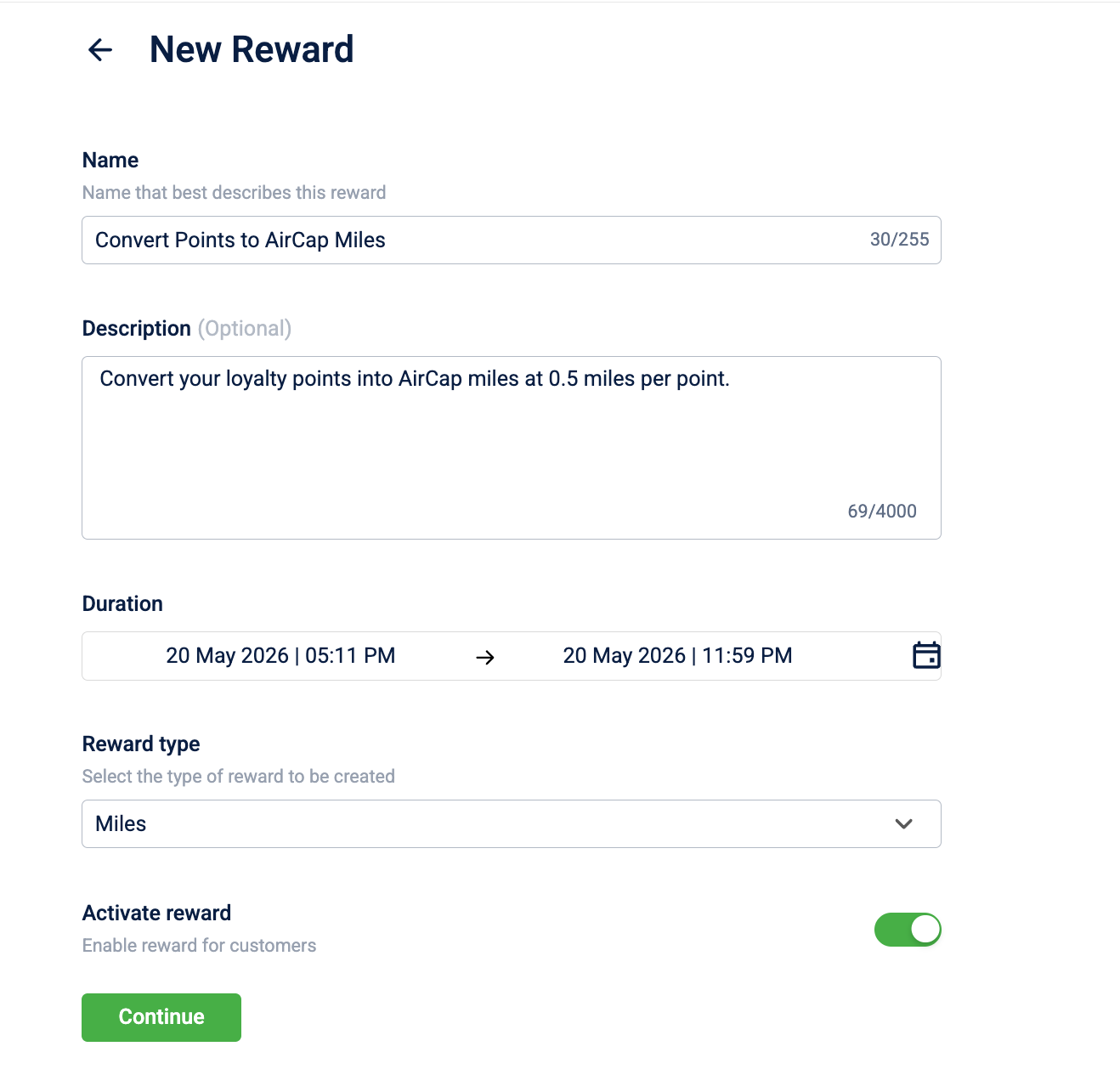
- Select Continue.
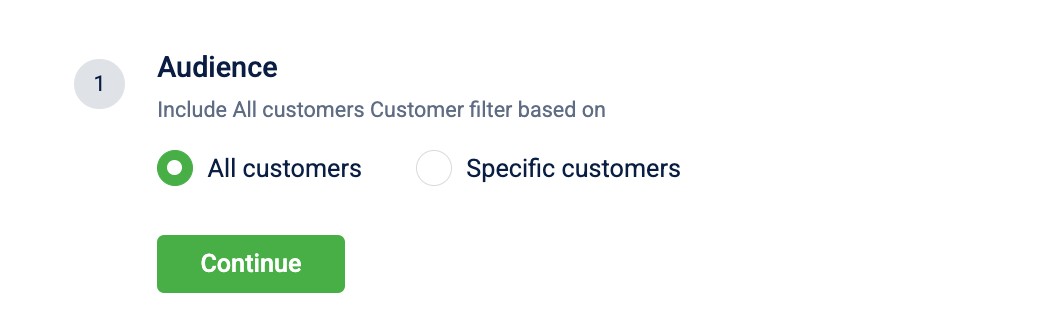
Step 2: Who can view the reward?
-
Select All customers, then select Continue.
Step 3: Incentive and cost details
- Under Link Incentives, select the link entry, find the Miles merchant reward from the panel, select the row, then select Link to reward.
- Under Cost of reward, select Variable cost and configure the following:
| Field | Value |
|---|---|
| Value of 1 point = | 0.5 |
- Confirm the system shows: "To purchase 1 value of reward, 2 points will be redeemed."
- Complete the remaining steps and select Save.
Customers enter the number of miles they want; the system calculates the points to deduct at checkout automatically.
Updated 2 months ago