
Audit logs
Overview
Audit logs give organization owners complete visibility into changes made to users, roles, and permissions in Intouch. Track who added or removed users, updated permission sets, or granted organization owner access, along with the date and time of each action.Access and availability
The following table summarizes access and availability details for audit logs.
| Field | Details |
|---|---|
| Roles | Organization owner |
| Access | Self serve. No support ticket required. |
| Availability | Enabled by default for all orgs |
| Where to find it | Intouch > User Management > Audit Logs |
Audit logs are visible to organization owners only. Administrators and standard users don't have access to this page. Access is controlled by the organization owner role with no explicit permission set required.
Events logged
The following table lists the User Management events captured in audit logs.
| Activity | Action type | Security event |
|---|---|---|
| Standard user added to organization | Create | No |
| Standard user removed from organization | Delete | No |
| Organization owner or admin added | Create | Yes |
| Organization owner or admin removed | Delete | Yes |
| User type changed to organization owner or admin | Update | Yes |
| User type changed to standard user | Update | Yes |
| Standard user permissions or accessible entities updated | Update | No |
| Admin user permissions or accessible entities updated | Update | Yes |
| Permission set created | Create | No |
| Permission set updated | Update | No |
| Permission set deleted | Delete | No |
| Custom permissions created | Create | No |
| Users added in bulk | Create | No |
| Users updated in bulk (append mode) | Update | No |
| Users updated in bulk (overwrite mode) | Update | No |
| Invite link regenerated | Invite link | No |
| User list exported | Export | Yes |
| Multiple organization user visibility configuration updated | Update | Yes |
| Proxy organization access granted | Create | Yes |
Security actions
A security action is a high-sensitivity event that could affect the security or access control of your organization, such as granting admin privileges, removing an organization owner, or exporting the user list. These events are flagged with a Security action tag in the audit log table so they're easy to identify at a glance.
The Audit Logs page
The Audit Logs page shows a live feed of user activity across your organization. At the top of the page, a date picker lets you scope the results to a specific time window. The filter icon opens the Additional filters panel for more granular filtering. The Export Logs button at the top right lets you download the full log or your current filtered view.
The table shows events sorted newest first, with columns for Date and Time, Activity, Entity, and Performed By. Each row includes an activity type, a short description of what happened, and the name and email of the person who performed the action. Events tagged Security action are high-sensitivity actions.
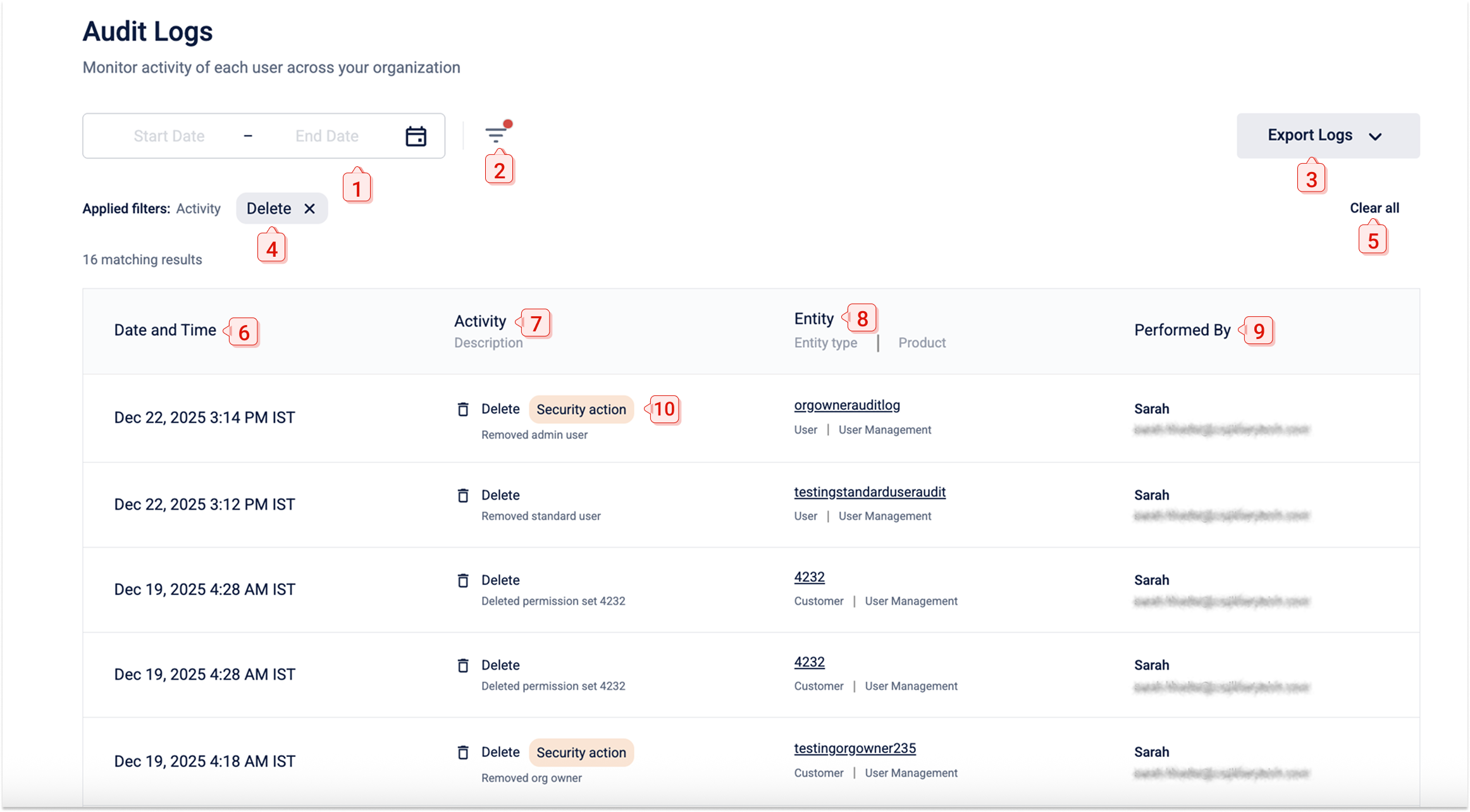
The table below lists the fields and their descriptions.
| # | Element | Description |
|---|---|---|
| 1 | Date picker | Sets the date range for the logs displayed. The range is 90 days. |
| 2 | Filter icon | Opens the Additional filters panel to filter by activity type, user, or security actions. |
| 3 | Export Logs | Downloads the full log or your current filtered view as a CSV file. |
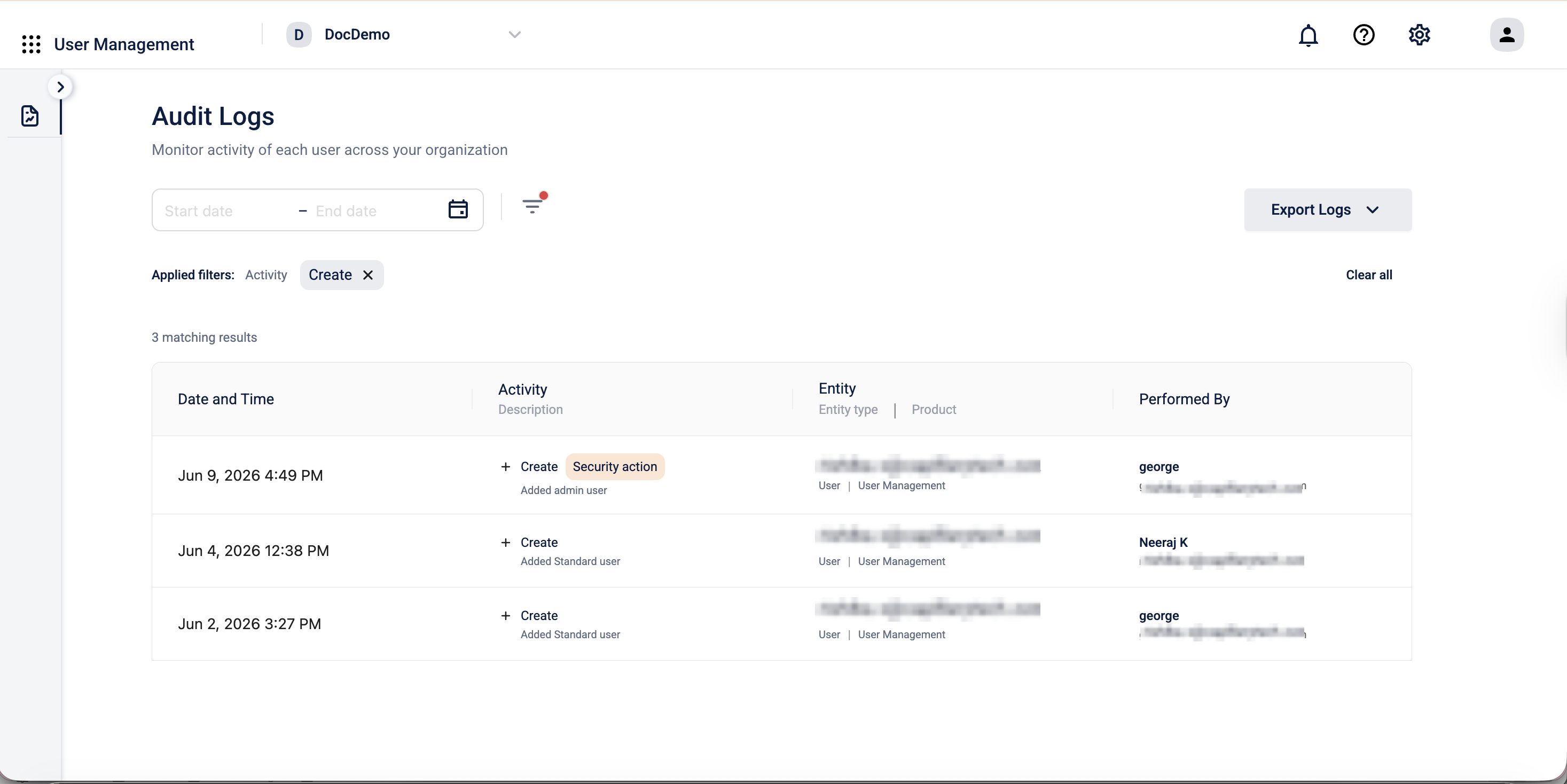
| 4 | Applied filters chip | Shows the active filters. Select × on a chip to remove that filter. |
| 5 | Clear all | Removes all active filters and resets the table to the full log view. |
| 6 | Date and Time | The date and time the action was performed, shown in the organization's time zone. |
| 7 | Activity | The action type (for example, Create, Update, Delete) and a short description of what happened. |
| 8 | Entity | The user or object the action was performed on, along with the entity type and product area. |
| 9 | Performed By | The name and email address of the user who performed the action. |
| 10 | Security action tag | Flags high sensitivity events so they're easy to identify at a glance. |
Viewing audit logs
-
Go to User Management > Audit Logs.
-
Review the events in the table. Events marked with a Security action tag are high sensitivity actions.
-
Select any row to open the Activity Details panel and view the full record of that event.
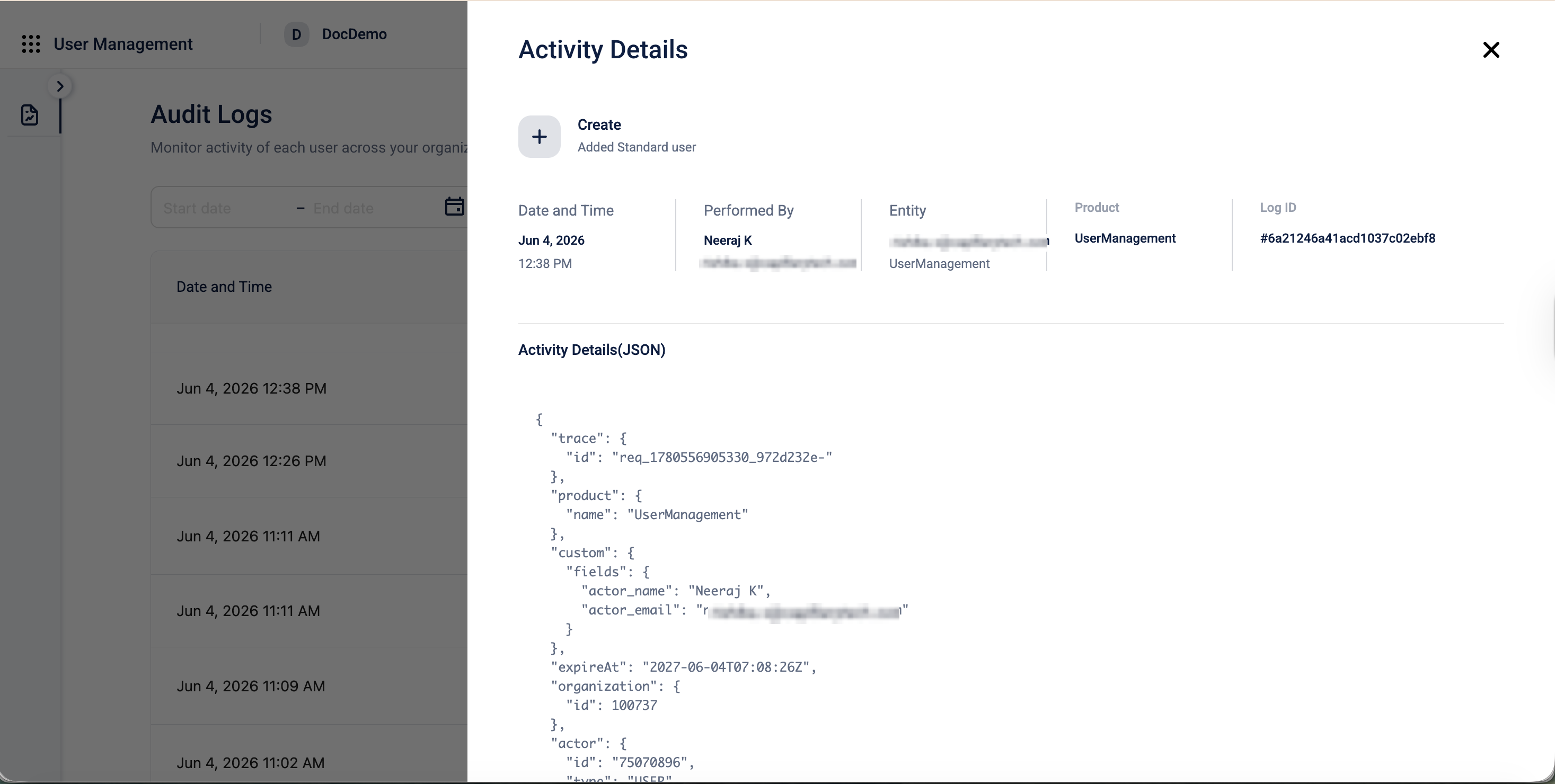
Activity Details panel
The Activity Details panel shows the following information for each event.
| Field | Description |
|---|---|
| Activity type and description | The action performed, for example, Update — Made organization owner/admin. |
| Date and Time | When the action was performed. |
| Performed By | The name and email address of the user who performed the action. |
| Entity | The user or object the action was performed on. |
| Product | The product area the action belongs to, for example, UserManagement. |
| Log ID | A unique identifier for the event. Share this with support when raising a ticket. |
The panel also includes an Activity Details (JSON) section with the complete technical record of the event, including the trace ID, product, actor details, organization ID, and event expiry.
Filtering logs
Use the date picker and the Additional filters panel to narrow results. All filters can be applied together.
To filter by date range:
-
Select the date picker at the top of the page.
-
Choose a start and end date from the calendar. The range can't exceed 30 days.
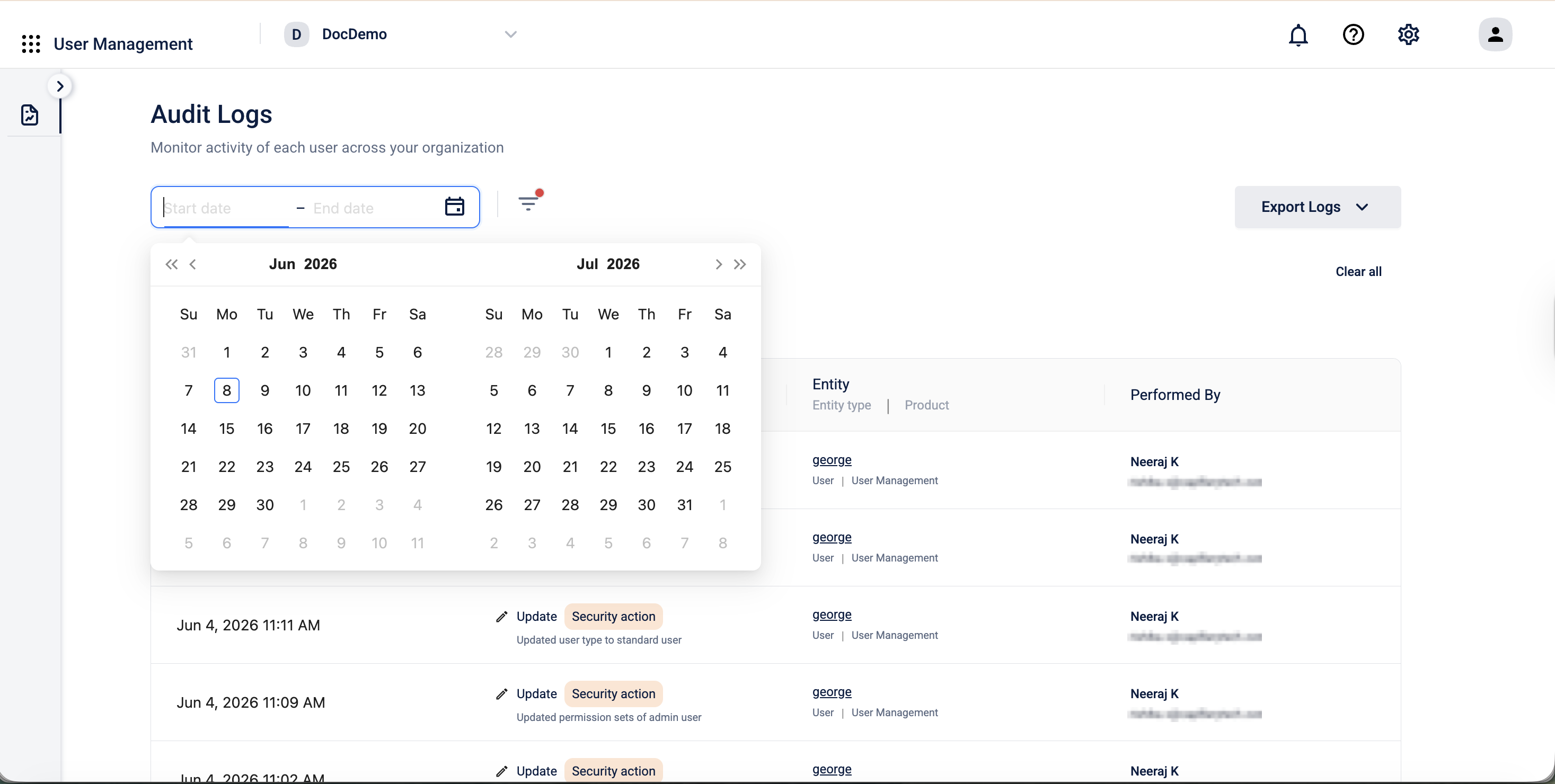
Note: Audit logs are retained for 90 days. If you select a date range that extends beyond 90 days, a warning appears and only data from the last 90 days is returned.
To filter by activity, user, or security actions:
-
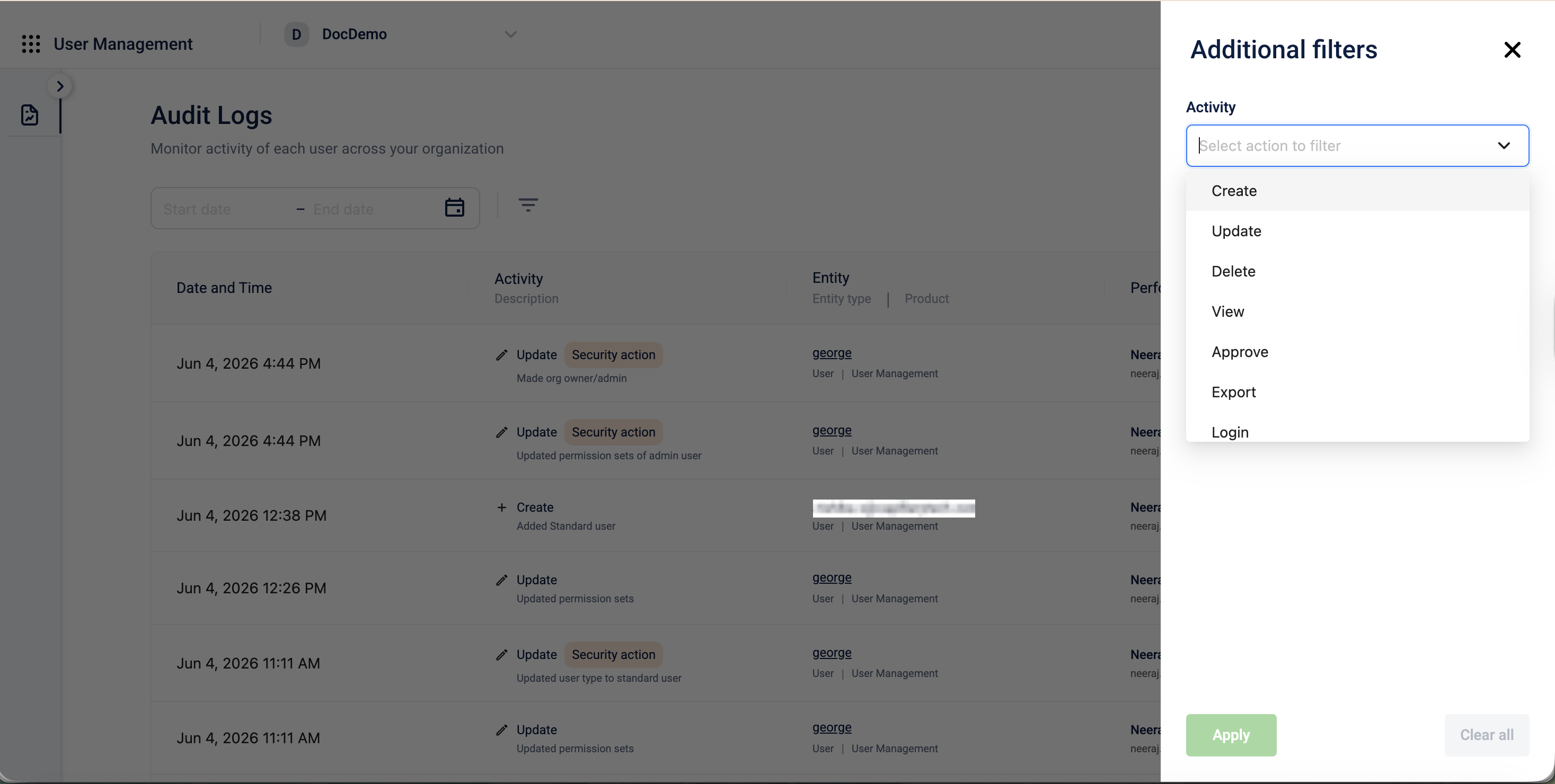
Select the filter icon (![filter icon]) next to the date picker to open the Additional filters panel.
-
Set your filters:
-
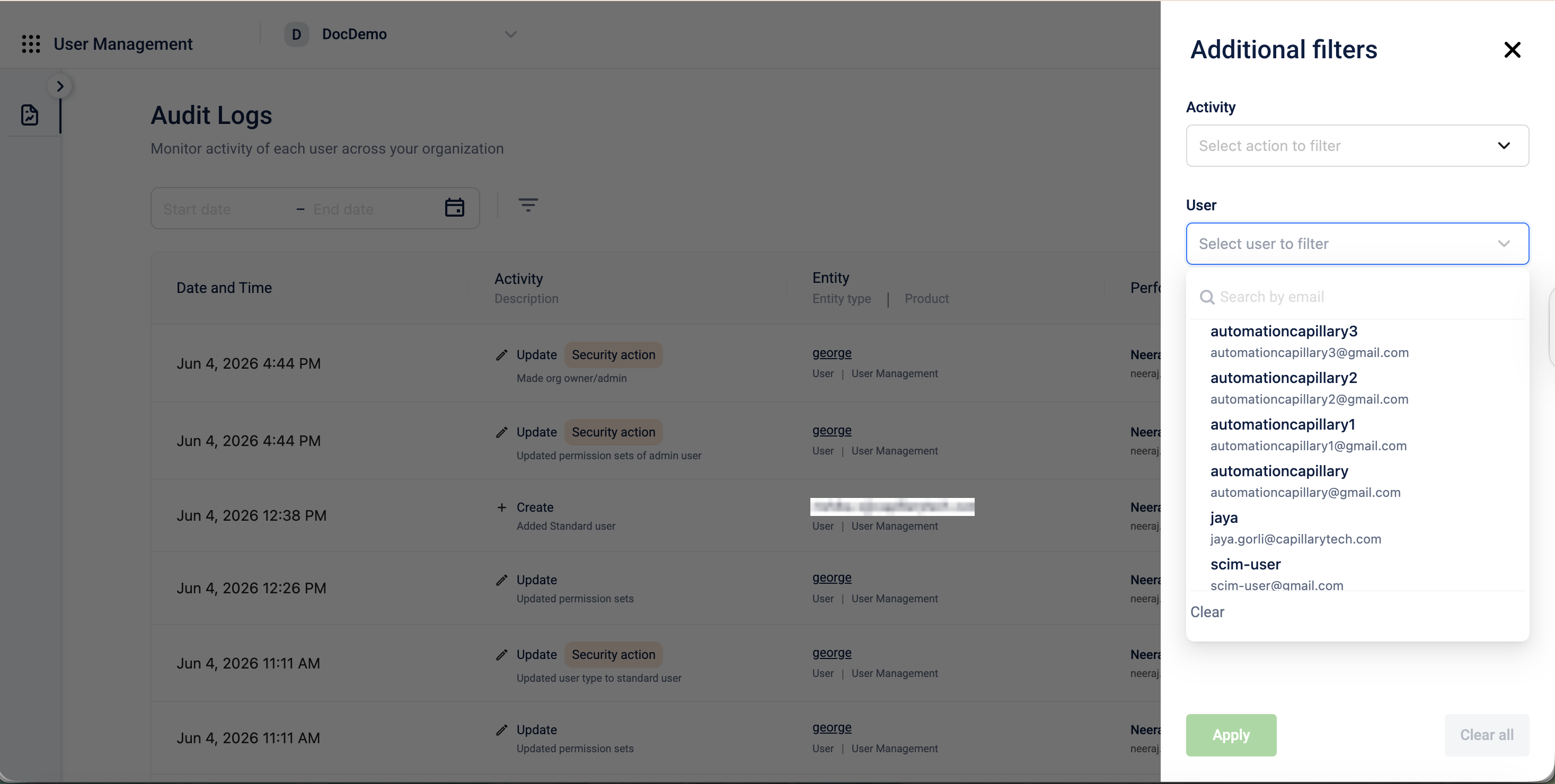
Activity: select an action type: Create, Update, Delete, View, Approve, Export, or Login.
-
User: search and select a user by email address to see actions performed by that user.
-
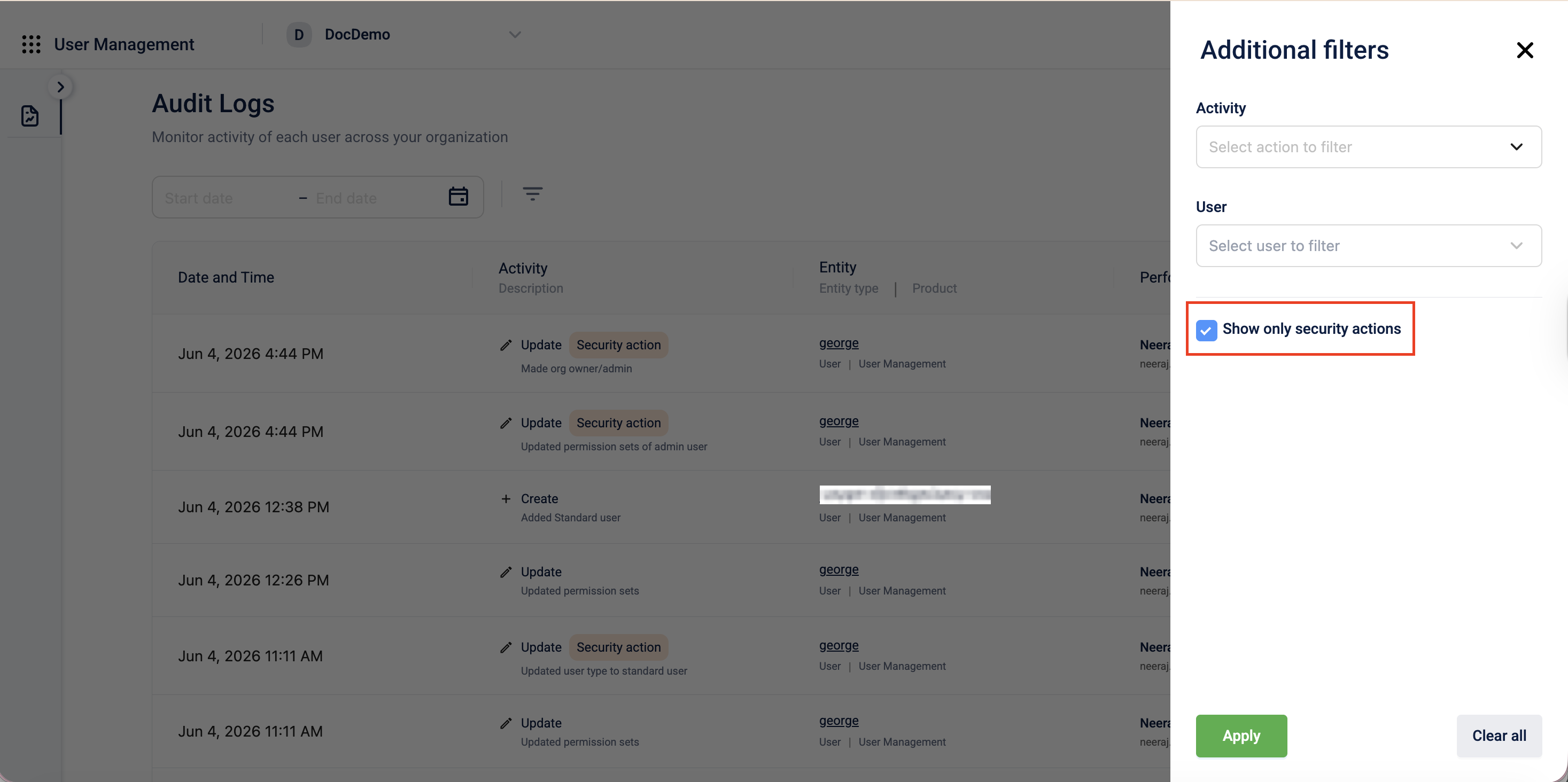
Show only security actions: select this checkbox to show only events tagged as security actions.
-
-
Select Apply to refresh the table.
-
To reset all filters, select Clear all.
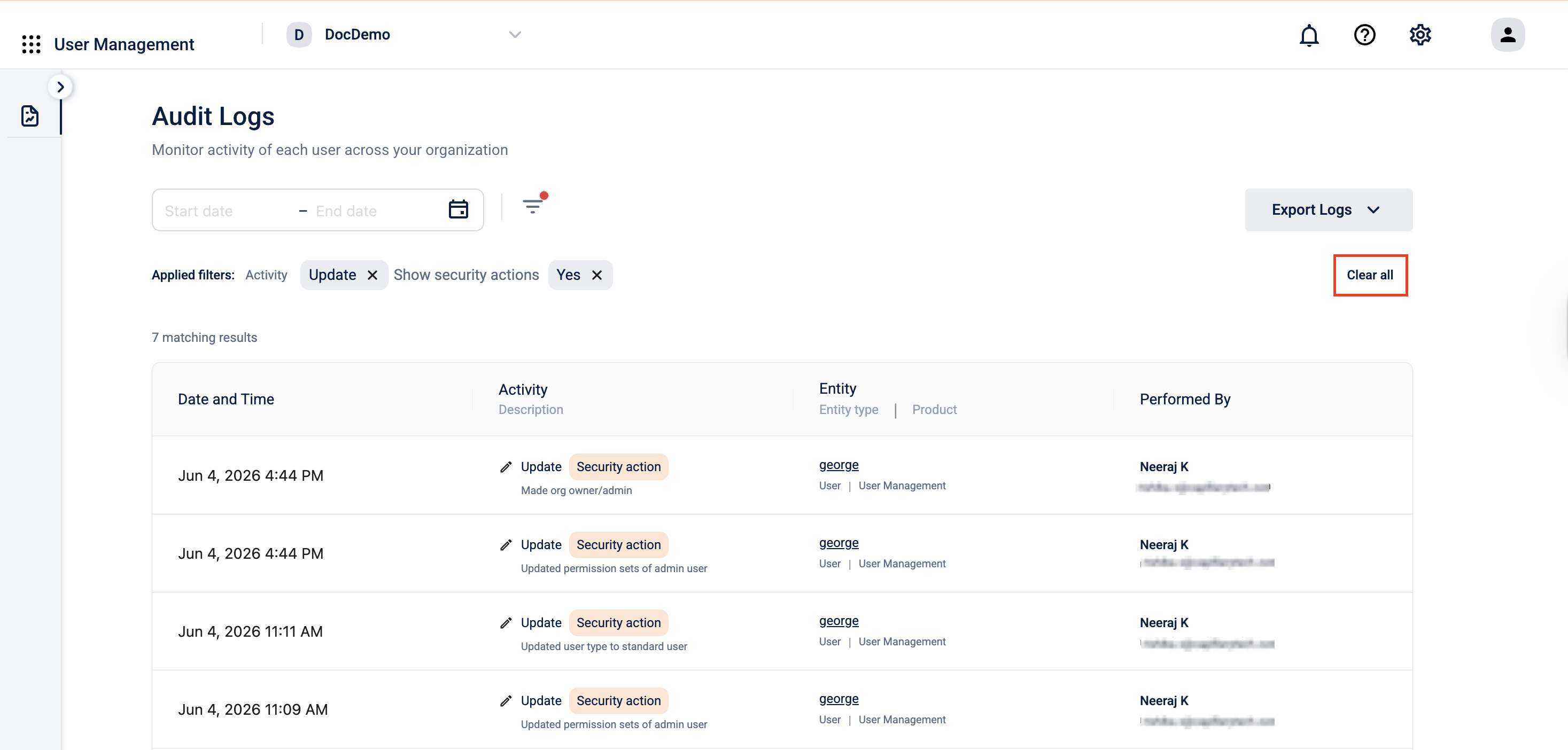
After applying the Show only security actions filter, the table shows only security action events and displays the applied filter as a chip at the top.
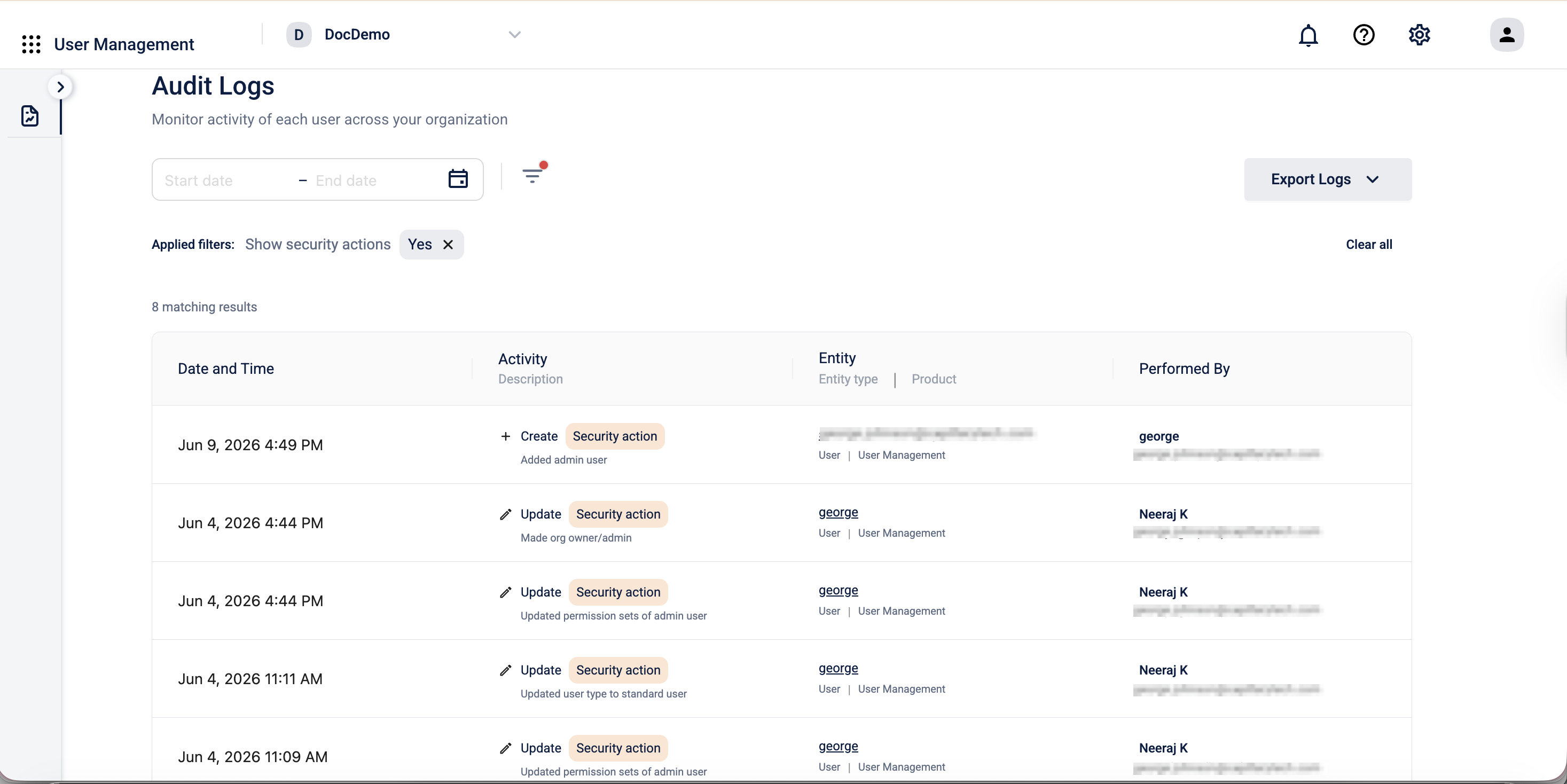
After applying an Activity filter, the table shows only events of that type. The applied filter appears as a chip at the top with a count of matching results.
Exporting logs
-
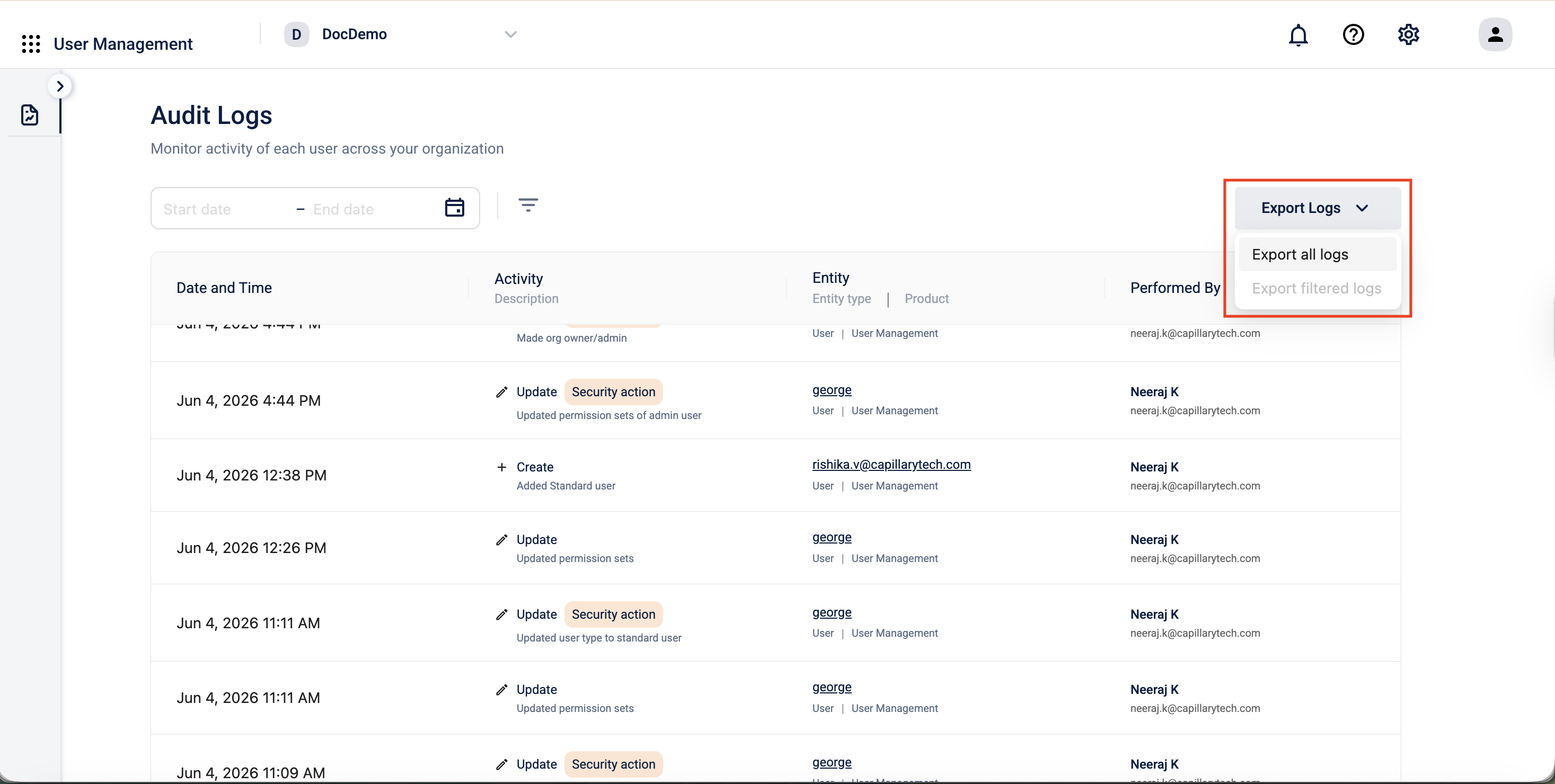
Select Export Logs at the top right of the page.
-
Choose an export option from the dropdown:
-
Export all logs: exports all audit log records from the last 90 days, regardless of any filters applied.
-
Export filtered logs: exports only the events matching your current filters. This option is available only when at least one filter is active.
-
-
A confirmation dialog appears. Select Yes, export to confirm.
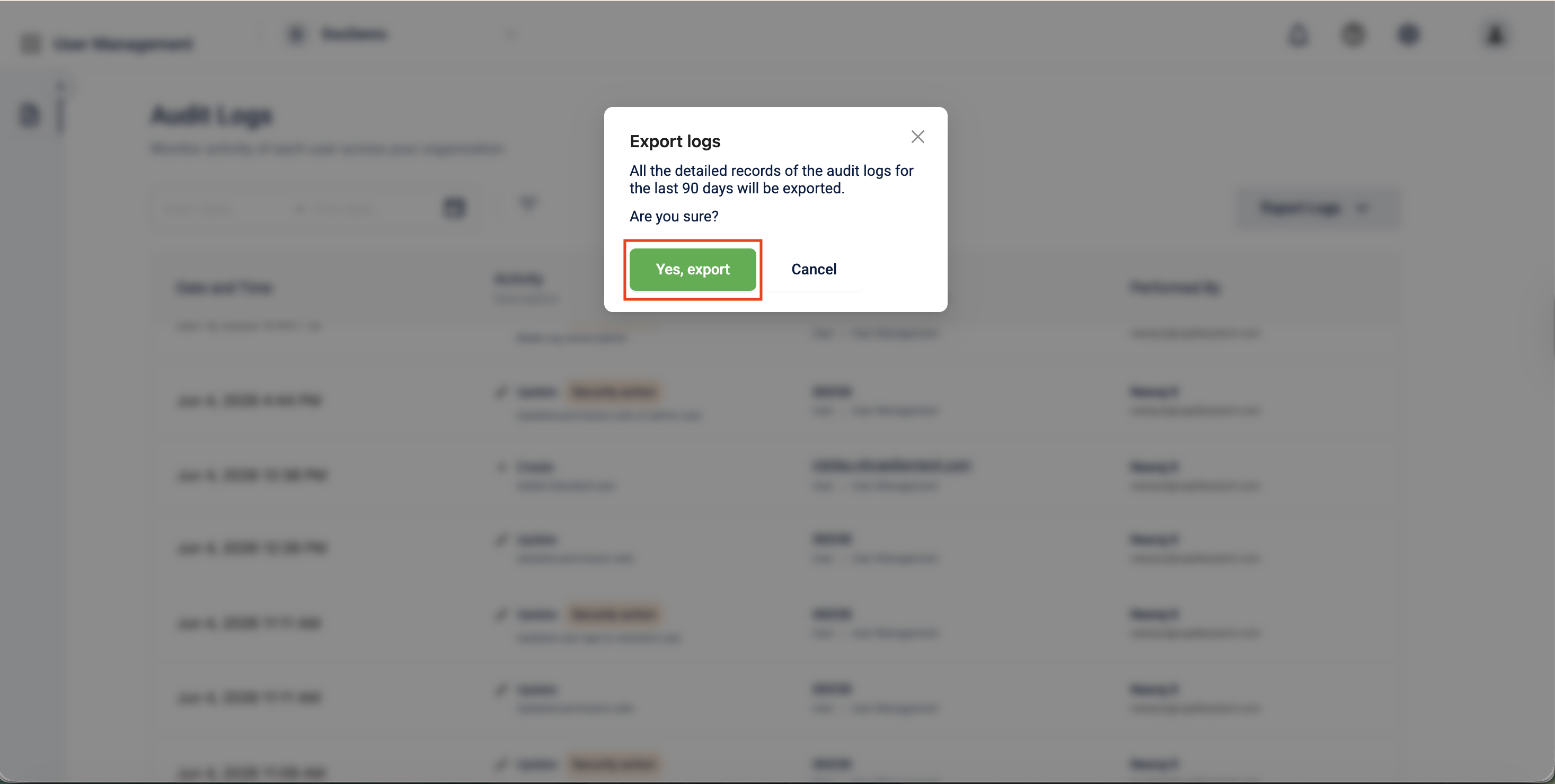
The records are downloaded as a CSV file.
FAQs
Q: How far back are audit logs available?
A: Audit logs are retained for 90 days.
Q: Is it possible to search for a specific user's actions?
A: Yes. Use the User filter in the Filters panel to search by the user's email address.
Q: Are all Intouch actions visible in audit logs?
A: This release covers User Management actions only. Actions from Loyalty+, Engage+, and Insights+ will be available in future releases.
Updated 21 days ago