
Getting started with aiRA
aiRA is Capillary's AI assistant. This page walks you through the aiRA navigation and shows you how to start your first conversation, manage sessions and apps, and set up the context aiRA uses to answer for your organization.
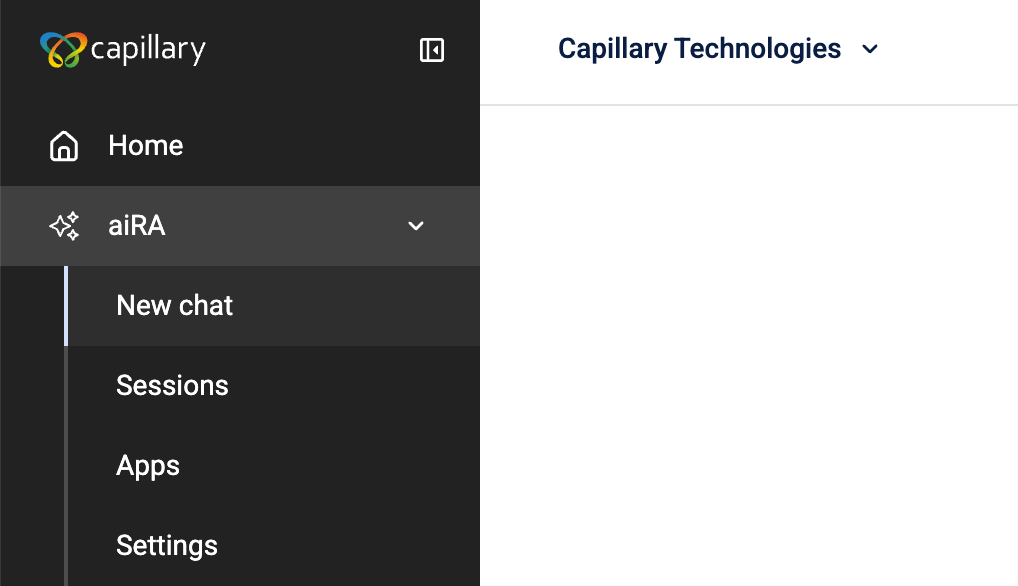
Selecting aiRA in the navigation expands four sub-sections:
| Section | What it's for |
|---|---|
| New chat | Start a new conversation with aiRA |
| Sessions | Revisit, search, or pin earlier conversations |
| Apps | Deployed dashboards and reports generated from your chats |
| Settings | Manage the context aiRA uses to answer for your organization, and whitelisted URLs |
Start a conversation
- Select aiRA > New chat.
- Enter a request in the What's our mission today? field, using plain language.
- Select a suggested starting point, such as Program Health or Trend Analysis, or type a request and select Send.
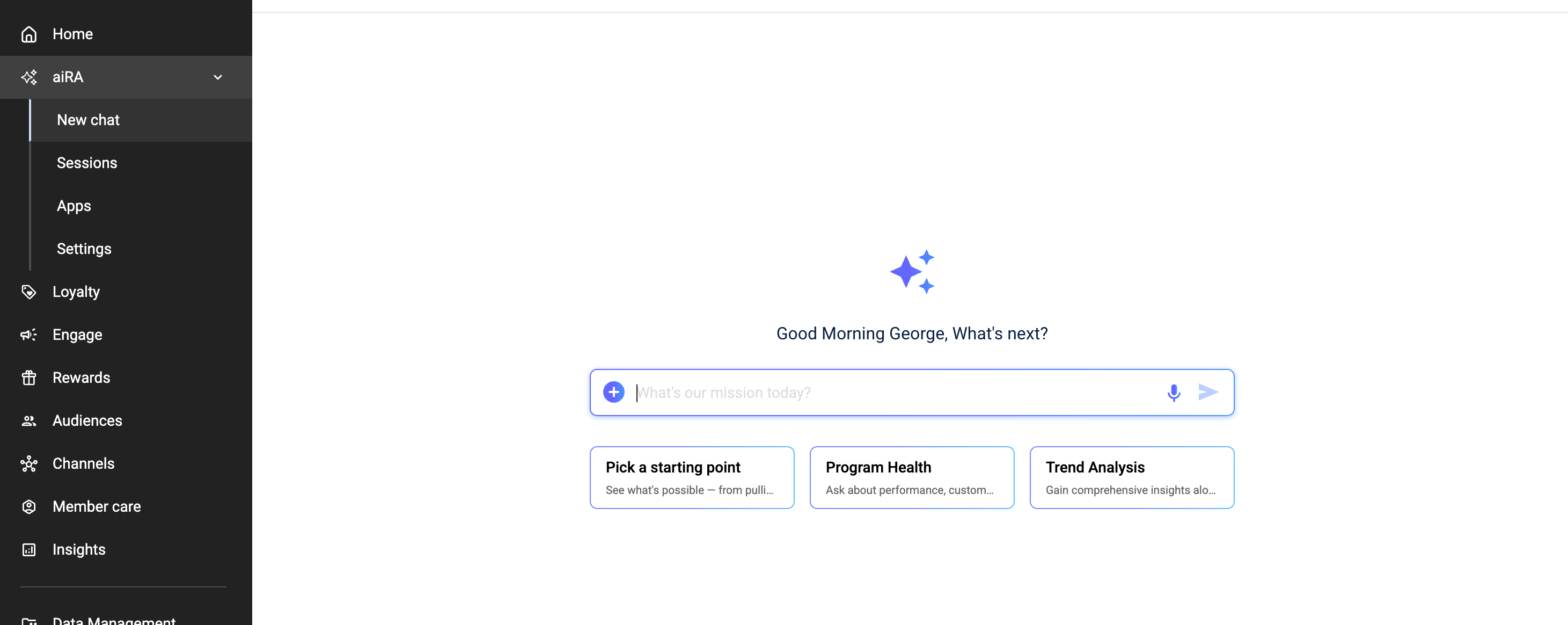
aiRA reads the request and responds in the same chat window. For a configuration, it shows a full summary before creating anything, select Create to confirm.
Note: If your organization hasn't set up context yet, aiRA still responds, but with generic examples instead of ones tailored to your tiers, segments, and naming conventions. See Context below.
Sessions
Select aiRA > Sessions to view earlier conversations. Here, you can:
- Search past chats by keyword.
- Pin frequently used chats.
- Reopen a previous session to continue from where you left off.
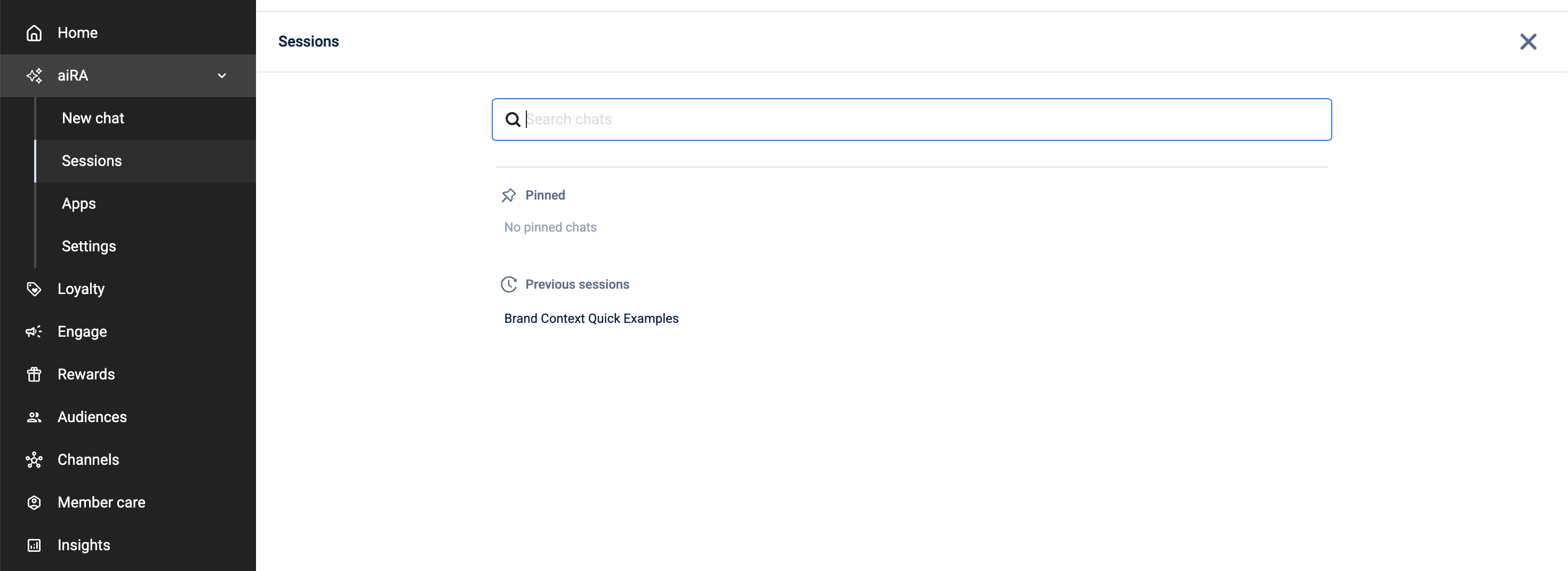
Chat history persists across page reloads and browser sessions, so you can continue multi-step work without losing context.
Apps
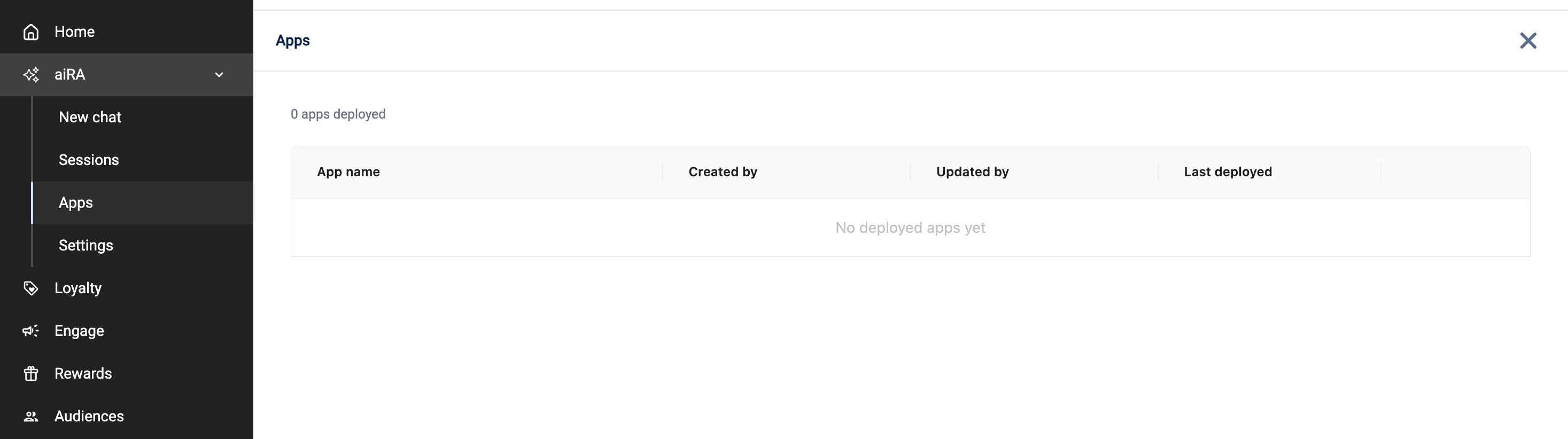
When aiRA generates a deliverable, such as a dashboard showing store performance, it creates an interactive app in the chat. You can select Deploy on that app to publish it here.
Select aiRA > Apps to view all deployed apps for your organization, including who created and last updated each one, and when it was last deployed.
Settings
Select aiRA > Settings to manage the information aiRA uses to answer for your organization.
Context
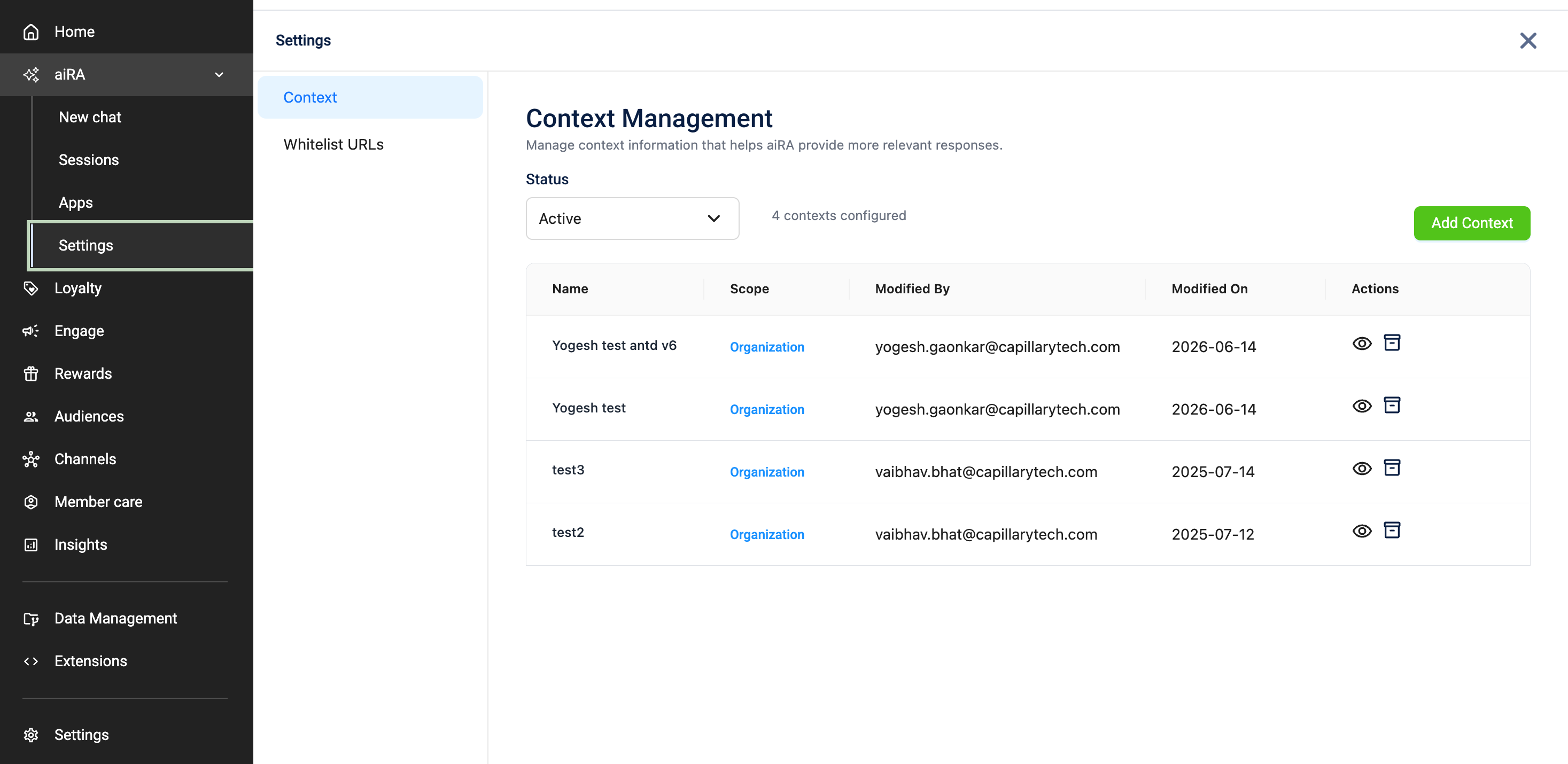
The Context tab stores the business rules, naming conventions, and program-specific terms aiRA uses as its source of truth. You can add context so aiRA's responses reflect your actual tiers, segments, and configuration standards rather than generic examples.
- Select aiRA > Settings > Context.
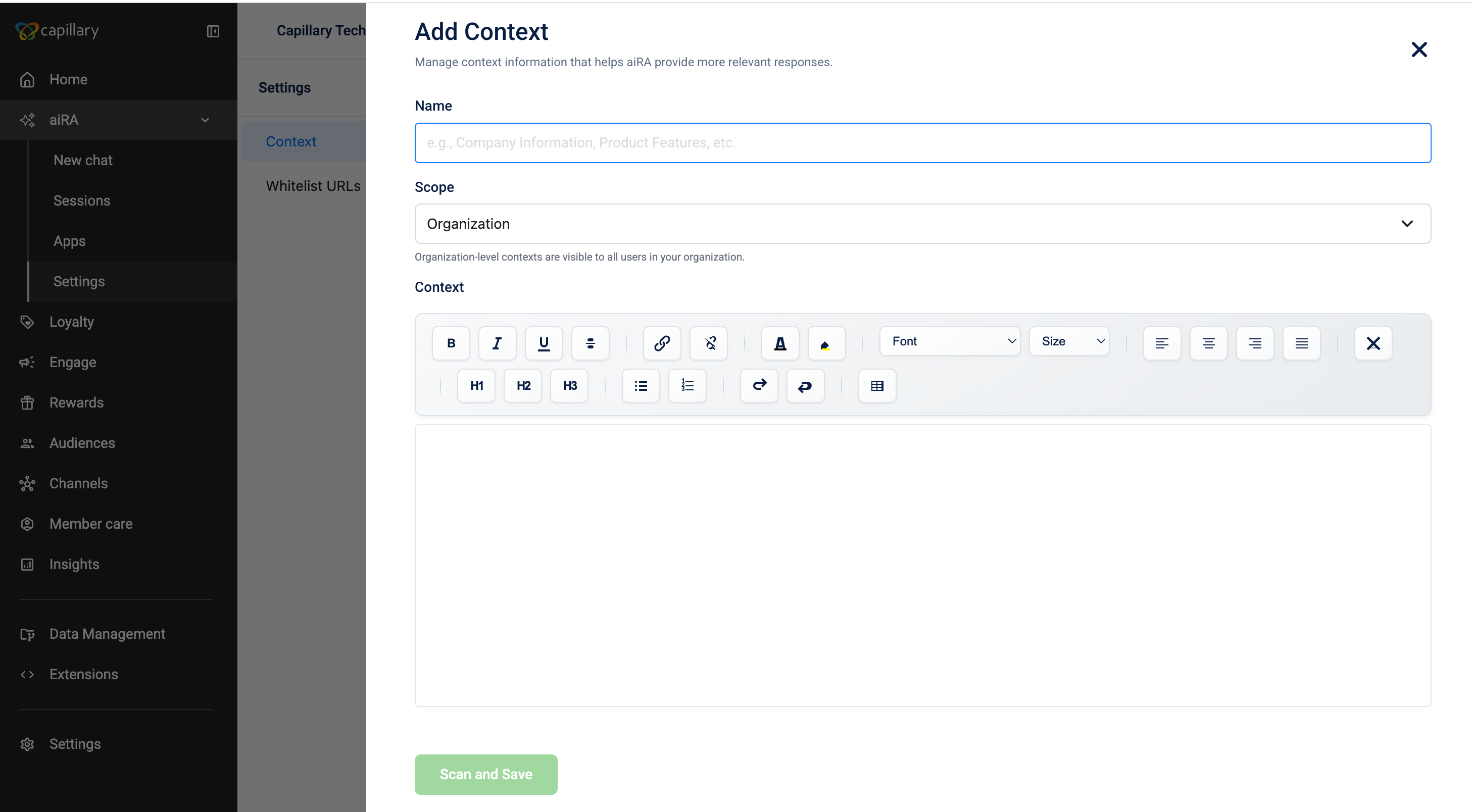
- Select Add Context.
- Enter a descriptive name and the reference content.
- Select Save.
Each entry in the list shows its name, scope, and who last modified it.
Whitelist URLs
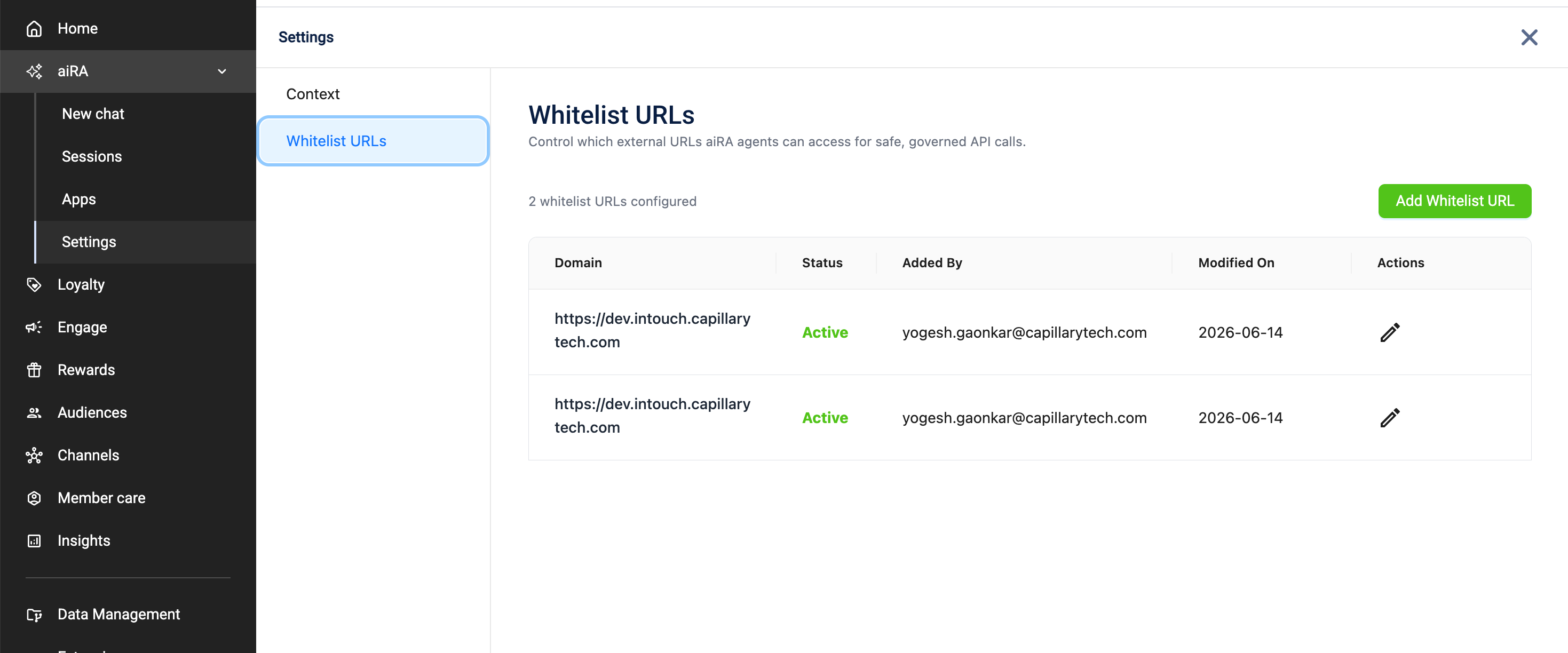
The Whitelist URLs tab lists the external URLs aiRA can reference when answering questions or retrieving information. You control this list, aiRA doesn't access a URL that isn't on it.
Frequently asked questions
Who can see a deployed app?
Anyone with access to your organization in Capillary can open deployed apps from the aiRA > Apps page.
Related pages
Updated about 9 hours ago