
Configure Templates for Engagement Channels
A template is the reusable message structure you build for an engagement channel - the layout, the message text, any images or videos, and the labels that get filled in per customer, so you don't have to recreate it every time you run a campaign or journey. Templates are channel-specific; each engagement channel has its own template format, editor, and, for some channels, an external approval step before the template can be sent. You can also edit a template anytime to match what a specific campaign needs, rather than being locked into how it was originally created.
Templates are created and managed from Engage+ > Creatives, under the tab for the channel you're building for. Select your channel below to see how to create a template for it:
Once you have templates in place, you can keep your templates list organized by archiving templates you're no longer using, see Archive and Unarchive templates.
Archiving and Unarchiving templates
As brands create seasonal campaigns, A/B test variants, and one-time communications, the list of templates can grow over time, making it difficult to identify the templates that are currently in use. This can also increase the chances of selecting an outdated template when creating new campaigns or journeys.
The Archive and Unarchive feature helps keep the templates list organized by allowing you to remove templates that are no longer required from the default view without deleting them. Archived templates remain available, with all their associated data intact. They can be restored at any time using the Unarchive option.
Archiving a template does not affect campaigns or journeys that have already used it. If you open a campaign or journey that has already been executed, it continues to display the correct template used, even if that template has since been archived. Templates can be unarchived at any time to make them available again for new campaigns and journeys.
Notes
- This feature isn't enabled by default. Raise a Jira ticket with the Product Support team to enable Archive for your organization.
- Once enabled, Archive template is available for SMS, Email, WhatsApp, RCS, Push notifications, In-app message, Wechat, Viber, and Line. It's not available for Zalo templates. WhatsApp and RCS templates that are still pending, awaiting approval, or unsubmitted must reach a final status before they can be archived.
- Archive and unarchive are only available on the standalone Creatives page. These actions are hidden when you're selecting a template from within a campaign or journey message flow.
Archiving a template
To archive a single template, perform the given steps below:
-
From the Engage+ homepage, navigate to Creatives and select the required engagement channel.
-
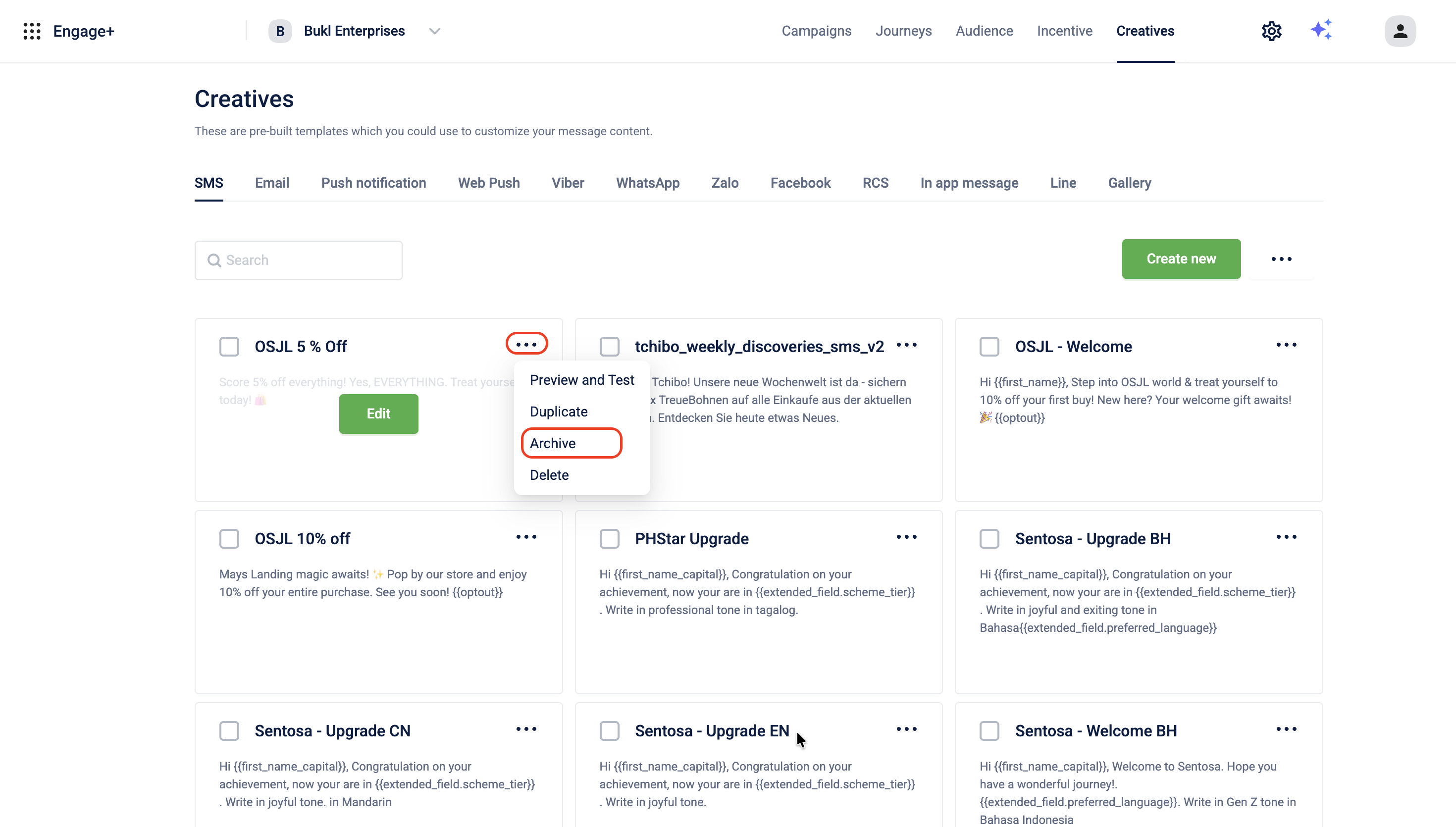
On the template card, select the three-dot menu (⋯) and then select Archive.
-
In the Archive templates confirmation dialog, select Confirm.
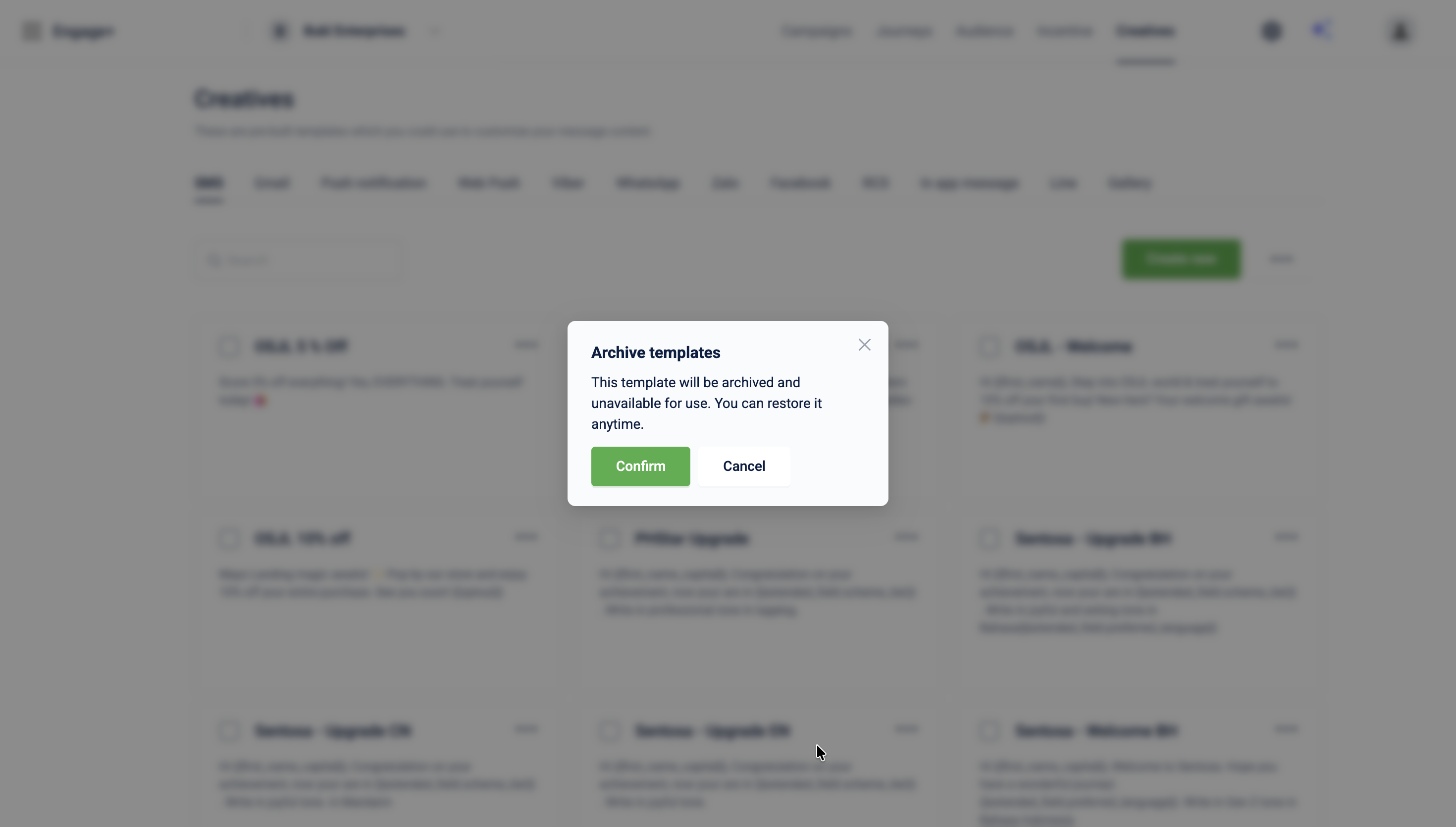
A toast confirms: "Template archived successfully." The template disappears from the default active templates list.
Bulk archiving templates
To archive multiple templates, perform the given steps below:
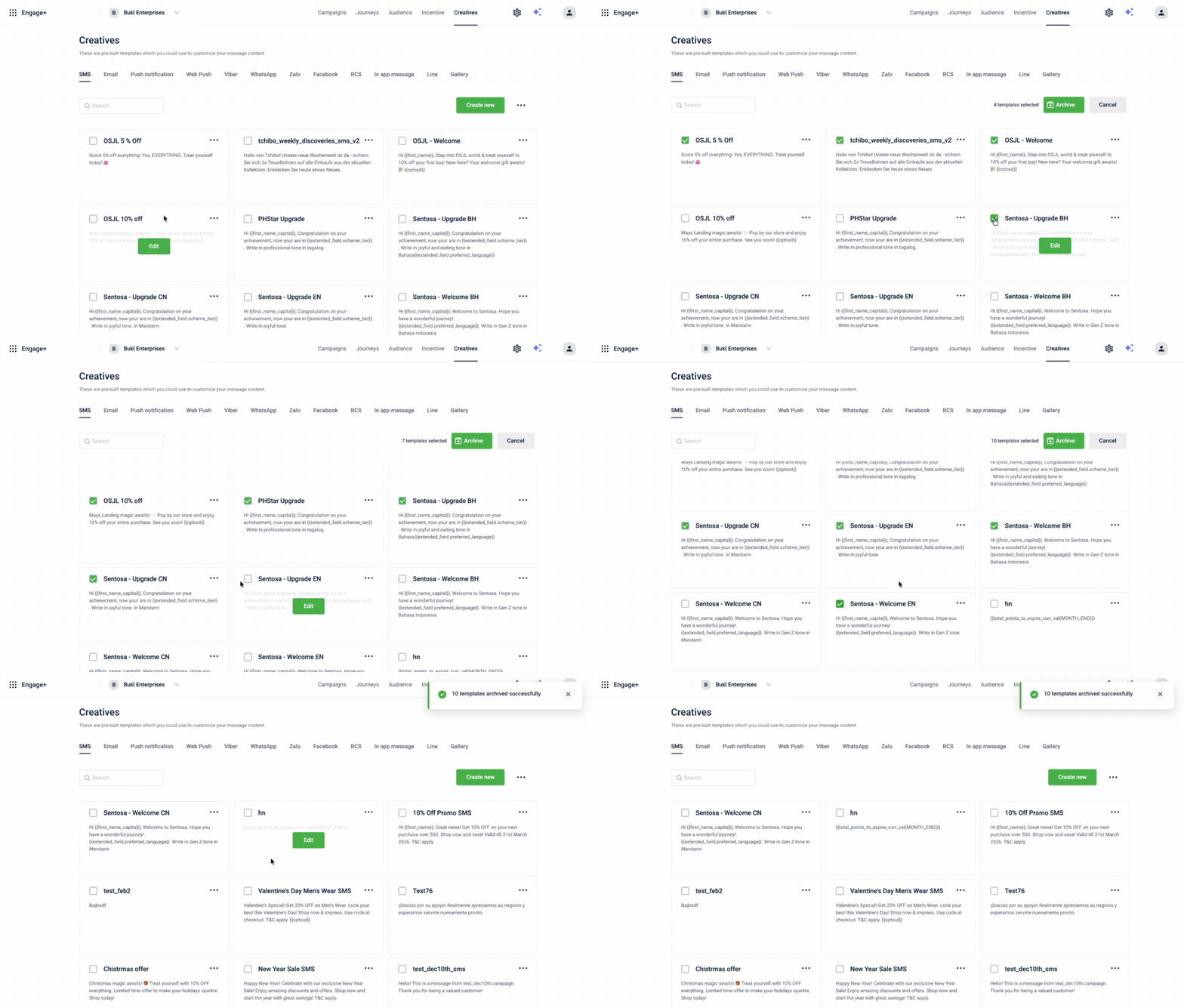
- On the templates listing page, select the checkbox on each template card you want to archive.
- In the selection bar that appears, select Archive.
- In the Archive templates confirmation dialog, select Confirm.
A toast confirms how many templates were archived, for example: "10 templates archived successfully."
Viewing archived templates
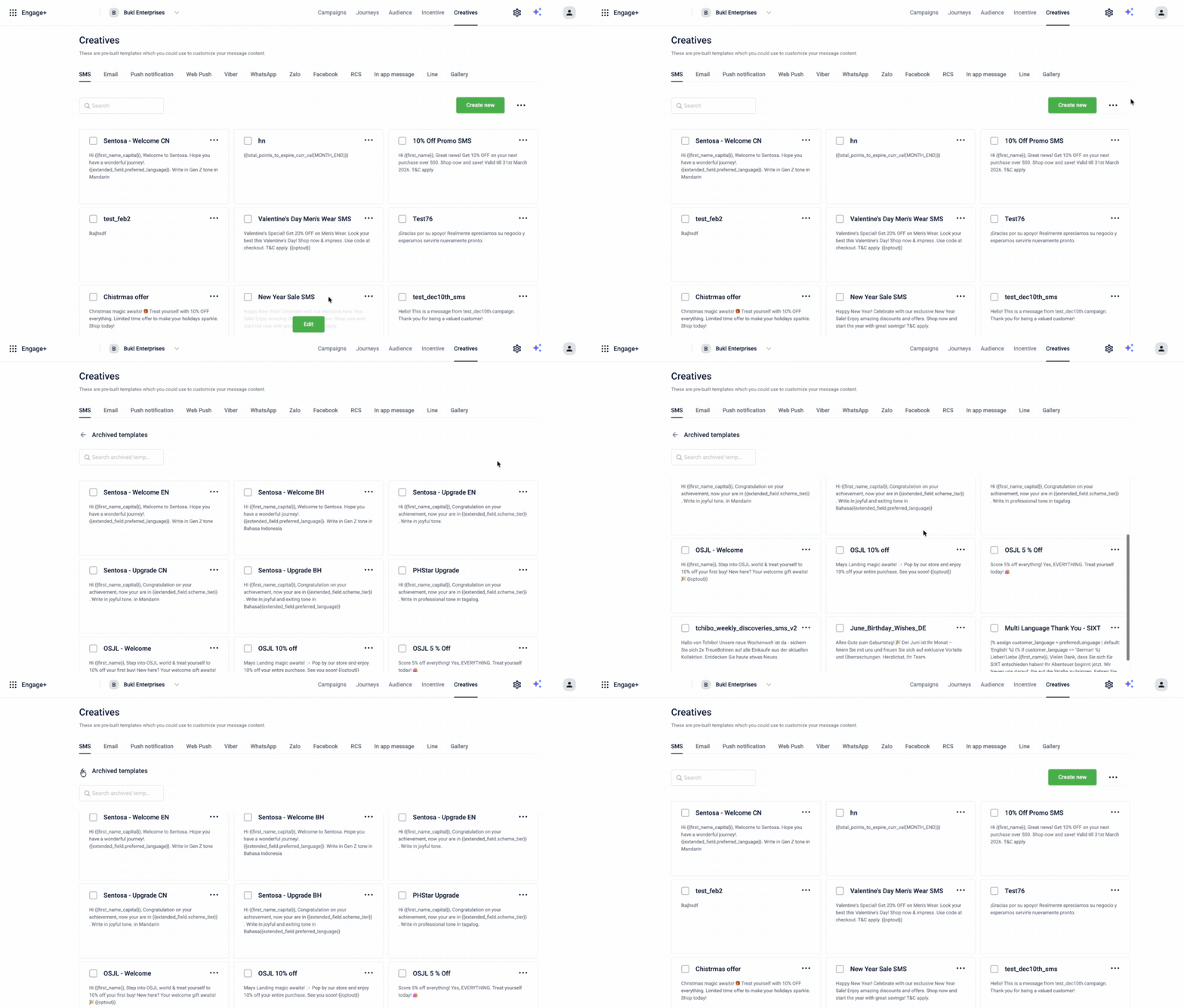
Archived templates move out of the default list into a separate Archived templates view. To view archived templates, perform the given steps below:
- From the Engage+ homepage, navigate to Creatives and select the required engagement channel.
- Select the three-dot menu (⋯) next to the Create new button, then select Archived templates.
Each template in this view is tagged Archived. Select the back arrow next to Archived templates to return to the active templates list.
Unarchiving a template
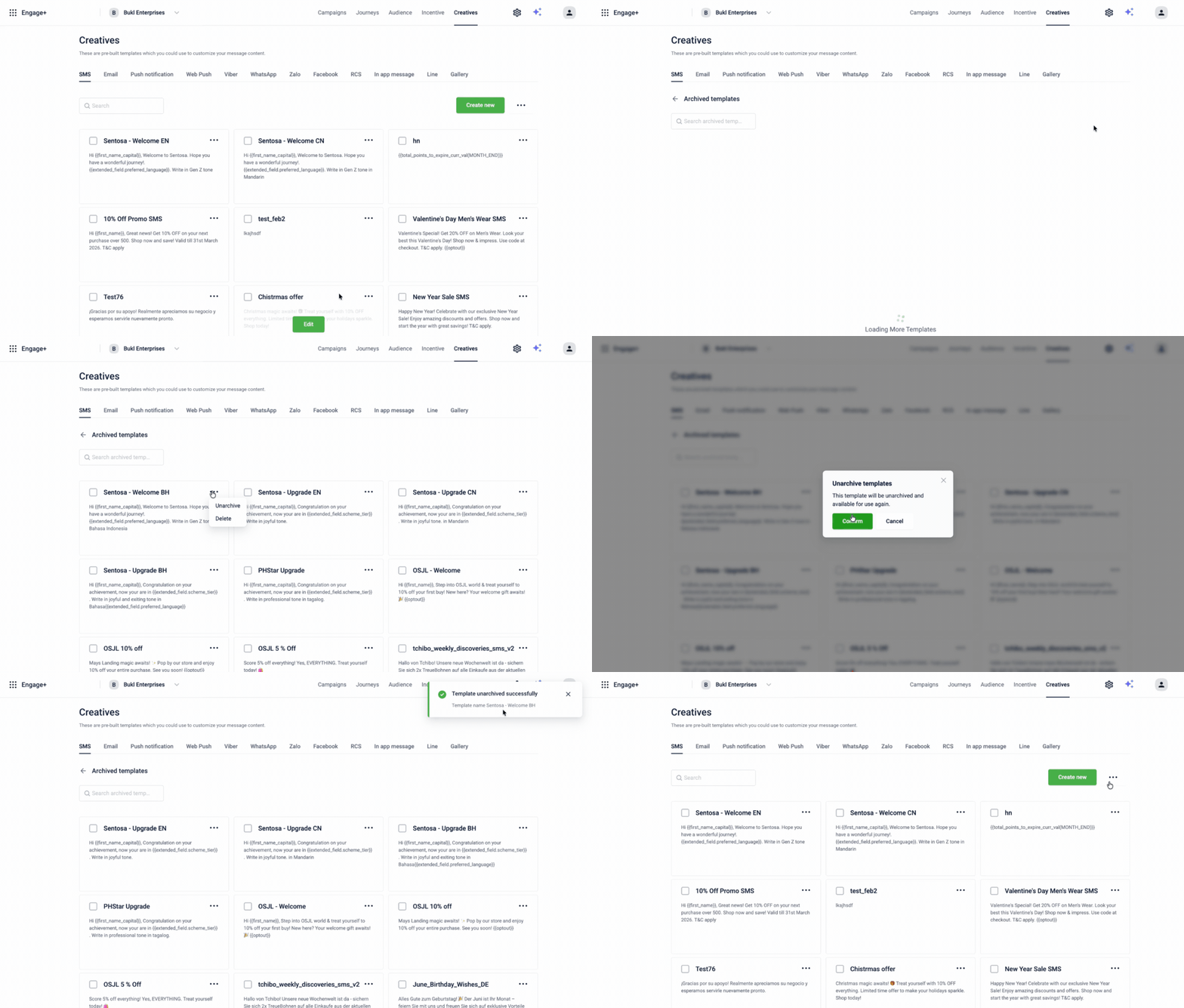
To unarchive a single template, perform the given steps below:
- In the Archived templates view, select the three-dot menu (⋯) on the template and then select Unarchive.
- In the confirmation dialog, select Confirm.
A toast confirms: "Template unarchived successfully." The template moves back to the default (active) templates list.
Bulk unarchiving templates
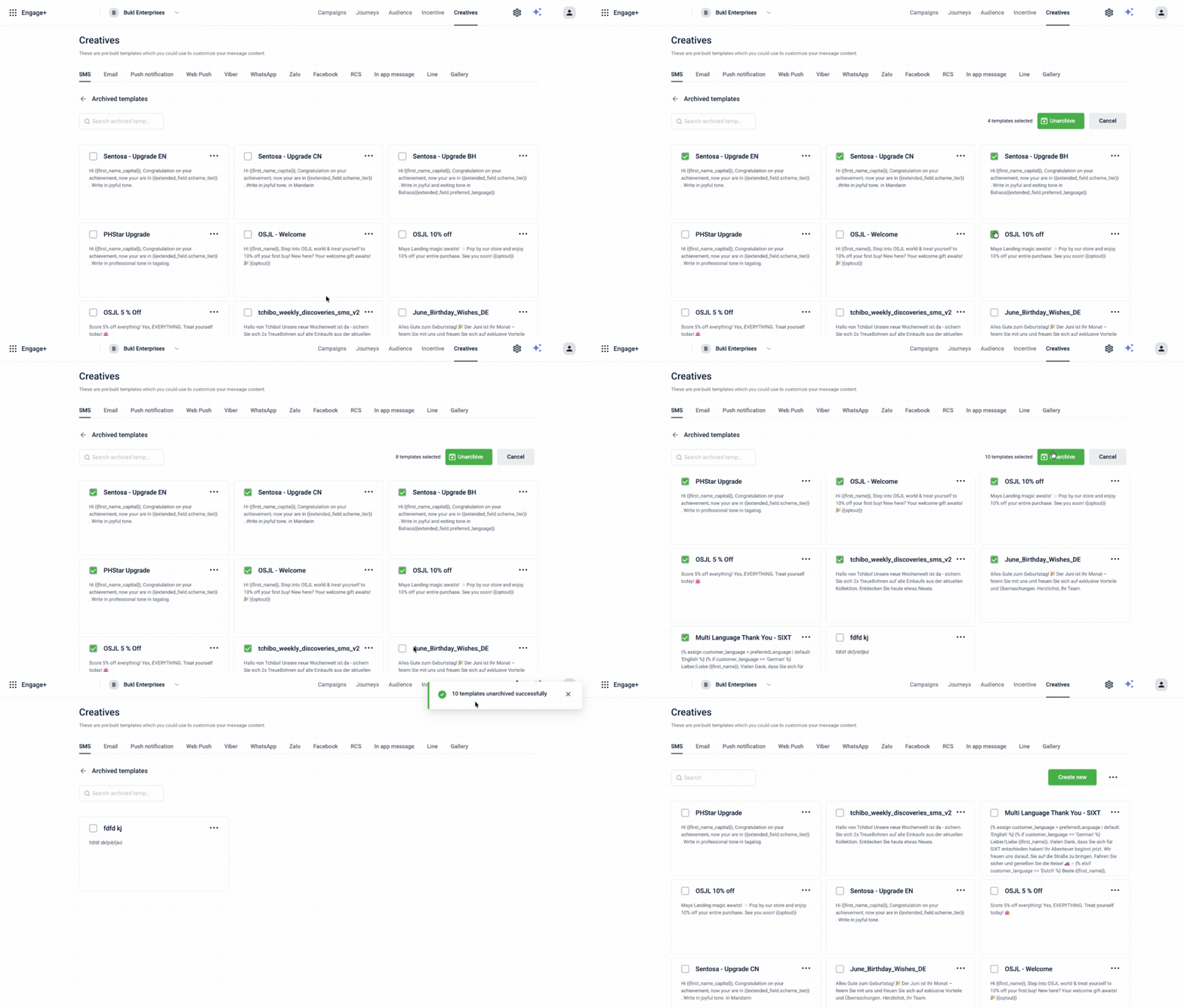
To unarchive multiple templates at once, perform the given steps below:
- In the Archived templates view, select the checkbox on each template you want to unarchive.
- In the selection bar that appears, select Unarchive.
- In the confirmation dialog, select Confirm.
A toast confirms how many templates were unarchived, for example: "3 templates unarchived successfully."
NoteWhen you switch to the Archived templates view, search returns only archived templates. The Create new option is not available, and each template's More (⋮) menu displays only the Unarchive and Delete actions. If you refresh the page, the view resets to the default active templates listing page.
Archived templates cannot be edited or duplicated. If you attempt to edit an archived template, the following message is displayed: "Cannot edit an archived template. Please unarchive it first." Unarchive the template, make the required changes, and archive it again if needed.
Updated 5 days ago