
Performing Data Deletion
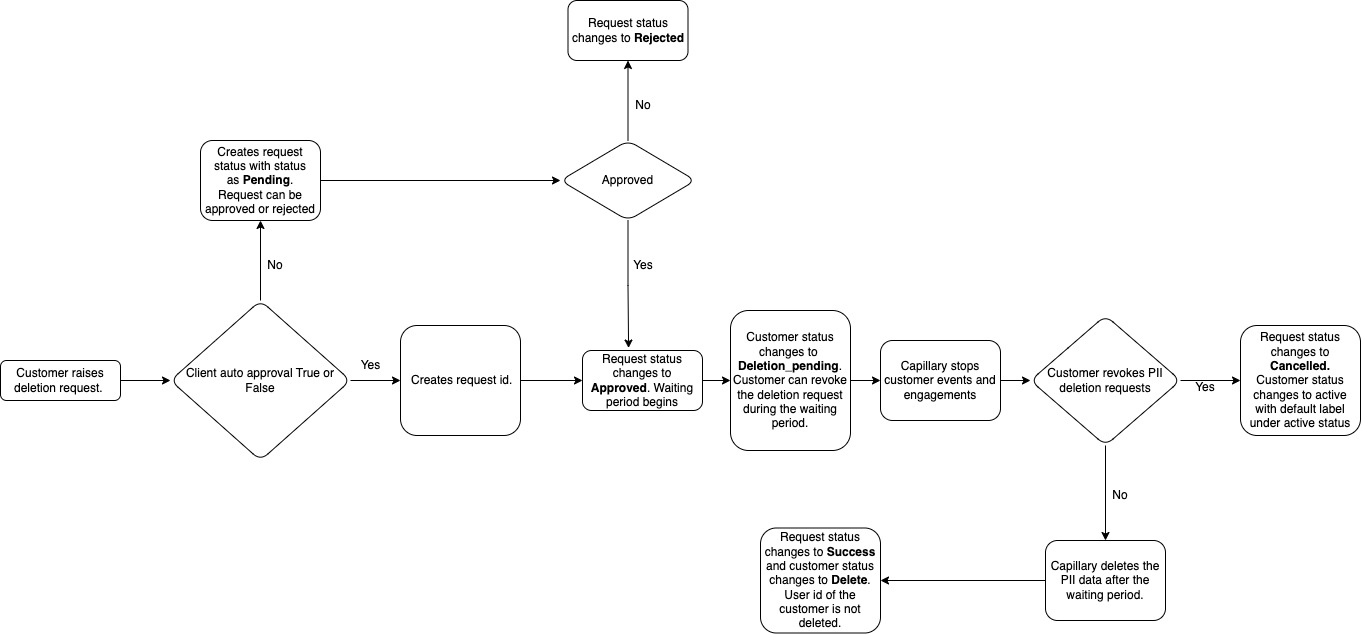
At a high level, enabling PII deletion involves:
- Verifying prerequisites such as customer status configuration and PII classification.
- Enabling and configuring PII deletion settings at the organization level.
- Creating and submitting PII deletion requests through Member Care or APIs.
- Approving the request
Once configured, Capillary processes deletion requests automatically based on the defined waiting period and approval workflow.
Data Deletion in Connected Organizations
In a connected organization setup, the PII deletion is always initiated from the parent organization, and the data gets deleted from both the parent and child organizations. However, the PII configuration is maintained separately. For the child organisation, the PII configuration should be set at the child level.
Step 1: Make sure the following prerequisites are met
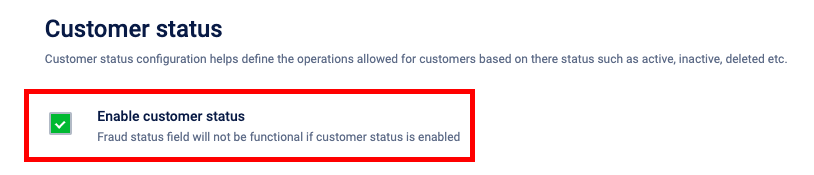
- Enable customer status. See Enable customer status.
- Make sure that a label is created for each customer status. For more information on customer status labels, see Create customer status label.
For Pending Deletion, the platform creates a deletion_pending status automatically and assigns it whenever a deletion request is raised. The platform does not use any label that you created against the Pending Deletion status.
- Configure PII deletion. See Configuring PII deletion.
- If required, select and mark the required extended field, custom field and payment mode attributes as PII data. See Classifying custom field, extended field, and payment attribute as PII data.
Step 2: Define PII deletion configurations as required.
To enable and configure the PII deletion
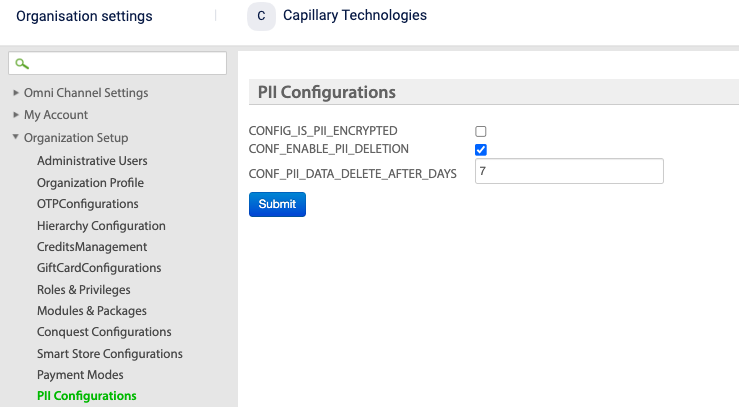
- From Organisation settings, navigate to Organization Setup -> PII Configurations.
- To enable the PII deletion, select the CONF_ENABLE_PII_DELETION check box.
Effect on standard status updates
Once
CONF_ENABLE_PII_DELETIONis enabled, the Deleted customer status becomes a reserved system state. Users can no longer change a customer's status to Deleted through the standard status-change UI in Membercare or via the status update API. Any such attempt returns errorUPDATECUSTOMERSTATUS_1032.From this point, the only way to delete a customer is through the PII deletion request flow described in Steps 3 and 4 below.
-
To set the number of days after which the data is deleted (deletion waiting period), enter the number in the CONF_PII_DATA_DELETE_AFTER_DAYS field. You can enter any value between 0-90.
NoteIf the waiting period is set to 0 days, the system deletes the data on the same day that you raised the requests and approves if approval workflow is involved. For example, if a customer raises a deletion request at 1400 hrs, the system processes deletion at midnight on the same day depending on the time zone of the cluster the org belongs to on the Capillary platform.
-
Click Submit.
Step 3: Create a deletion request
A PII deletion request can be performed from the Member Care, refer to the documentation on user deletion from Member Care.
For more information on the PII deletion APIs, see Add deletion request API documentation.
NoteWhen you initiate PII deletion through Connect+, the system checks records in both the Users table and the Loyalty table. Users who exist only in the Users table and do not have a corresponding record in the Loyalty table fail this check. For such users, use Identifier Cleanup via Import instead. Identifier Cleanup does not check the Loyalty table, so the deletion succeeds in cases where standard PII deletion fails.
Step 4: (for approvers) Approve the PII deletion request from Membercare
For information on approving member account deletion requests from Membercare, refer to Request management documentation.
Deletion request status
| Action | Request status | Customer status and status label |
|---|---|---|
| Capillary receives a deletion request | PENDING | No change to the customer status |
| The brand rejects the deletion request | REJECTED | No change to the customer status |
| Capillary receives a deletion request | APPROVED | Pending Deletion: Deletion_pending |
| The customer cancels the deletion request | CANCELED | Previous customer status |
| Capillary deletes the customer PII after the waiting period. | DELETED | DELETED: Deleted |
After a customer is deleted, the system triggers a customerUpdate event notification to indicate the customer deletion.
Updated 17 days ago