
Overview of Data Masking
Data masking protects sensitive customer information by controlling what data is visible to different users and systems. When enabled, Capillary replaces sensitive field values with masked characters in the Member Care UI, API responses, and the analytics platforms unless explicit access is granted.
This ensures that sensitive information is:
- Visible only to authorized users or API clients
- Protected from accidental or unnecessary exposure
- Handled in line with internal security and privacy requirements
Example
A customer’s mobile number is stored in the system.
- A support user without permission sees the value as
******in Member Care and in the API responses. - An authorized user or API client sees the full mobile number on Member Care and in the API responses
How data masking works
Capillary evaluates masking for each request based on:
- Organisation level configuration
- Field-level sensitivity classification
- Access permissions of the user or API client
Once enabled, this configuration applies across:
- Member Care UI
- All APIs
- Analytics platform (Databricks)
What data is masked
When data masking is enabled, certain customer identifiers are handled automatically, while others require you to explicitly mark them as personally sensitive data. Once a field is marked, the same masking behaviour is applied consistently across Member Care, API responses, and Databricks.
Data masking in Member Care & APIs
| Data type | Masked by default | Requires explicit marking |
|---|---|---|
| Core customer identifiers (first name, last name, and mobile, email) | Yes | No |
| Identifiers under communication channel | Yes | No |
| Customer profile custom fields | No | Yes (mark as PSI) |
| Customer profile extended fields | No | Yes (mark as PSI) |
| Behavioural event attributes | No | Yes (mark as PSI) |
Note
External IDs are not masked. Card data, Transaction or billing data, and other data other than the mentioned above data are not masked.
Data masking in Databricks
In Databricks, sensitive customer data is masked by default and displayed as asterisks (*****). Unmasked values are shown only when the user or job has been explicitly authorised to access sensitive data.
| Data category | Masked in Databricks | Notes |
|---|---|---|
| Core customer identifiers | Yes | First name, last name, email, mobile number, external ID |
| Customer profile custom fields | Yes, if marked as PSI | Must be explicitly marked to be masked |
| Customer profile extended fields | Yes, if marked as PSI | Must be explicitly marked to be masked |
| Read API tables | Yes | Masking applies to PSI-marked fields |
| History-tracking user dimension tables | Yes | Applicable only to the USHC cluster |
| Card data | No | Not supported |
| Transaction or billing data | No | Not supported |
| Behavioural event data | No | Not masked in Databricks |
| Any other non-customer data | No | Not supported |
Impact of data masking on existing and new users
When data masking is enabled for an organisation, the behaviour is the same for both existing and new users. All classified sensitive data is masked by default unless the user has access to sensitive data. By deafult, PSI data masking is disabled
Managing access to masked data
Capillary applies PSI masking differently for Member Care users and API clients.
| Access type | What controls masking |
|---|---|
| Access to sensitive data on Member Care | Access to VIEW_MASKED_DATA permission set |
| Access to sensitive data in the API responses | API client with PSI permission |
PSI masking in Member Care
In Member Care, access to masked data is controlled by user access.
How it works
When data masking is enabled for the organization:
- Users without access to VIEW_MASKED_DATA permission set see masked values (
*****) for masked fields. - Users access see unmasked values.
PSI masking for APIs
For APIs, data masking is controlled by API client permissions, not user roles.
How it works
When PSI masking is enabled for the organization:
- API clients without access to masked data receive masked values for PSI-marked fields.
- API clients with access receive unmasked values.
Data masking is not applicable for Basic Authentication. It is recommended to use OAuth.
Enabling data masking
By default, data masking is disabled for all organizations. To enable, perform the following:
-
From Organization settings, navigate to Organization Setup -> PII Configurations.
-
To enable the PII deletion, select the CONF_PSI_MASKING_ENABLED check box.
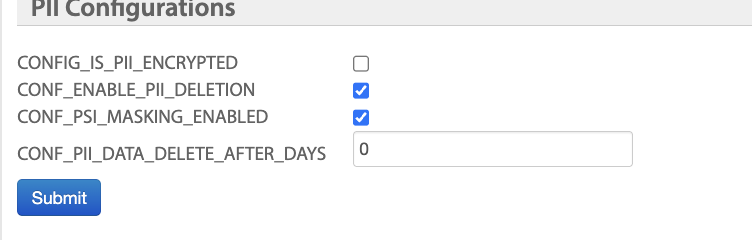
Behaviour
- When CONF_PSI_MASKING_ENABLED = false
- Data masking is disabled.
- All fields are returned unmasked,
- When CONF_PSI_MASKING_ENABLED = true
- Data masking is enabled.
- Capillary evaluates masking for each request based on:
- Default masked fields
- User permissions
- Custom and extended fields marked as sensitive
- API client permissions
Once enabled, this configuration applies across:
- Member Care UI
- All APIs
- Analytics platform (Databricks)
Updated 5 months ago