
Edit or Disable a Cart Promotion
You can manage the lifecycle of your promotions through the centralized list view. This allows you to update campaign durations, adjust creative messaging, remove underperforming offers, or reactivate a previously deactivated promotion.
Edit a promotion
If you need to update the details of an existing offer:
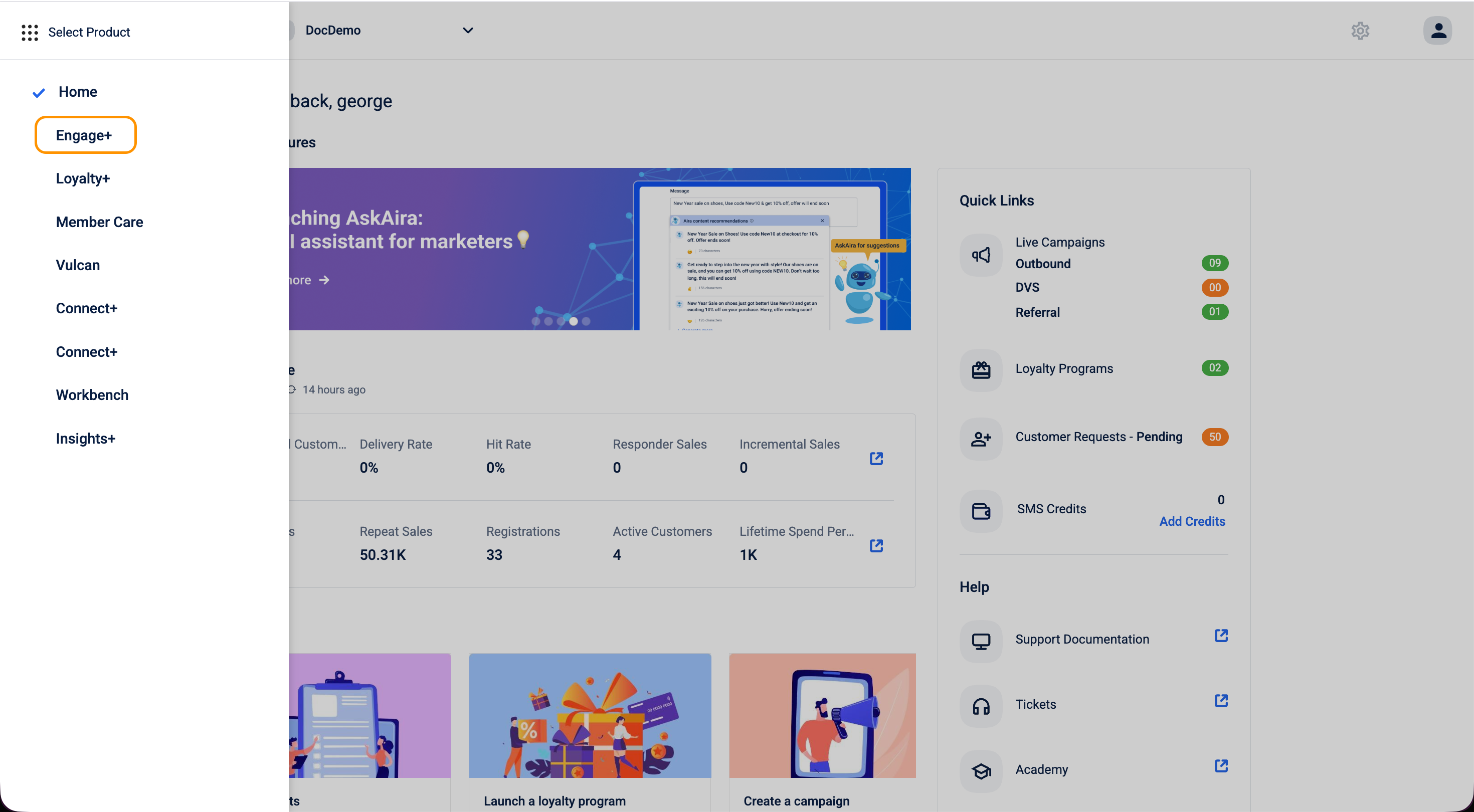
- Go to Engage+ > Campaigns.
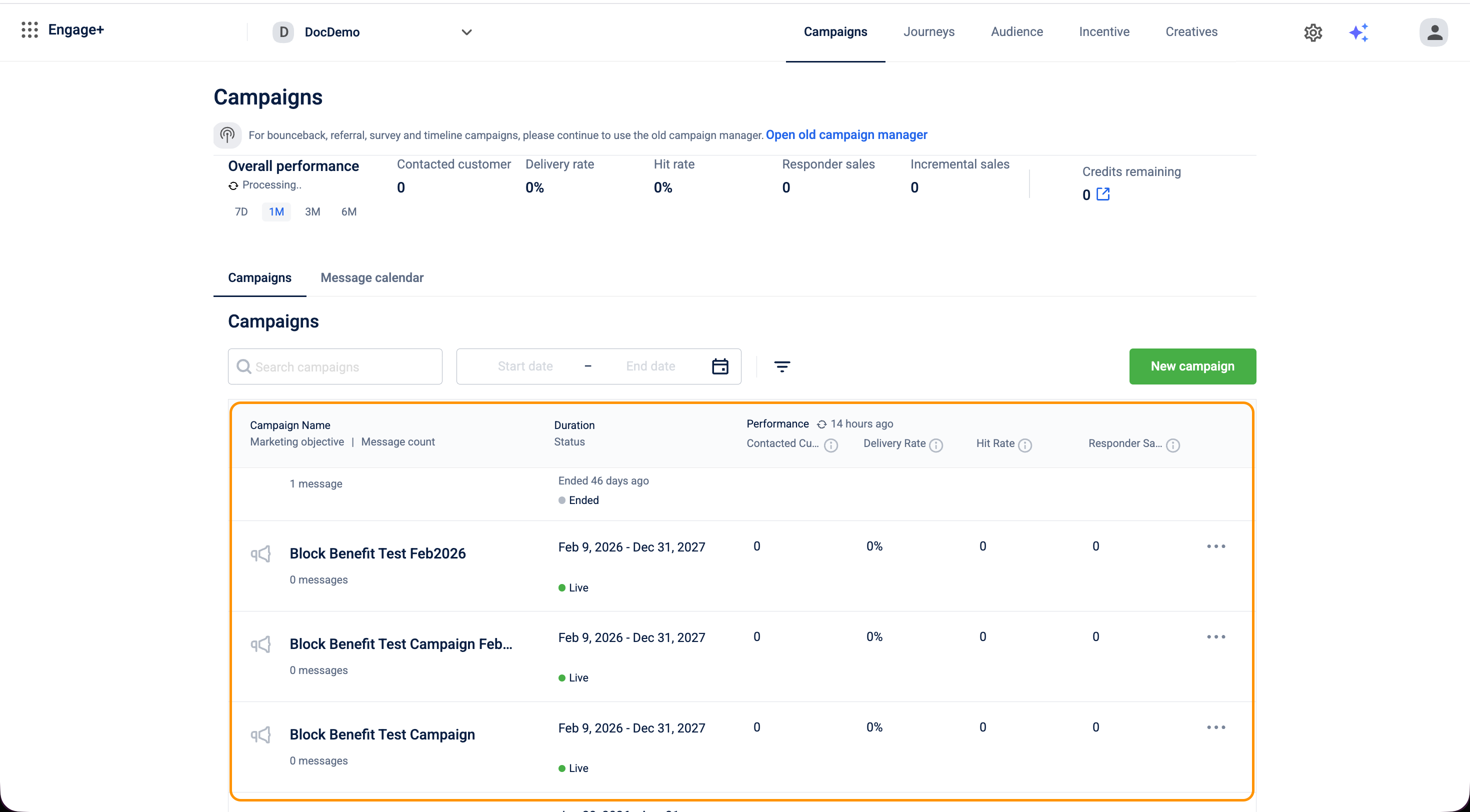
- Select the specific Campaign containing your promotion.
- Navigate to the Promotions tab to view the list of all created cart promotions.
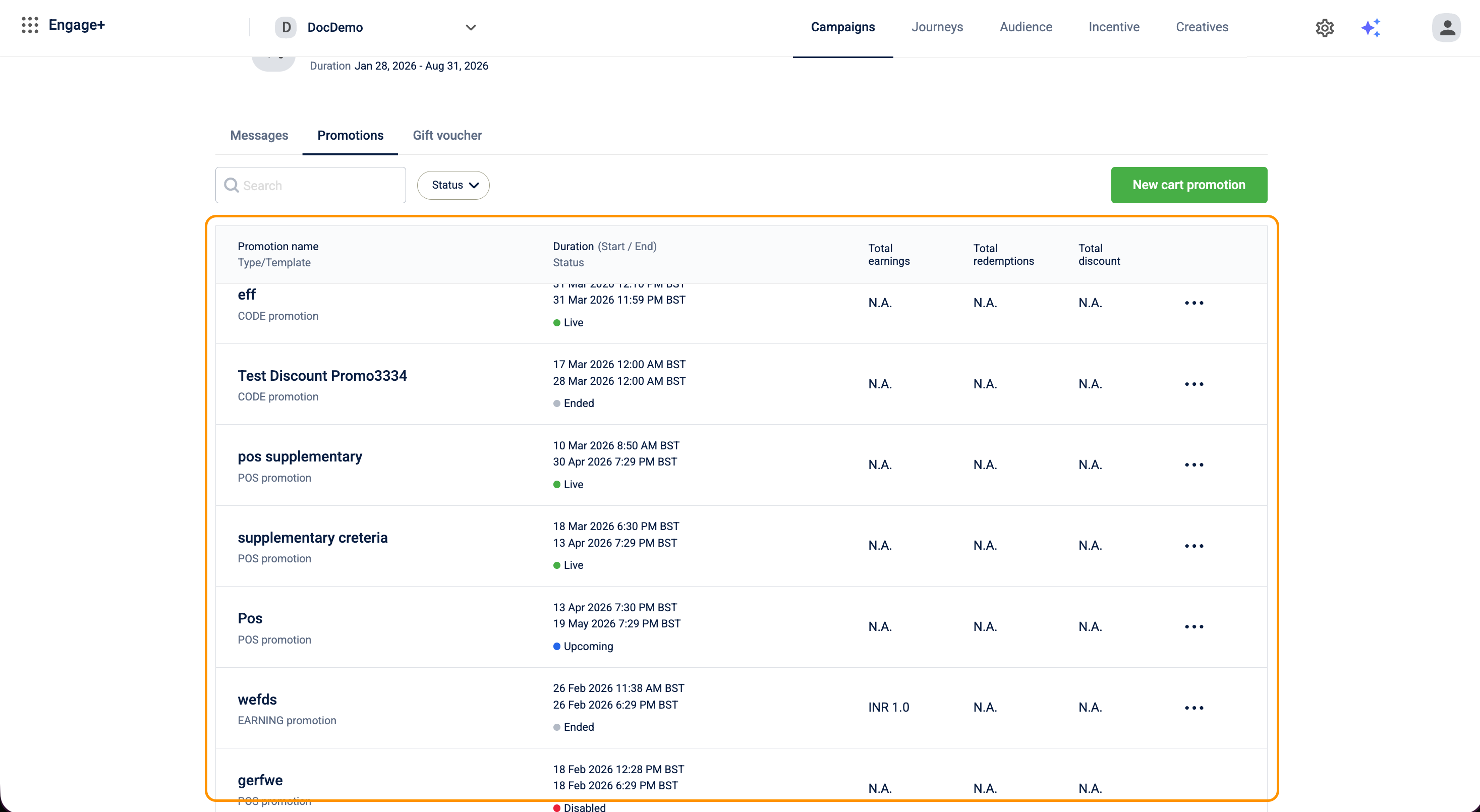
- Locate the promotion in the list.
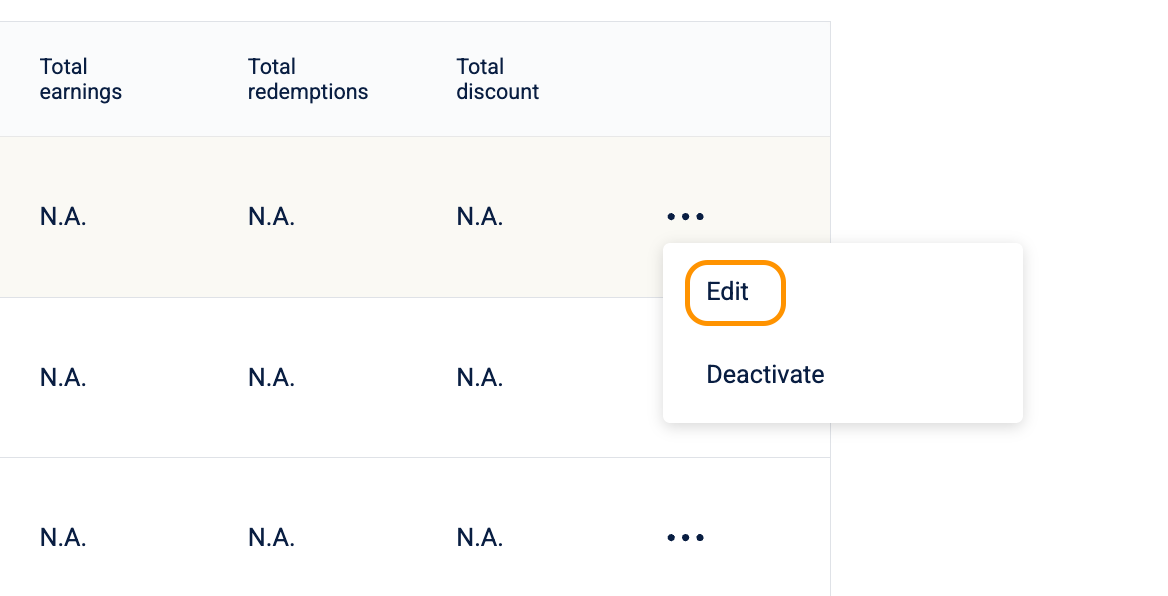
- Click the Three-Dot Menu (⋮) at the end of the promotion row.
- Select Edit.
- Modify the necessary fields (for example, Description, End Date, or Communication Templates).
- Click Update to apply the changes.
While most fields are editable, Redemption Restrictions (such as individual customer limits or global counts) cannot be updated once the promotion is live.
Deactivate a cart promotion
If a promotion is no longer required or was created in error:
- Go to Engage+ > Campaigns.
- Select the specific Campaign containing your promotion.
- Navigate to the Promotions tab to view the list of all created cart promotions.
- Locate the promotion in the list.
- Click the Three-Dot Menu (⋮).
- Select Deactivate.
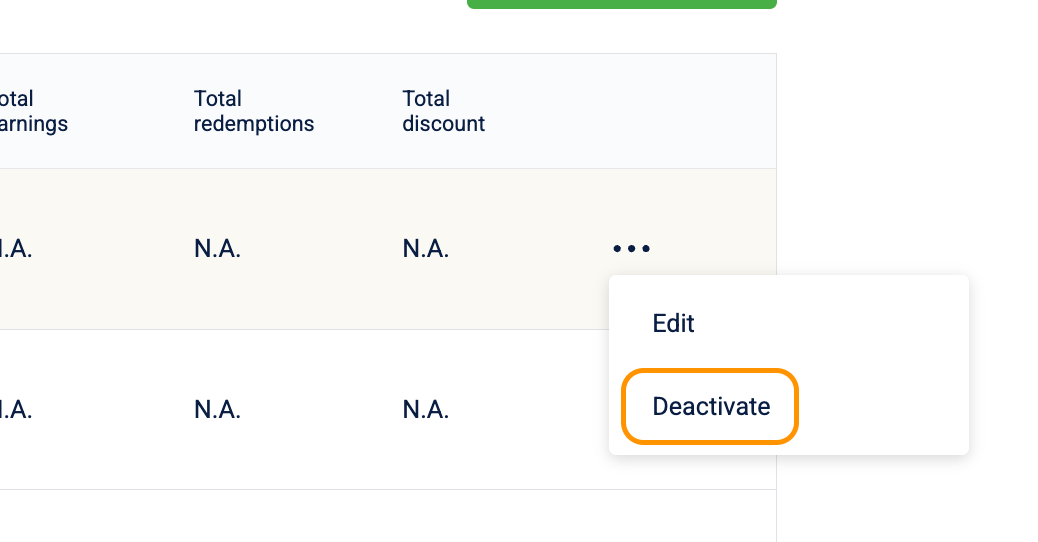
- A confirmation prompt appears. Select Yes to disable the promotion.
Activate a cart promotion
You can reactivate a deactivated promotion from the same promotions list. The Activate option appears in the three-dot menu only when a promotion is in an inactive state.
-
Go to Engage+ > Campaigns.
-
Select the specific Campaign containing your promotion.
-
Navigate to the Promotions tab to view the list of all created cart promotions.
-
Locate the deactivated promotion in the list.
-
Click the Three-Dot Menu (⋮) at the end of the promotion row.
-
Select Activate.
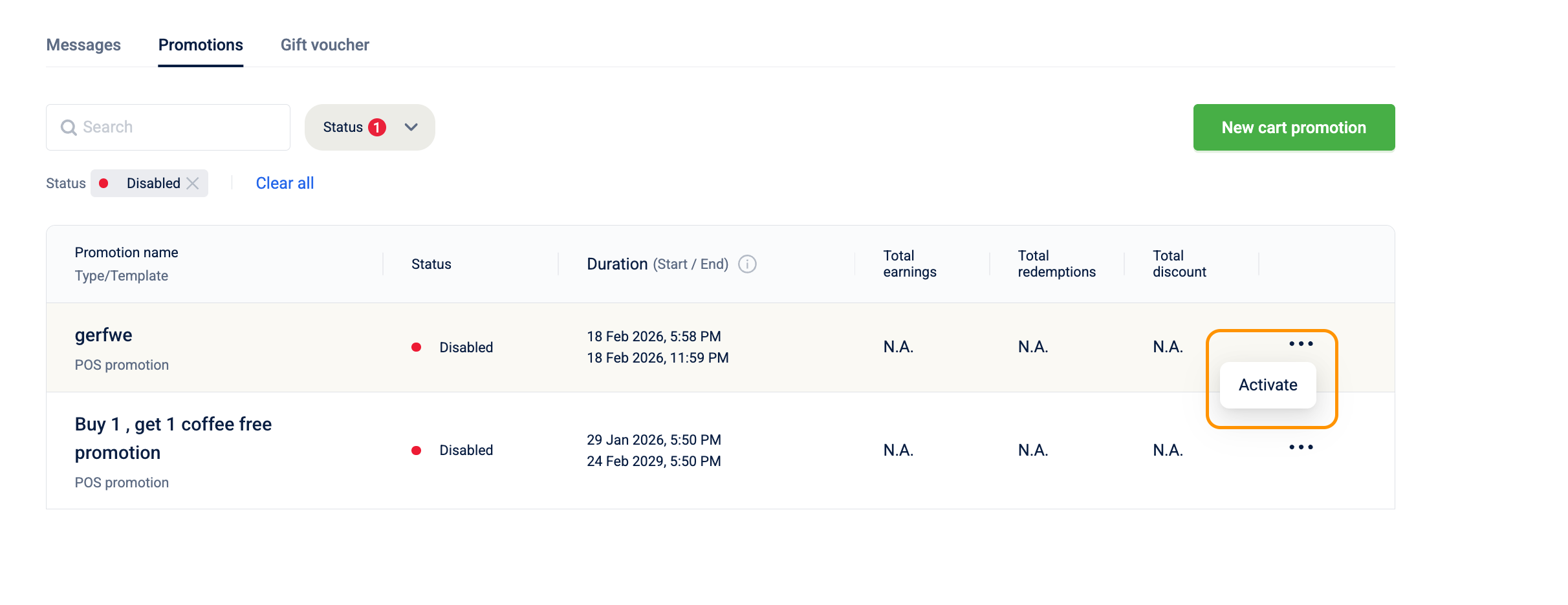
- A confirmation prompt appears. Select Yes to activate the promotion.
A success notification confirms that the promotion has been activated. The promotion list refreshes automatically to reflect the updated status.
Updated 15 days ago