
Create and Manage Tiers
Overview
Tiers let you reward your most engaged customers with a status and a set of benefits that scales as they spend more with your brand — encouraging continued purchases and loyalty. A tier program groups customers into ordered levels (for example, Bronze, Silver, and Gold), each with its own eligibility, validity, renewal, and downgrade rules.
The Tiers page is where you compare, create, edit, and approve all of a program's tiers in one place. It's self-serve and available per program.
NoteTier creation and edits go through an approval workflow, and only take effect on the live program once someone with approval permissions approves them. The new Tiers page also works alongside the old UI — Loyalty+ flags a conflict if the same tier is edited in both before either change is approved.
Viewing tiers
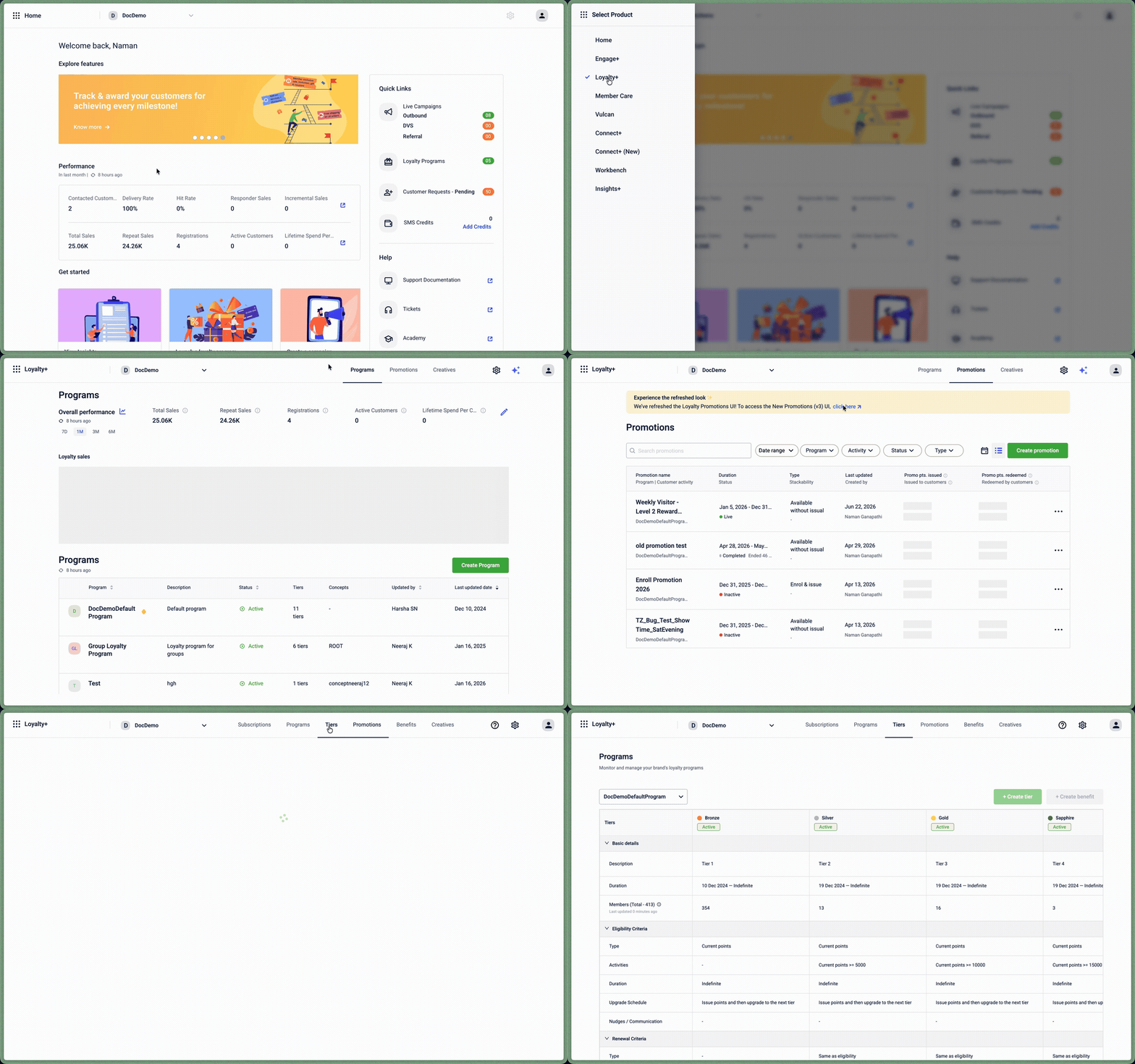
Go to Loyalty+ > Promotions. If you're still on the old Promotions page, select click here in the banner to switch to the new Promotions (v3) UI, then select Tiers from the top navigation. Select a program from the dropdown to see all its tiers side by side.
Rows are grouped into collapsible sections:
| Section | Description |
|---|---|
| Basic details | Description, duration, and member count for each tier |
| Eligibility Criteria | The KPI type, activity threshold, duration, and upgrade schedule that qualifies a customer for the tier |
| Renewal Criteria | The renewal type, duration, and renewal schedule |
| Downgrade criteria | Where a customer is downgraded to, the downgrade schedule, and expiry reminders |
| Benefits | Benefit categories linked to each tier |
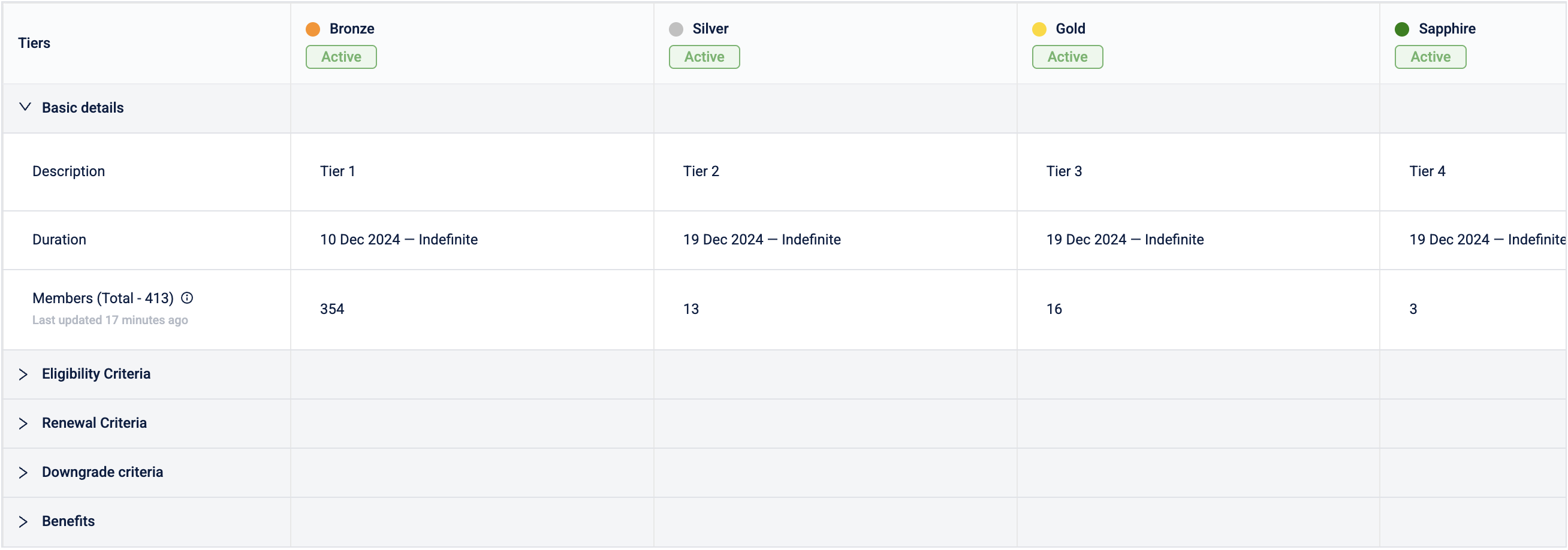
NoteMember count is synced automatically every 4 hours.
Creating a tier
-
On the Tiers page, select the program you want to add a tier to.
-
Select + Create tier.
-
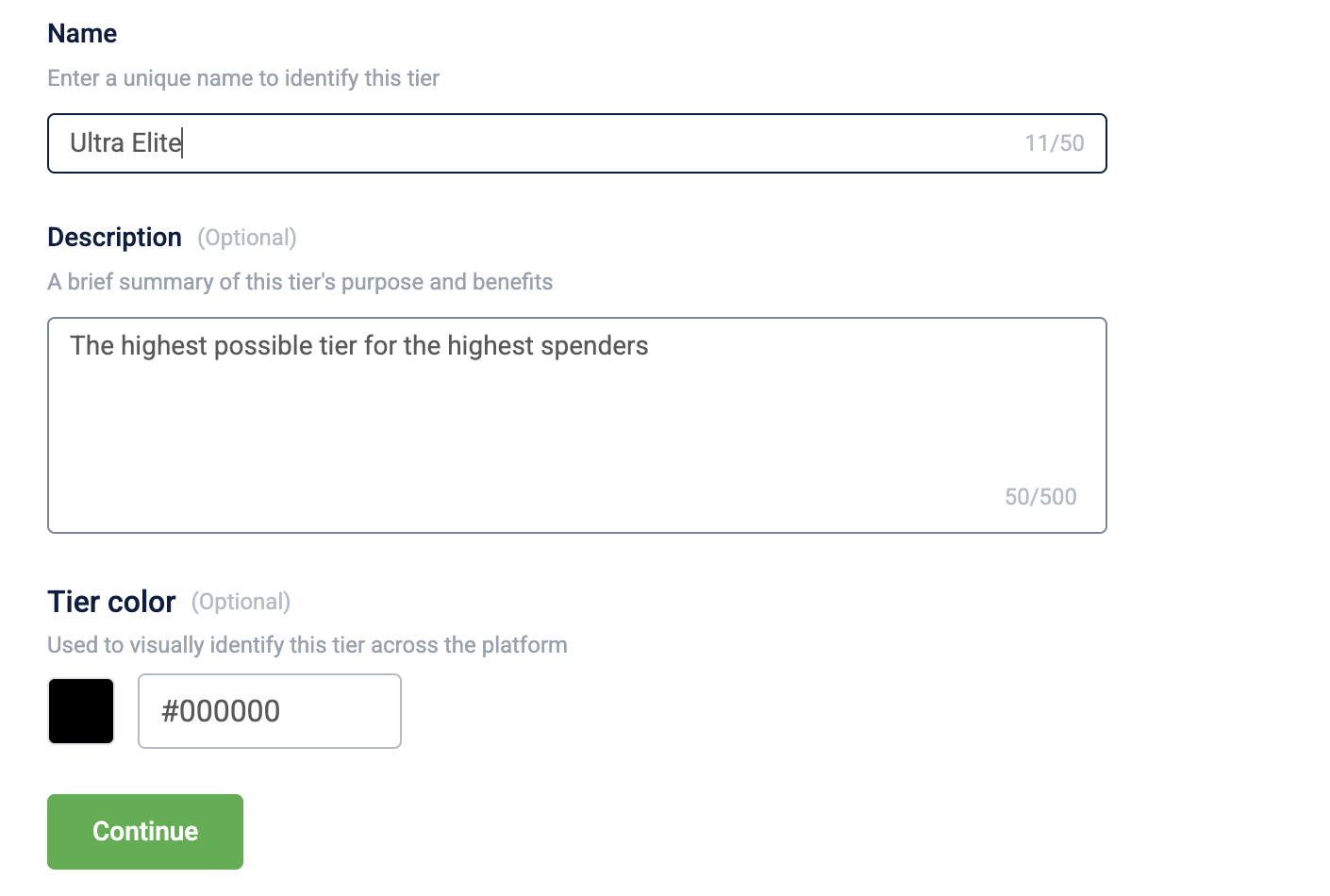
Enter a Name for the tier. Optionally, add a Description and choose a Tier color to visually identify the tier across the platform.
-
Select Continue.
TipAs you fill in the form, the What this tier will do panel on the right updates live with a plain-language summary of the tier's eligibility, validity, renewal, and downgrade behavior.
-
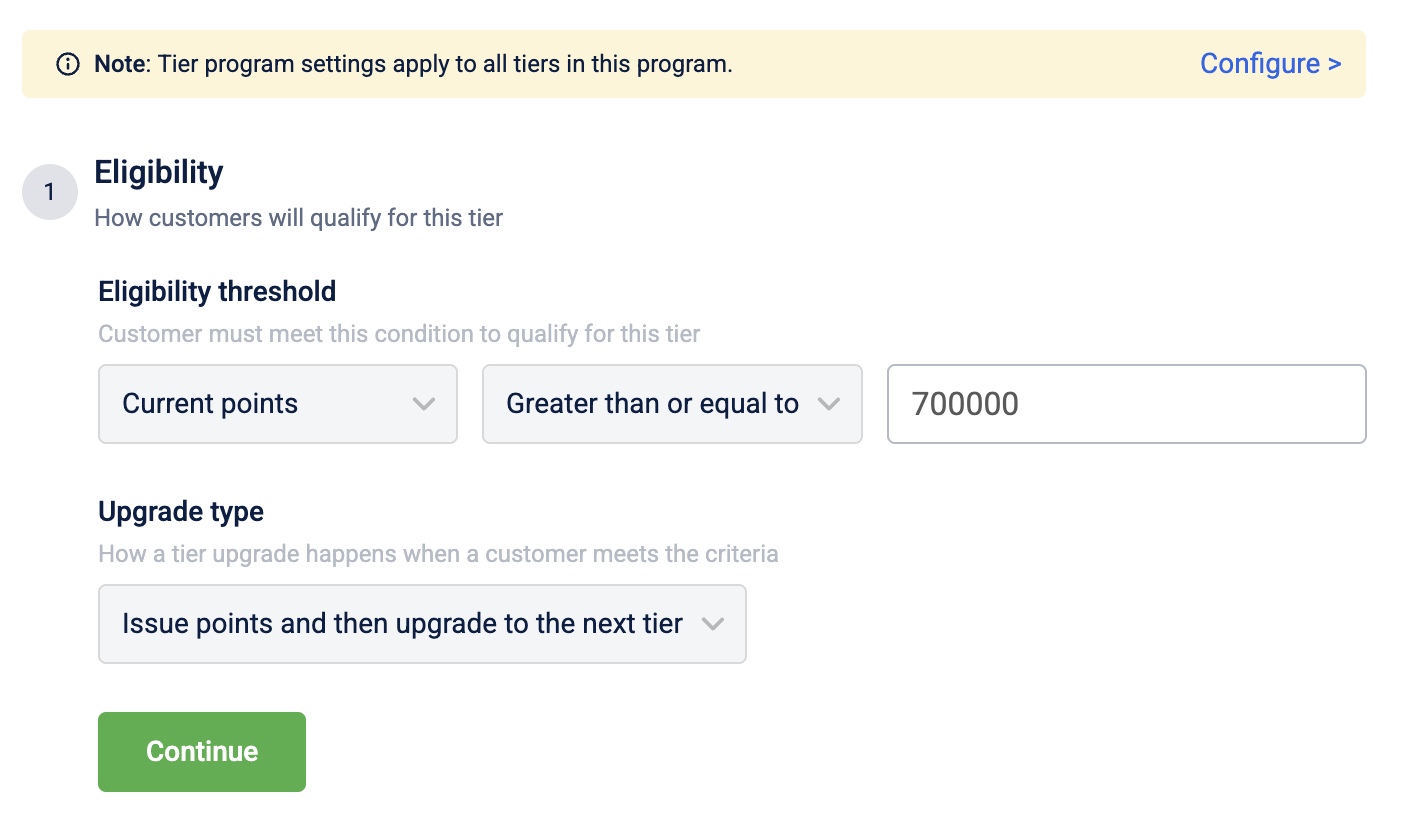
Under Eligibility, enter a threshold value for this tier.
The KPI and Upgrade type shown here are locked. They reflect whatever is already configured for the program in Advance settings, and selecting either field shows the tooltip "This field is set at the program level. Click Configure to edit." To change the KPI or upgrade type itself, use Configuring advance settings.
-
Select Continue.
-
Optionally, expand Validity, renewal and downgrade to configure:
Validity period — turn this on to set how long a customer stays in the tier. The validity period type and, if renewal conditions are on, how it gets extended and the fixed date are locked. They reflect whatever is already configured for the program in Advance settings, and selecting any of them shows the tooltip "This field is set at the program level. Click Configure to edit." Only the duration value itself is editable here. To change the validity period type or extension method, use Configuring advance settings.
Renewal conditions — turn this on to let customers renew instead of being downgraded automatically when their validity period ends. Add one or more conditions and combine them with All, Any, or a Custom AND/OR expression.
Condition Description Example Lifetime purchases Total amount spent during the tier's validity period. Renewal requires $5,000 spent; a customer at $4,000 needs to spend $1,000 more before the period ends. Points earned Total points earned (not just active ones) during the validity period. Renewal requires 5,000 points earned; a customer at 3,500 needs 1,500 more. Number of visits Total store visits during the validity period. Renewal requires 10 visits; a customer at 8 visits needs 2 more. Tracker value A custom tracked value, such as flights taken or bill count, during the validity period. Renewal requires 10 tracked flights; a customer at 8 needs 2 more. Combine multiple conditions with:
Combination Description Example Any The customer must meet a minimum number of the defined conditions, not all of them. With 3 conditions and Any 1 set, meeting just one condition renews the tier. All The customer must meet every defined condition. With spend, visits, and points conditions all set to All, missing any one of them means the tier isn't renewed. Custom Combine conditions with your own AND/OR expression. (A AND B) OR Crenews the tier if either both A and B are met, or C alone is met.Downgrade to — where a customer moves if they don't renew.
Option Description Example One tier below The customer moves down exactly one tier from their current one. If already in the lowest tier, they stay there. A Gold-tier customer who doesn't renew moves to Silver. Lowest tier The customer moves straight to the lowest tier in the program, regardless of their current tier. A Diamond-tier customer who doesn't renew drops to Bronze. -
Select Send for approval to submit the tier for review, or Save as draft to continue later.
[Screenshot placeholder: the Eligibility and Validity, renewal and downgrade accordion steps, expanded]
Configuring advance settings
Eligibility rules and validity periods apply to every tier in a program. Changing them in Advance settings keeps every tier consistent, instead of updating each tier separately and risking mismatched rules. Use this when you need to change the KPI, upgrade type, or validity period itself, not just a single tier's threshold value.
To configure the advance settings, follow these steps:
- Select Configure > next to the note banner on the create or edit screen to open it.

The modal has two sections:
| Section | Settings |
|---|---|
| Eligibility | KPI and upgrade type (same options as the tier form) |
| Validity & renewal | Validity period, minimum duration, how the validity gets extended, and three toggles: Validate downgrade condition for a return transaction, Check tier expiry on a daily basis, and Extend available points to the new cycle |
- Under Eligibility, choose a KPI from the dropdown. The following options are available:
| KPI | Description | Example |
|---|---|---|
| Current points | The active points a customer holds right now. | A tier requires 1,000 current points; a customer with 900 points needs 100 more to qualify. |
| Lifetime points | All points a customer has ever earned, including expired or redeemed ones. | A tier requires 5,000 lifetime points; a customer who has earned 3,500 in total needs 1,500 more. |
| Lifetime purchases | The total amount a customer has spent since joining the program. | A tier requires $5,000 in lifetime purchases; a customer at $4,000 needs to spend $1,000 more. |
- Select an Upgrade type from the dropdown. The following options are available:
| Upgrade type | Description | Example |
|---|---|---|
| Issue points and then upgrade to the next tier | Points from the qualifying transaction are credited at the current tier's rate first, then the tier upgrades. | A $2,000 purchase crosses the threshold to a 30%-earning tier; the customer earns 20% (their current tier's rate) = 400 points, then upgrades. |
| Upgrade to the next tier and then issue points | The tier upgrades first, then points are credited at the new tier's rate. | The same $2,000 purchase upgrades the customer first, then earns 30% (the new tier's rate) = 600 points. |
| Issue point, upgrade tier and then issue remaining points | Points are split: the portion of the transaction up to the threshold earns at the old rate, the remainder earns at the new rate. May appear disabled depending on your program's configuration. | Of a $2,000 purchase, the first $1,000 (up to the threshold) earns at 20% = 200 points, then the customer upgrades, and the remaining $1,000 earns at 30% = 300 points. |
- Under Validity & renewal, choose a validity period type from the dropdown. The following options are available:
| Option | Description | Example |
|---|---|---|
| Until tier upgrade or fixed duration | The tier stays valid for a set duration, unless the customer upgrades sooner. | A tier is valid for 12 months from when a customer enters it; if they upgrade after 6 months, the new tier's validity starts fresh. |
| Until the customer's next registration date | The tier is revalidated on the anniversary of the customer's original registration date. | A customer registered on 25 Oct; their tier renewal check runs every 25 Oct after that. |
| Until fixed date | The tier expires on the same calendar date for every customer, regardless of when they entered it. | Every customer's tier expires on 31 Dec, whether they joined in January or November. |
- Enable Validate downgrade condition for a return transaction to control how the tier upgrade is triggered once a customer meets the threshold.
- Turn on Check tier expiry on a daily basis. When this is off, tier validity and downgrade checks only run on the last day of each month.
- Turn on Extend available points to the new cycle if points are set to expire based on the tier cycle date. Turning this on carries unused points forward to the next cycle instead of expiring them.
- Select Done to save.
- Select Done to save.
Approving, rejecting, and editing tiers
A tier's eligibility, validity, and downgrade rules directly affect what real customers experience, and every new tier or tier edit goes through a maker-checker approval workflow — a second person reviews the change before it can affect your live program.
- When you select Send for approval, add an optional comment and select Send request. The tier moves to Pending Approval.
- A user with approval permissions reviews the request from the Tiers page and selects
Approve or Reject.
- If the request is an edit to an already-Active tier, the approver sees the live tier's existing condition values alongside the draft's changes first. Because an Active tier already has enrolled customers, this lets the approver catch any missing or unintended value before it goes live, rather than after.
- If approved, the tier is published as Active.
- If rejected, the tier is saved as a Draft so you can revise and resubmit it.
- While a request is pending, you can select Revoke & Edit Tier to pull it back into Draft and make further changes.
NoteEditing an already-Active tier doesn't change it directly. It creates a separate draft copy, and your edits only merge into the live tier once that draft is approved.
What you can edit at each stage
An Active tier already governs real, enrolled customers, so Loyalty+ limits what you can change without going through approval again. Knowing these limits upfront saves you from resubmitting a tier from scratch when you only meant to tweak one field.
| Status | What you can edit | Why |
|---|---|---|
| Draft | Everything — name, description, color, eligibility, upgrade type, validity, renewal, and downgrade | Nothing is live yet, so there's no approval to protect |
| Pending Approval | Nothing directly — select Revoke & Edit Tier to pull it back to Draft first | Keeps the version under review stable while an approver is looking at it |
| Rejected | Everything, same as Draft | A rejected tier reopens as a Draft so you can act on the approver's comment and resubmit |
| Active | Name, description, and tier color only | Eligibility, validity, renewal, and downgrade already govern enrolled customers — changing them creates a separate draft copy instead, so nothing changes until that draft is approved |
Tier statuses
| Status | Meaning |
|---|---|
| Active | Live and in effect for the program |
| Draft | Saved but not yet submitted for approval |
| Pending Approval | Submitted and waiting for an approver |
| Rejected | Sent back by an approver, with their comment attached |
FAQs
How do I get to the new Tiers page?
Go to Loyalty+ > Promotions, switch to the new Promotions (v3) UI if you're still on the old page, then select Tiers from the top navigation.
Can I create more than one active tier at a time in a program?
No. If a program already has a tier in Draft or Pending Approval, + Create tier stays turned off until that tier is published or removed.
Is the old Tiers UI going away?
Not immediately. During the transition, both the old and new Tiers UI stay available, and you can keep using either one.
What happens if a tier is edited in the old UI while I have a draft open in the new UI?
Loyalty+ flags a conflict if the same tier is edited in both before either change is approved, so the two versions don't silently diverge.
Does Advance settings apply to a single tier or the whole program?
The whole program. Eligibility KPI, upgrade type, and validity period set in Advance settings apply to every tier, not just the one you're editing.
What are my downgrade options if a customer doesn't renew?
One tier below or the Lowest tier. There's no option to downgrade based on eligibility criteria.
Does editing an Active tier change it immediately?
No. Editing an already-Active tier creates a separate draft copy, and your edits only merge into the live tier once that draft is approved.
Does the new Tiers UI have everything the old one has?
Yes, everything you could do in the old Tiers UI is available in the new one, plus new additions such as per-tier member counts.
Updated 6 days ago