
Issue Coupon
The issue coupon action lets you issue specific coupons to customers. You can issue up to 500 coupons that are either “Live” or “Upcoming”.
Notes
- Rounding: All quantity values are automatically converted to integers. Decimal values are rounded to the nearest whole number (e.g., 4.7 becomes 5, 3.2 becomes 3).
- Communication Channels: Loyalty+ integrates the Central Communications Engine. When using the Issue Coupon action, you can send notifications through supported channels like WhatsApp, Zalo, and LINE, in addition to standard SMS and Email.
Use Case
Prerequisites
- Create a loyalty program
- Configure the coupon to issue
Requirement: A retail brand wants to incentivize higher spending during a sale. They want to issue a specific discount coupon for every ₹1000 spent in a single transaction. For example, spending ₹2000 yields 2 coupons, while spending ₹5000 yields 5 coupons.
Solution:
- In the Loyalty workflow, trigger the action on a Transaction Add event.
- Add the Issue Coupon action.
- Select the "Stepped" calculation method (Transaction Step Function).
- Configure the rule to issue 1 coupon for every ₹1000 spent.
Configuring the Issue Coupon action
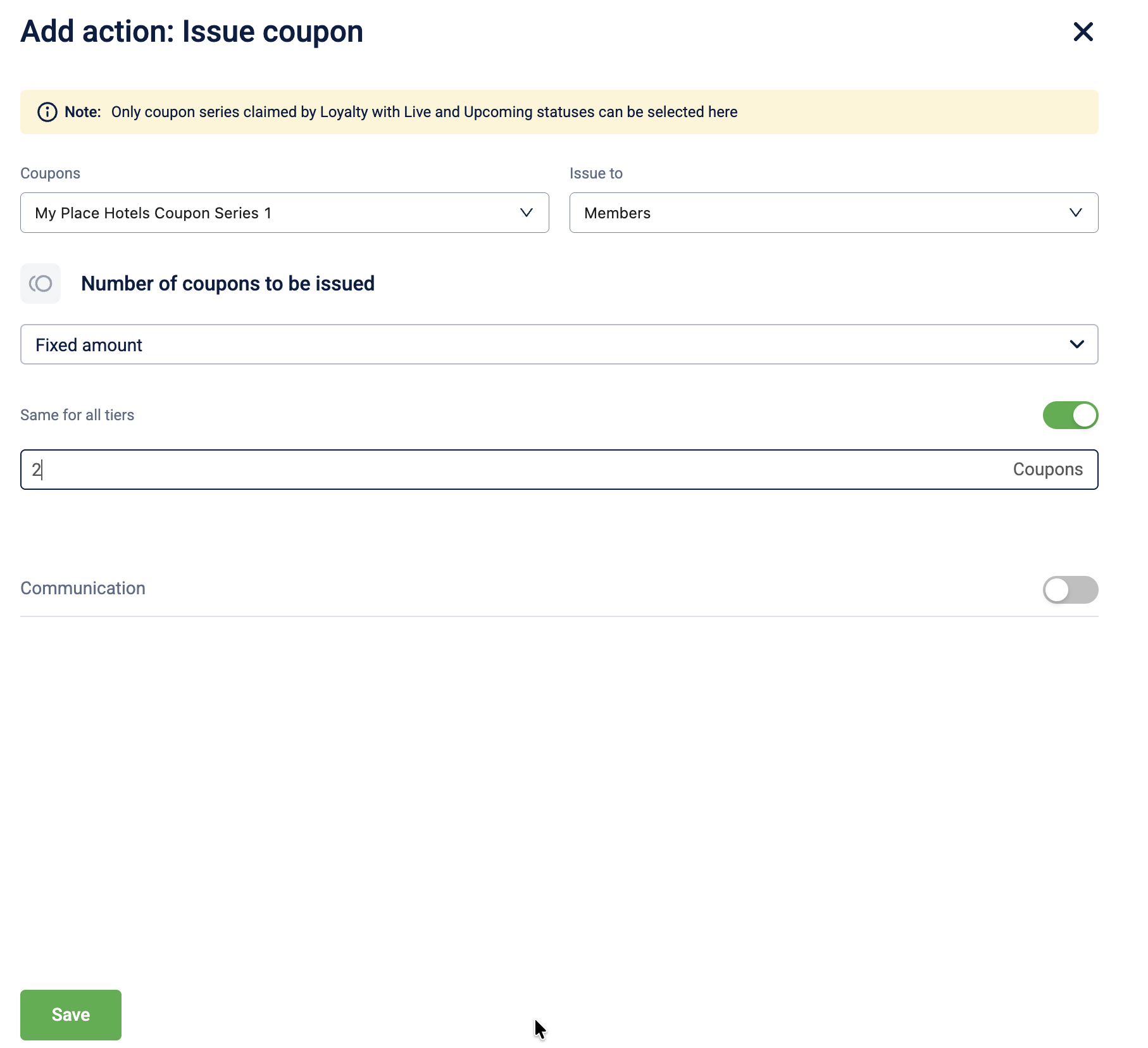
To configure the Issue Coupon action, follow these steps:
-
Select Issue Coupon from the action list.
-
In the Coupons dropdown, select the specific coupon to issue.
-
In the Issue to dropdown, select the recipient entity. The following options are available:
| Entity | Description |
|---|---|
| Members | Issues the badge to the individual customer, triggering the event. |
| Member groups | Issues the badge to a specific target group. |
| Referee | Issues the badge to the person being referred (used in referral workflows). |
| Referrer | Issues the badge to the person making the referral (used in referral workflows). |
- In the Number of coupons to be issued dropdown, select the issual criterion. The following issue criteria are available:
| Coupon issue criteria | Description | Example |
|---|---|---|
| Fixed amount | A specific quantity of coupons is issued for a qualifying event, regardless of the transaction value. | A customer makes a purchase of $500. Because the rule is set to a fixed "1," they receive exactly 1 coupon, just as they would if they had spent only $10. |
| Multiplier | Applies a multiplication factor to the base quantity of coupons defined in the earn rule. | A customer makes a purchase during a "Double Rewards" promo. Instead of the standard 1 coupon, the system applies a 2x multiplier, and the customer receives 2 coupons for that single transaction. |
| Dynamic | The quantity of coupons is calculated as a percentage of a specific base value | A customer makes a purchase of $200. The rule is set to "Dynamic" with a condition of "5% of Transaction Amount." The system calculates 5% of 200, and the customer receives 10 coupons for that transaction. |
| Stepped | Issues a specific quantity of coupons for every defined interval of spend (step size). | A customer spends $300. The rule is configured to "Issue 1 coupon for every $100 spent." The system calculates three full intervals ($100, $200, $300) and issues a total of 3 coupons. |
-
Toggle Same for all tiers to ON to issue a fixed quantity of coupons for customers across all tiers. Toggle Same for all tiers to OFF to issue different quantities of coupons for customers across different tiers. If you create a new tier for the loyalty program, you must also reconfigure the values for the promotion.
-
Enter the quantity of coupons to issue.
-
Toggle Communication to ON to notify the customer when the coupon is issued, and select the communication channels.
-
Select Save to complete the configuration.
Updated 1 day ago