
Send Communication
The send communication action allows you to send targeted messages to members through various channels directly from a loyalty promotion.
Loyalty+ and loyalty promotions integrates with the Central Communications Engine, enabling brands to send loyalty-related communications through supported channels like WhatsApp, Zalo, and LINE, in addition to standard SMS and Email. All communication channels available on Engage+ are automatically accessible when using this action, allowing for seamless integration of messaging within your promotion workflows.
NoteIf an organization has WhatsApp, Zalo, and LINE sender IDs configured on Engage+, the same will be available on Loyalty+. To configure a new sender ID, refer to Configuring WhatsApp Sender Details or raise a JIRA ticket to the gateways team. Refer to the Creatives documentation to create templates for WhatsApp and Zalo.
Reporting is available through Databricks to track communications sent through loyalty promotions, providing visibility into message delivery and customer engagement specifically for messages sent via the Send Communication action.
Use Case
Prerequisites
- Configure communication channels (SMS, Email, WhatsApp, etc.) and sender IDs in Engage+.
- Create message templates if required
Requirement: A brand wants to send a personalized "Welcome" message via WhatsApp to customers who enroll in a new "Summer Sale" promotion.
Solution:
- Create a loyalty promotion and configure the enrollment criteria.
- Select the Send Communication action to the enrollment workflow.
- Select WhatsApp as the channel.
- Choose the appropriate "Welcome" template.
- Save the action to complete the configuration.
Configuring the Send Communication action
To configure the Send Communication action, follow these steps:
-
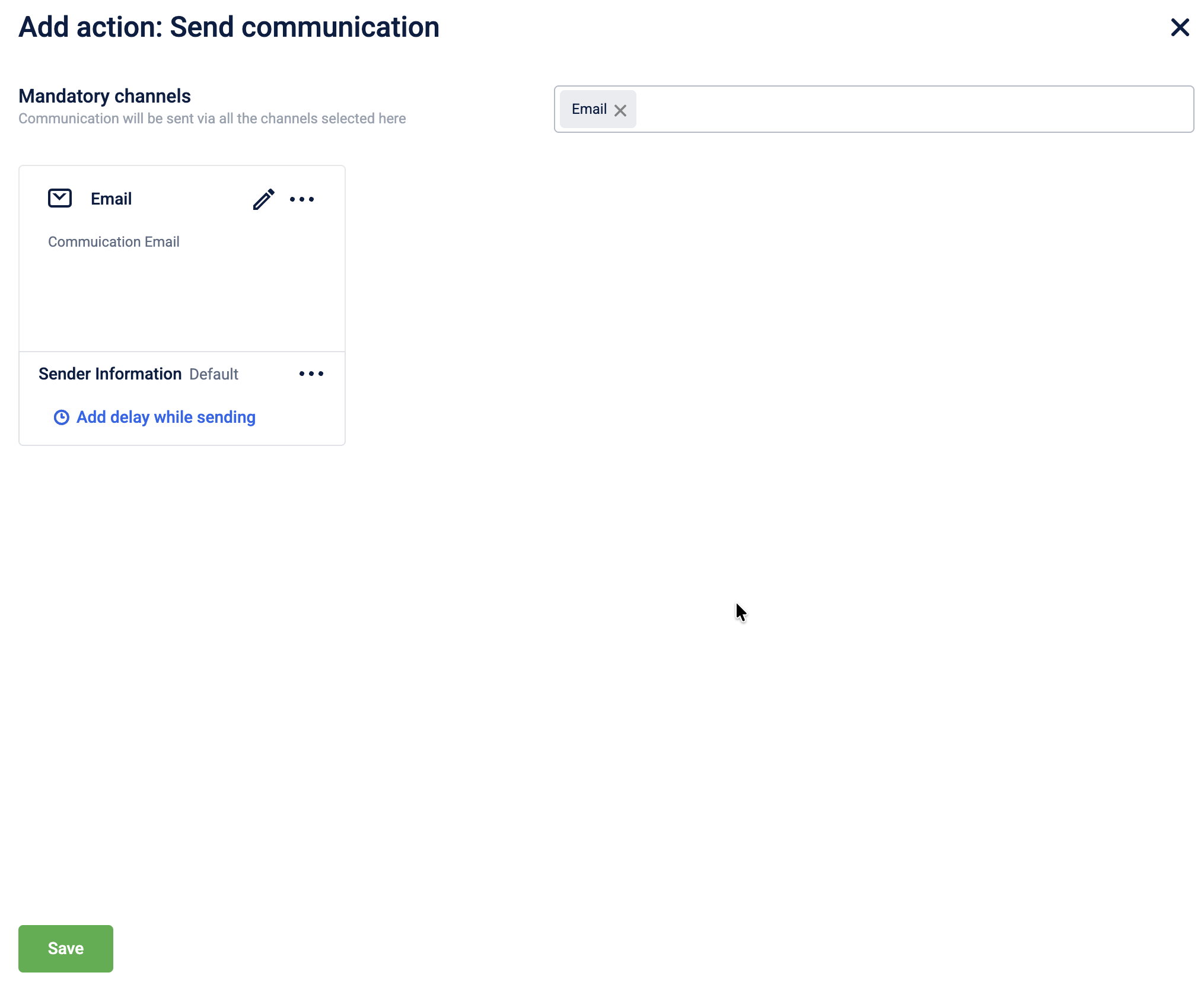
Select Send Communication from the action list.
-
Select the channel from the drop down menu.
-
(Optional) Configure Delay Settings to send the message after a specific time interval.
-
Select Done to save the communication configuration.
-
Select Save to complete the action setup.
Updated 1 day ago