
Viewing a Loyalty Promotion
The Promotions dashboard is the hub for managing your loyalty promotions. From this page, you can quickly see each promotion's loyalty program, status (such as Live or Awaiting Approval), scheduled duration, and last modification date.
To manage your view, use the search bar to find a specific promotion or apply filters to narrow the list. Use the sorting options to organize promotions by criteria such as status or update date. To create a promotion quickly, use the duplicate action to copy an existing one.
NoteThe list view only shows the promotions created on the loyalty promotions UI.
Searching for a loyalty promotion
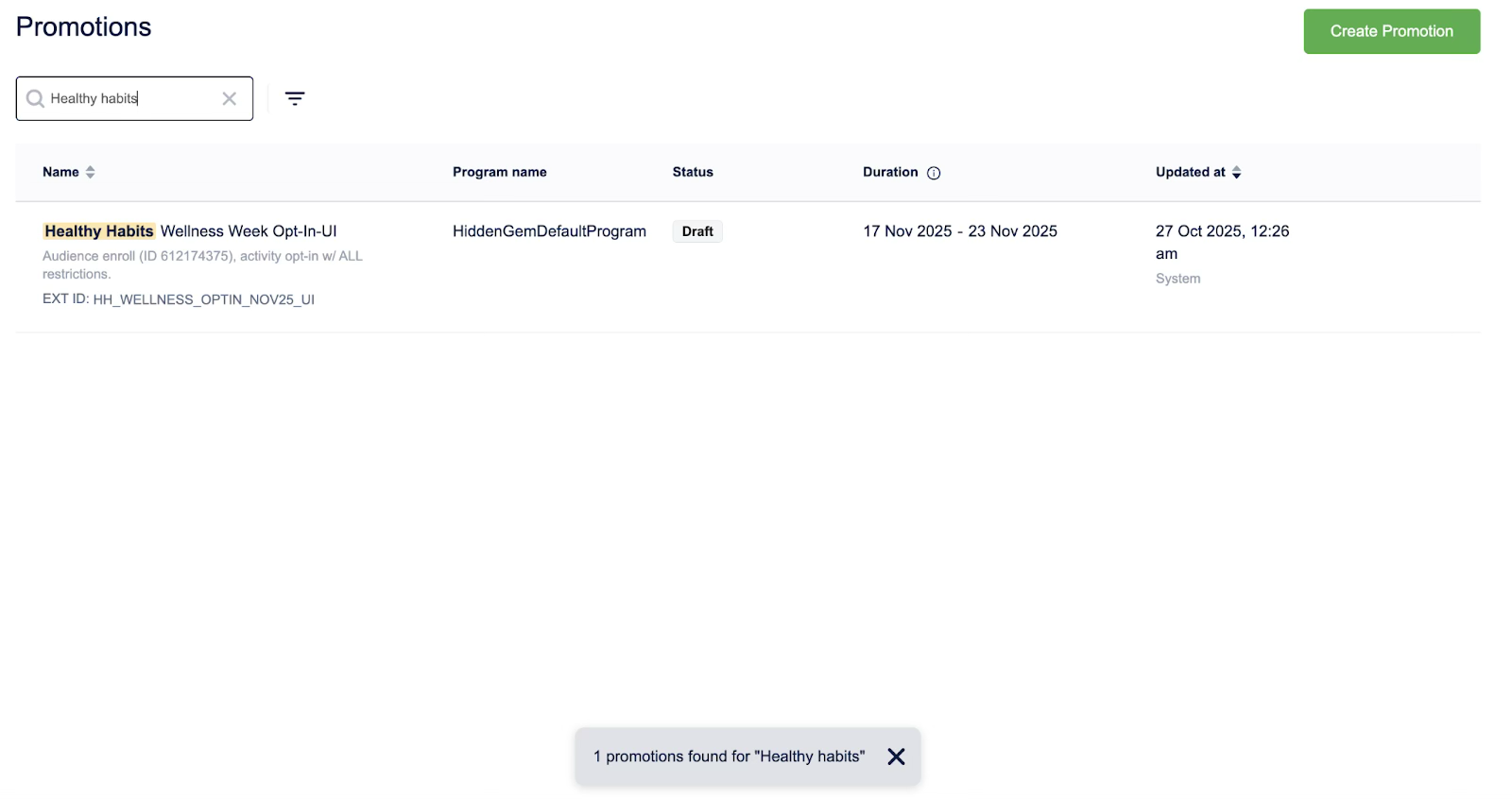
Use the search bar to find a specific promotion. You can search by description, promotion ID, or external identifier in addition to the promotion name.
To search for a loyalty promotion, use the search bar and provide a valid loyalty promotion name or external ID.
Sorting and filtering loyalty promotions
Use sorting and filtering to organize and refine your view of loyalty promotions. You can use filtering to narrow the list and focus on a specific subset of promotions, for example, viewing only Live promotions for a particular program or all promotions updated by a specific team member.
To sort and filter loyalty promotions, follow these steps:
- Select the filter icon on the listing page.
- Select the loyalty program from the Select program dropdown list.
- Select the status from the Select status dropdown list.
- Select the start date and end date under Duration.
- Select a user from the Select name dropdown list.
- Select Apply to apply the filter.
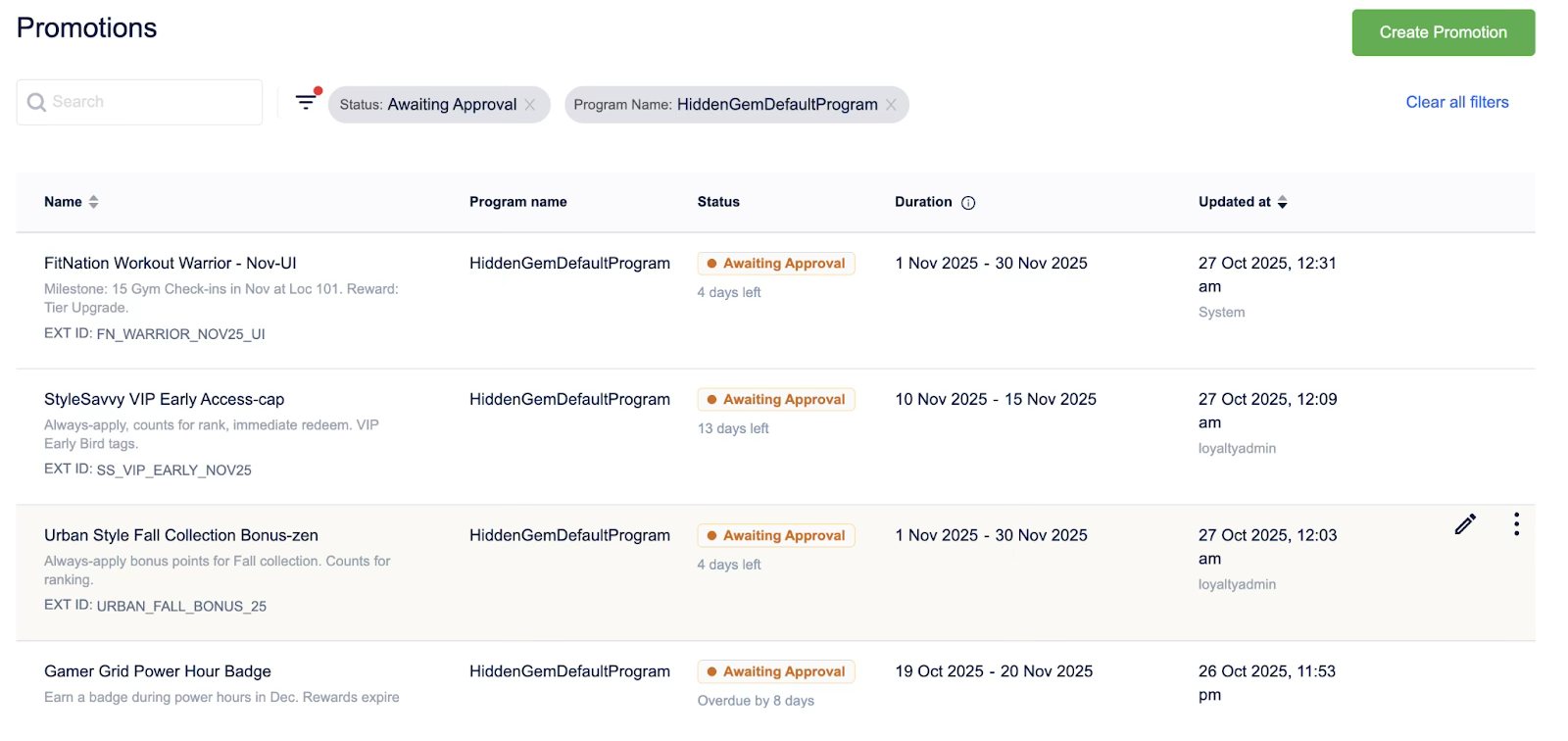
After applying these actions, your promotions list will be refined, displaying only the promotions that match your search and filter criteria, making them easier to manage.
Viewing analytics for a loyalty promotion
View the analytics report for a loyalty promotion and key metrics, such as member enrolment, opt-in rates, points issued, and redemption statistics, in a single, consolidated view.
To view the analytics for a loyalty promotion, follow these steps:
- In the promotion list view, go to the loyalty promotion.
- Hover over the More options (three vertical dots) menu, and then select View analytics.
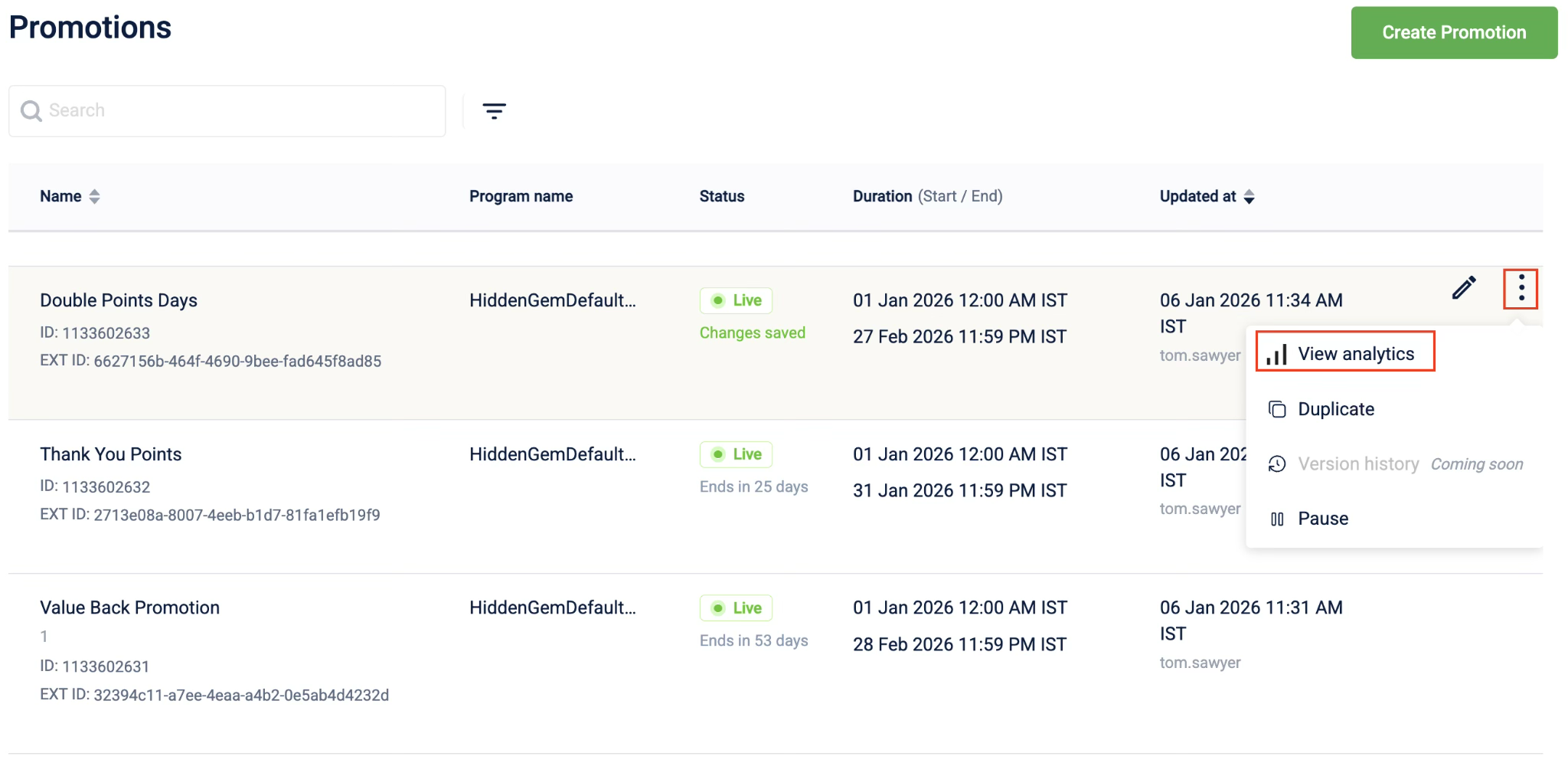
- Select a metric category to view the analytics data.
- (Optional) Select Refresh to get the latest data.
NoteMetrics reflect data from the promotion's start date and are updated in near real time. Data appears after a promotion is active and members engage with it.
- (Optional) Select Download metrics to download the loyalty promotion analytics report.
Viewing old loyalty promotions
You can view and manage live and upcoming loyalty promotions created on the old UI from the loyalty promotions listing page.
To view loyalty promotions created on the old UI, select Promotions via new UI from the drop-down menu.

Updated 1 day ago