
Issue Currency
The issue currency action allows you to issue points or alternate currencies to a customer or user group.
Use Case
Prerequisites
- Create a loyalty program
- Configure the reward currency to issue
Requirement:
A retail brand wants to reward customers with loyalty points for every successful purchase. The brand also wants to apply proration, and control expiry rules and define the rounding strategy for the points issued.
Solution:
- Select the Issue Currency action.
- Select Points or the required alternate currency from the Currency dropdown.
- Choose Members to issue currency to individual customers or Member groups to issue currency to a group.
- Configure the proration type to control how currency is calculated.
- Configure the expiry type to define currency validity.
- (Optional) Use Additional settings to define rounding strategies and conversion timing.
- Save the action to complete the configuration.
Strategies for issuing currency
Issuance strategies define the calculation method used to determine the amount of currency a customer earns upon completing a qualifying activity. This is where you configure whether to award a fixed amount, a value proportional to a transaction, or a multiplied bonus, providing precise control over your reward structure.
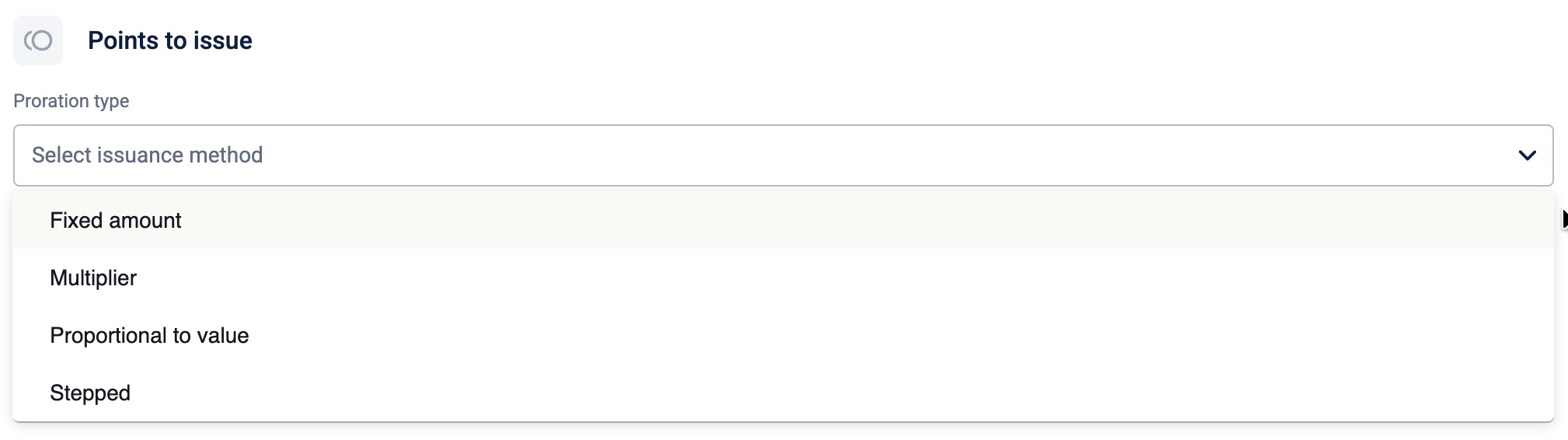
The table below elaborates on the available proration types:
| Proration type | Description | Example |
|---|---|---|
| Fixed amount | Issue a fixed number of reward currencies upon the successful completion of an activity. The reward amount is fixed and doesn't depend on the transaction amount. | A customer is awarded a fixed 50 points for updating their profile. |
| Multiplier | Issue reward currencies by multiplying the transaction's total amount by a defined factor. This strategy is commonly used for awarding "double points" or "triple points". | With a multiplier of 200%, a customer who spends $50 earns 100 points (200% of $50). |
| Proportional to Value | Issued reward currencies are calculated as a direct percentage of the transaction's total amount. If you select this option, you must also select the value to use for the proportion. | If the proration is set to 10%, a transaction of $500 will earn 50 points (10% of 500). |
| Stepped | Awards a fixed number of points for each defined tier or "step" of value achieved within a single transaction. For each “step” or interval reached, a set number of points is given. | If the step size is $150 and the points per step are 5, then: A $150 transaction earns 5 points. A $300 transaction earns 10 points. A $450 transaction earns 15 points, and so on. |
Defining the value for proportioning
When you select the Proportional to Value issual strategy, you must define the specific base value that the system will use for the calculation.
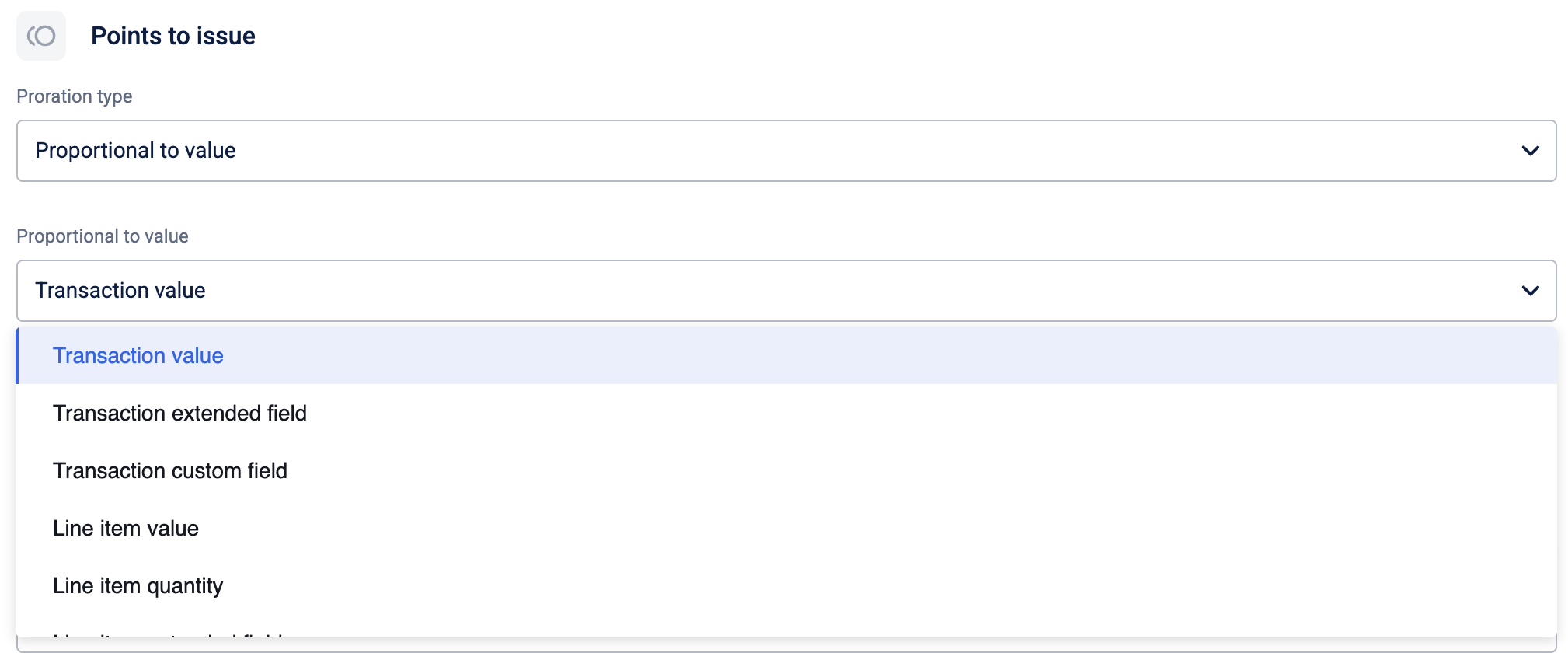
The following table details the available base values you can select:
| Proportional Value | Description | Example |
|---|---|---|
| Transaction Value | Uses the total monetary value of the transaction (bill amount) as the base for calculation. You can use this to issue reward currency based on the customer’s transaction value. | If a customer spends $100 and the proration is set to 10%, the system calculates 10% of $100 to award 10 points. |
| Transaction Extended Field | Uses a numeric value stored in a specific extended field attached to the entire transaction as the base for calculation. When selecting this option, you must also select the extended field. You can use this to issue reward currency based on an extended field in a transaction. | A transaction has a "Delivery Fee" field value of $20. If the proration is 50%, the customer earns 10 points based on that delivery fee. |
| Transaction Custom Field | Uses a numeric value stored in a specific custom field attached to the entire transaction as the base for calculation. When selecting this option, you must also select the custom field. You can use this to issue reward currency based on an extended field in a transaction. | If a custom field "Tip Amount" has a value of $10, and proration is 100%, the customer earns 10 points. |
| Line Item Value | Uses the price of a specific line item within the transaction as the base for calculation. You can use this to issue reward currency on specific products. | A customer buys a shirt for $50. If the rule targets "Apparel" and proration is 20%, they earn 10 points based on the shirt's price. |
| Line Item Quantity | Uses the count (quantity) of specific items purchased rather than their price. You can use this when you want to reward bulk purchases. | A customer buys 5 coffee mugs. If proration is set to 100% (1 point per item), they earn 5 points. |
| Line Item Extended Field | Uses a numeric value stored in a specific extended field attached to a specific item in a transaction. When selecting this option, you must also select the extended field. You can use this to issue reward currency based on an extended field in a line item. | A hotel booking is made with a "Room nights count" field value of 4. If proration is 50%, the customer earns 2 points based on the room nights. |
| Gap to upgrade as per condition (G) | Uses the remaining gap between the customer's current tracker value and the target milestone defined in the tracker condition. This is calculated before the current event's contribution is added. When selecting this option, you must also select the tracker. You can use this to issue reward currency based on the current progress of a customer in a tracker. | A customer has already spent $800 in a tracker window where the goal is $1000. The gap (G) is $200. If proration is 10%, they earn 20 points based on the remaining distance to the goal when they make their transaction. |
| Event Tracked Value as per condition (E) | Uses the specific value that the current event contributes to the tracker condition. This isolates the portion of the transaction relevant to the tracked goal. You can use this to issue reward currency based on the value that is contributed towards a tracker’s progress. | A customer has already spent $800 in a tracker window where the goal is $1000. The event value (E) is $200. If proration is 10%, they earn 20 points based on the value contributed towards the tracker’s progress. |
| Gap to upgrade after event | Uses the remaining gap between the customer's current tracker value and the target milestone defined in the tracker condition. This is calculated after the current event's contribution is added. When selecting this option, you must also select the tracker. You can use this to issue reward currency based on the current progress of a customer in a tracker. | A customer has already spent $800 in a tracker window where the goal is $1000. The gap is $200. The customer makes a transaction of $100, and the tracker gap is $100. If proration is 10%, they earn 10 points based on the remaining distance to the goal. |
| Difference (E - G) | Uses the value by which the current event’s contribution exceeds the remaining gap to the target milestone. This is the surplus value contributed after the milestone is reached. When selecting this option, you must also select the tracker. You can use this to issue reward currency based on the amount that exceeds the tracker target. | A customer has already spent $800 in a tracker window where the goal is $1000. The gap (G) is $200. A customer makes a transaction, and the event value (E) is $300. The difference (E-G) is $100. If proration is 10%, they earn 10 points based on the value exceeding the milestone. |
Strategies for expiring currency
Currency expiry strategies define the rules that define the lifespan of the currency awarded to a customer. By configuring how long currency remains valid, you can manage program liability, encourage timely redemption, and align the reward's lifecycle with your business objectives.
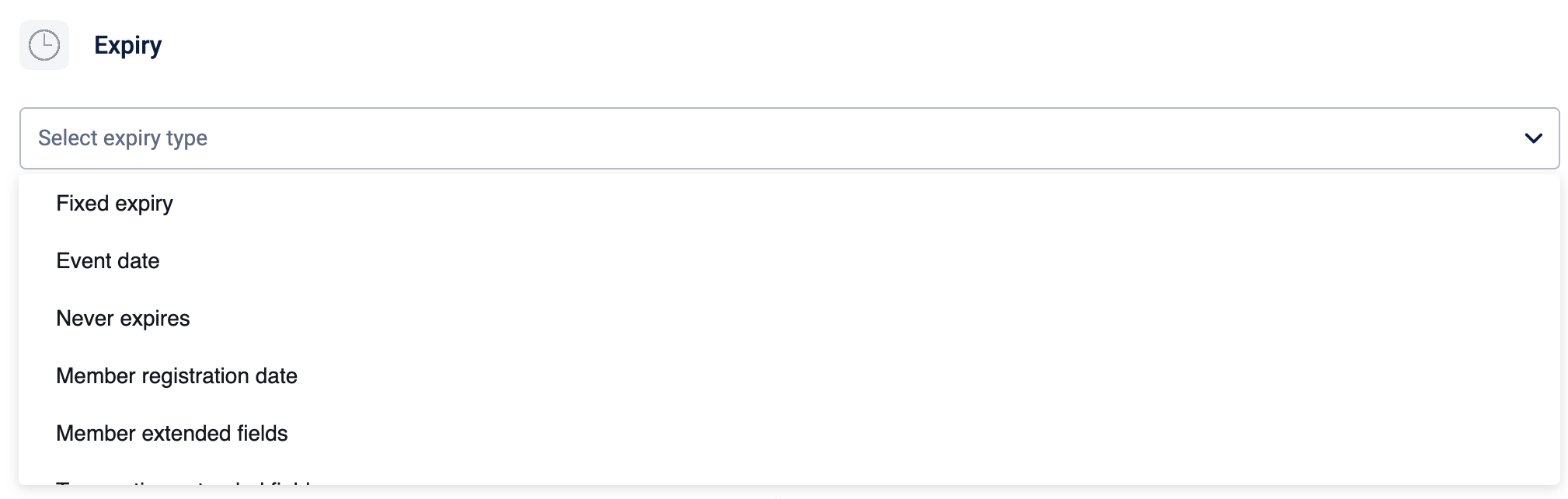
The table below elaborates on the available expiry types:
| Expiry Type | Description | Example |
|---|---|---|
| Fixed Expiry | Currency expires on a specific calendar date or on a recurring date. The expiry is calculated from the issuance date and is not affected by any subsequent customer activity. Specific date: Select this if you want the issued currency to expire on a fixed date. For example, points expire on 25th December 2025. Recurring expiry: Select this if you want the issued currency to expire based on a yearly recurring time period. For example, points expire on the 15th of January every year. Note: The points will expire at the end of the day (23:59). | If the expiry is set to 90 days, currency earned on January 15th, 2025, will expire on April 15th, 2025. |
| Event Date | Currency expires after a fixed period calculated from the date of the earning activity (for example, a transaction or registration). | If the expiry is set to 60 days from the event date, currency earned from a purchase made on March 1st will expire on April 30th. |
| Never Expires | Currency issued with this strategy will never expire. It remains in the customer's balance indefinitely unless it is redeemed. | Currency earned by the customer will remain valid and will not be removed from their balance due to inactivity. |
| Customer Registration Date | Currency expires on the registration date of the customer. This registration date refers to the date on which the customer got enrolled or registered in the loyalty program. | Customer’s registration date in the loyalty program. If a customer registered on June 10, 2023, any currency earned with this strategy will expire every year on June 10th. |
| Customer Extended Fields | Currency expires after a specified period calculated from a date stored in a customer-level extended field (for example, a "Subscription Renewal Date"). | If a customer's 'Subscription Renewal Date' field is '2025-09-01' and the expiry is configured to be 30 days after this date, the currency will expire on October 1st, 2025. |
| Transaction Extended Fields | Currency expires after a specified period calculated from a date stored in a transaction-level extended field (for example, a "Hotel Check-in Date"). | If a transaction for a hotel stay has a 'Check-in Date' extended field of '2025-07-20' and the expiry is set to 14 days after this date, the currency will expire on August 3rd, 2025. |
| From Event Date (Rolling Period) | Currency expiry is reset and extended based on subsequent customer activity. Each new qualifying activity pushes the expiry date for the customer's entire balance further into the future by the configured duration. | A customer earns currency on January 1, 2024, with a 12-month rolling expiry. If they make another transaction on December 1, 2024, the expiry date for all their currency is reset and now extends to December 1, 2025. |
Strategies for rounding the transaction value
These strategies are applied to the transaction's monetary value before any currency calculations take place. This is useful for standardizing the calculation base and avoiding complex decimal math.
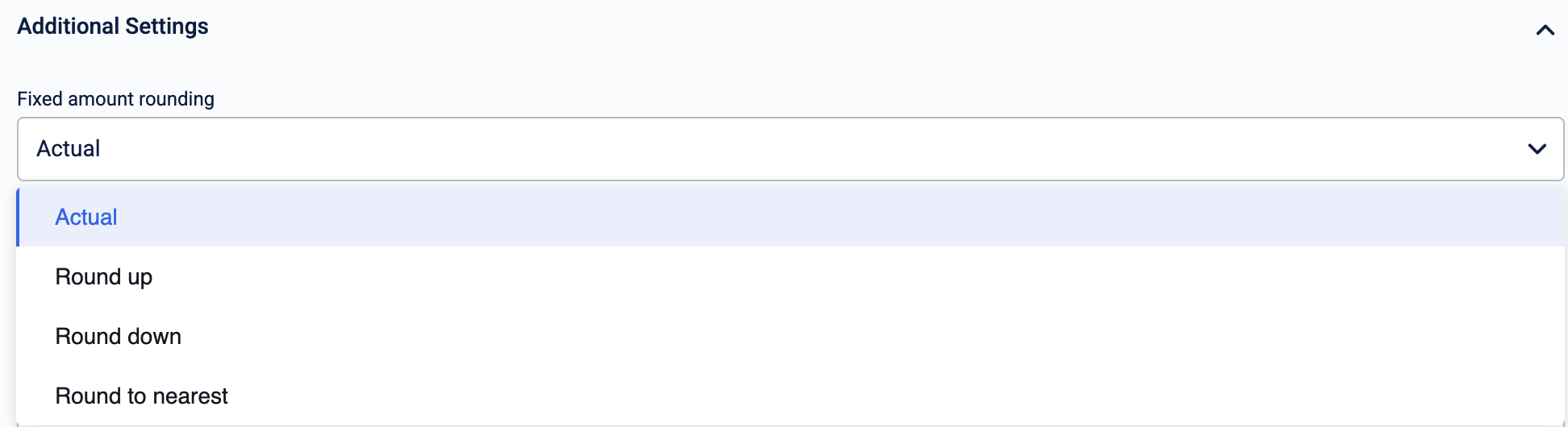
The following table lists the available strategies for rounding the transaction value:
| Rounding Strategy | Description | Example |
|---|---|---|
| Actual | Uses the exact, unrounded transaction value for the calculation. | A transaction of $50.75 is used as is. If the earning rule is 2 points per dollar, the calculated value would be 101.5 points. |
| Round up | Rounds the transaction value up to the next highest whole number before calculation. | A transaction of $50.25 is rounded up to $51. If the earning rule is 2 points per dollar, the customer earns 102 points. |
| Round down | Rounds the transaction value down to the nearest whole number, ignoring any cents. | A transaction of $50.75 is rounded down to $50. If the earning rule is 2 points per dollar, the customer earns 100 points. |
| Round to nearest | Rounds the transaction value to the nearest whole number using standard mathematical rules (0.5 and above rounds up). | A transaction of $50.49 is rounded to $50 (earning 100 points), while a transaction of $50.50 is rounded to $51 (earning 102 points). |
Strategies for rounding the issued currency
These strategies are applied to the final calculated currency value after all other calculations (like multipliers or proration) are complete. This ensures that only whole numbers are issued as currency.
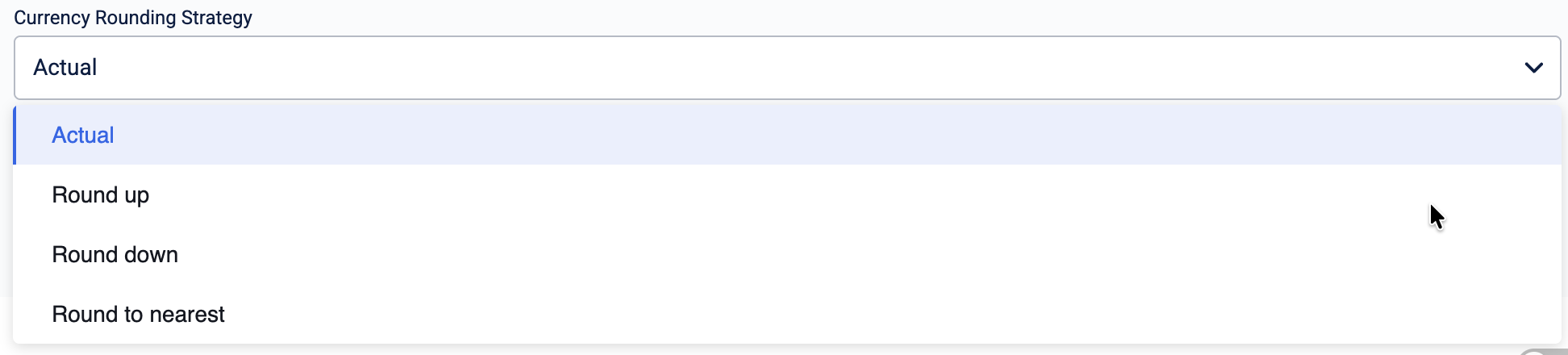
The following table lists the available strategies for rounding the issued currency:
| Rounding Strategy | Description | Example |
|---|---|---|
| Actual | Awards the exact, calculated currency value, including any decimal fractions. | A calculated value of 101.5 currency remains 101.5. |
| Round up | Rounds the final calculated currency up to the next highest whole number. | A calculated value of 101.1 currency is rounded up, and the customer is awarded 102 currency. |
| Round down | Rounds the final calculated currency down to the nearest whole number, effectively ignoring any decimal places. | A calculated value of 101.9 currency is rounded down, and the customer is awarded 101 currency. |
| Round to nearest | Rounds the final calculated currency to the nearest whole number using standard mathematical rules (0.5 and above rounds up). | A calculated value of 101.49 currency is awarded as 101, while a value of 101.50 currency is awarded as 102. |
Strategies for configuring the currency issuance time
The issuance timing determines precisely when the currency is credited to a customer's account after they have completed a qualifying activity. This control is essential for managing business processes, such as product return windows, or for scenarios where a final confirmation is required before a reward is granted.

| Issuance Strategy | Description | Example |
|---|---|---|
| Immediate | Awards currency instantly upon the successful completion of the qualifying activity. This provides immediate gratification to the customer and is the standard for most earning rules. | A customer makes a $50 purchase and immediately receives 50 points in their account. |
| Delayed by x days from activity | Awards currency only after a specified number of days have passed since the qualifying activity. This is commonly used to align with product return windows, ensuring currency is not awarded for purchases that are later returned. | A product has a 14-day return policy. The currency issuance is delayed by 15 days to ensure the points are awarded only after the return period has ended. |
| On external API call | Holds the currency in a pending or "promised" state until an external system confirms the issuance via an API call. This is ideal for scenarios where final eligibility depends on a separate confirmation, such as a partner validating an action. | A customer books a hotel room, and the points are held as 'promised'. After the customer completes their stay, the hotel's reservation system makes an API call to confirm the event, and the currency is then issued. |
| On transaction update | Awards currency only when the original transaction is updated to meet a specific condition or status. This is often used in order fulfillment workflows, where currency is granted upon shipment or delivery, not upon initial order placement. | A customer places an online order. The currency is configured to be issued only when the transaction status is updated to 'Shipped'. Once the warehouse ships the item, the status update triggers the point issuance. |
Configuring the issue currency action:
To configure the issue currency action, follow these steps:
- Select Issue Currency from the Add actions modal
- Select Points or a specific alternate currency to issue from the Currency dropdown
- Select Members to issue currency to an individual customer or select Member groups to issue currency to a user group.
- Select Issue currency in promised state to enable delayed accrual of the earned currency. The default delay is
0 days. - Select the proration type from the dropdown.
- Select the expiry type from the dropdown.
- (Optional) Select the Additional settings box to view the available settings.
- (Optional) Select the fixed amount and currency rounding strategies from the dropdowns.
- (Optional) Select the conversion timing (delayed accrual strategy) strategies from the Conversion timing dropdown.
- (Optional) Enable the toggle under Communication to send a communication message.
- Select Save to complete the configuration.
Updated 1 day ago