
Manage Tier
The manage tier action allows you to upgrade, downgrade, or renew the current tier for a member.
Use Case
Prerequisites
- Create a loyalty program
- Configure the tiers and tier rules for the loyalty program
Requirement:
A retail brand wants to automatically upgrade customers to a higher loyalty tier when they meet a defined criterion. The brand also wants to control tier expiry and customer communication.
Solution
- Add the Manage Tier action.
- Select the required tier action: Upgrade, Downgrade, or Renew.
- Choose the entity from the Members dropdown:
- Member to apply the tier change to an individual customer.
- Member group to apply the tier change to a group of customers.
- Select the appropriate tier upgrade strategy.
- Enable Advanced tier expiry settings and select the required tier expiry strategy.
- Enable Communication to notify customers of the tier change through supported channels.
- Save the action to complete the configuration.
Tier upgrade strategy:

The following table lists the available upgrade strategy:
| Upgrade strategy | Description | Example |
|---|---|---|
| Specific tier | This strategy allows you to manually select a specific target tier (e.g., 'Gold', 'VIP') and directly upgrade the customer to it. This action bypasses the standard tier eligibility rules configured in the loyalty program. It is ideal for special circumstances, such as one-time promotional rewards, contest prizes, or discretionary customer service gestures, where you need to override the standard, automated tier logic. | A customer wins a 'VIP for a Year' reward. You can use the Specific tier option to directly upgrade the customer to the VIP tier, bypassing the normal spending rules. |
| As per tier strategy | This strategy automatically upgrades a customer to the next eligible tier by evaluating them against the pre-configured rules of your loyalty program. The system assesses the customer's current status, such as their points balance, purchase history, or tracker values, and promotes them to the highest tier for which they qualify. You do not manually select a target tier; the system handles the logic. This approach ensures that all upgrades are dynamic, rule-based, and consistent with your program's established tier structure. | The program's rule is: "Upgrade to Gold Tier at $1,000 lifetime spend." A customer's purchase brings their total spending to $1,050. They are then upgraded to the Gold Tier. |
Tier expiration strategies
In addition to upgrading, downgrading, or renewing a customer's tier, you can also define an expiration strategy for the new status. This enables you to create temporary tier adjustments, such as a 90-day trial of the Gold tier. Once the period ends, the temporary tier status is removed, and the customer is moved to the tier as per the loyalty program conditions.
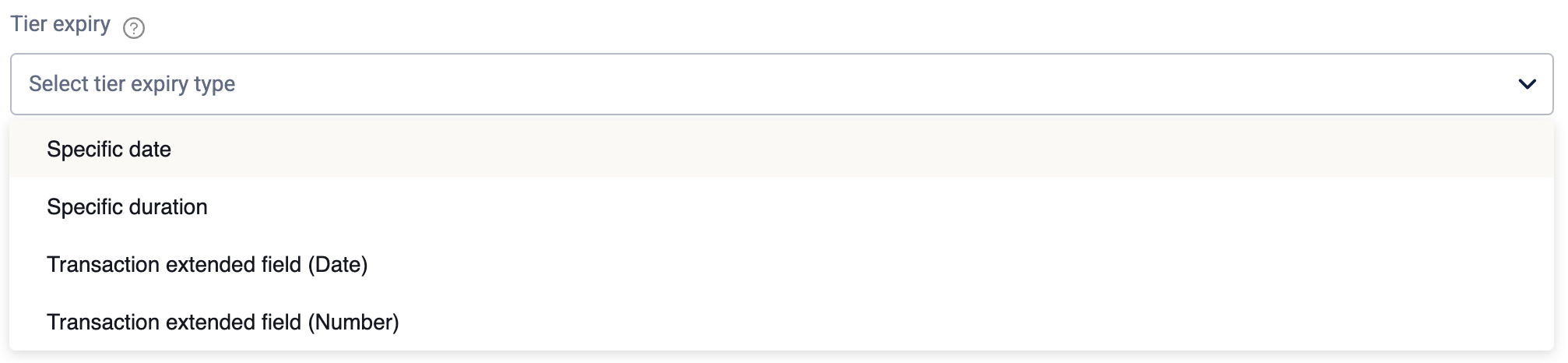
The following table lists the available expiration strategies:
| Description | Example |
|---|---|
| Sets a fixed calendar date for the tier expiration. All customers receiving this tier change will have their new status expire on this exact date, regardless of when they earned it. | A holiday promotion upgrades members to the 'Gold Tier'. The expiration is set to a specific date of January 31, 2026. All members who receive this upgrade will revert to their Gold status on that date. |
| Sets the tier to expire after a specified number of days or months, calculated from the date the customer's tier was changed. Each customer will have a unique expiration date based on when they qualified. | A 'Welcome Offer' upgrades new members to the 'Silver Tier' with an expiration set to a specific duration of 90 days. If a member is upgraded on March 1st, their Silver status will expire on May 30th. |
| Sets the expiration date based on a date value stored in a transaction-level extended field. The tier will expire a specified number of days or months after the date found in that field. | A hotel booking promotion grants 'VIP Status'. The expiration is configured to be 30 days after the date in the 'CheckOutDate' transaction extended field. If a customer's check-out date is June 15th, their VIP status will expire on July 15th. |
| Sets the duration of the tier upgrade based on a numeric value stored in a transaction-level extended field. The number in the field is interpreted as the length of the tier status in days or months. | A partner promotion offers a tier upgrade. The expiration is set to use the value from the 'TrialPeriodDays' transaction extended field. If a transaction from the partner contains a value of 60 in that field, the member's tier upgrade will last for 60 days. |
Configuring the manage tier action:
To configure the action, follow these steps:
-
Select Manage tier from the Add actions modal.
-
Select the required tier action. You can choose to upgrade a tier, downgrade a tier, or renew an existing tier.
-
Select the entity to perform the tier action from the Members entity dropdown. You can choose to upgrade the tier for a member (customer) or member group (user group).
-
Select the upgrade or downgrade tier strategy.
-
(Optional) Enable the Advanced tier expiry settings and choose the tier expiry strategy from the drop-down.
-
(Optional) Enable the toggle under Communication to send a communication message.x
-
Select Save to complete the configuration.
Updated 1 day ago